Customize the editor’s icons by registering custom SVG icon sets and using them in dock entries, custom components, and other UI elements.
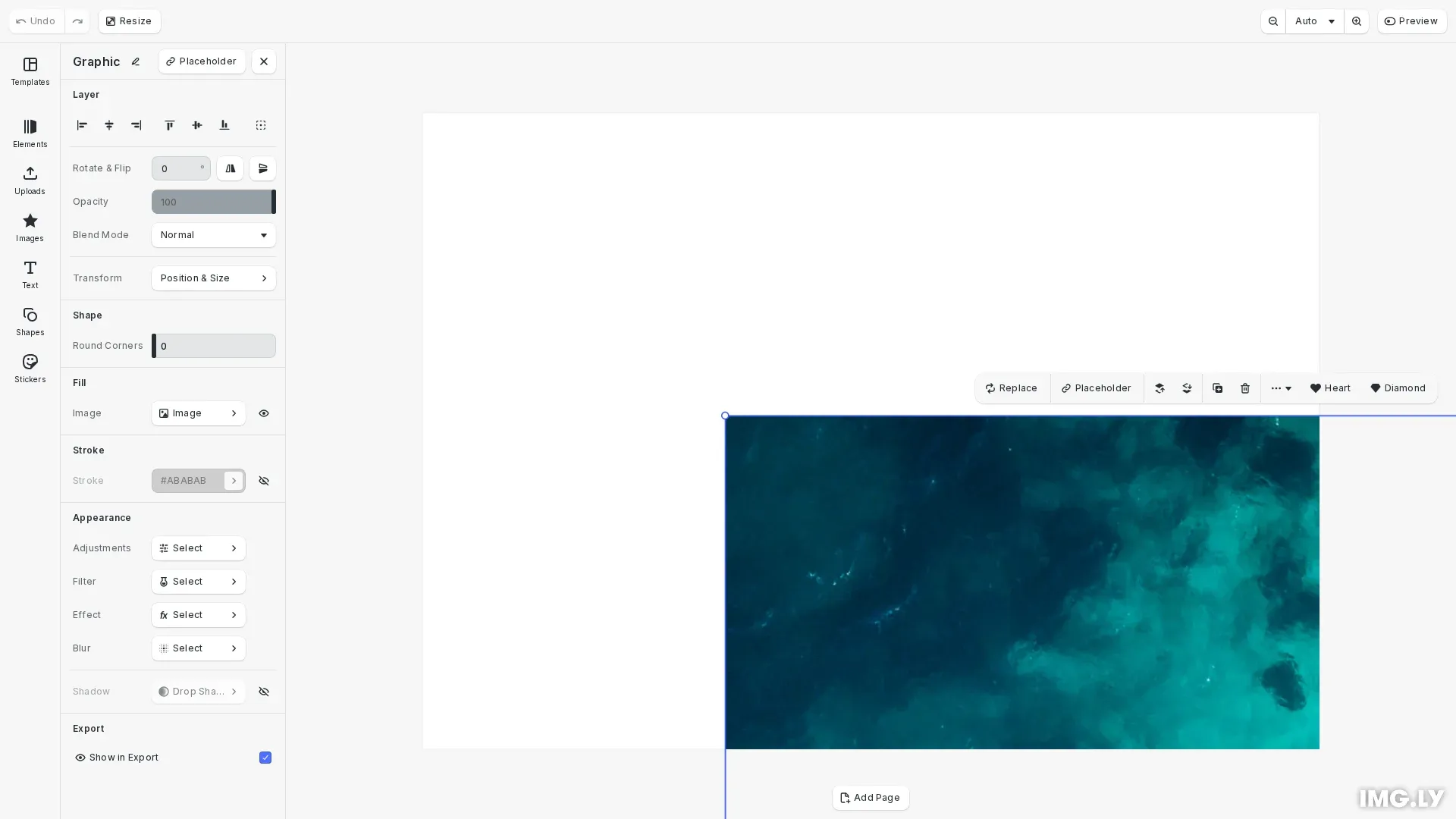
CE.SDK uses SVG sprites for icons throughout the editor interface. Each icon is referenced by a symbol ID that starts with @. You can register custom icon sets to replace built-in icons or add new ones for your own custom UI components.
This guide covers how to register custom SVG icon sets, replace dock entry icons with custom icons, and use custom icons in custom UI components.
Registering Custom Icon Sets#
We add custom icons to CE.SDK using the cesdk.ui.addIconSet() method. The method takes two parameters: a unique identifier for the icon set and an SVG sprite string containing symbol definitions.
// Register a custom SVG icon set with multiple symbolscesdk.ui.addIconSet( '@custom/icons', ` <svg xmlns="http://www.w3.org/2000/svg"> <symbol id="@custom/icon/star" viewBox="0 0 24 24" fill="none"> <path d="M12 2L15.09 8.26L22 9.27L17 14.14L18.18 21.02L12 17.77L5.82 21.02L7 14.14L2 9.27L8.91 8.26L12 2Z" fill="currentColor"/> </symbol> <symbol id="@custom/icon/heart" viewBox="0 0 24 24" fill="none"> <path d="M20.84 4.61C20.3292 4.099 19.7228 3.69365 19.0554 3.41708C18.3879 3.14052 17.6725 2.99817 16.95 2.99817C16.2275 2.99817 15.5121 3.14052 14.8446 3.41708C14.1772 3.69365 13.5708 4.099 13.06 4.61L12 5.67L10.94 4.61C9.9083 3.57831 8.50903 2.99871 7.05 2.99871C5.59096 2.99871 4.19169 3.57831 3.16 4.61C2.12831 5.64169 1.54871 7.04097 1.54871 8.5C1.54871 9.95903 2.12831 11.3583 3.16 12.39L4.22 13.45L12 21.23L19.78 13.45L20.84 12.39C21.351 11.8792 21.7563 11.2728 22.0329 10.6054C22.3095 9.93789 22.4518 9.22249 22.4518 8.5C22.4518 7.77751 22.3095 7.0621 22.0329 6.39464C21.7563 5.72718 21.351 5.12075 20.84 4.61Z" fill="currentColor"/> </symbol> <symbol id="@custom/icon/diamond" viewBox="0 0 24 24" fill="none"> <path d="M6 3H18L22 9L12 21L2 9L6 3Z" fill="currentColor"/> </symbol> </svg>`);Each symbol in the SVG sprite must have an id attribute that starts with @. This ID is how you reference the icon throughout CE.SDK. In this example, we register three custom icons: @custom/icon/star, @custom/icon/heart, and @custom/icon/diamond.
SVG Sprite Format Requirements#
When creating custom icon SVG sprites, follow these requirements for proper rendering:
- Wrap all symbols in an
<svg>element with thexmlnsattribute - Each
<symbol>must have a uniqueidstarting with@ - Include a
viewBoxattribute on each symbol for proper scaling - Use
currentColorforfillandstrokevalues to inherit the current theme color - Avoid hardcoded width/height attributes on symbols—let CE.SDK handle sizing
Security Considerations#
Replacing Dock Entry Icons#
Once you’ve registered a custom icon set, you can replace the icons of existing dock entries. We retrieve the current dock order using cesdk.ui.getComponentOrder({ in: 'ly.img.dock' }), modify the entries we want to change, and apply the updated order with cesdk.ui.setComponentOrder({ in: 'ly.img.dock' }, order).
// Get the current dock order and replace the Images dock iconconst dockOrder = cesdk.ui.getComponentOrder({ in: 'ly.img.dock' });cesdk.ui.setComponentOrder( { in: 'ly.img.dock' }, dockOrder.map((entry) => { if (entry.key === 'ly.img.image') { return { ...entry, icon: '@custom/icon/star' }; } return entry; }));This example replaces the Images dock entry icon with our custom star icon. The key property identifies the dock entry, and we update the icon property to reference our custom icon by its symbol ID.
Using Icons in Custom Components#
You can use custom icons in your own UI components by referencing the icon’s symbol ID in the component builder. When registering a custom component with cesdk.ui.registerComponent(), buttons and other elements accept an icon property.
// Register a custom component that uses a custom iconcesdk.ui.registerComponent(  'CustomIconButton',  ({ builder: { Button } }) => {    Button('heartButton', {      label: 'Heart',      icon: '@custom/icon/heart',      onClick: () => {        console.log('Heart icon button clicked');      }    });    Button('diamondButton', {      label: 'Diamond',      icon: '@custom/icon/diamond',      onClick: () => {        console.log('Diamond icon button clicked');      }    });  });
// Add the custom component to the canvas menucesdk.ui.setComponentOrder({ in: 'ly.img.canvas.menu' }, [  ...cesdk.ui.getComponentOrder({ in: 'ly.img.canvas.menu' }),  'CustomIconButton']);
We register a custom component containing two buttons, each using a different custom icon. We then add this component to the canvas menu so the buttons appear when users select elements on the canvas.
Built-In Icons#
CE.SDK includes a built-in icon set named ‘Essentials’ with icons for common editor actions. Each icon is referenced by its symbol ID following the pattern @imgly/IconName. You can use these icons directly in your custom components or as references when replacing dock icons.
Set ‘Essentials’#
| Name | Icon |
|---|---|
@imgly/Adjustments |  |
@imgly/Animation |  |
@imgly/Appearance |  |
@imgly/Apps |  |
@imgly/ArrowDown |  |
@imgly/ArrowLeft |  |
@imgly/ArrowRight |  |
@imgly/ArrowUp |  |
@imgly/ArrowsDirectionHorizontal |  |
@imgly/ArrowsDirectionVertical |  |
@imgly/AsClip |  |
@imgly/AsOverlay |  |
@imgly/Audio |  |
@imgly/AudioAdd |  |
@imgly/Backward |  |
@imgly/Blendmode |  |
@imgly/Blur |  |
@imgly/BooleanExclude |  |
@imgly/BooleanIntersect |  |
@imgly/BooleanSubstract |  |
@imgly/BooleanUnion |  |
@imgly/CaseAsTyped |  |
@imgly/CaseLowercase |  |
@imgly/CaseSmallCaps |  |
@imgly/CaseTitleCase |  |
@imgly/CaseUppercase |  |
@imgly/CheckboxCheckmark |  |
@imgly/CheckboxMixed |  |
@imgly/Checkmark |  |
@imgly/ChevronDown |  |
@imgly/ChevronLeft |  |
@imgly/ChevronRight |  |
@imgly/ChevronUp |  |
@imgly/Collage |  |
@imgly/ColorFill |  |
@imgly/ColorGradientAngular |  |
@imgly/ColorGradientLinear |  |
@imgly/ColorGradientRadial |  |
@imgly/ColorOpacity |  |
@imgly/ColorSolid |  |
@imgly/ConnectionLostSlash |  |
@imgly/Copy |  |
@imgly/CornerJoinBevel |  |
@imgly/CornerJoinMiter |  |
@imgly/CornerJoinRound |  |
@imgly/Crop |  |
@imgly/CropCoverMode |  |
@imgly/CropCropMode |  |
@imgly/CropFitMode |  |
@imgly/CropFreefromMode |  |
@imgly/Cross |  |
@imgly/CrossRoundSolid |  |
@imgly/CustomLibrary |  |
@imgly/Download |  |
@imgly/DropShadow |  |
@imgly/Duplicate |  |
@imgly/Edit |  |
@imgly/Effects |  |
@imgly/ExternalLink |  |
@imgly/EyeClosed |  |
@imgly/EyeOpen |  |
@imgly/Filter |  |
@imgly/FlipHorizontal |  |
@imgly/FlipVertical |  |
@imgly/FontAutoSizing |  |
@imgly/FontSize |  |
@imgly/Forward |  |
@imgly/FullscreenEnter |  |
@imgly/FullscreenLeave |  |
@imgly/Group |  |
@imgly/GroupEnter |  |
@imgly/GroupExit |  |
@imgly/Home |  |
@imgly/Image |  |
@imgly/Info |  |
@imgly/LayerBringForward |  |
@imgly/LayerBringForwardArrow |  |
@imgly/LayerBringToFront |  |
@imgly/LayerBringToFrontArrow |  |
@imgly/LayerOpacity |  |
@imgly/LayerSendBackward |  |
@imgly/LayerSendBackwardArrow |  |
@imgly/LayerSendToBack |  |
@imgly/LayerSendToBackArrow |  |
@imgly/LayoutHorizontal |  |
@imgly/LayoutVertical |  |
@imgly/Library |  |
@imgly/LineHeight |  |
@imgly/LinkClosed |  |
@imgly/LinkOpen |  |
@imgly/LoopClip |  |
@imgly/LoadingSpinner |  |
@imgly/LockClosed |  |
@imgly/LockOpen |  |
@imgly/Minus |  |
@imgly/MoreOptionsHorizontal |  |
@imgly/MoreOptionsVertical |  |
@imgly/Move |  |
@imgly/Next |  |
@imgly/None |  |
@imgly/ObjectAlignBottom |  |
@imgly/ObjectAlignDistributedHorizontal |  |
@imgly/ObjectAlignDistributedVertical |  |
@imgly/ObjectAlignHorizontalCenter |  |
@imgly/ObjectAlignLeft |  |
@imgly/ObjectAlignRight |  |
@imgly/ObjectAlignTop |  |
@imgly/ObjectAlignVerticalCenter |  |
@imgly/OrientationToggleLandscape |  |
@imgly/OrientationTogglePortrait |  |
@imgly/PageResize |  |
@imgly/Paste |  |
@imgly/Pause |  |
@imgly/PlaceholderConnected |  |
@imgly/PlaceholderStripes |  |
@imgly/Play |  |
@imgly/Plus |  |
@imgly/Position |  |
@imgly/Previous |  |
@imgly/Redo |  |
@imgly/Rename |  |
@imgly/Reorder |  |
@imgly/Repeat |  |
@imgly/RepeatOff |  |
@imgly/Replace |  |
@imgly/Reset |  |
@imgly/RotateCCW90 |  |
@imgly/RotateCW |  |
@imgly/RotateCW90 |  |
@imgly/Save |  |
@imgly/Scale |  |
@imgly/Search |  |
@imgly/Settings |  |
@imgly/SettingsCog |  |
@imgly/ShapeOval |  |
@imgly/ShapePolygon |  |
@imgly/ShapeRectangle |  |
@imgly/ShapeStar |  |
@imgly/Shapes |  |
@imgly/Share |  |
@imgly/SidebarOpen |  |
@imgly/Split |  |
@imgly/Sticker |  |
@imgly/Stop |  |
@imgly/Straighten |  |
@imgly/StrokeDash |  |
@imgly/StrokeDotted |  |
@imgly/StrokePositionCenter |  |
@imgly/StrokePositionInside |  |
@imgly/StrokePositionOutside |  |
@imgly/StrokeSolid |  |
@imgly/StrokeWeight |  |
@imgly/Template |  |
@imgly/Text |  |
@imgly/TextAlignBottom |  |
@imgly/TextAlignCenter |  |
@imgly/TextAlignLeft |  |
@imgly/TextAlignMiddle |  |
@imgly/TextAlignRight |  |
@imgly/TextAlignTop |  |
@imgly/TextAutoHeight |  |
@imgly/TextAutoSize |  |
@imgly/TextBold |  |
@imgly/TextFixedSize |  |
@imgly/TextItalic |  |
@imgly/Timeline |  |
@imgly/ToggleIconOff |  |
@imgly/ToggleIconOn |  |
@imgly/TransformSection |  |
@imgly/TrashBin |  |
@imgly/TriangleDown |  |
@imgly/TriangleUp |  |
@imgly/TrimMedia |  |
@imgly/Typeface |  |
@imgly/Undo |  |
@imgly/Ungroup |  |
@imgly/Upload |  |
@imgly/Video |  |
@imgly/VideoCamera |  |
@imgly/Volume |  |
@imgly/VolumeMute |  |
@imgly/ZoomIn |  |
@imgly/ZoomOut |  |
Troubleshooting#
Custom Icon Not Appearing#
If your custom icon doesn’t display:
- Verify the symbol ID starts with
@ - Check that the SVG sprite syntax is valid XML
- Confirm
addIconSet()was called before using the icon - Inspect the browser console for SVG parsing errors
Icon Not Scaling Correctly#
If your icon renders at the wrong size:
- Ensure the
viewBoxattribute is set on the symbol - Avoid hardcoding
widthandheightattributes on the symbol - Verify the symbol uses relative coordinates within the viewBox
Icon Color Not Matching Theme#
If your icon doesn’t change color with the theme:
- Use
currentColorforfillandstrokevalues in SVG paths - Avoid hardcoded color values like
#000000orrgb() - Check that
fillOpacityandstrokeOpacityuse appropriate values for theme compatibility
API Reference#
| Method | Description |
|---|---|
cesdk.ui.addIconSet(id, svgSprite) | Registers a custom SVG sprite icon set with the given identifier. The sprite should contain <symbol> elements with IDs starting with @. |
cesdk.ui.getComponentOrder({ in: 'ly.img.dock' }) | Returns the current array of dock entries, each containing id, key, label, and icon properties. |
cesdk.ui.setComponentOrder({ in: 'ly.img.dock' }, entries) | Sets the dock order with the provided array of entries. Use this to modify icons or reorder dock items. |
cesdk.ui.registerComponent(id, builder) | Registers a custom UI component that can be used in menus, panels, and other UI locations. |
cesdk.ui.setComponentOrder({ in: 'ly.img.canvas.menu' }, entries) | Sets the canvas menu entries that appear when users select elements on the canvas. |