Load previously saved scenes to resume editing or modify existing designs.
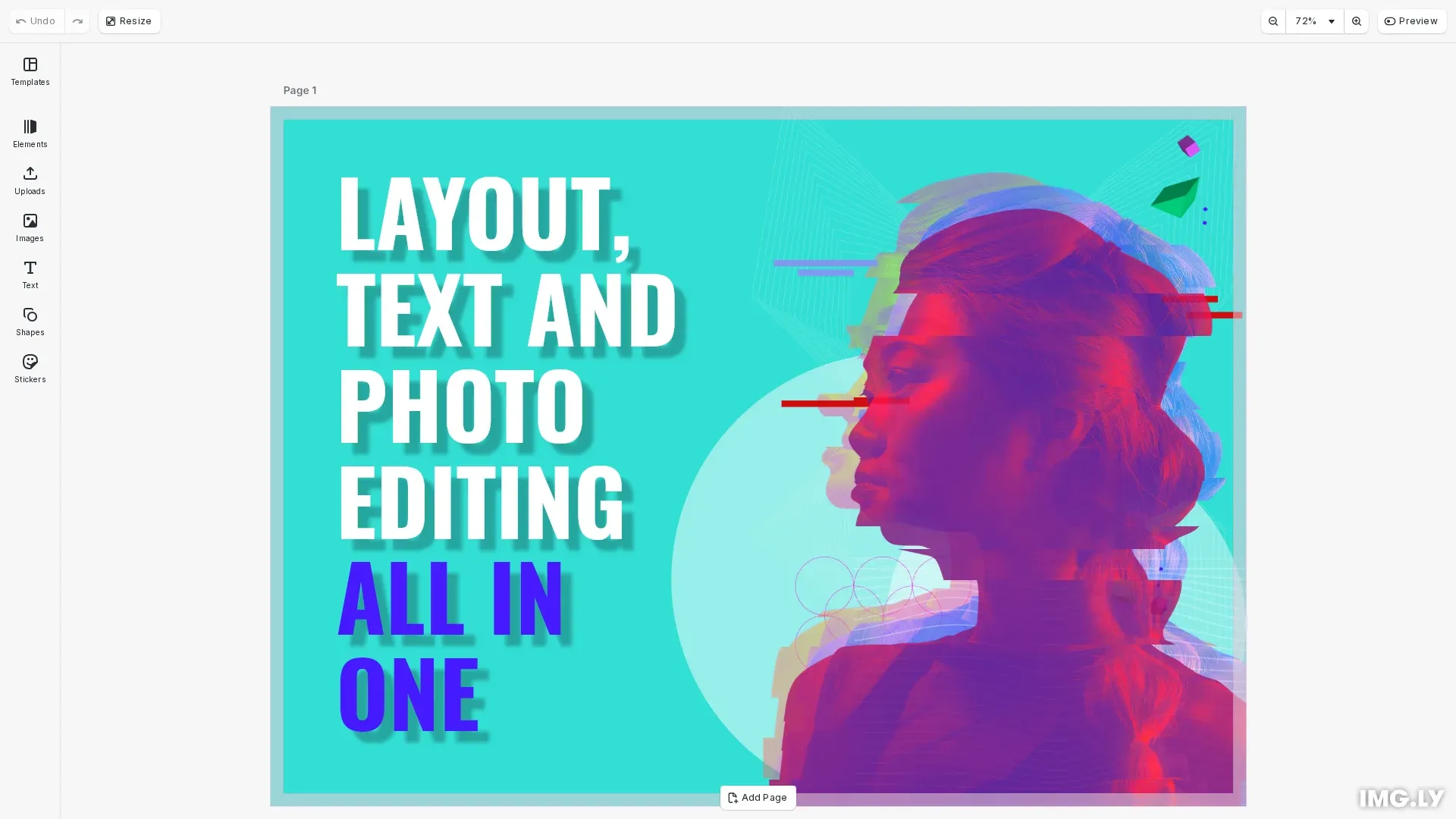
Scene files contain layout, properties, and asset references but not the assets themselves. When loading a scene, ensure referenced asset URLs remain accessible. For self-contained packages with bundled assets, use archives instead.
This guide covers how to load scenes from URLs, strings, and blobs, and how to modify loaded scenes.
Load a Scene from URL#
The most common approach is loading scenes from a remote URL. The engine replaces any existing scene with the loaded one.
const sceneUrl = 'https://cdn.img.ly/assets/demo/v3/ly.img.template/templates/cesdk_postcard_1.scene';await engine.scene.loadFromURL(sceneUrl);The scene URL should point to a valid .scene file hosted on a server with appropriate CORS headers. This method is ideal for loading scenes from a CDN or your backend API.
Load a Scene from String#
When scenes are stored in a database or retrieved from local storage, use engine.scene.loadFromString(). This accepts the scene data as a string, typically from a previous engine.scene.saveToString() call.
const sceneContent = await fetchFromDatabase();await engine.scene.loadFromString(sceneContent);This approach is useful for restoring saved user designs, loading scenes from your backend API, or working with scenes stored in databases.
Load a Scene from Blob#
For file uploads or blob storage, convert the blob to a string first, then load with engine.scene.loadFromString(). Use the blob’s text() method to extract the scene content.
const sceneBlob = fileInput.files[0];const sceneContent = await sceneBlob.text();await engine.scene.loadFromString(sceneContent);Modify a Loaded Scene#
After loading, the scene is immediately editable. Use engine.block.findByType() or engine.block.findByKind() to locate elements, then modify them with block APIs.
const textBlocks = engine.block.findByType('text');if (textBlocks.length > 0) { engine.block.setDropShadowEnabled(textBlocks[0], true);}Common modifications include updating text content, swapping images, and adjusting visual properties like drop shadows.
Scene Files vs Archives#
Scene files (.scene) are lightweight and store only references to assets. If asset URLs become unavailable, the scene won’t display correctly. For self-contained packages with bundled assets, use engine.scene.loadFromArchiveURL() instead. See the Import from Archive guide for details.
Troubleshooting#
Scene Fails to Load#
- Verify the URL is accessible and returns a valid scene file
- Check CORS headers allow fetching from the scene source
- Ensure the scene format is compatible with your CE.SDK version
Assets Not Displaying After Load#
- Scene files store asset references as URLs; ensure those URLs remain accessible
- Use archives for self-contained scenes with bundled assets
- Configure a URI resolver if assets are hosted on different servers
String Content Is Invalid#
- Ensure the string is the exact output from
engine.scene.saveToString() - Verify the string wasn’t modified or truncated during storage
API Reference#
| Method | Description |
|---|---|
engine.scene.loadFromURL() | Load a scene from a remote URL |
engine.scene.loadFromString() | Load a scene from a string |
engine.scene.loadFromArchiveURL() | Load an archived scene with bundled assets |
engine.scene.saveToString() | Save scene to string for storage |
engine.block.findByType() | Find blocks by type |
engine.block.findByKind() | Find blocks by kind |
engine.block.setDropShadowEnabled() | Enable or disable drop shadow on a block |