Insert videos into your CE.SDK scenes using either the convenience API or manual block creation with video fills.
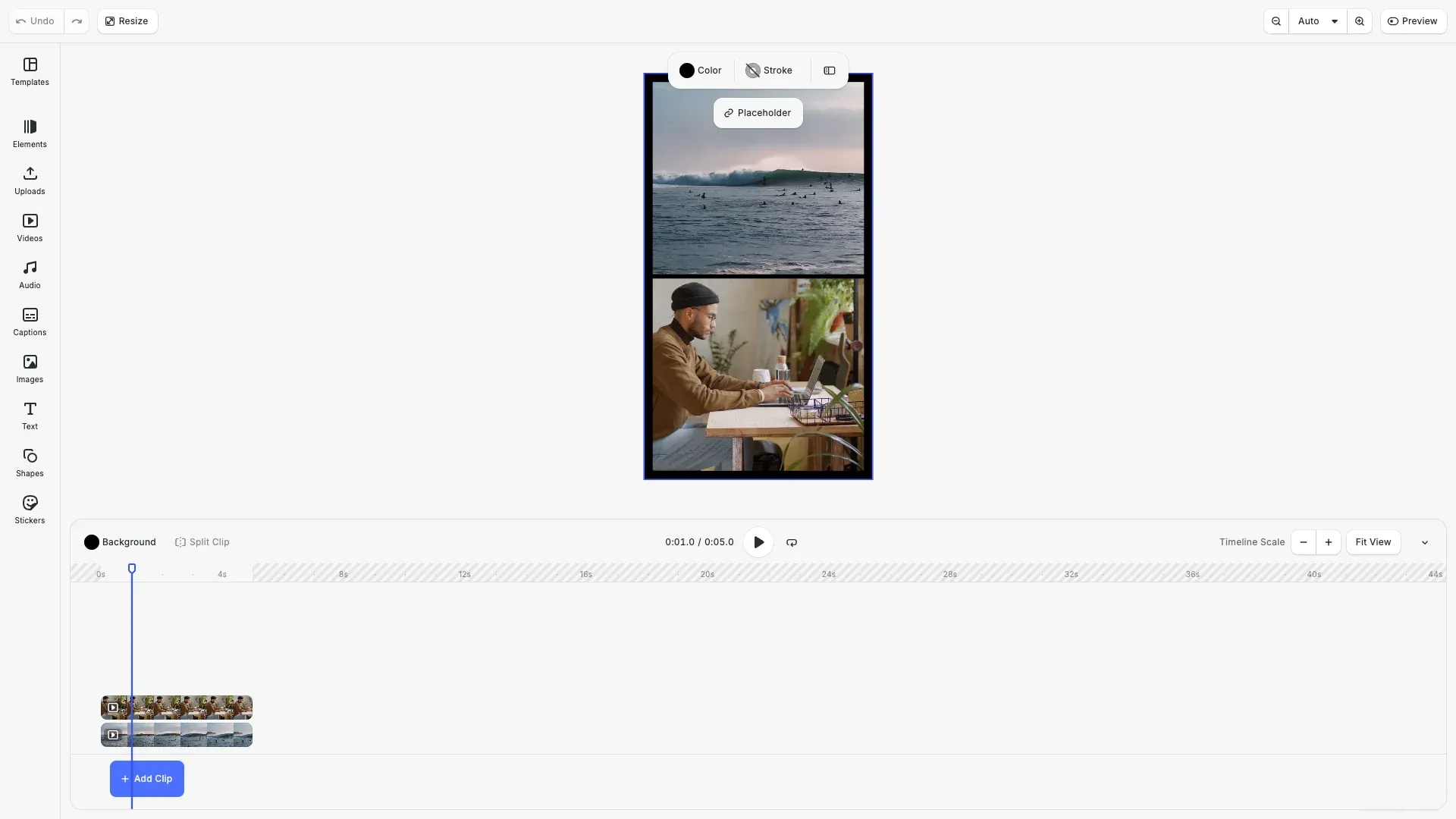
Videos in CE.SDK are graphic blocks with video fills. Two approaches exist: the addVideo() method for Video mode scenes, and manual block creation with video fills which works in any scene mode.
This guide covers how to insert videos using the UI, add videos programmatically, and configure video properties like trim offset and length.
Insert Videos Using the UI#
Users can upload videos through the Upload menu in the asset panel or by dragging and dropping video files directly onto the canvas. CE.SDK supports MP4 (H.264) and WebM (VP8/VP9) formats.
After inserting a video, users can move it by dragging, resize it with corner handles, trim it using timeline controls, and crop it to show specific portions.
Setup#
Enable video features and create a Video mode scene. Video mode is required for the addVideo() convenience API.
cesdk.feature.enable('ly.img.video');await cesdk.actions.run('scene.create', { mode: 'Video', page: { sourceId: 'ly.img.page.presets', assetId: 'ly.img.page.presets.instagram.story' }});The scene.create action with { mode: 'Video' } creates a scene optimized for video editing with timeline support.
Add Videos with addVideo()#
The addVideo() method creates a graphic block with video fill in a single call. This is the simplest approach in Video mode.
const videoBlock = await engine.block.addVideo( surferVideoUrl, videoWidth, videoHeight);engine.block.setPositionX(videoBlock, margin);engine.block.setPositionY(videoBlock, margin);Pass the video URL, width, and height as parameters. The method returns the block ID for further manipulation like positioning.
Add Videos with Graphic Blocks#
For more control or when working in Design mode, manually create a graphic block and attach a video fill.
const block = engine.block.create('graphic');engine.block.setShape(block, engine.block.createShape('rect'));const fill = engine.block.createFill('video');engine.block.setString(fill, 'fill/video/fileURI', laptopVideoUrl);engine.block.setFill(block, fill);Create a graphic block, attach a rectangular shape, create a video fill with the source URI, and apply the fill to the block. This pattern mirrors image fills.
Configure Trim Settings#
Control which portion of a video plays by setting the trim offset and length. First load the video resource to access duration metadata.
await engine.block.forceLoadAVResource(fill);engine.block.setTrimOffset(fill, 2.0);engine.block.setTrimLength(fill, 5.0);The setTrimOffset() method specifies where playback starts. A value of 2.0 skips the first two seconds. The setTrimLength() method defines how long the clip plays from that offset.
Supported Video Formats#
CE.SDK supports common web video formats:
- MP4 (H.264 codec) — widest browser support, recommended for most use cases
- WebM (VP8/VP9 codec) — open format with good compression
For maximum compatibility, use MP4 with H.264 encoding.
Troubleshooting#
Video Not Visible#
- Verify the file URI is correct and accessible
- Ensure the video format is supported (MP4, WebM)
- Check that the block is appended to the page with
appendChild() - Confirm dimensions are set with
setWidth()andsetHeight()
Trim Not Working#
- Ensure you’re calling trim methods on the fill, not the block
- Call
forceLoadAVResource()before setting trim values - Verify trim offset + trim length doesn’t exceed total duration
addVideo() Throws Error#
- The
addVideo()API only works in Video mode - Create a video scene with
cesdk.actions.run('scene.create', { mode: 'Video' })first - Use manual block creation for Design mode scenes
API Reference#
| Method | Description |
|---|---|
block.addVideo(url, width, height) | Create video block in Video mode |
block.create('graphic') | Create graphic block container |
block.createShape('rect') | Create rectangular shape |
block.setShape(block, shape) | Apply shape to block |
block.createFill('video') | Create video fill |
block.setString(fill, 'fill/video/fileURI', url) | Set video source URI |
block.setFill(block, fill) | Apply fill to block |
block.forceLoadAVResource(fill) | Load video metadata |
block.getAVResourceTotalDuration(fill) | Get video duration in seconds |
block.setTrimOffset(fill, seconds) | Set trim start point |
block.setTrimLength(fill, seconds) | Set trim duration |
Next Steps#
- Create video projects with timeline editing
- Apply filters and effects to enhance appearance
- Export your design to various formats