Connect CE.SDK to Pexels API to search and add royalty-free stock photos directly to your designs.
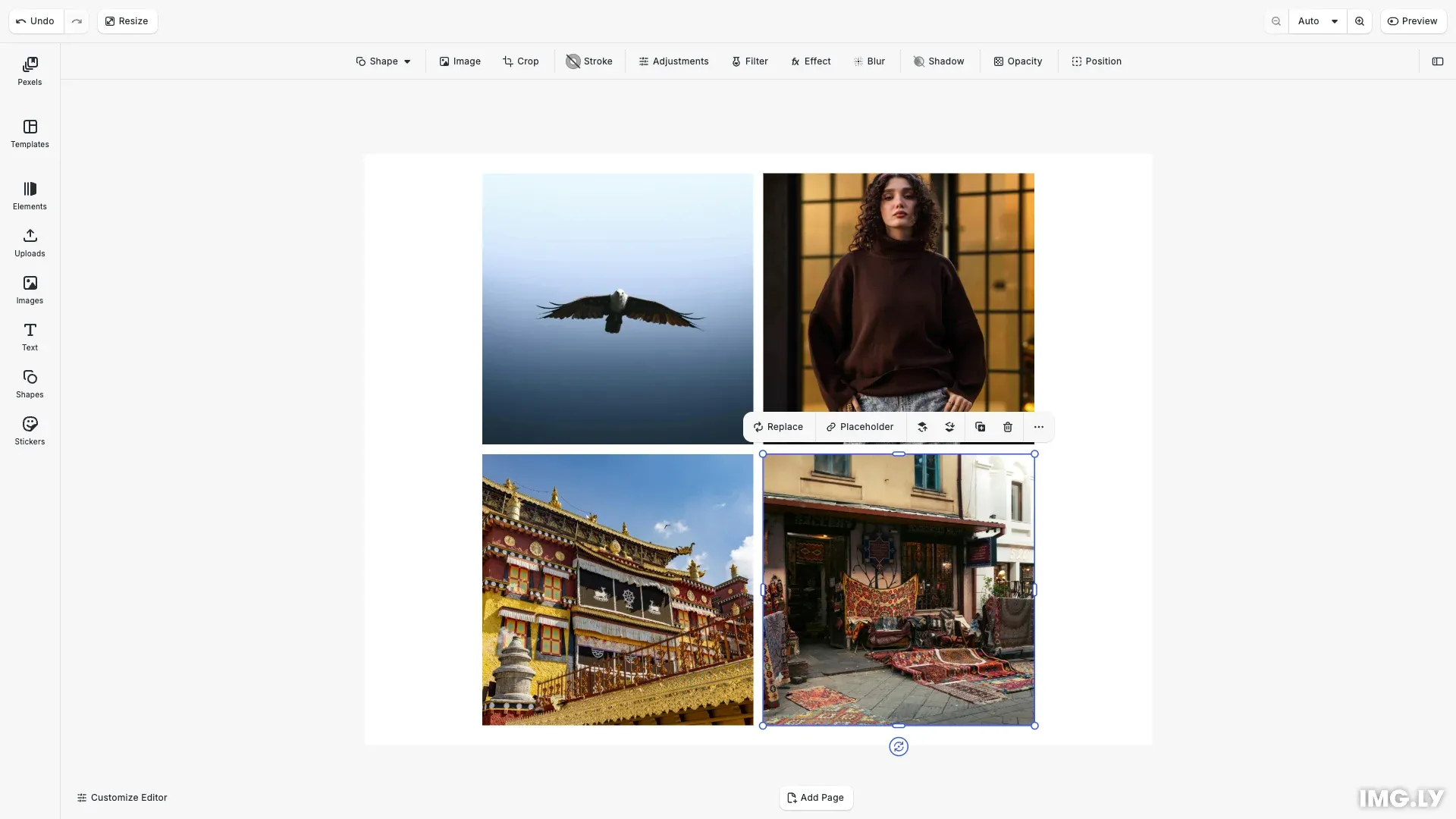
Pexels provides a vast library of high-quality, royalty-free stock photos through their public API. We integrate Pexels directly into CE.SDK so users can search, preview, and add photos without leaving the editor.
This guide covers creating a Pexels API wrapper, implementing the asset source, translating API responses to CE.SDK format, handling attribution requirements, and configuring the asset library UI.
Prerequisites#
Before starting, you need:
- A Pexels API key from the Pexels API documentation
- Understanding of Pexels’ API guidelines and rate limits
- No external packages required—we use the native
fetchAPI
Environment Configuration#
We store the Pexels API key in an environment variable for security. Create a .env file in your project root:
VITE_PEXELS_API_KEY=YOUR_API_KEY_HEREThe API key is passed in the Authorization header for all Pexels API requests.
Creating a Custom Pexels API Wrapper#
We build a lightweight wrapper around the Pexels REST API using the native fetch API. The wrapper provides methods for searching and browsing curated photos.
const fetchFromPexels = async ( url: string, apiKey: string): Promise<PexelsApiResponse> => { const response = await fetch(`https://api.pexels.com/v1/${url}`, { mode: 'cors', headers: { Authorization: apiKey } }); const json = await response.json(); const status = response.status; return { data: json, status };};The fetchFromPexels function sends requests to the Pexels API with proper CORS configuration and authentication headers. We return both the response data and status code for error handling.
We create a Pexels API client with two methods:
const createPexelsApi = (apiKey: string) => { return { photos: { search: async ({ query, per_page, page }: { query: string; per_page?: number; page?: number; }) => { const params = new URLSearchParams(); params.append('query', query); if (per_page) params.append('per_page', per_page.toString()); if (page) params.append('page', page.toString()); return await fetchFromPexels(`search?${params}`, apiKey); }, curated: async ({ per_page, page }: { per_page?: number; page?: number; }) => { const params = new URLSearchParams(); if (per_page) params.append('per_page', per_page.toString()); if (page) params.append('page', page.toString()); return await fetchFromPexels(`curated?${params}`, apiKey); } } };};The photos.search() method queries Pexels with a search term, while photos.curated() fetches curated images. Both methods support pagination through page and per_page parameters.
Creating the Pexels Asset Source Definition#
We define a custom asset source with an id, findAssets callback, and source-level attribution information:
// Define the Pexels asset sourceconst pexelsAssetSource: AssetSource = {  id: 'pexels',  findAssets: findPexelsAssets,  credits: {    name: 'Pexels',    url: 'https://pexels.com/'  },  license: {    name: 'Pexels license (free)',    url: 'https://pexels.com/license'  }};
// Register the Pexels asset sourceengine.asset.addSource(pexelsAssetSource);
The credits field provides attribution to Pexels, while the license field links to their licensing terms. We register the source with engine.asset.addSource() to make it available throughout CE.SDK.
Implementing the findAssets Callback#
The findAssets callback receives query parameters and routes to the appropriate Pexels API endpoint:
// Main asset query function for Pexelsconst findPexelsAssets = async (  queryData: AssetQueryData): Promise<AssetsQueryResult<AssetResult>> => {  // Pexels page indices are 1-based, but only pass if > 0  const pexelsPage = queryData.page > 0 ? queryData.page : undefined;
  if (queryData.query) {    // Search for images with a query string    const response = await PexelsApi.photos.search({      query: queryData.query,      page: pexelsPage,      per_page: queryData.perPage    });
    if (response.status === 200) {      const { photos, total_results, page } = response.data;      const assets = photos.map((image) => translateToAssetResult(image));      const nextPage = photos.length > 0 ? (page ?? 0) + 1 : undefined;
      return {        assets,        total: total_results,        currentPage: page ?? 0,        nextPage      };    } else {      const error = new Error(        `Received a response with code ${response.status} when trying to access Pexels`      );      console.error(error);      throw error;    }  } else {    // Show curated images when no query is provided    const response = await PexelsApi.photos.curated({      page: pexelsPage,      per_page: queryData.perPage    });
    if (response.status === 200) {      const { photos, total_results, page } = response.data;      const assets = photos.map((image) => translateToAssetResult(image));      const nextPage = photos.length > 0 ? (page ?? 0) + 1 : undefined;
      return {        assets,        total: total_results,        currentPage: page ?? 0,        nextPage      };    } else {      const error = new Error(        `Received a response with code ${response.status} when trying to access Pexels`      );      console.error(error);      throw error;    }  }};
When a query exists, we call PexelsApi.photos.search(). Without a query, we fetch curated images with PexelsApi.photos.curated(). CE.SDK uses 0-based page indexing, which we convert to 1-based indexing for Pexels.
We check the response status and throw errors for non-200 responses. The API response includes the total result count, current page number, and photo array.
Translating Pexels Data to CE.SDK Format#
We map each Pexels photo to CE.SDK’s AssetResult interface:
// Translate Pexels photo to CE.SDK AssetResult formatconst translateToAssetResult = (image: PexelsPhoto): AssetResult => {  const artistName = image.photographer;  const artistUrl = image.photographer_url;  const thumbUri = image.src.medium;  const id = image.id.toString();  const credits = {    name: artistName,    url: artistUrl  };
  return {    id,    locale: 'en',    meta: {      thumbUri,      width: image.width,      height: image.height,      mimeType: 'image/jpeg',      uri: image.src.original    },    utm: {      source: 'CE.SDK Demo',      medium: 'referral'    },    credits  };};
The meta object contains image dimensions, URLs, and MIME type. We use image.src.medium for thumbnails and image.src.original for the full-resolution image.
Per-asset credits include the photographer’s name and profile URL from the API response. UTM parameters track usage analytics as recommended by Pexels.
Handling Pexels Attribution Requirements#
Pexels’ licensing requires photographer attribution. We provide attribution at two levels:
Source-level attribution in the asset source definition (shown in “Creating the Pexels Asset Source Definition”) credits Pexels as the provider.
Per-asset attribution in each AssetResult credits individual photographers with their name and profile URL.
UTM parameters (source and medium) track photo usage and provide attribution analytics.
Configuring the Asset Library Dock#
We add Pexels to the editor’s dock by creating an asset library entry and then adding a dock button component:
cesdk.ui.addAssetLibraryEntry({  id: 'pexels',  sourceIds: ['pexels'],  previewLength: 6,  gridColumns: 3,  gridItemHeight: 'square'});
// Add Pexels to the existing Images asset librarycesdk.ui.updateAssetLibraryEntry('ly.img.image', {  sourceIds: ({ currentIds }) => [...currentIds, 'pexels']});
// Add Pexels as the first button in the dock with a separatorcesdk.ui.setComponentOrder({ in: 'ly.img.dock' }, [  {    id: 'ly.img.assetLibrary.dock',    key: 'pexels',    label: 'libraries.pexels.label',    entries: ['pexels']  },  { id: 'ly.img.separator' },  ...cesdk.ui.getComponentOrder({ in: 'ly.img.dock' })]);
The addAssetLibraryEntry() call registers the Pexels asset library panel with display settings. The setComponentOrder() call creates an explicit dock button component by prepending a new AssetLibraryDockComponent to the existing dock order.
The dock component structure includes:
id: Fixed identifier for asset library dock buttons ('ly.img.assetLibrary.dock')key: Unique identifier for this specific button ('pexels')label: Internationalization key for the button label ('libraries.pexels.label')entries: Array of asset library entry IDs to display when clicked (['pexels'])
Additionally, we add Pexels to the existing Images asset library using updateAssetLibraryEntry(). This provides dual access: users can access Pexels photos both from the dedicated Pexels panel and from the Images library panel. The functional update pattern ({ currentIds }) => [...currentIds, 'pexels'] appends Pexels to the existing sources without replacing them.
The separator component { id: 'ly.img.separator' } adds a visual divider between the Pexels button and the default dock buttons, improving UI organization and clarity.
Testing the Integration#
We test the integration by adding Pexels images to the scene programmatically:
// Query for assets and display them (only if scene was created successfully)const result = await engine.asset.findAssets(pexelsAssetSource.id, {  page: 0,  perPage: 4});
// Add images from Pexels to the scene in a grid layoutfor (let i = 0; i < Math.min(result.assets.length, 4); i++) {  const asset = result.assets[i];  const position = layout.getPosition(i);
  const block = await engine.asset.apply(pexelsAssetSource.id, asset);  engine.block.setPositionX(block, position.x);  engine.block.setPositionY(block, position.y);  engine.block.setWidth(block, layout.blockWidth);  engine.block.setHeight(block, layout.blockHeight);}
We query the Pexels source, retrieve the first three results, and add them to the scene using engine.asset.apply(). Each image is positioned in a grid layout using the calculateGridLayout utility.
Troubleshooting#
Common issues when integrating Pexels:
- API rate limiting: Pexels enforces rate limits per API key. Cache results and handle 429 responses gracefully.
- Missing API key: Verify the
VITE_PEXELS_API_KEYenvironment variable is set and accessible. - Attribution not displaying: Check that both source-level and per-asset
creditsare properly configured. - Image loading failures: Verify Pexels CDN URLs are accessible from your application’s domain.
- Response status errors: Handle non-200 responses by checking
response.statusand providing error messages.
API Reference#
| Method | Category | Purpose |
|---|---|---|
engine.asset.addSource() | Asset | Register Pexels as a custom asset source |
engine.asset.apply() | Asset | Add Pexels image to the scene as a design block |
Next Steps#
- Customize Asset Library — Configure asset panels and UI
- Asset Library Basics — Understand asset sources
- Integrate Unsplash Images — Add another stock image source
- From Remote Source — Explore other remote asset integrations
- Import Media Concepts — Learn core import concepts