Convert raster images into scalable vector graphics that resize without quality loss using CE.SDK’s vectorizer plugin.
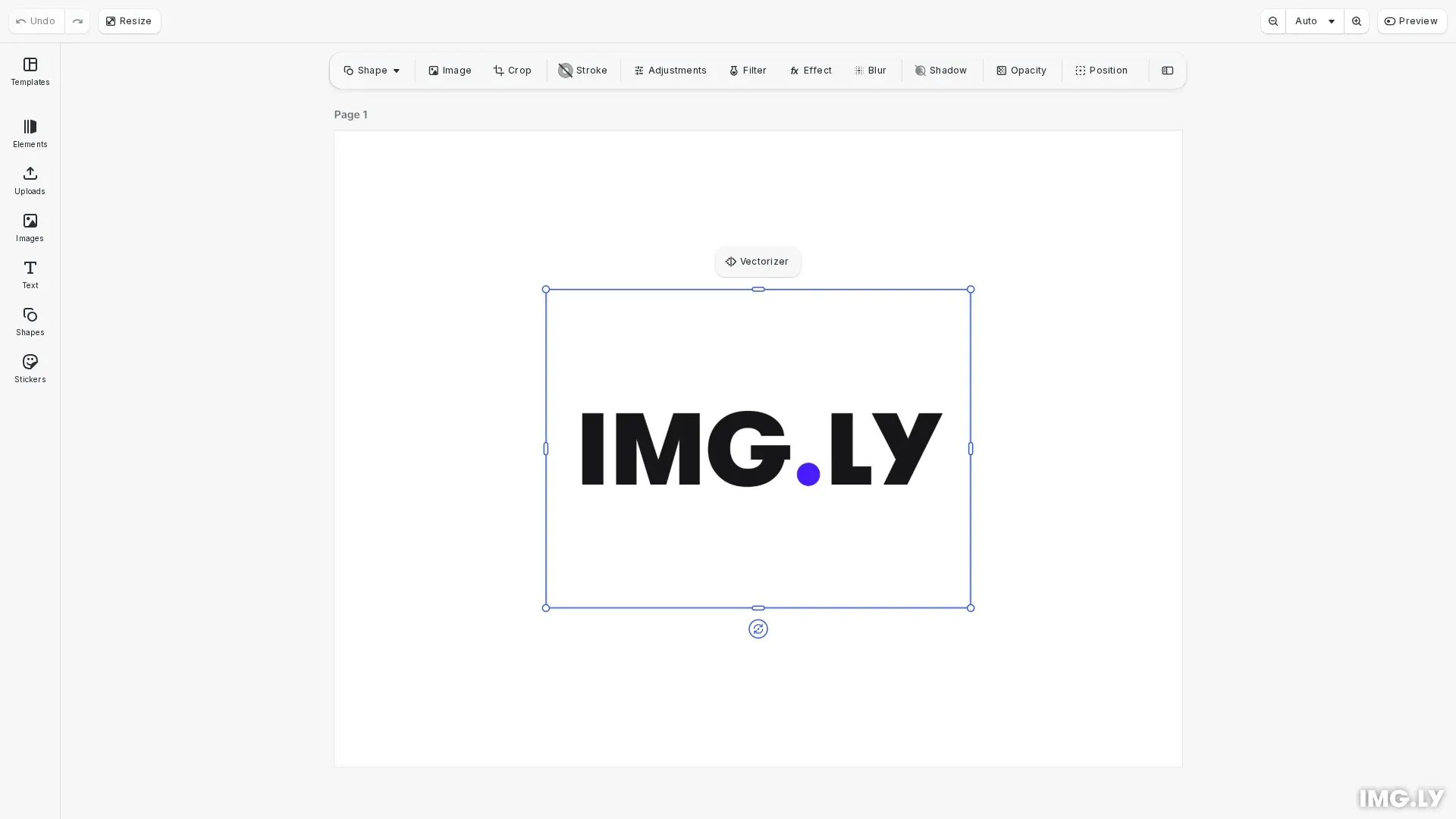
Vectorization transforms pixel-based images into vector paths that can be scaled to any size without losing quality. The @imgly/plugin-vectorizer-web plugin provides one-click UI conversion directly in the canvas menu. Common use cases include converting logos for scalable branding, creating cutout outlines from photographs, and extracting editable paths from illustrations.
This guide covers how to install and configure the vectorizer plugin, customize the canvas menu, and troubleshoot common vectorization issues.
Using the Vectorizer Plugin#
The @imgly/plugin-vectorizer-web plugin adds a vectorize button to the canvas menu when you select an image block. Processing runs entirely in the browser using the @imgly/vectorizer library.
Installation#
Install the plugin via npm or yarn:
yarn add @imgly/plugin-vectorizer-webnpm install @imgly/plugin-vectorizer-webAdding the Plugin#
We register the plugin using cesdk.addPlugin() with the ui.locations option to display the vectorize button in the canvas menu. To show only the vectorizer button, we use setComponentOrder({ in: 'ly.img.canvas.menu' }, order) to filter out other menu items.
// Add the vectorizer plugin with configuration optionsawait cesdk.addPlugin(  VectorizerPlugin({    // Display the vectorize button in the canvas menu    ui: { locations: 'canvasMenu' },    // Set processing timeout to 30 seconds    timeout: 30000,    // Combine paths into a single shape when exceeding 500 paths    groupingThreshold: 500  }));
// Show only the vectorizer button in the canvas menucesdk.ui.setComponentOrder({ in: 'ly.img.canvas.menu' }, ['@imgly/plugin-vectorizer-web.canvasMenu']);
Configuration Options#
You can customize the plugin behavior with two configuration options:
- timeout: Processing time limit in milliseconds (default: 30000). Increase this for complex images that take longer to process.
- groupingThreshold: Maximum path count before combining into a single shape (default: 500). Lower values combine paths earlier, reducing selectable elements.
Programmatic Vectorization#
For automation workflows, you can create cutout blocks from source blocks using engine.block.createCutoutFromBlocks(). This method traces rasterized content or extracts existing vector paths.
Threshold Parameters#
The createCutoutFromBlocks() method accepts three parameters that control vectorization quality:
- vectorizeDistanceThreshold (default: 2): Maximum contour deviation during tracing. Lower values increase accuracy but produce more complex paths.
- simplifyDistanceThreshold (default: 4): Maximum deviation for path smoothing. Set to 0 to disable smoothing entirely.
- useExistingShapeInformation (default: true): When true, extracts existing vector paths from shapes and SVGs without re-tracing.
Threshold Recommendations#
Start with the default values (2, 4) and adjust based on your source content:
| Content Type | vectorizeDistanceThreshold | simplifyDistanceThreshold |
|---|---|---|
| Photographs | 4-8 | 6-10 |
| Logos and icons | 1-2 | 2-4 |
| Illustrations | 2-4 | 4-6 |
Lower thresholds increase path complexity and processing time. For photographs with many details, higher thresholds reduce the number of paths while maintaining overall shape recognition.
Troubleshooting#
Common issues and solutions:
- Processing timeout: Increase the
timeoutoption or use higher threshold values to reduce complexity. - Jagged edges: Increase
simplifyDistanceThresholdto smooth the paths. - Lost details: Decrease both threshold values to capture finer contours.
- Vectorize button not appearing: Verify
ui: { locations: 'canvasMenu' }is set and that you’ve selected an image block. - Memory issues with complex images: Increase
groupingThresholdto combine more paths into single shapes.
API Reference#
| Method | Category | Purpose |
|---|---|---|
cesdk.addPlugin(VectorizerPlugin(options)) | Plugin | Register the vectorizer plugin |
cesdk.ui.setComponentOrder({ in: 'ly.img.canvas.menu' }, ids) | UI | Control which items appear in the canvas menu |
engine.block.createCutoutFromBlocks(ids, vectorizeDistanceThreshold?, simplifyDistanceThreshold?, useExistingShapeInformation?) | Block | Create a cutout from block contours |