Organize design elements in CE.SDK using a hierarchical layer stack to control stacking order, visibility, and element relationships.
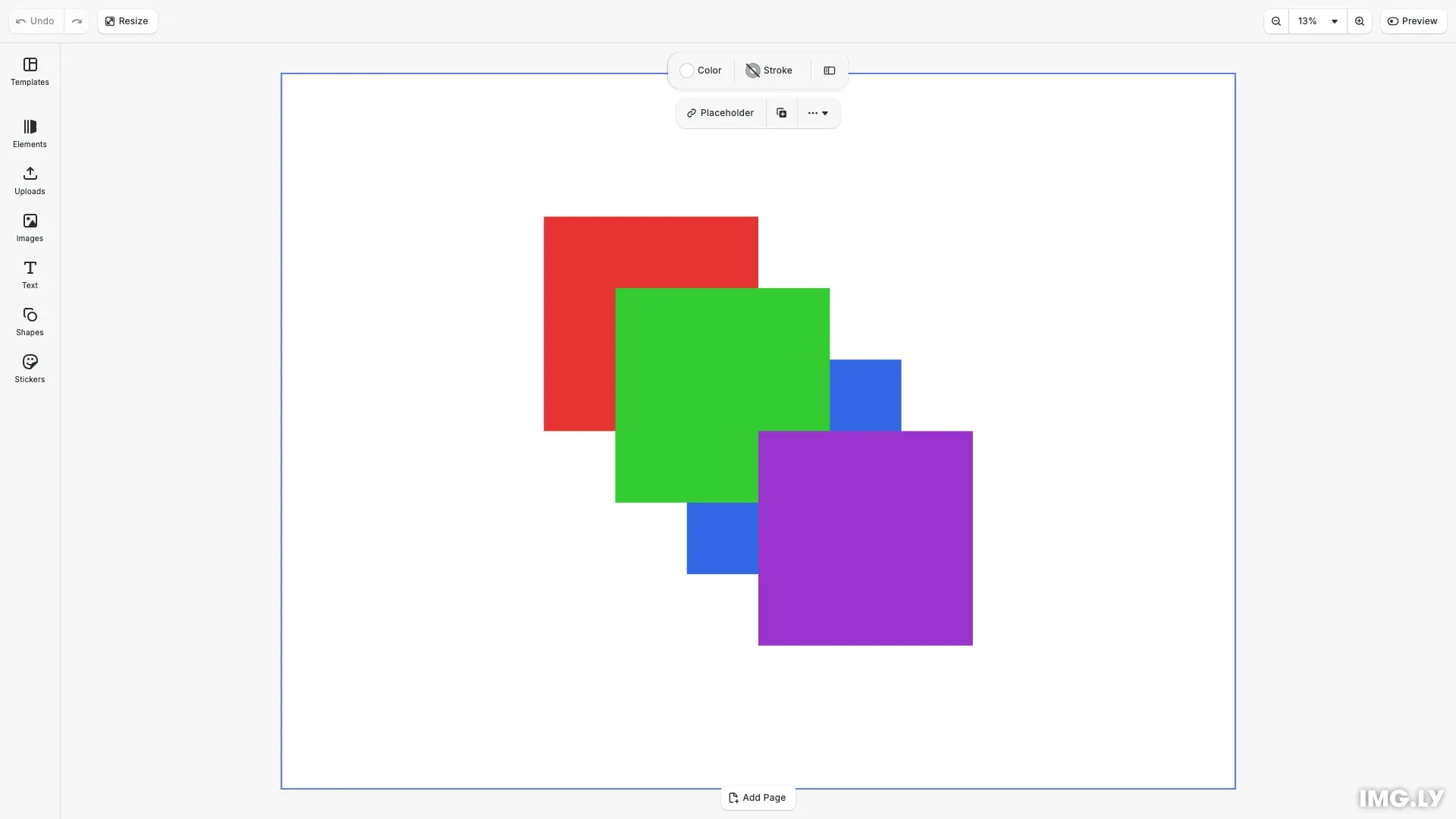
Design elements in CE.SDK are organized in a hierarchical parent-child structure. Children of a block are rendered in order, with the last child appearing on top. This layer stack model gives you precise control over how elements overlap and interact visually.
This guide covers how to navigate the block hierarchy, reorder elements in the layer stack, toggle visibility, and manage block lifecycles through duplication and deletion.
Using the Built-in Layer Panel UI#
The editor ships a layer and page list, opened from the Layers button at the bottom of the dock. It shows the document’s pages above the layers of the page being worked on, with one row per block. The top row is the block that renders in front of the rest, and rows nest under their parent. A row with children opens to reveal them, and a row a user opened is still open the next time the list is opened.
Each row carries the block’s name. A block with no name of its own shows the same fallback the inspector header gives it, so pages read “Page 1”, “Page 2”, and a text block reads “Text”.
Selecting from the List#
Clicking a row selects the block it stands for, and clicking a page row makes that page the one the Layers section shows. Modifier and range clicks build a multi-selection from the rows of one page. A selection cannot mix a page row with a layer row, or reach onto a second page — a click that would do either selects only the row that was clicked.
The list and the canvas hold one selection, so selecting on the canvas scrolls the matching row into view and opens the groups and pages it sits inside.
Row Controls#
Each row carries the controls for its block:
- Eye — hides the block from the canvas and the export. Rows nested under it stop rendering while keeping their own state.
- Padlock — locks the block against being moved, resized and rotated. It writes the same lock the engine saves with the scene, and it holds everything nested under the block.
- Name — double-click to rename in place. Enter or leaving the field commits, Escape reverts.
- Menu — the commands that apply to that row. A layer row offers rename, duplicate, delete, group, ungroup and the four arrange commands; a page row offers rename, duplicate, delete, and adding a page above or below.
Holding Alt while clicking an eye or a padlock isolates that row, giving every sibling the opposite state.
Reordering by Dragging#
Dropping a row at the boundary between two rows puts the block at that position among its new parent’s children. Dropping it onto a group or a page nests it inside, and resting on a closed group opens it. A drag started from a selected row carries the whole selection, even across parents. A drag refuses a drop that would put a block inside itself or its own contents, and a locked row or a clip inside a video track does not travel — the timeline owns clip order.
Keyboard#
The list is reachable with Tab and operated with the arrow keys: up and down move between rows, Shift extends the selection, and left and right close and open a container row. Enter or F2 starts a rename, Shift+F10 opens a row’s menu, and Cmd/Ctrl+A selects every row of the same kind. The arrange shortcuts move the selected block through the stacking order while the list holds focus.
To configure the list — its feature keys, dock button, sections, canvas follow, and row menu — see Layer & Page List.
Creating Visual Blocks#
To demonstrate layer ordering, we create colored rectangles that overlap on the canvas. Each block is created using engine.block.create() and configured with a shape, fill color, dimensions, and position.
// Create a colored rectangleconst redRect = engine.block.create('graphic');engine.block.setShape(redRect, engine.block.createShape('rect'));const redFill = engine.block.createFill('color');engine.block.setFill(redRect, redFill);engine.block.setColor(redFill, 'fill/color/value', { r: 0.9, g: 0.2, b: 0.2, a: 1});engine.block.setWidth(redRect, 180);engine.block.setHeight(redRect, 180);engine.block.setPositionX(redRect, 220);engine.block.setPositionY(redRect, 120);Navigating the Block Hierarchy#
CE.SDK organizes blocks in a parent-child tree structure. Every block can have one parent and multiple children. Understanding this hierarchy is essential for programmatic layer management.
Getting a Block’s Parent#
We retrieve the parent of any block using engine.block.getParent(). This returns the parent’s block ID, or null if the block has no parent (such as the scene root).
// Get the parent of a blockconst parent = engine.block.getParent(redRect);console.log('Parent of red rectangle:', parent);Knowing a block’s parent helps you understand where it sits in the hierarchy and enables operations like reparenting or finding sibling blocks.
Listing Child Blocks#
We get all direct children of a block using engine.block.getChildren(). Children are returned sorted in their rendering order, where the last child renders in front of other children.
// Get all children of the pageconst children = engine.block.getChildren(page);console.log('Page children (in render order):', children);This method is useful for iterating through all elements on a page or within a group.
The layer list shows this order reversed: its top row is the last child, the one that renders in front. Pages, stacks and video tracks are the exception — their children sit in document and time order rather than a stacking order, so the list leaves them as getChildren() returns them.
Adding and Positioning Blocks#
When you create a new block, it exists independently until you add it to the hierarchy. There are two ways to attach blocks to a parent: appending to the end or inserting at a specific position.
Appending Blocks#
We add a block as the last child of a parent using engine.block.appendChild(). Since the last child renders on top, the appended block becomes the topmost element.
// Add blocks to the page - last appended is on topengine.block.appendChild(page, redRect);engine.block.appendChild(page, greenRect);engine.block.appendChild(page, blueRect);When you append multiple blocks in sequence, each new block appears in front of the previous ones.
Inserting at a Specific Position#
We insert a block at a specific index in the layer stack using engine.block.insertChild(). Index 0 places the block at the back, behind all other children.
// Insert a new block at a specific position (index 0 = back)const yellowRect = engine.block.create('graphic');engine.block.setShape(yellowRect, engine.block.createShape('rect'));const yellowFill = engine.block.createFill('color');engine.block.setFill(yellowRect, yellowFill);engine.block.setColor(yellowFill, 'fill/color/value', { r: 0.95, g: 0.85, b: 0.2, a: 1});engine.block.setWidth(yellowRect, 180);engine.block.setHeight(yellowRect, 180);engine.block.setPositionX(yellowRect, 160);engine.block.setPositionY(yellowRect, 60);engine.block.insertChild(page, yellowRect, 0);This gives you precise control over where new elements appear in the stacking order.
Reparenting Blocks#
When you add a block to a new parent using appendChild() or insertChild(), it is automatically removed from its previous parent. This makes reparenting operations straightforward without needing to manually detach blocks first.
Changing Z-Order#
Once blocks are in the hierarchy, you can change their stacking order without removing and re-adding them. CE.SDK provides four methods for z-order manipulation.
Bring to Front#
We move an element to the top of its siblings using engine.block.bringToFront(). This gives the block the highest stacking order among its siblings.
// Bring the red rectangle to the frontengine.block.bringToFront(redRect);console.log('Red rectangle brought to front');Send to Back#
We move an element behind all its siblings using engine.block.sendToBack(). This gives the block the lowest stacking order among its siblings.
// Send the blue rectangle to the backengine.block.sendToBack(blueRect);console.log('Blue rectangle sent to back');Move Forward One Layer#
We move an element one position forward using engine.block.bringForward(). This swaps the block with its immediate sibling in front.
// Move the green rectangle forward one layerengine.block.bringForward(greenRect);console.log('Green rectangle moved forward');Move Backward One Layer#
We move an element one position backward using engine.block.sendBackward(). This swaps the block with its immediate sibling behind.
// Move the yellow rectangle backward one layerengine.block.sendBackward(yellowRect);console.log('Yellow rectangle moved backward');These incremental operations are useful for fine-tuning the layer order without jumping to extremes.
Controlling Visibility#
Visibility allows you to temporarily hide elements without removing them from the scene. Hidden elements remain in the hierarchy and preserve their properties, but are not rendered.
Checking and Toggling Visibility#
We query the current visibility state using engine.block.isVisible() and change it using engine.block.setVisible().
// Check and toggle visibilityconst isVisible = engine.block.isVisible(blueRect);console.log('Blue rectangle visible:', isVisible);
// Hide the blue rectangle temporarilyengine.block.setVisible(blueRect, false);console.log('Blue rectangle hidden');
// Show it again for the final compositionengine.block.setVisible(blueRect, true);console.log('Blue rectangle shown again');
Visibility is useful for creating before/after comparisons, hiding elements during editing, or implementing show/hide functionality in your application.
Managing Block Lifecycle#
CE.SDK provides methods for duplicating blocks to create copies and destroying blocks to remove them permanently.
Duplicating Blocks#
We create a copy of a block and all its children using engine.block.duplicate(). By default, the duplicate is attached to the same parent as the original.
// Duplicate a blockconst duplicateGreen = engine.block.duplicate(greenRect);engine.block.setPositionX(duplicateGreen, 400);engine.block.setPositionY(duplicateGreen, 300);// Change the duplicate's color to purpleconst purpleFill = engine.block.createFill('color');engine.block.setFill(duplicateGreen, purpleFill);engine.block.setColor(purpleFill, 'fill/color/value', { r: 0.6, g: 0.2, b: 0.8, a: 1});console.log('Green rectangle duplicated');The duplicated block is positioned at the same location as the original. You typically want to reposition it to make it visible as a separate element.
Checking Block Validity#
Before performing operations on a block, we can verify it still exists using engine.block.isValid(). A block becomes invalid after it has been destroyed.
// Check if a block is valid before operationsconst isValidBefore = engine.block.isValid(yellowRect);console.log('Yellow rectangle valid before destroy:', isValidBefore);Removing Blocks#
We permanently remove a block and all its children from the scene using engine.block.destroy(). This operation cannot be undone programmatically.
// Remove a block from the sceneengine.block.destroy(yellowRect);console.log('Yellow rectangle destroyed');
// Check validity after destructionconst isValidAfter = engine.block.isValid(yellowRect);console.log('Yellow rectangle valid after destroy:', isValidAfter);
After destruction, any references to the block become invalid. Attempting to use an invalid block ID will result in errors.
Framing the Result#
After making layer changes, we zoom to fit the page in the viewport so the composition is clearly visible.
await engine.scene.zoomToBlock(page, { padding: 40 });Troubleshooting#
Block not visible after appendChild: The block may be behind other elements. Use engine.block.bringToFront() or adjust the insert index to control stacking order.
getParent returns null: The block is not attached to any parent. Use engine.block.appendChild() or engine.block.insertChild() to attach it to a page or container.
Changes not reflected: The block handle may be invalid. Check with engine.block.isValid() before performing operations.
Z-order not updating: Verify you’re operating on the correct block ID and that the block is in the expected parent context.
Duplicate not appearing: If attachToParent is set to false, the duplicate won’t be attached automatically. Set it to true or manually attach the duplicate to a parent.
API Reference#
| Method | Description |
|---|---|
engine.block.getParent(id) |
Get the parent block of a given block |
engine.block.getChildren(id) |
Get all child blocks in rendering order |
engine.block.appendChild(parent, child) |
Append a block as the last child |
engine.block.insertChild(parent, child, index) |
Insert a block at a specific position |
engine.block.bringToFront(id) |
Bring a block to the front of its siblings |
engine.block.sendToBack(id) |
Send a block to the back of its siblings |
engine.block.bringForward(id) |
Move a block one position forward |
engine.block.sendBackward(id) |
Move a block one position backward |
engine.block.isVisible(id) |
Check if a block is visible |
engine.block.setVisible(id, visible) |
Set the visibility of a block |
engine.block.duplicate(id, attachToParent?) |
Duplicate a block and its children |
engine.block.destroy(id) |
Remove a block and its children |
engine.block.isValid(id) |
Check if a block handle is valid |