Templates transform static designs into dynamic, data-driven content. They combine reusable layouts with variable text and placeholder media, enabling personalization at scale.
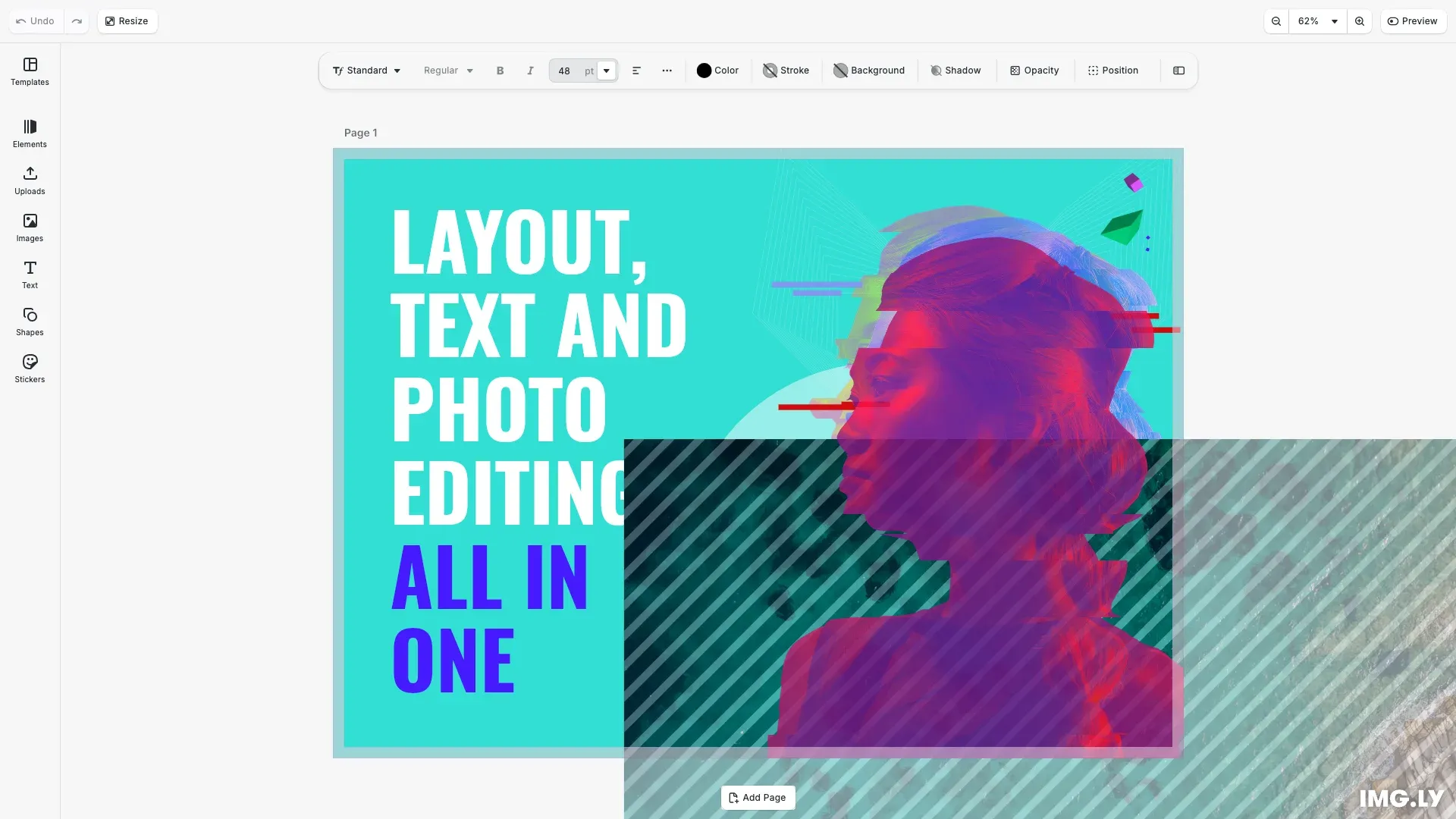
A template is a regular CE.SDK scene that contains variable tokens in text and placeholder blocks for media. When you load a template, you can populate the variables with data and swap placeholder content—producing personalized designs without modifying the underlying layout.
This guide explains the core concepts. For implementation details, see the guides linked in each section.
What Makes a Template#
Any CE.SDK scene can become a template by adding dynamic elements:
| Element | Purpose | Example |
|---|---|---|
| Variables | Dynamic text replacement | Hello, {{firstName}}! |
| Placeholders | Swappable media slots | Profile photo, product image |
| Editing Constraints | Protected design elements | Locked logo, fixed layout |
Templates separate design (created once by designers) from content (populated at runtime with data). This enables workflows like batch generation, form-based customization, and user personalization.
Variables#
Variables enable dynamic text without modifying the design structure. Text blocks contain {{variableName}} tokens that CE.SDK resolves at render time.
// Set variable values to personalize the template// These values replace {{variableName}} tokens in text blocksengine.variable.setString('Name', 'Jane');engine.variable.setString('Greeting', 'Wish you were here!');console.log('Variables set successfully.');How variables work:
- Define variables with
engine.variable.setString('name', 'value') - Reference them in text:
Welcome, {{name}}! - CE.SDK automatically updates all text blocks using that variable
- Tokens are case-sensitive; unmatched tokens render as literal text
Variables are scene-scoped and persist when you save the template. Use engine.variable.findAll() to discover what variables a template expects.
Placeholders#
Placeholders mark blocks as content slots that users or automation can replace. When you enable placeholder behavior on an image block, it displays an overlay pattern and replacement button in the editor.
How placeholders work:
- Enable with
engine.block.setPlaceholderEnabled(block, true) - Add visual UI with
engine.block.setPlaceholderBehaviorEnabled(fill, true) - Users in Adopter mode can select and replace placeholder content
- Other design elements remain locked
Use engine.block.findAllPlaceholders() to discover all placeholder blocks in a loaded template.
Template Workflows#
Templates support several common workflows:
Form-Based Customization#
Load a template, present a form for variable values, and let users customize text while the design stays consistent. The editor UI handles placeholder replacement through drag-and-drop.
Batch Generation#
Load a template programmatically, iterate through data records, set variables for each record, and export personalized designs. This powers use cases like certificates, badges, and personalized marketing.
Design Systems#
Create template libraries where designers maintain approved layouts and end users customize within defined boundaries using variables and placeholders.
Loading and Applying Templates#
CE.SDK provides two approaches for working with templates:
Load a template with engine.scene.loadFromURL() to replace the current scene entirely, including page dimensions:
// Load a postcard template from URL// Templates are scenes containing variable tokens and placeholder blocksconst templateUrl =  'https://cdn.img.ly/assets/demo/v3/ly.img.template/templates/cesdk_postcard_1.scene';await engine.scene.loadFromURL(templateUrl);
// Zoom to show the full page in the viewportconst page = engine.scene.getCurrentPage();if (page) {  await engine.scene.zoomToBlock(page, { padding: 40 });}
Apply a template with engine.scene.applyTemplateFromURL() to merge template content into an existing scene while preserving current page dimensions.
Creating Templates#
Build templates by adding variable tokens to text blocks and configuring placeholder behavior on media blocks. Save with engine.scene.saveToString() or engine.scene.saveToArchive().