Control measurement systems for precise physical dimensions—create print-ready documents with millimeter or inch units and configurable DPI for export quality.
Design units determine the coordinate system for all layout values in CE.SDK—positions, sizes, and margins. The engine supports three unit types: Pixel for screen-based designs, Millimeter for metric print dimensions, and Inch for imperial print formats.
This guide covers how to get and set design units, configure DPI for export quality, and set up scenes for specific physical dimensions like A4 paper.
Understanding Design Units#
Supported Unit Types#
CE.SDK supports three design unit types, each suited for different output scenarios:
- Pixel — Default unit, ideal for screen-based designs, web graphics, and video content. One unit equals one pixel in the design coordinate space.
- Millimeter — For print designs targeting metric dimensions (A4, A5, business cards). One unit equals one millimeter at the scene’s DPI setting.
- Inch — For print designs targeting imperial dimensions (letter, legal, US business cards). One unit equals one inch at the scene’s DPI setting.
Design Unit and DPI Relationship#
DPI (dots per inch) determines how physical units convert to pixels during export. At 300 DPI, a 1-inch block exports as 300 pixels wide. Higher DPI values produce higher-resolution exports suitable for professional printing.
For pixel-based scenes, DPI primarily affects font size conversions since font sizes are always specified in points.
Getting the Current Design Unit#
Use engine.scene.getDesignUnit() to retrieve the current scene’s design unit. This returns one of three values: 'Pixel', 'Millimeter', or 'Inch'.
// Get the current sceneconst scene = engine.scene.get();if (scene === null) {  throw new Error('No scene available');}
// Get the current design unitconst currentUnit = engine.scene.getDesignUnit();console.log('Current design unit:', currentUnit); // 'Pixel' by default
Setting the Design Unit#
Use engine.scene.setDesignUnit() to change the measurement system. When you change the design unit, CE.SDK automatically converts existing layout values to maintain visual appearance.
// Set design unit to Millimeter for print workflowengine.scene.setDesignUnit('Millimeter');
// Verify the changeconst newUnit = engine.scene.getDesignUnit();console.log('Design unit changed to:', newUnit); // 'Millimeter'
Configuring DPI#
Access DPI through the scene’s scene/dpi property. For print workflows, 300 DPI is the standard for high-quality output.
// Set DPI to 300 for print-quality exports// Higher DPI produces higher resolution outputengine.block.setFloat(scene, 'scene/dpi', 300);
// Verify the DPI settingconst dpi = engine.block.getFloat(scene, 'scene/dpi');console.log('DPI set to:', dpi); // 300
DPI affects different aspects depending on the design unit:
- Physical units (mm, in): DPI determines the pixel resolution of exported files
- Pixel units: DPI only affects the conversion of font sizes from points to pixels
Setting Up Print-Ready Designs#
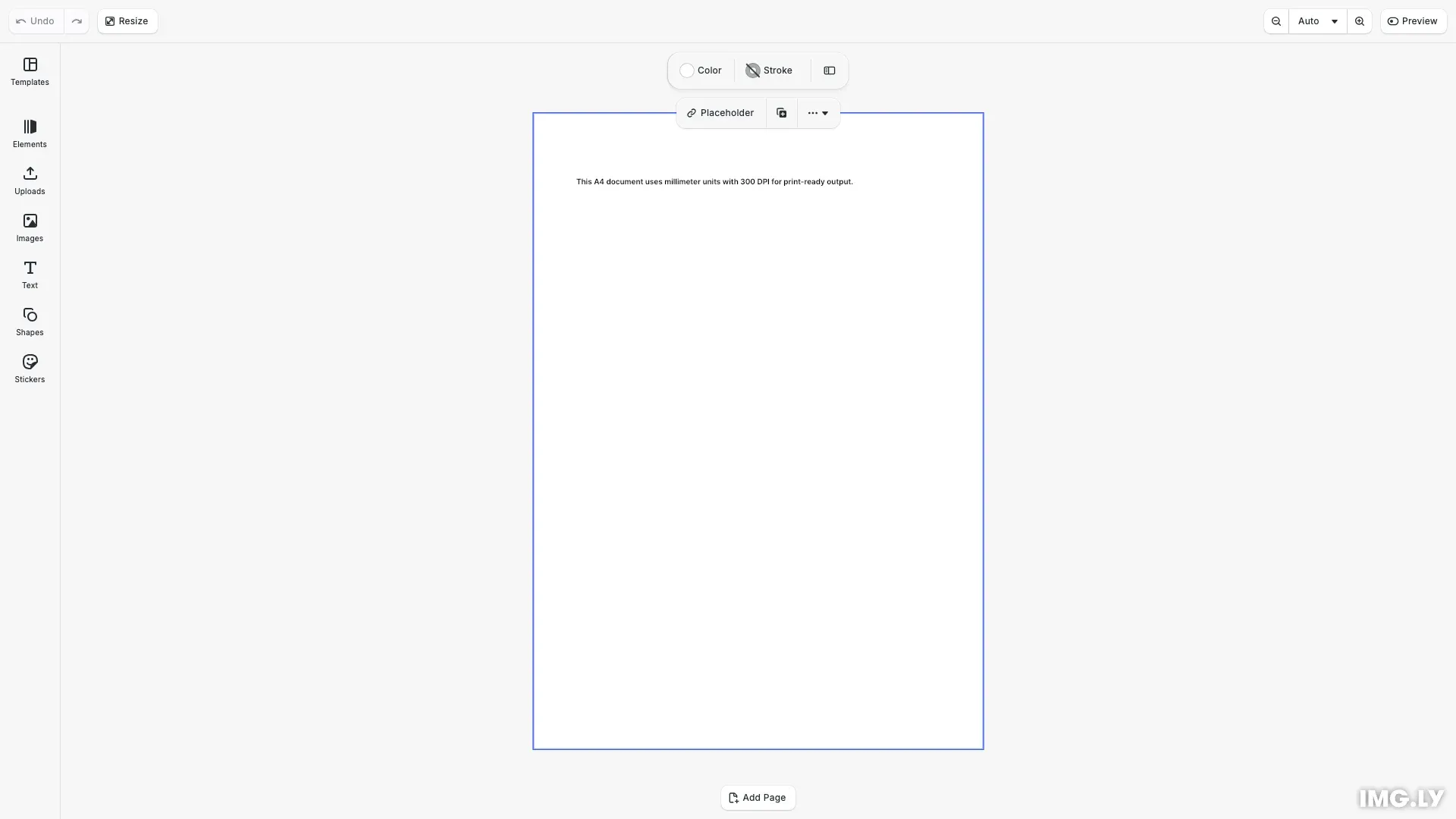
For print workflows, combine setDesignUnit() with appropriate DPI and page dimensions. Here’s how to set up an A4 document ready for print export:
// Get the page and set A4 dimensions (210 x 297 mm)const page = engine.block.findByType('page')[0];
// Verify dimensionsconst pageWidth = engine.block.getWidth(page);const pageHeight = engine.block.getHeight(page);console.log(`Page dimensions: ${pageWidth}mm x ${pageHeight}mm`);
Font Sizes and Design Units#
Font sizes are always specified in points (pt), regardless of the scene’s design unit. The DPI setting affects how points convert to pixels for rendering.
// Create a text block with millimeter dimensionsconst textBlock = engine.block.create('text');engine.block.appendChild(page, textBlock);
// Position text at 20mm from left, 30mm from topengine.block.setPositionX(textBlock, 20);engine.block.setPositionY(textBlock, 30);
// Set text block size to 170mm x 50mmengine.block.setWidth(textBlock, 170);engine.block.setHeight(textBlock, 50);
// Add content to the text blockengine.block.setString(  textBlock,  'text/text',  'This A4 document uses millimeter units with 300 DPI for print-ready output.');
When DPI changes, text blocks automatically adjust their rendered size to maintain visual consistency.
Understanding Export Resolution#
The relationship between design units and export resolution is important for print workflows:
// Demonstrate unit comparison// At 300 DPI: 1 inch = 300 pixels, 1 mm = ~11.81 pixelsconsole.log('Unit comparison at 300 DPI:');console.log( '- A4 width (210mm) will export as', 210 * (300 / 25.4), 'pixels');console.log( '- A4 height (297mm) will export as', 297 * (300 / 25.4), 'pixels');At 300 DPI:
- An A4 page (210 × 297 mm) exports as 2480 × 3508 pixels
- A letter page (8.5 × 11 in) exports as 2550 × 3300 pixels
Troubleshooting#
Exported Dimensions Don’t Match Expected Size#
Verify that DPI is set correctly for physical units. At 300 DPI, 1 inch becomes 300 pixels. Check that your design unit matches your target output format.
Text Appears Wrong Size After Unit Change#
Font sizes in points auto-adjust based on DPI. If text looks incorrect, verify the DPI setting matches your workflow requirements.
Blocks Shift Position After Changing Units#
CE.SDK preserves visual appearance during unit conversion. If positions seem unexpected, check the original coordinate values—the numeric values change but visual positions should remain stable.