Register custom UI components using CE.SDK’s builder system and place them in different areas of the editor interface like the navigation bar, inspector bar, dock, and canvas menu.
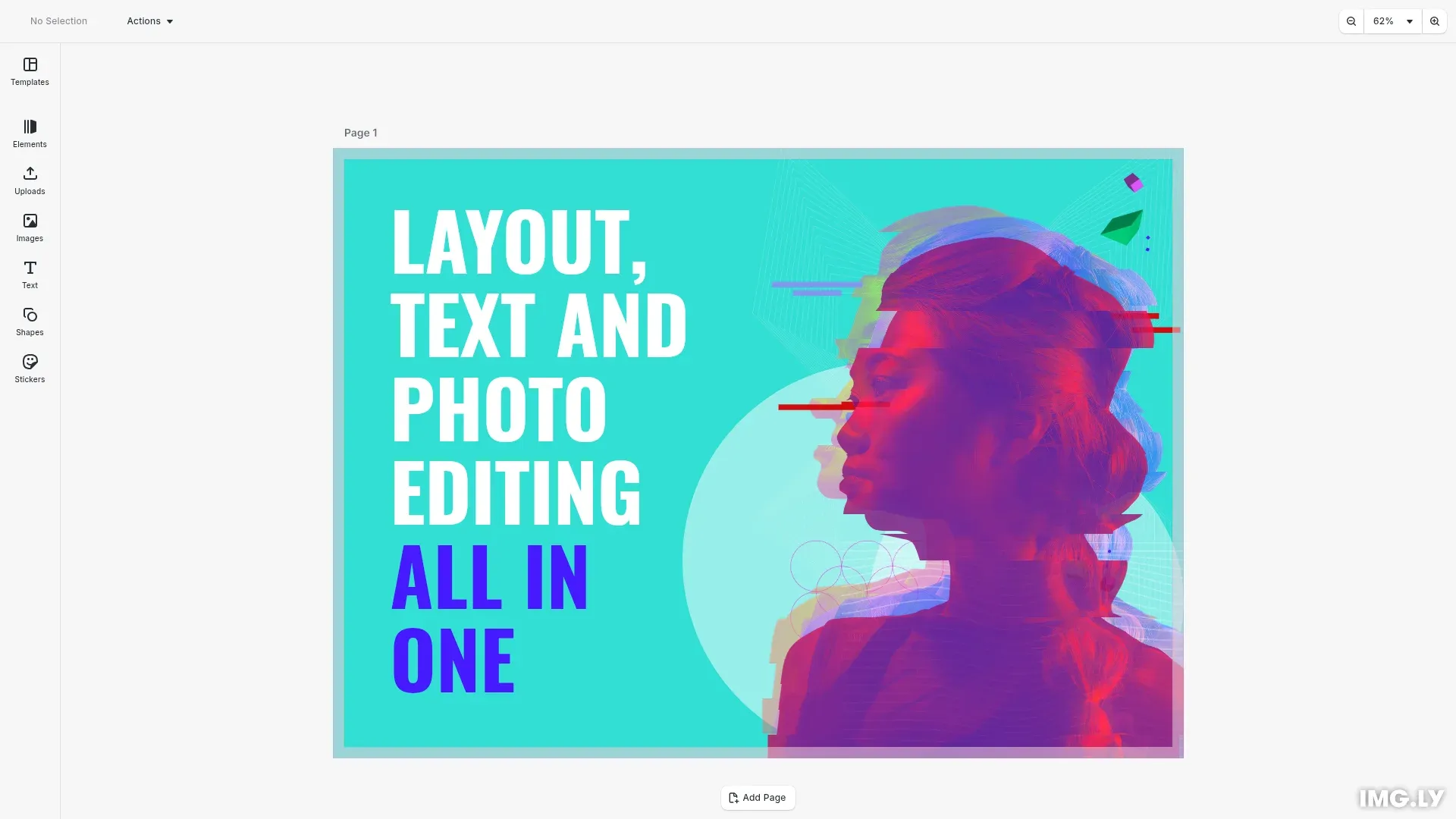
The builder system provides a declarative API for creating UI components that integrate with CE.SDK. Components registered via cesdk.ui.registerComponent() receive a render function that is automatically re-invoked when relevant engine state changes, enabling reactive UIs without manual subscription management. You can create buttons, dropdowns, inputs, and other UI elements that react to engine state changes.
This guide demonstrates registering custom components including a button, dropdown menu, checkbox, and select control, then placing them in the navigation bar and inspector bar.
Registering a Component#
Use cesdk.ui.registerComponent() to register a component with a unique ID and a render function. The render function receives builder, engine, cesdk, state, and payload parameters.
// Register a custom button component that shows the selected block's type.// The render function is automatically re-invoked when engine state changes.cesdk.ui.registerComponent(  'com.example.blockTypeButton',  ({ builder, engine: eng, cesdk: cesdkInstance }) => {    // Engine API calls are tracked. When the selection changes,    // the component re-renders automatically.    const selectedBlocks = eng.block.findAllSelected();    const selectedBlock =      selectedBlocks.length > 0 ? selectedBlocks[0] : null;    const blockType = selectedBlock      ? eng.block.getType(selectedBlock)      : null;    const label = blockType ? formatBlockType(blockType) : 'No Selection';
    builder.Button('block-type-display', {      label,      icon: '@imgly/icons/Info',      isDisabled: !selectedBlock,      onClick: () => {        const message = selectedBlock          ? `Selected block type: ${blockType}`          : 'No block selected';        cesdkInstance.ui.showNotification({ message, type: 'info' });      }    });  });
Component ID Naming#
Use reverse domain notation for component IDs (e.g., 'com.example.myButton'). This ensures uniqueness and avoids conflicts with built-in components.
Render Function Signature#
The render function receives these parameters:
- builder: Object providing methods to create UI elements
- engine: The engine instance for accessing block and scene state
- cesdk: The editor instance for UI operations like notifications
- state: Function for managing local component state
- payload: Optional data passed when adding the component to an order
Engine Reactivity#
Components automatically re-render when engine APIs called within the render function detect state changes. Engine method calls like engine.block.findAllSelected() are tracked, and only components that use changed engine state re-render.
In the example above, calling eng.block.findAllSelected() and eng.block.getType() inside the render function creates automatic subscriptions. When the selection changes, the component re-renders with updated values.
This reactive approach eliminates manual subscription management. The builder system handles all subscriptions internally.
Using Builder Elements#
The builder object provides methods to create UI elements within your component.
Button#
The builder.Button() method creates an interactive button. It accepts a unique ID and configuration options including label, icon, onClick, and state flags like isDisabled.
Dropdown with Nested Content#
Use builder.Dropdown() to create a dropdown menu with nested content. The children callback function lets you add buttons and separators inside the dropdown.
// Register a component with a dropdown menu containing buttons.// Dropdowns in the navigation bar support Button and Separator elements.cesdk.ui.registerComponent(  'com.example.actionsDropdown',  ({ builder, engine: eng, cesdk: cesdkInstance }) => {    const selectedBlocks = eng.block.findAllSelected();    const selectedBlock =      selectedBlocks.length > 0 ? selectedBlocks[0] : null;
    builder.Dropdown('actions-dropdown', {      label: 'Actions',      icon: '@imgly/icons/Adjustments',      children: () => {        builder.Button('action-duplicate', {          label: 'Duplicate',          icon: '@imgly/icons/Duplicate',          variant: 'plain',          isDisabled: !selectedBlock,          onClick: () => {            if (selectedBlock) {              eng.block.duplicate(selectedBlock);              cesdkInstance.ui.showNotification({                message: 'Block duplicated',                type: 'info'              });            }          }        });
        builder.Button('action-delete', {          label: 'Delete',          icon: '@imgly/icons/Trash',          variant: 'plain',          color: 'danger',          isDisabled: !selectedBlock,          onClick: () => {            if (selectedBlock) {              eng.block.destroy(selectedBlock);              cesdkInstance.ui.showNotification({                message: 'Block deleted',                type: 'info'              });            }          }        });
        builder.Separator('action-separator');
        builder.Button('action-select-all', {          label: 'Select All',          icon: '@imgly/icons/SelectAll',          variant: 'plain',          onClick: () => {            const page = eng.scene.getCurrentPage();            if (page) {              const children = eng.block.getChildren(page);              children.forEach((child) =>                eng.block.setSelected(child, true)              );            }          }        });      }    });  });
The dropdown receives the same configuration as buttons, but uses children instead of onClick to define the dropdown content.
Available Builder Components#
Not every location supports every builder component yet. The following table shows the available builder components and their properties.
| Builder Component | Description | Properties |
|---|---|---|
builder.Button | A simple button to react on a user click. | label: The button label (supports i18n keys). onClick: Click handler. variant: regular (default) or plain.color: accent or danger.icon: The button icon. trailingIcon: Trailing icon. isActive: Active state indicator. isSelected: Selected state indicator. isDisabled: Disabled state. isLoading: Loading state. loadingProgress: Progress value 0-1. tooltip: Hover tooltip (supports i18n keys). |
builder.ButtonGroup | Grouping of multiple buttons in a segmented control. | children: Function to render grouped buttons (only Button and Dropdown allowed). |
builder.Dropdown | A button that opens a dropdown with content. | Same as Button, but with children instead of onClick for dropdown content. showIndicator: Shows the expand indicator icons (default: true). |
builder.Heading | Renders text as a heading. | content: The heading text. |
builder.Separator | Adds visual separation between entries. | No properties. Follows special layout rules for consecutive separators. |
builder.Component | Renders another registered component. | componentId: The registered component ID. payload: Optional data passed to the component. |
builder.Checkbox | Toggle checkbox control. | value: Current value. setValue: Change handler. inputLabel: Checkbox label. truncateLabel: Truncate the label with an ellipsis when it overflows (default: false). |
builder.Select | Dropdown select with options. | value: Current selection object. setValue: Change handler. values: Array of option objects with id, label, and optional icon. |
builder.TextInput | Text input field. | value: Current value. setValue: Change handler. placeholder: Placeholder text. |
builder.NumberInput | Numeric input field. | value: Current value. setValue: Change handler. min/max: Range limits. |
builder.Slider | Numeric range slider. | value: Current value. setValue: Change handler. min/max/step: Range configuration. |
builder.Section | Container for grouping related controls. | children: Function to render section contents. |
Managing Component State#
The state function provides local state management within components, similar to React’s useState.
const { value, setValue } = state('unique-id', defaultValue);State persists across re-renders with the same ID. Calling setValue() triggers a component re-render. Since the returned object matches input component expectations, you can spread it directly into components.
cesdk.ui.registerComponent('counter', ({ builder, state }) => {  const { value, setValue } = state('counter', 0);
  builder.Button('counter-button', {    label: `${value} clicks`,    onClick: () => {      setValue(value + 1);    }  });});
Placing Components in the Navigation Bar#
Add components to the navigation bar using cesdk.ui.setComponentOrder(). The navigation bar appears at the top of the editor.
// Place the custom components in the navigation bar.// Use setComponentOrder to define the order of components.cesdk.ui.setComponentOrder({ in: 'ly.img.navigation.bar' }, [ 'ly.img.save', 'com.example.blockTypeButton', 'com.example.actionsDropdown', 'ly.img.spacer', 'ly.img.undo', 'ly.img.redo', 'ly.img.zoom.navigationBar']);Use cesdk.ui.insertOrderComponent() to position components relative to existing ones without replacing the entire order.
Placing Components in the Inspector Bar#
The inspector bar appears at the bottom when a block is selected. Add components using cesdk.ui.setComponentOrder() or position relative to existing components with cesdk.ui.insertOrderComponent().
cesdk.ui.setComponentOrder({ in: 'ly.img.inspector.bar' }, [ 'com.example.myInspectorButton', 'ly.img.fill', 'ly.img.stroke']);Placing Components in the Dock#
The dock is the vertical sidebar for asset libraries and tools. Add components using cesdk.ui.setComponentOrder() or cesdk.ui.insertOrderComponent().
cesdk.ui.insertOrderComponent( { in: 'ly.img.dock', id: 'ly.img.assetLibrary.dock' }, 'com.example.myDockButton', 'after');Placing Components in the Canvas Menu#
The canvas menu appears as a floating menu near selected blocks. Add components using cesdk.ui.setComponentOrder() or cesdk.ui.insertOrderComponent().
cesdk.ui.setComponentOrder({ in: 'ly.img.canvas.menu' }, [ 'ly.img.delete', 'com.example.myCanvasMenuAction', 'ly.img.duplicate']);Placing Components in the Canvas Bar#
Canvas bars appear above or below the canvas area. Specify 'top' or 'bottom' position using cesdk.ui.setComponentOrder() or cesdk.ui.insertOrderComponent().
cesdk.ui.setComponentOrder({ in: 'ly.img.canvas.bar', at: 'top' }, ['com.example.myCanvasBarButton']);Passing Payload Data#
Components can receive contextual data through the payload parameter. Pass data when adding a component to an order using an object with id and additional properties.
cesdk.ui.registerComponent(  'myDockEntry.dock',  ({ builder: { Button }, payload }) => {    const { label } = payload;    Button('entry-button', { label });  });
cesdk.ui.setComponentOrder({ in: 'ly.img.dock' }, [  {    id: 'myDockEntry.dock',    label: 'Custom Label'  }]);
Use TypeScript generics with registerComponent<PayloadType>() to type the payload parameter.
Troubleshooting#
Component Not Rendering#
Verify the component ID matches between registration and placement in order arrays. Check that the registration happens before setting the order. Component IDs are case-sensitive.
State Not Persisting#
Ensure unique state IDs within the component. Duplicate IDs cause conflicts and unexpected behavior. Each state() call should use a distinct identifier.
Component Not Updating#
Confirm engine API calls are made inside the render function, not outside. The reactor only tracks calls made during the render function execution. Moving engine calls outside breaks reactivity.
Order Changes Not Applying#
Check that the location parameter in setComponentOrder() matches the UI area. Use 'ly.img.dock' for the dock, 'ly.img.navigation.bar' for navigation, and so on. Mismatched locations silently fail.
API Reference#
| Method | Category | Purpose |
|---|---|---|
cesdk.ui.registerComponent() | Component Registration | Register a custom component with a unique ID and render function |
cesdk.ui.setComponentOrder() | UI Layout | Set the order of components in a UI location (dock, navigation bar, inspector bar, canvas menu, canvas bar) |
cesdk.ui.getComponentOrder() | UI Layout | Get the current component order for a UI location |
cesdk.ui.insertOrderComponent() | UI Layout | Insert a component relative to an existing component in a UI location |
cesdk.ui.updateOrderComponent() | UI Layout | Update properties of a component in a UI location |
cesdk.ui.removeOrderComponent() | UI Layout | Remove a component from a UI location |
builder.Button() | Builder | Create an interactive button element |
builder.Dropdown() | Builder | Create a dropdown menu with nested children |
builder.ButtonGroup() | Builder | Create a group of related buttons |
builder.Checkbox() | Builder | Create a toggle checkbox control |
builder.Select() | Builder | Create a select dropdown with predefined options |
builder.TextInput() | Builder | Create a text input field |
builder.NumberInput() | Builder | Create a numeric input field |
builder.Slider() | Builder | Create a numeric slider control |
builder.Section() | Builder | Create a container for grouping controls |
builder.Separator() | Builder | Create a visual divider |
builder.Heading() | Builder | Create a heading text element |
builder.Component() | Builder | Render another registered component with optional payload |
state() | Component State | Access local state with get/set capabilities |