Create and place custom UI components in CE.SDK using registerComponent() and insertOrderComponent(). Build buttons, controls, and multi-element components with the builder API.
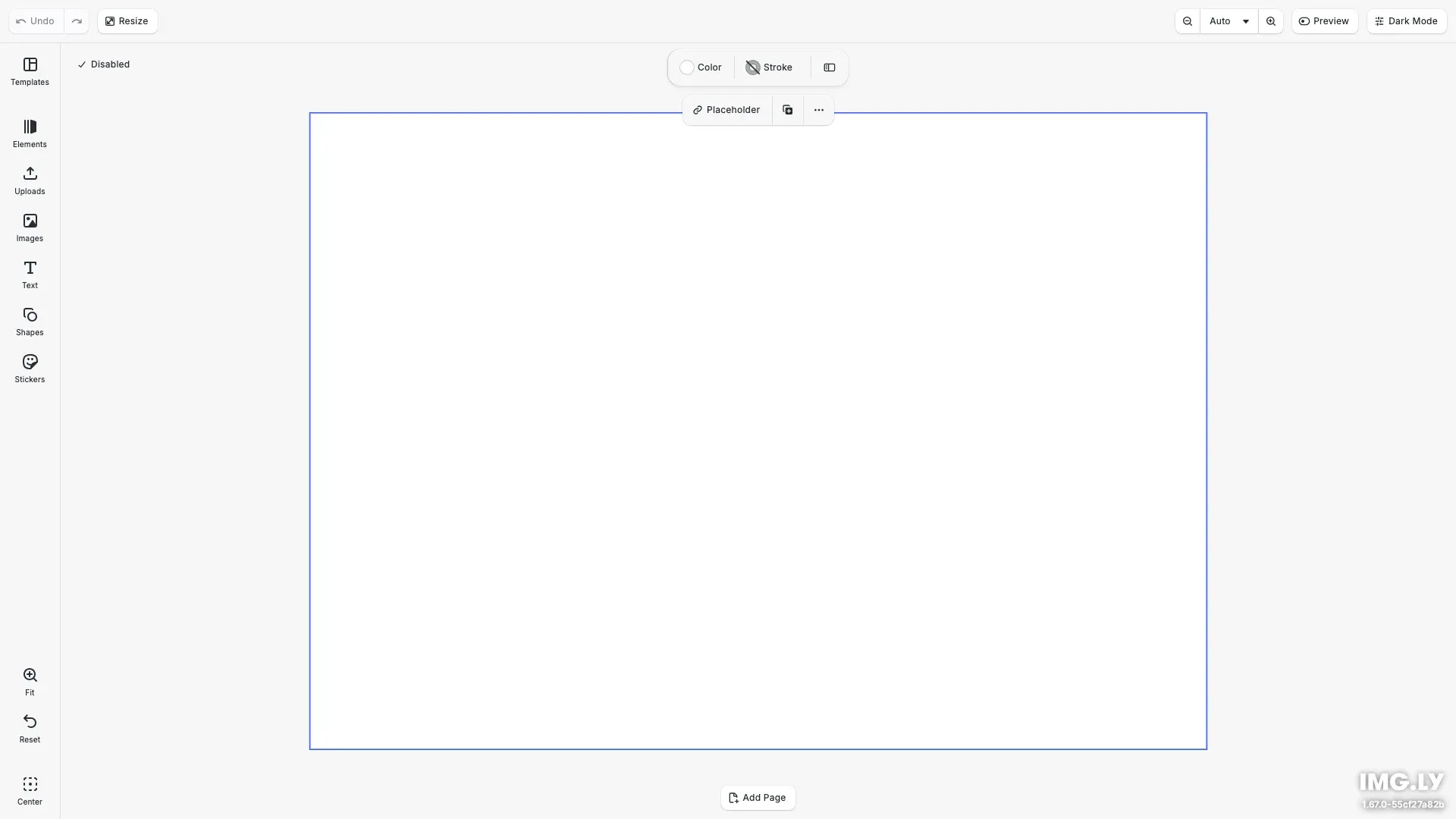
Custom components let you extend CE.SDK’s UI beyond built-in action buttons. The workflow has two steps: register the component with registerComponent(), then place it with insertOrderComponent().
This guide covers registering components, placing them in UI areas, using the builder API to create buttons and controls, and managing component state.
Register a Component#
Use cesdk.ui.registerComponent() to define a custom component. The function receives a context object with builder for creating UI elements and cesdk for accessing the SDK.
// Register a custom theme toggle buttoncesdk.ui.registerComponent('my.themeToggle', ({ builder }) => { const currentTheme = cesdk.ui.getTheme(); builder.Button('my.themeToggle.button', { label: currentTheme === 'light' ? 'Dark Mode' : 'Light Mode', icon: '@imgly/Adjustments', variant: 'regular', onClick: () => { cesdk.ui.setTheme(currentTheme === 'light' ? 'dark' : 'light'); } });});The component function is called whenever the UI needs to render. In this example, the button label updates based on the current theme since getTheme() is called inside the render function.
Place the Component#
Use insertOrderComponent() to add your registered component to any UI area.
// Place the theme toggle in the navigation barcesdk.ui.insertOrderComponent( { in: 'ly.img.navigation.bar' }, 'my.themeToggle');Components can be placed in any UI area:
ly.img.navigation.bar- Top navigation barly.img.dock- Left-side dock panelly.img.inspector.bar- Right-side inspectorly.img.canvas.bar- Canvas toolbar (withat: 'top'orat: 'bottom')ly.img.canvas.menu- Context menu
Build Multi-Button Components#
A single registered component can render multiple builder elements. This example creates a “Quick Actions” component with zoom controls.
// Register a quick actions component with multiple buttonscesdk.ui.registerComponent('my.quickActions', ({ builder }) => {  // Zoom to fit button  builder.Button('my.quickActions.zoomFit', {    label: 'Fit',    icon: '@imgly/ZoomIn',    onClick: () => {      const pages = cesdk.engine.scene.getPages();      if (pages.length > 0) {        cesdk.engine.scene.zoomToBlock(pages[0]);      }    }  });
  // Reset zoom button  builder.Button('my.quickActions.resetZoom', {    label: 'Reset',    icon: '@imgly/Reset',    onClick: () => {      cesdk.engine.scene.setZoomLevel(1.0);    }  });
  builder.Separator('my.quickActions.separator');
  // Center canvas button  builder.Button('my.quickActions.center', {    label: 'Center',    icon: '@imgly/Position',    onClick: () => {      const pages = cesdk.engine.scene.getPages();      if (pages.length > 0) {        cesdk.engine.scene.zoomToBlock(pages[0], { padding: 40 });      }    }  });});
// Place quick actions in the dockcesdk.ui.insertOrderComponent({ in: 'ly.img.dock' }, [  'ly.img.spacer',  'my.quickActions']);
The component is placed in the dock after a spacer, pushing it toward the bottom. Each button performs a specific action when clicked.
Use Component State#
The builder context provides a state function for managing local component state. State persists across re-renders and triggers updates when changed.
// Register a component demonstrating different builder elementscesdk.ui.registerComponent('my.controls', ({ builder, state }) => {  // Use state to track toggle value  const { value: isEnabled, setValue: setIsEnabled } = state(    'isEnabled',    false  );
  builder.Button('my.controls.toggle', {    label: isEnabled ? 'Enabled' : 'Disabled',    icon: '@imgly/Checkmark',    variant: isEnabled ? 'regular' : 'plain',    onClick: () => {      setIsEnabled(!isEnabled);      console.log(`Controls ${!isEnabled ? 'enabled' : 'disabled'}`);    }  });});
// Place controls in the canvas barcesdk.ui.insertOrderComponent(  { in: 'ly.img.canvas.bar', at: 'top' },  'my.controls');
The state function takes an ID and default value, returning the current value and a setter. When setValue is called, the component re-renders with the new value.
Builder Elements Reference#
Common builder methods for creating UI elements:
| Method | Purpose | Key Options |
|---|---|---|
builder.Button() | Clickable button | label, icon, onClick, variant |
builder.Separator() | Visual divider | None |
builder.Checkbox() | Toggle control | value, setValue, inputLabel |
builder.Select() | Dropdown selector | values, value, setValue, searchable, searchPlaceholder |
builder.Slider() | Range input | min, max, value, setValue |
For the complete builder API, see Register New Component.
Component Registration Timing#
Components must be registered before they can be placed. Call registerComponent() before insertOrderComponent(). In the plugin pattern, both calls happen inside initialize(), ensuring the correct order. If registering outside a plugin, register components during the onCreate callback or immediately after initialization.
Naming Conventions#
Follow these patterns for component IDs:
- Use a unique prefix:
my.,company.,app. - Follow the pattern:
[prefix].[feature](e.g.,my.themeToggle) - Use dot notation for child elements:
my.themeToggle.button
Troubleshooting#
Component not appearing - Ensure registerComponent() is called before insertOrderComponent(). Components must be registered first.
Duplicate component error - Each component ID must be unique. Don’t register the same ID twice.
State not updating - Verify you’re calling setValue() from the state function, not modifying the value directly.
Builder elements not rendering - Check for JavaScript errors in the component function. The render function must complete without throwing.
API Reference#
| Method | Purpose |
|---|---|
cesdk.ui.registerComponent() | Register a custom component |
cesdk.ui.insertOrderComponent() | Place a component in a UI area |
builder.Button() | Create a button element |
builder.Separator() | Create a visual separator |
state() | Manage component-local state |
Next Steps#
Register New Component - Full builder API documentation with all element types
Component Order API - All placement options and matchers
Add Action Buttons - Built-in action buttons without registration