Split video and audio clips at specific time points using CE.SDK’s timeline UI and programmatic split API to create independent segments.
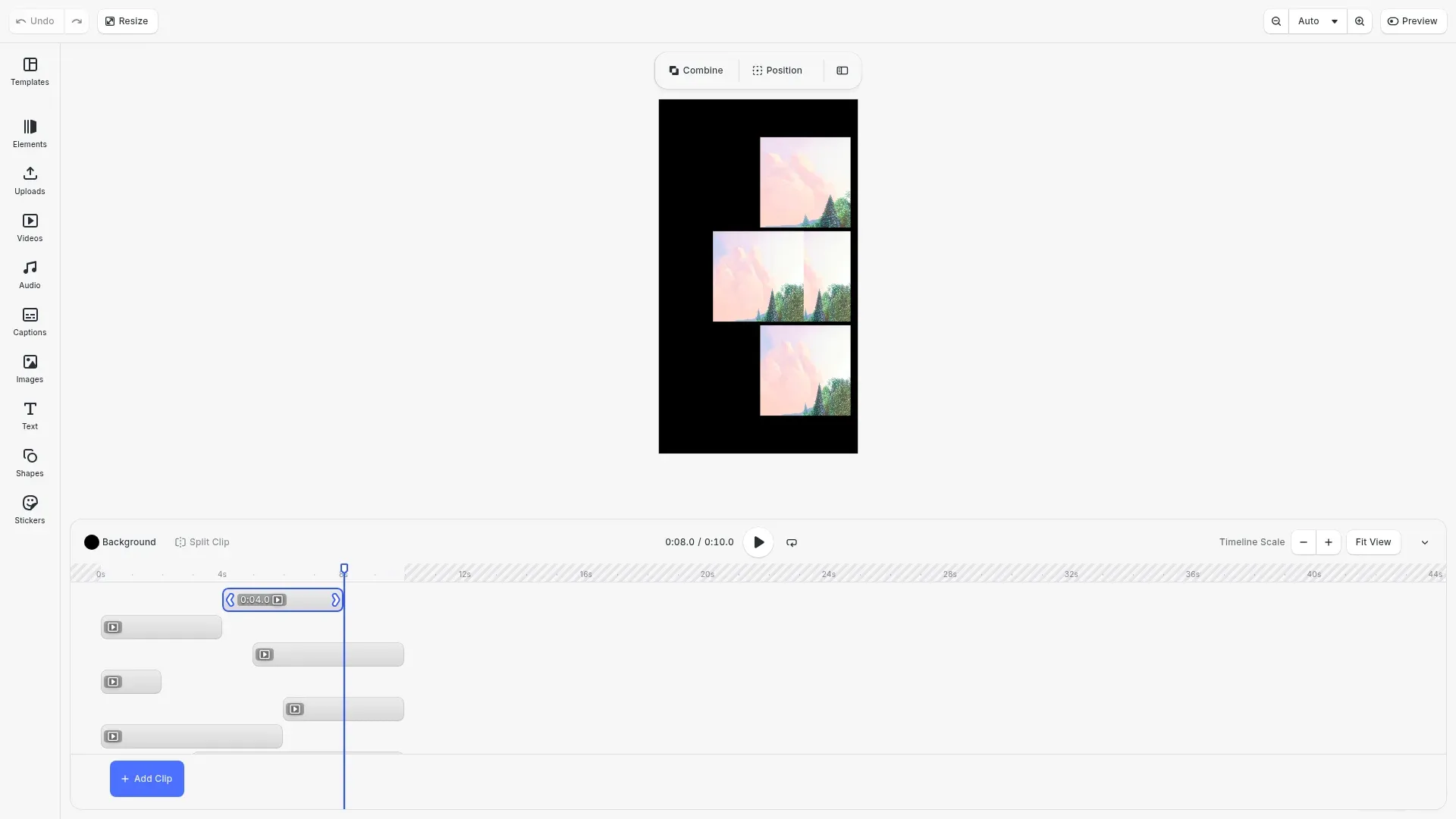
Clip splitting divides one block into two at a specified time. The original block ends at the split point; a new block starts there. Both blocks reference the same source media with independent timing. This differs from trimming, which adjusts a single block’s playback range without creating new blocks.
This guide covers how to use the built-in timeline UI for visual splitting and how to split clips programmatically using the Engine API.
Splitting Clips via the UI#
When you select a video or audio block in the timeline, CE.SDK provides split functionality through the toolbar. Position the playhead at the desired split point by clicking on the timeline ruler or dragging the playhead indicator.
With the clip selected and playhead positioned, click the Split button in the timeline toolbar. CE.SDK divides the clip at the playhead position, creating two independent segments. Visual feedback shows the resulting segments as separate blocks on the timeline.
The timeline enforces minimum duration constraints that prevent splitting too close to clip edges. If the playhead is positioned within this minimum boundary, the split operation will not be available.
Programmatic Splitting#
For applications that need to split clips programmatically—whether for automation, batch processing, or dynamic editing—CE.SDK provides the engine.block.split() method.
Prerequisites and Setup#
Before splitting, ensure video features are enabled and a video scene is created.
// Enable video editing features in CE.SDKcesdk.feature.enable('ly.img.video');cesdk.feature.enable('ly.img.timeline');cesdk.feature.enable('ly.img.playback');Video mode is required for split operations. Design mode doesn’t provide timeline-based editing capabilities, so use cesdk.actions.run('scene.create', { mode: 'Video' }) to access split functionality.
Basic Splitting at a Specific Time#
Split a block by providing the block ID and the split time in seconds. The time parameter is relative to the block’s own timeline, accounting for the block’s time offset.
// Create a video block to demonstrate basic splittingconst basicSplitVideo = await engine.block.addVideo(  videoUri,  blockWidth,  blockHeight);
// Get the video fill and load resource to access durationconst basicFill = engine.block.getFill(basicSplitVideo);await engine.block.forceLoadAVResource(basicFill);
// Set block duration for the timelineengine.block.setDuration(basicSplitVideo, 10.0);
// Split the video block at 5 seconds// Returns the ID of the newly created block (second segment)const splitResultBlock = engine.block.split(basicSplitVideo, 5.0);
console.log(  `Basic split - Original block: ${basicSplitVideo}, New block: ${splitResultBlock}`);
The split() method returns the ID of the newly created block. The original block becomes the first segment (before the split point), and the returned block is the second segment (after the split point).
Configuring Split Options#
The SplitOptions object controls split behavior with three optional properties:
attachToParent(default:true): Whether to attach the new block to the same parent as the originalcreateParentTrackIfNeeded(default:false): Creates a parent track if needed and adds both blocks to itselectNewBlock(default:true): Whether to select the newly created block after splitting
// Create another video block to demonstrate split optionsconst optionsSplitVideo = await engine.block.addVideo(  videoUri,  blockWidth,  blockHeight);
const optionsFill = engine.block.getFill(optionsSplitVideo);await engine.block.forceLoadAVResource(optionsFill);engine.block.setDuration(optionsSplitVideo, 10.0);
// Split with custom optionsconst optionsSplitResult = engine.block.split(optionsSplitVideo, 4.0, {  attachToParent: true, // Attach new block to same parent (default: true)  createParentTrackIfNeeded: false, // Don't create track if needed (default: false)  selectNewBlock: false // Don't select the new block (default: true)});
console.log(  `Split with options - New block: ${optionsSplitResult}, selectNewBlock: false`);
Use selectNewBlock: false when splitting multiple clips programmatically to avoid changing selection state between operations.
Splitting at the Current Playhead Position#
To implement playhead-based splitting like the built-in UI, get the current playback time from the page and convert it to block-relative time.
// Create a video block to demonstrate playhead-based splittingconst playheadSplitVideo = await engine.block.addVideo(  videoUri,  blockWidth,  blockHeight);
const playheadFill = engine.block.getFill(playheadSplitVideo);await engine.block.forceLoadAVResource(playheadFill);engine.block.setDuration(playheadSplitVideo, 10.0);
// Get the clip's start time on the timelineconst clipStartTime = engine.block.getTimeOffset(playheadSplitVideo);
// Simulate a playhead position (in a real app, use engine.block.getPlaybackTime(page))const simulatedPlayheadTime = clipStartTime + 3.0;
// Calculate split time relative to the clipconst splitTime = simulatedPlayheadTime - clipStartTime;
// Perform the split at the calculated timeconst playheadSplitResult = engine.block.split(  playheadSplitVideo,  splitTime);
console.log(  `Playhead split - Split at ${splitTime}s into clip, New block: ${playheadSplitResult}`);
The playhead position from getPlaybackTime(page) is in absolute timeline time. Subtract the clip’s getTimeOffset() to convert to block-relative time before passing to split().
Understanding Split Results#
After a split operation, both the original and new blocks are configured with updated trim properties.
Trim Properties After Split#
// Create a video block to examine split resultsconst resultsSplitVideo = await engine.block.addVideo(  videoUri,  blockWidth,  blockHeight);
const resultsFill = engine.block.getFill(resultsSplitVideo);await engine.block.forceLoadAVResource(resultsFill);engine.block.setDuration(resultsSplitVideo, 10.0);
// Get trim values before splitconst originalTrimOffset = engine.block.getTrimOffset(resultsFill);const originalTrimLength = engine.block.getTrimLength(resultsFill);
// Split at 6 secondsconst resultsNewBlock = engine.block.split(resultsSplitVideo, 6.0);const newBlockFill = engine.block.getFill(resultsNewBlock);
// Examine trim properties after splitconst originalAfterSplitOffset = engine.block.getTrimOffset(resultsFill);const originalAfterSplitLength = engine.block.getTrimLength(resultsFill);const newBlockTrimOffset = engine.block.getTrimOffset(newBlockFill);const newBlockTrimLength = engine.block.getTrimLength(newBlockFill);
console.log('Split results:');console.log(  `  Original before: offset=${originalTrimOffset}, length=${originalTrimLength}`);console.log(  `  Original after: offset=${originalAfterSplitOffset}, length=${originalAfterSplitLength}`);console.log(  `  New block: offset=${newBlockTrimOffset}, length=${newBlockTrimLength}`);
The original block keeps its trim offset unchanged, but its trim length is reduced to the split point. The new block has its trim offset advanced by the split time and trim length set to cover the remaining duration. Both blocks reference the same source media—splitting is non-destructive.
Timeline Positioning#
The original block keeps its getTimeOffset(). When attachToParent is true, the new block is positioned immediately after the original on the same parent. Both blocks stay on the same track unless createParentTrackIfNeeded creates a new track structure.
Split and Delete Workflow#
Remove a middle section from a clip by splitting at both boundaries and deleting the middle segment.
// Create a video block to demonstrate split-and-delete workflowconst deleteWorkflowVideo = await engine.block.addVideo(  videoUri,  blockWidth,  blockHeight);
const deleteFill = engine.block.getFill(deleteWorkflowVideo);await engine.block.forceLoadAVResource(deleteFill);engine.block.setDuration(deleteWorkflowVideo, 10.0);
// Remove middle section: split at start of section to remove (2s)const middleBlock = engine.block.split(deleteWorkflowVideo, 2.0);
// Split again at the end of the section to remove (at 3s into middle block = 5s total)const endBlock = engine.block.split(middleBlock, 3.0);
// Delete the middle segmentengine.block.destroy(middleBlock);
console.log(  `Split and delete - Removed middle 3s section, kept blocks: ${deleteWorkflowVideo}, ${endBlock}`);
This workflow is useful for removing unwanted sections, such as cutting out pauses, mistakes, or irrelevant portions from a recording.
Validating Split Time#
Always validate that the split time is within valid bounds before calling split(). The split time must be greater than 0 and less than the block’s duration.
// Create a video block to demonstrate split time validationconst validateVideo = await engine.block.addVideo(  videoUri,  blockWidth,  blockHeight);
const validateFill = engine.block.getFill(validateVideo);await engine.block.forceLoadAVResource(validateFill);engine.block.setDuration(validateVideo, 8.0);
// Get block duration to validate split timeconst blockDuration = engine.block.getDuration(validateVideo);const desiredSplitTime = 4.0;
// Validate split time is within bounds (must be > 0 and < duration)if (desiredSplitTime > 0 && desiredSplitTime < blockDuration) {  const validatedSplitResult = engine.block.split(    validateVideo,    desiredSplitTime  );  console.log(    `Validated split - Duration: ${blockDuration}s, Split at: ${desiredSplitTime}s, New block: ${validatedSplitResult}`  );} else {  console.log('Split time out of range');}
Attempting to split at an invalid time (at the beginning, end, or outside the block’s duration) will fail or produce unexpected results.
Troubleshooting#
Split Returns Unexpected Block#
If the returned block ID doesn’t behave as expected, remember that the original block becomes the first segment (before split point) and the returned block is the second segment (after split point).
Split Time Out of Range#
If split fails or produces unexpected results, verify the split time is within bounds. Use getDuration() to check the valid range before splitting.
Clip Not Splitting#
If split() has no visible effect, check that the block type supports splitting. Verify supportsTrim() returns true for the block’s fill. For video and audio fills, ensure forceLoadAVResource() has been awaited before attempting to split.
API Reference#
| Method | Description | Parameters | Returns |
|---|---|---|---|
split(id, atTime, options?) | Split a block at the specified time | id: DesignBlockId, atTime: number, options?: SplitOptions | DesignBlockId |
getTimeOffset(id) | Get time offset relative to parent | id: DesignBlockId | number |
getDuration(id) | Get playback duration | id: DesignBlockId | number |
getPlaybackTime(id) | Get current playback time | id: DesignBlockId | number |
getTrimOffset(id) | Get trim offset of media content | id: DesignBlockId | number |
getTrimLength(id) | Get trim length of media content | id: DesignBlockId | number |
supportsTrim(id) | Check if block supports trim properties | id: DesignBlockId | boolean |
forceLoadAVResource(id) | Force load media resource metadata | id: DesignBlockId | Promise<void> |
destroy(id) | Destroy a block | id: DesignBlockId | void |