Add text and image watermarks to video content for copyright protection, branding, and content attribution using CE.SDK’s timeline-aware block system.
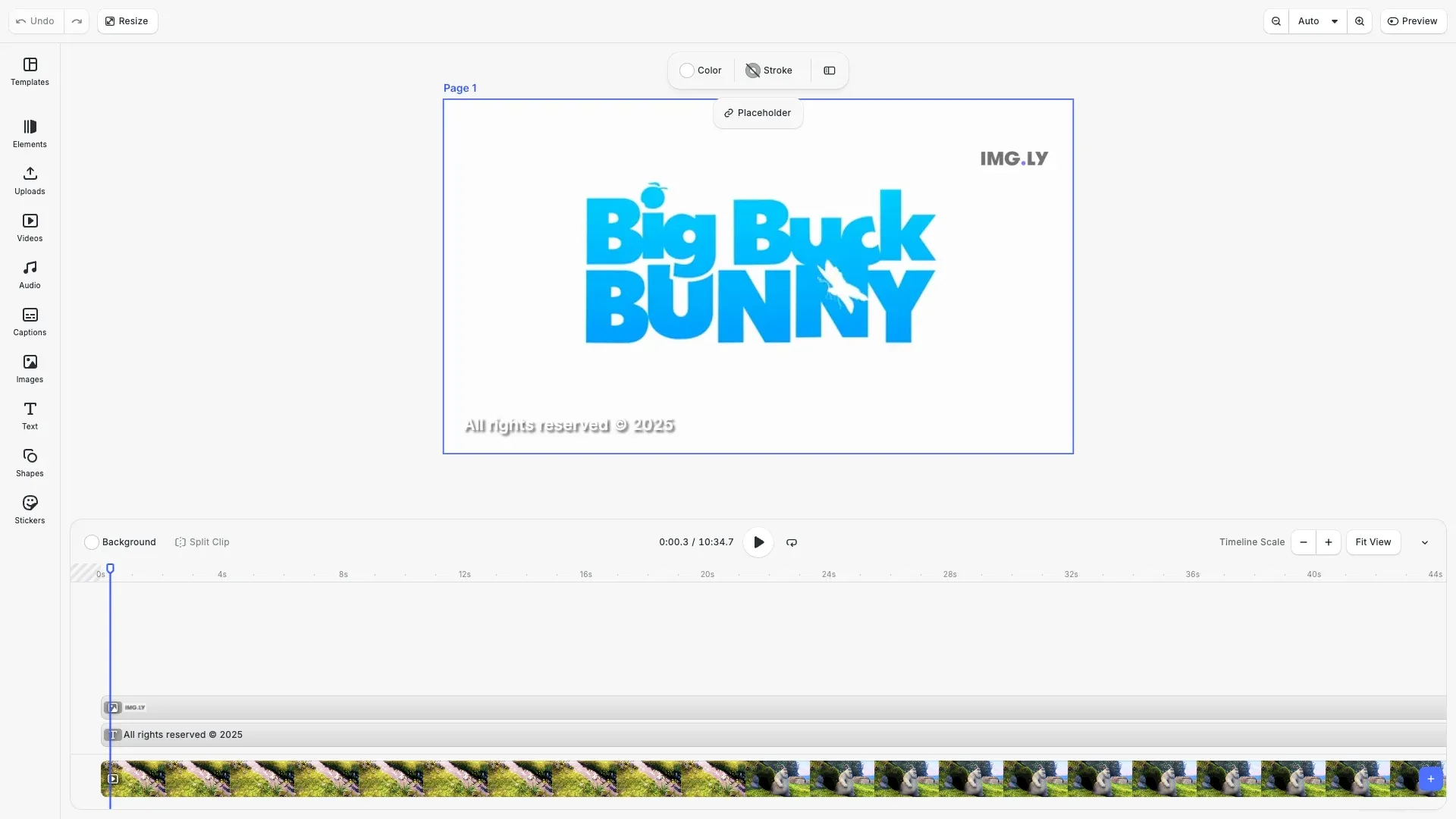
Video watermarks in CE.SDK are design blocks positioned over video content. Text watermarks display copyright notices, URLs, or branding text, while image watermarks show logos or graphics. Both watermark types require timeline management to ensure they remain visible throughout video playback. The key difference from static image watermarking is setting the watermark’s duration to match the video duration.
This guide covers how to create text and image watermarks programmatically, position them on the canvas, style them for visibility, and configure their timeline duration to span the entire video.
Setting Up Video Mode#
Before adding watermarks, we configure CE.SDK for video editing. Video mode enables timeline features required for watermark duration control.
// Enable video editing features in CE.SDKcesdk.feature.enable('ly.img.video');cesdk.feature.enable('ly.img.timeline');cesdk.feature.enable('ly.img.playback');We enable three features: ly.img.video for video support, ly.img.timeline for timeline controls, and ly.img.playback for video playback. These features must be enabled before creating a video scene.
Creating a Video Scene#
We create a video scene from a video URL. This automatically sets up the timeline and page dimensions based on the video.
// Create a video scene from a sample videoconst videoUrl = 'https://img.ly/static/ubq_video_samples/bbb.mp4';await cesdk.engine.scene.createFromVideo(videoUrl);The createFromVideo method loads the video, creates a scene, and sets the page dimensions to match the video’s aspect ratio. The video becomes a fill block on the timeline with its duration already set.
Creating a Text Watermark#
Text watermarks display copyright notices, branding text, or URLs. We create a text block and position it on the canvas.
// Create a text watermark for copyright noticeconst textWatermark = engine.block.create('text');
// Use Auto sizing so the text block grows to fit its contentengine.block.setWidthMode(textWatermark, 'Auto');engine.block.setHeightMode(textWatermark, 'Auto');
// Set the watermark text content using replaceTextengine.block.replaceText(textWatermark, 'All rights reserved © 2025');
// Position in bottom-left corner with paddingconst textPadding = 20;engine.block.setPositionX(textWatermark, textPadding);engine.block.setPositionY(textWatermark, pageHeight - textPadding - 20);
We create a text block with block.create('text') and configure it with auto-sizing using setWidthMode('Auto') and setHeightMode('Auto'). This lets the text block grow to fit its content. We set the text content using replaceText() and position the watermark in the bottom-left corner with padding from the edges.
Styling Text Watermarks#
Style the text for readability across different video backgrounds.
// Style the text watermark with a subtle font sizeengine.block.setFloat(textWatermark, 'text/fontSize', 4);engine.block.setTextColor(textWatermark, { r: 1, g: 1, b: 1, a: 1 }); // White text
// Set text alignment to leftengine.block.setEnum(textWatermark, 'text/horizontalAlignment', 'Left');
// Set watermark opacity for subtle appearanceengine.block.setOpacity(textWatermark, 0.7);
We set the font size using setFloat() with the 'text/fontSize' property for a subtle watermark appearance. White text color ensures visibility, left alignment positions the text naturally, and 70% opacity creates a semi-transparent appearance that’s visible but not distracting.
Adding Drop Shadow for Visibility#
Drop shadows ensure text remains readable over both light and dark video backgrounds.
// Add drop shadow for visibility across different backgroundsengine.block.setDropShadowEnabled(textWatermark, true);engine.block.setDropShadowColor(textWatermark, { r: 0, g: 0, b: 0, a: 0.8 });engine.block.setDropShadowOffsetX(textWatermark, 2);engine.block.setDropShadowOffsetY(textWatermark, 2);engine.block.setDropShadowBlurRadiusX(textWatermark, 4);engine.block.setDropShadowBlurRadiusY(textWatermark, 4);We enable the drop shadow and configure its appearance. The black shadow color with 80% opacity provides contrast. Offset values (2px in each direction) separate the shadow from the text, while blur radius values (4px) create a soft shadow edge.
Setting Text Watermark Duration#
The watermark must persist throughout video playback. We set its duration to match the video duration.
// Set the text watermark duration to match the videoengine.block.setDuration(textWatermark, videoDuration);engine.block.setTimeOffset(textWatermark, 0);
// Add the text watermark to the pageengine.block.appendChild(page, textWatermark);
setDuration controls how long the block appears in the timeline. setTimeOffset of 0 ensures it starts at the beginning. We then append the watermark to the page, placing it above the video content.
Creating an Image Watermark#
Image watermarks display logos or graphics. We create a graphic block with an image fill.
// Create a graphic block for the logo watermarkconst logoWatermark = engine.block.create('graphic');
// Create a rectangular shape for the logoconst rectShape = engine.block.createShape('rect');engine.block.setShape(logoWatermark, rectShape);
// Create an image fill with the logoconst imageFill = engine.block.createFill('image');engine.block.setString(  imageFill,  'fill/image/imageFileURI',  'https://img.ly/static/ubq_samples/imgly_logo.jpg');engine.block.setFill(logoWatermark, imageFill);
// Set content fill mode to contain so the logo fits within boundsengine.block.setContentFillMode(logoWatermark, 'Contain');
We create a graphic block, assign it a rectangular shape, and fill it with an image. The fill/image/imageFileURI property specifies the logo URL. We set the content fill mode to ‘Contain’ so the logo fits within its bounds without cropping. This pattern—graphic block with shape and fill—is standard for displaying images in CE.SDK.
Positioning Image Watermarks#
Position the logo in a corner that doesn’t obstruct video content.
// Size and position the logo in the top-right cornerconst logoSize = 80;const logoPadding = 20;engine.block.setWidth(logoWatermark, logoSize);engine.block.setHeight(logoWatermark, logoSize);engine.block.setPositionX(logoWatermark, pageWidth - logoSize - logoPadding);engine.block.setPositionY(logoWatermark, logoPadding);We size the logo at 80x80 pixels—large enough to be recognizable but not dominating. Position values place it in the top-right corner with 20px padding from the edges.
Configuring Opacity and Blend Mode#
Control how the watermark integrates with the video.
// Set opacity for the logo watermarkengine.block.setOpacity(logoWatermark, 0.6);
// Set blend mode for better integration with video contentengine.block.setBlendMode(logoWatermark, 'Normal');
We set 60% opacity for a subtle but visible watermark. The blend mode ‘Normal’ displays the logo as-is. Other modes like ‘Multiply’ or ‘Screen’ create different visual effects depending on the logo and video content.
Setting Image Watermark Duration#
Like text watermarks, image watermarks need duration configuration.
// Set the logo watermark duration to match the videoengine.block.setDuration(logoWatermark, videoDuration);engine.block.setTimeOffset(logoWatermark, 0);
// Add the logo watermark to the pageengine.block.appendChild(page, logoWatermark);
We set the same duration and time offset as the text watermark so both appear throughout the video. The appendChild call adds the logo to the page above existing content.
Watermark Positioning Strategies#
Choose watermark positions based on your use case:
- Bottom-right corner: Most common for copyright notices. Less intrusive but clearly visible.
- Top-right corner: Good for logos. Doesn’t interfere with typical video framing.
- Bottom-left corner: Alternative for text when bottom-right conflicts with video content.
- Center: Strong protection but obstructs content. Use for draft or preview watermarks.
Calculate positions dynamically based on page dimensions to handle different video aspect ratios.
Best Practices#
Visibility#
- Use drop shadows on text watermarks for contrast against varying backgrounds
- Set opacity between 50-70% for subtle but visible branding
- Choose appropriate font sizes based on your use case (smaller for subtle branding, larger for prominent notices)
- Test watermarks against different scenes in your video
Timeline Management#
- Always match watermark duration to video duration
- Set time offset to 0 for watermarks that should appear from the start
- For time-based watermarks, calculate offsets based on video sections
Performance#
- Use appropriately sized logo images (avoid oversized source files)
- Limit the number of watermark blocks to minimize rendering overhead
- Consider combining multiple watermarks into a single image if they’re always used together
API Reference#
| Method | Description |
|---|---|
block.create('text') | Create a text block for text watermarks |
block.create('graphic') | Create a graphic block for image watermarks |
block.setWidthMode(id, mode) | Set width sizing mode (‘Auto’, ‘Absolute’, ‘Percent’) |
block.setHeightMode(id, mode) | Set height sizing mode (‘Auto’, ‘Absolute’, ‘Percent’) |
block.replaceText(id, text) | Set text content for text blocks |
block.setFloat(id, property, value) | Set numeric properties like font size |
block.createShape('rect') | Create a rectangular shape for graphics |
block.createFill('image') | Create an image fill for logo watermarks |
block.setString(id, property, value) | Set string properties like image URI |
block.setContentFillMode(id, mode) | Set content fill mode (‘Crop’, ‘Cover’, ‘Contain’) |
block.setDuration(id, duration) | Set watermark timeline duration |
block.setTimeOffset(id, offset) | Set watermark start time |
block.setOpacity(id, opacity) | Set watermark transparency (0.0-1.0) |
block.setDropShadowEnabled(id, enabled) | Enable/disable drop shadow |
block.setDropShadowColor(id, color) | Set shadow color |
block.setDropShadowOffsetX/Y(id, offset) | Set shadow position |
block.setDropShadowBlurRadiusX/Y(id, radius) | Set shadow blur |
block.setBlendMode(id, mode) | Set blend mode (‘Normal’, ‘Multiply’, etc.) |
block.appendChild(parent, child) | Add watermark to page |