Generate personalized designs from a single template by merging external data into CE.SDK templates using text variables and placeholder blocks.
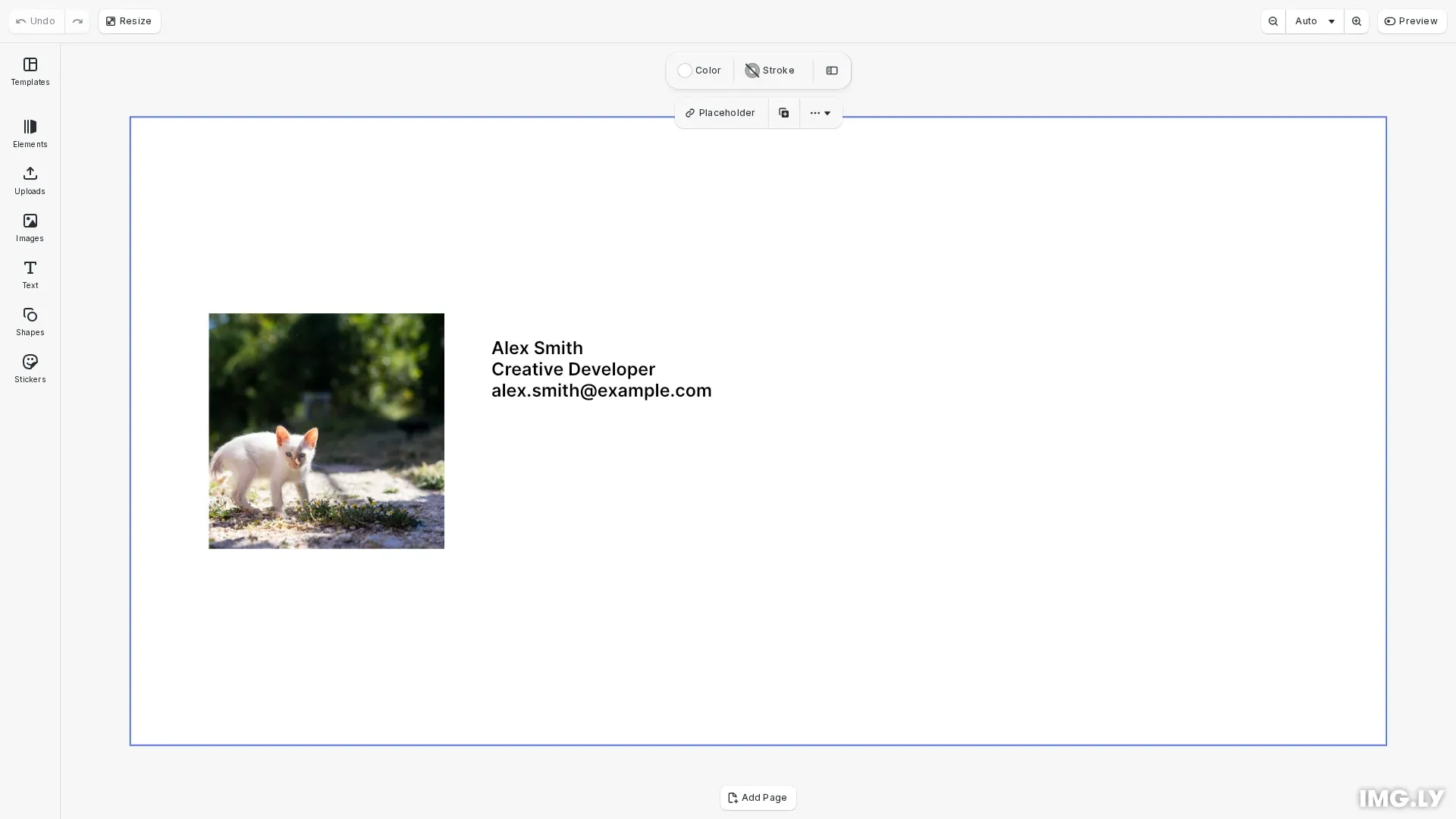
Data merge generates multiple personalized designs from a single template by replacing variable content with external data. Use it for certificates, badges, team cards, or any design requiring consistent layout with varying content.
This guide covers how to prepare templates with variables, set values from data, and export personalized designs.
Initialize the Editor#
We start by initializing CE.SDK with a Design scene and setting up the page dimensions for our template.
await cesdk.addPlugin(new DesignEditorConfig());
// Add asset source pluginsawait cesdk.addPlugin(new BlurAssetSource());await cesdk.addPlugin(new ColorPaletteAssetSource());await cesdk.addPlugin(new CropPresetsAssetSource());await cesdk.addPlugin(new UploadAssetSources({ include: ['ly.img.image.upload'] }));await cesdk.addPlugin(  new DemoAssetSources({    include: [      'ly.img.templates.blank.*',      'ly.img.templates.presentation.*',      'ly.img.templates.print.*',      'ly.img.templates.social.*',      'ly.img.image.*'    ]  }));await cesdk.addPlugin(new EffectsAssetSource());await cesdk.addPlugin(new FiltersAssetSource());await cesdk.addPlugin(new PagePresetsAssetSource());await cesdk.addPlugin(new StickerAssetSource());await cesdk.addPlugin(new TextAssetSource());await cesdk.addPlugin(new TextComponentAssetSource());await cesdk.addPlugin(new TypefaceAssetSource());await cesdk.addPlugin(new VectorShapeAssetSource());
await cesdk.actions.run('scene.create', {  page: { width: 800, height: 400, unit: 'Pixel' }});
const engine = cesdk.engine;const page = engine.block.findByType('page')[0];
Prepare Sample Data#
In a real application, data comes from a CSV file, database, or API. Here we define a sample record with the fields we want to merge into the template.
// Sample data to merge into the templateconst sampleData = { name: 'Alex Smith', title: 'Creative Developer', email: 'alex.smith@example.com', photoUrl: 'https://img.ly/static/ubq_samples/sample_1.jpg'};Each data record contains field names that map to template variables and placeholder blocks.
Create Template Layout#
We build the template by creating blocks and assigning semantic names. The profile photo block uses setName() so we can find and update it later.
// Create a profile photo block with a semantic nameconst photoBlock = engine.block.create('graphic');engine.block.setShape(photoBlock, engine.block.createShape('rect'));const photoFill = engine.block.createFill('image');engine.block.setString( photoFill, 'fill/image/imageFileURI', sampleData.photoUrl);engine.block.setFill(photoBlock, photoFill);engine.block.setWidth(photoBlock, 150);engine.block.setHeight(photoBlock, 150);engine.block.setPositionX(photoBlock, 50);engine.block.setPositionY(photoBlock, 125);engine.block.setName(photoBlock, 'profile-photo');engine.block.appendChild(page, photoBlock);Using semantic names like profile-photo makes it easy to locate and modify blocks when processing different data records.
Add Text with Variables#
Text variables use double curly brace syntax: {{variableName}}. We create a text block with variable placeholders for name, title, and email.
// Create a text block with variable placeholders const textBlock = engine.block.create('text'); const textContent = `{{name}}{{title}}{{email}}`; engine.block.replaceText(textBlock, textContent); engine.block.setWidthMode(textBlock, 'Auto'); engine.block.setHeightMode(textBlock, 'Auto'); engine.block.setFloat(textBlock, 'text/fontSize', 32); engine.block.setPositionX(textBlock, 230); engine.block.setPositionY(textBlock, 140); engine.block.appendChild(page, textBlock);Variables in text blocks automatically display their values when set through the Variable API.
Set Variable Values#
We use engine.variable.setString() to define the value for each variable. When a variable is set, all text blocks referencing that variable update automatically.
// Set the variable values from dataengine.variable.setString('name', sampleData.name);engine.variable.setString('title', sampleData.title);engine.variable.setString('email', sampleData.email);Variable values persist throughout the engine session. Setting a variable to a new value updates all references immediately.
Discover Variables#
Use engine.variable.findAll() to discover which variables exist in the scene. Use engine.block.referencesAnyVariables() to check if a specific block contains variable references.
// Discover all variables in the sceneconst variables = engine.variable.findAll();console.log('Variables in scene:', variables);
// Check if the text block references any variablesconst hasVariables = engine.block.referencesAnyVariables(textBlock);console.log('Text block has variables:', hasVariables);
This is useful when loading existing templates to determine which data fields are required.
Find and Update Placeholder Blocks#
Use engine.block.findByName() to locate blocks by their semantic name. Once found, you can update properties like image content by modifying the fill URI.
// Find blocks by their semantic nameconst [foundPhotoBlock] = engine.block.findByName('profile-photo');if (foundPhotoBlock) {  console.log('Found profile-photo block:', foundPhotoBlock);
  // Update the image content  const fill = engine.block.getFill(foundPhotoBlock);  engine.block.setString(    fill,    'fill/image/imageFileURI',    'https://img.ly/static/ubq_samples/sample_2.jpg'  );}
This pattern works well for updating profile photos, logos, or other image placeholders in templates.
Export the Design#
After merging data into the template, export the personalized design using engine.block.export().
// Export the personalized designconst blob = await engine.block.export(page, { mimeType: 'image/png' });console.log('Exported PNG blob:', blob.size, 'bytes');
// Create a download link for the exported imageconst url = URL.createObjectURL(blob);console.log('Download URL created:', url);
You can export to PNG, JPEG, WebP, or PDF formats. For batch processing, collect blobs in an array or write directly to a file system.
Troubleshooting#
Variables Not Rendering#
If variable placeholders show instead of values:
- Verify the variable name matches exactly (case-sensitive)
- Use
engine.variable.findAll()to check which variables are defined - Ensure
engine.variable.setString()was called before rendering
Block Not Found#
If findByName() returns an empty array:
- Check the block name was set with
engine.block.setName() - Verify the name string matches exactly (case-sensitive)
- Ensure the block exists in the current scene
Image Not Updating#
If placeholder images don’t update:
- Get the fill block first with
engine.block.getFill() - Use the correct property path:
fill/image/imageFileURI - Verify the image URL is accessible and valid
API Reference#
| Method | Description |
|---|---|
engine.variable.setString(name, value) | Set a text variable’s value |
engine.variable.getString(name) | Get a text variable’s value |
engine.variable.findAll() | List all variable names in the scene |
engine.variable.remove(name) | Remove a variable |
engine.block.findByName(name) | Find blocks by their semantic name |
engine.block.setName(block, name) | Set a block’s semantic name |
engine.block.replaceText(block, text) | Replace text content in a text block |
engine.block.referencesAnyVariables(block) | Check if block contains variable references |
engine.block.getFill(block) | Get the fill block of a design block |
engine.block.setString(block, property, value) | Set a string property value |
engine.block.export(block, options) | Export a block to an image format |