Create engaging text animations that reveal content line by line, word by word, or character by character with granular control over timing and overlap.
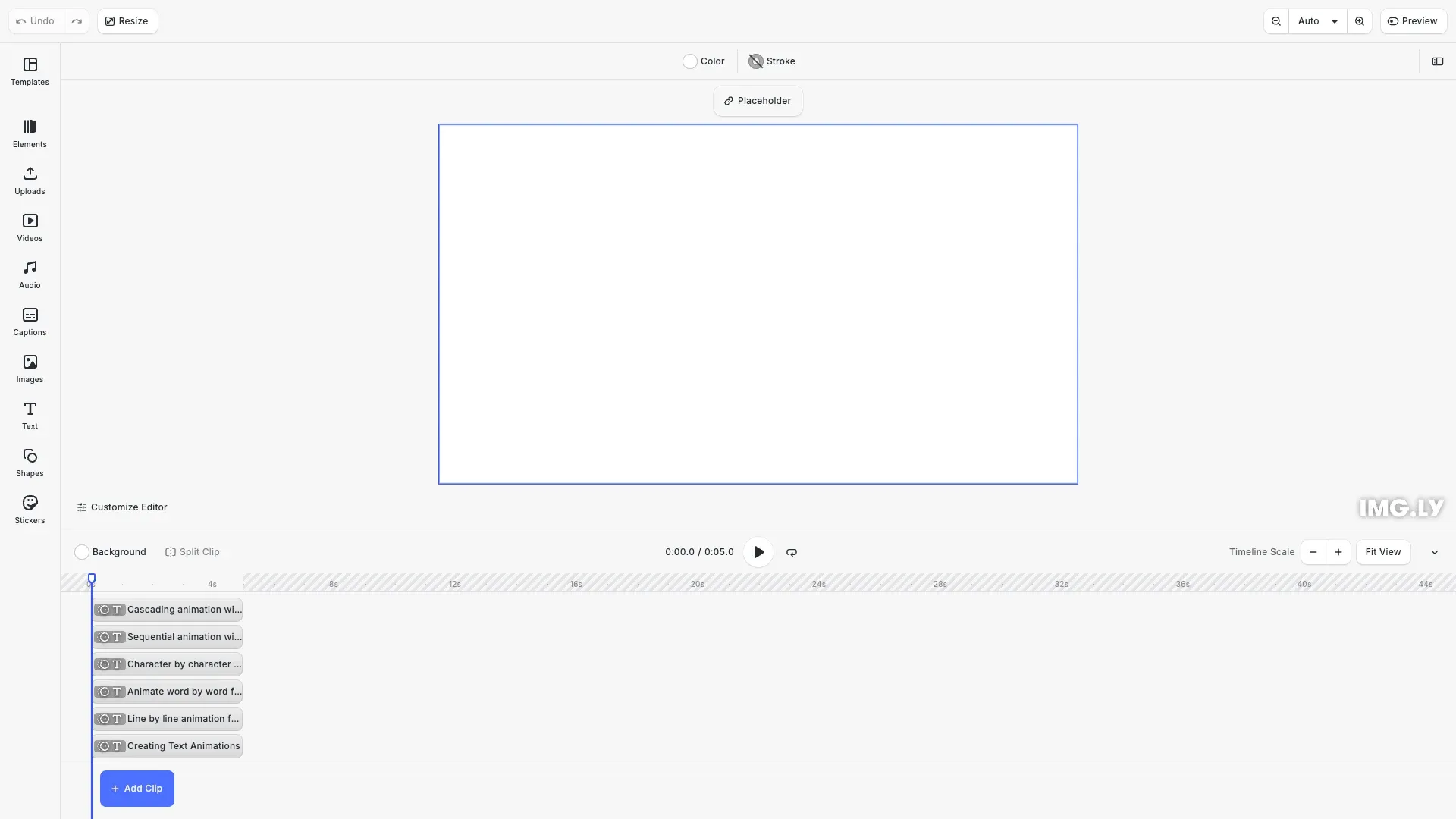
Text animations in CE.SDK allow you to animate text blocks with granular control over how the text appears. Unlike standard block animations, text animations support writing styles that determine whether animation applies to the entire text, line by line, word by word, or character by character.
This guide covers text-specific animation properties like writing styles and segment overlap, enabling dynamic and engaging text presentations in your designs.
Text Animation Fundamentals#
We create animations by first creating an animation instance, then attaching it to a text block. The animation block defines how the text will animate, while the text block contains the content and styling.
// Create an animation instance with the 'baseline' typeconst animation1 = engine.block.createAnimation('baseline');
// Apply the animation to the text block's entranceengine.block.setInAnimation(text1, animation1);
// Set basic animation propertiesengine.block.setDuration(animation1, 2.0);
Animations are created separately using engine.block.createAnimation() with an animation type like ‘baseline’, ‘fade’, or ‘pan’. We then attach the animation to the text block’s entrance using engine.block.setInAnimation(). The animation duration is set with engine.block.setDuration().
Writing Style Control#
Text animations support different granularity levels through the textAnimationWritingStyle property. This controls whether the animation applies to the entire text at once, or breaks it into segments (lines, words, or characters). We can query available options using engine.block.getEnumValues('textAnimationWritingStyle').
Line-by-Line Animation#
The Line writing style animates text one line at a time from top to bottom. Each line appears sequentially, creating a structured reveal effect.
const animation2 = engine.block.createAnimation('baseline');engine.block.setInAnimation(text2, animation2);engine.block.setDuration(animation2, 2.0);
// Set writing style to 'Line' for line-by-line animationengine.block.setEnum(animation2, 'textAnimationWritingStyle', 'Line');engine.block.setEnum(animation2, 'animationEasing', 'EaseOut');
We use engine.block.setEnum() to set the writing style to 'Line'. This is ideal for revealing multi-line text in a clear, organized manner.
Word-by-Word Animation#
The Word writing style animates text one word at a time in reading order. This creates emphasis and draws attention to individual words.
const animation3 = engine.block.createAnimation('baseline');engine.block.setInAnimation(text3, animation3);engine.block.setDuration(animation3, 2.5);
// Set writing style to 'Word' for word-by-word animationengine.block.setEnum(animation3, 'textAnimationWritingStyle', 'Word');engine.block.setEnum(animation3, 'animationEasing', 'EaseOut');
Setting the writing style to 'Word' is perfect for creating dynamic, engaging text reveals that emphasize key phrases.
Character-by-Character Animation#
The Character writing style animates text one character at a time, creating a classic typewriter effect. This is the most granular animation option.
const animation4 = engine.block.createAnimation('baseline');engine.block.setInAnimation(text4, animation4);engine.block.setDuration(animation4, 3.0);
// Set writing style to 'Character' for character-by-character animationengine.block.setEnum(animation4, 'textAnimationWritingStyle', 'Character');engine.block.setEnum(animation4, 'animationEasing', 'Linear');
The 'Character' writing style is ideal for typewriter effects and when you want maximum control over the animation timing.
Segment Overlap Configuration#
The textAnimationOverlap property controls timing between animation segments. A value of 0 means segments animate sequentially, while values between 0 and 1 create cascading effects where segments overlap partially. We use engine.block.setFloat() to set the overlap value.
Sequential Animation (Overlap = 0)#
When overlap is set to 0, each segment completes before the next begins, creating a clear, structured reveal effect.
// Set overlap to 0 for sequential animationengine.block.setFloat(animation5, 'textAnimationOverlap', 0.0);engine.block.setEnum(animation5, 'animationEasing', 'EaseOut');Sequential animation ensures each text segment fully appears before the next one starts, making it perfect for emphasis and readability.
Cascading Animation (Overlap = 0.4)#
When overlap is set to a value between 0 and 1, segments animate in a cascading pattern, creating a smooth, flowing effect as they blend together.
// Set overlap to 0.4 for cascading effectengine.block.setFloat(animation6, 'textAnimationOverlap', 0.4);engine.block.setEnum(animation6, 'animationEasing', 'EaseOut');Cascading animation with partial overlap creates dynamic, fluid text reveals that feel natural and engaging.
Combining with Animation Properties#
Text animations can be enhanced with standard animation properties like duration and easing. Duration controls the overall timing of the animation, while easing controls the acceleration curve.
// Combining animation properties: Duration and Easing// Duration controls overall timing, easing controls acceleration// Query available easing optionsconst easingOptions = engine.block.getEnumValues('animationEasing');console.log('Available easing options:', easingOptions);
// Query available writing style optionsconst writingStyleOptions = engine.block.getEnumValues(  'textAnimationWritingStyle');console.log('Available writing style options:', writingStyleOptions);
We use engine.block.setEnum() to set the easing function (‘EaseIn’, ‘EaseOut’, ‘EaseInOut’, ‘Linear’). We can query available easing options using engine.block.getEnumValues('animationEasing'). Combining writing style, overlap, duration, and easing gives us complete control over how text animates.
API Reference#
| Method | Description |
|---|---|
createAnimation(type) | Create a new animation instance |
setInAnimation(block, animation) | Apply animation to block entrance |
setLoopAnimation(block, animation) | Apply looping animation to block |
setOutAnimation(block, animation) | Apply animation to block exit |
getInAnimation(block) | Get the entrance animation of a block |
getLoopAnimation(block) | Get the looping animation of a block |
getOutAnimation(block) | Get the exit animation of a block |
setDuration(animation, seconds) | Set animation duration in seconds |
getDuration(animation) | Get animation duration |
setEnum(animation, property, value) | Set enum property (writing style, easing) |
getEnum(animation, property) | Get enum property value |
setFloat(animation, property, value) | Set float property (overlap value) |
getFloat(animation, property) | Get float property value |
getEnumValues(property) | Get available enum options for a property |
supportsAnimation(block) | Check if block supports animations |
replaceText(block, text) | Set text content of a text block |
setPlaying(block, enabled) | Start or stop playback |
setLooping(block, enabled) | Enable or disable looping playback |