Customize the loading screen that appears while the CE.SDK editor initializes by configuring a spinner, heading, and body text.
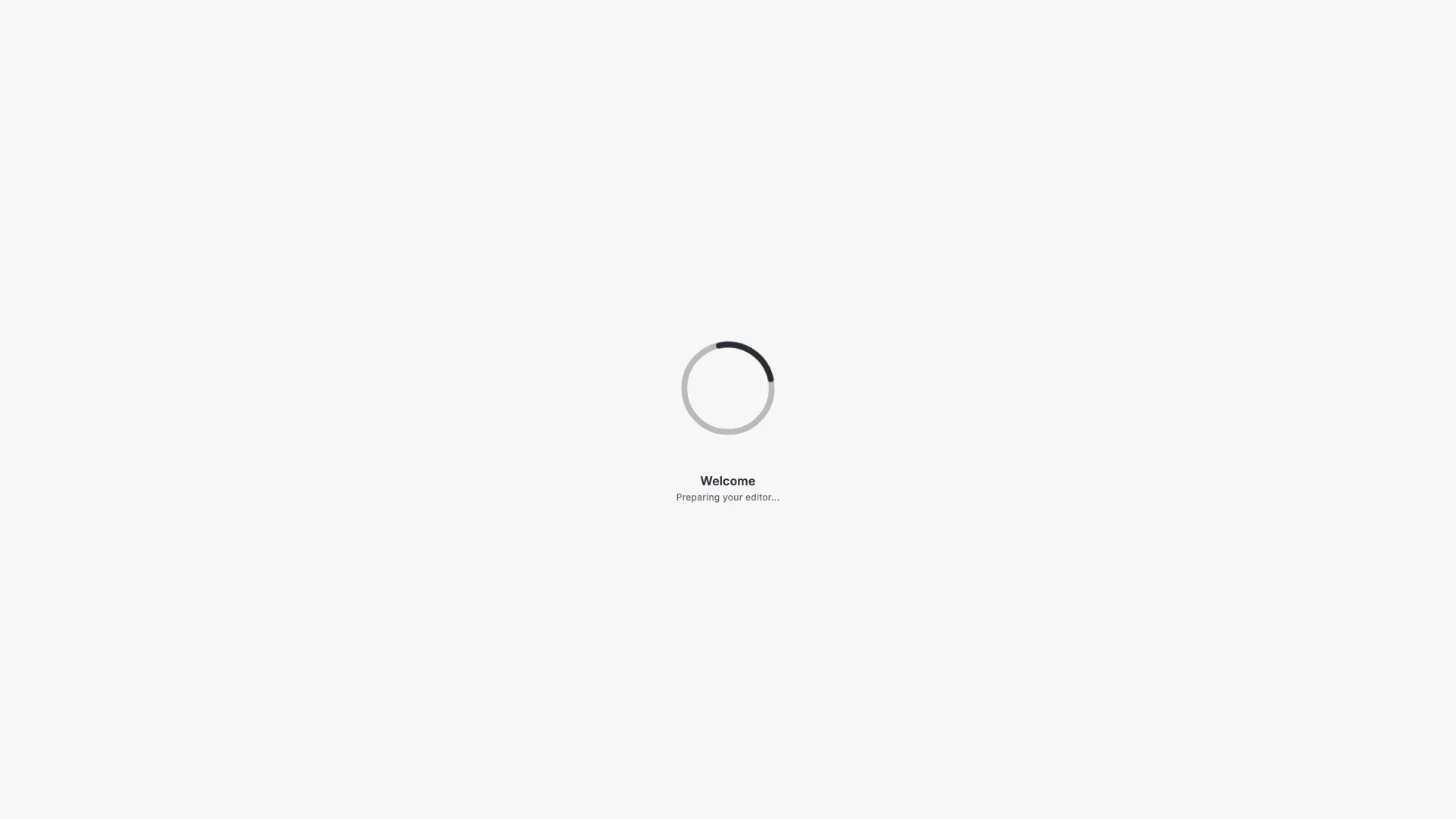
The loading indicator fills the editor canvas while the engine initializes and disappears once ready. By default only a spinner is shown, but you can add a heading and body text or remove the spinner entirely.
All configuration uses static pre-init APIs that must be called before CreativeEditorSDK.create(), because the loading screen renders before the editor instance exists.
Loading Components#
Three component types are available:
ly.img.loading.spinner: An animated spinner icon. Pass as a plain string ID.ly.img.loading.heading: Large heading text. Pass as{ id: 'ly.img.loading.heading', content: 'text or translation key' }.ly.img.loading.text: Body text below the heading. Pass as{ id: 'ly.img.loading.text', content: 'text or translation key' }.
We configure them by calling CreativeEditorSDK.ui.setComponentOrder() with the area { in: 'ly.img.loading' } and an array of components. They render vertically in the order specified.
CreativeEditorSDK.ui.setComponentOrder({ in: 'ly.img.loading' }, [ 'ly.img.loading.spinner', { id: 'ly.img.loading.heading', content: 'loading.heading' }, { id: 'ly.img.loading.text', content: 'loading.text' }]);We then create the editor as usual. The loading screen displays our custom content while the engine initializes:
CreativeEditorSDK.create('#cesdk_container', config)  .then(async (cesdk) => {    // Expose cesdk for debugging and hero screenshot generation    (window as any).cesdk = cesdk;
    // Load the example plugin    await cesdk.addPlugin(new Example());  })  .catch((error) => {    console.error('Failed to initialize CE.SDK:', error);  });
To show only text without a spinner, omit the spinner from the array:
// To show only text without a spinner, omit the spinner:// CreativeEditorSDK.ui.setComponentOrder({ in: 'ly.img.loading' }, [// { id: 'ly.img.loading.heading', content: 'Loading' },// { id: 'ly.img.loading.text', content: 'Please wait...' }// ]);Custom Spinner Animation#
The spinner renders an SVG icon with symbol ID @imgly/EditorProgress. To replace it, register a custom icon set via CreativeEditorSDK.ui.addIconSet() before creating the editor. The SVG must contain a <symbol> element with id="@imgly/EditorProgress". Use currentColor for stroke and fill values so the spinner adapts to the active theme.
const customSpinner = `<svg width="0" height="0" xmlns="http://www.w3.org/2000/svg"> <style> @keyframes custom-ep-spin { 0% { transform: rotate(0deg); } 100% { transform: rotate(360deg); } } .custom-ep-spinner { transform-origin: 50px 50px; animation: custom-ep-spin 1s linear infinite; } </style> <symbol id="@imgly/EditorProgress" viewBox="0 0 100 100" width="192" height="192"> <circle cx="50" cy="50" r="30" fill="none" stroke="currentColor" stroke-width="4" stroke-opacity="0.3" /> <path class="custom-ep-spinner" d="M50 20 A30 30 0 0 1 80 50" fill="none" stroke="currentColor" stroke-width="4" stroke-linecap="round" /> </symbol></svg>`;CreativeEditorSDK.ui.addIconSet('custom-loading-spinner', customSpinner);Translating Loading Text#
The content values support i18n. If a content string matches a translation key, the translated value is displayed. Otherwise the literal string is used as a fallback.
Register translations via CreativeEditorSDK.i18n.setTranslations() before creating the editor, then pass the translation key as the content value:
CreativeEditorSDK.i18n.setTranslations({ en: { 'loading.heading': 'Welcome', 'loading.text': 'Preparing your editor...' }, de: { 'loading.heading': 'Willkommen', 'loading.text': 'Editor wird vorbereitet...' }});Troubleshooting#
Loading indicator not changing. Ensure setComponentOrder is called before CreativeEditorSDK.create(). Calls made after initialization have no effect on the loading screen.
Text not appearing. Verify that component objects include the content property. A string ID like 'ly.img.loading.heading' without a content object will not render text.