Curve a text block so its characters follow an SVG path — an arch, a full circle, or any custom curve — instead of a straight baseline.
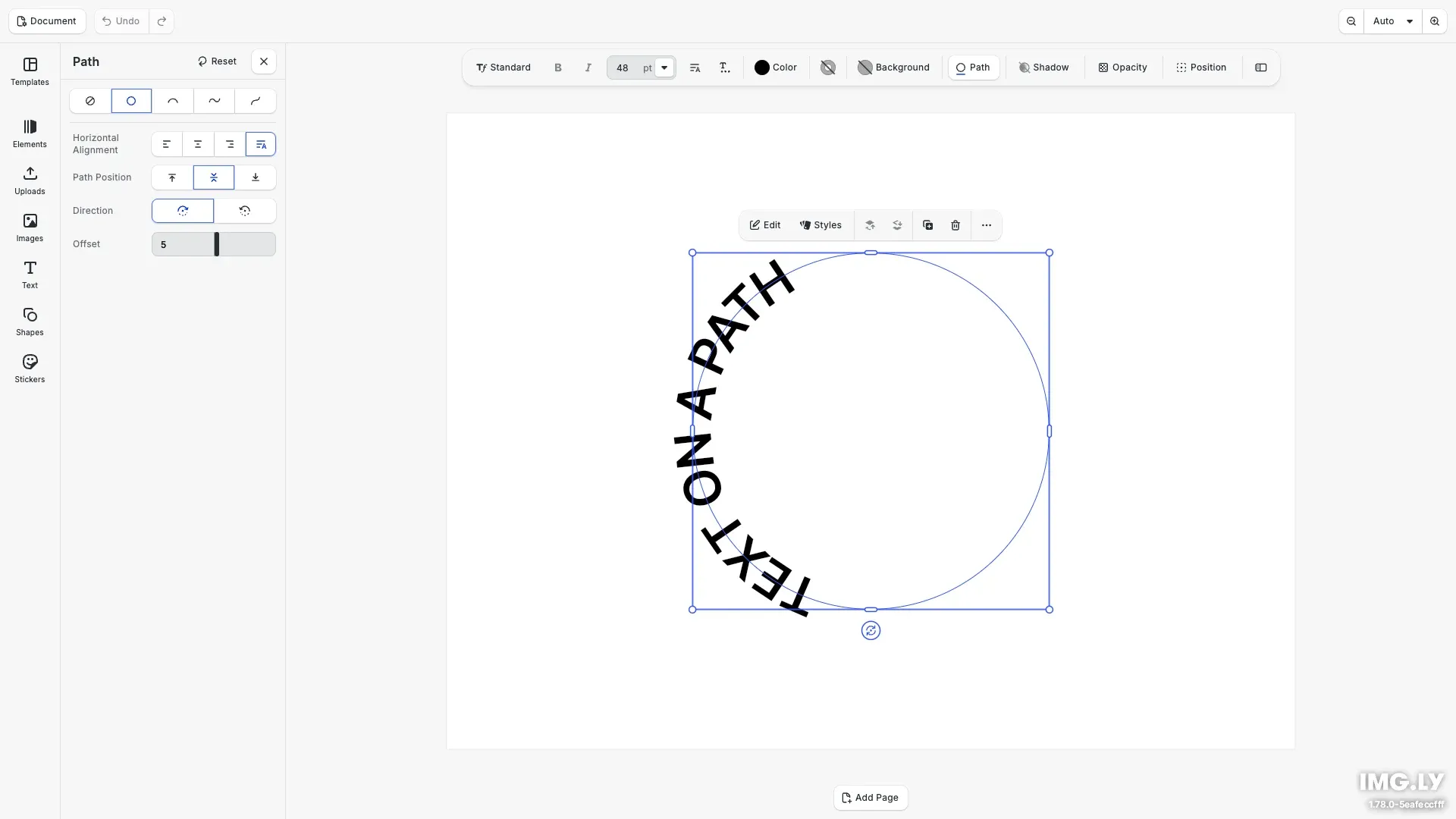
Text on a path makes a text block’s baseline follow an SVG curve instead of a straight line — useful for badges, circular seals, and arched headlines. It works both through the editor’s Path inspector and the engine API, applies to text blocks only, and disables word wrapping (line breaks collapse to spaces) while a path is active. Setting a path resizes the block to match the path’s aspect ratio.
This guide covers the built-in Path inspector, the bundled curved-text presets, curving text programmatically with setTextOnPath, positioning it along the curve, and gating the feature with the Feature API.
Using the Built-in Path UI#
Selecting a single text block reveals a Path button in the inspector bar that opens the Path panel. No code is required — the panel exposes every control a user needs:
- Curve — choose None, Circle, Arch, Wave, or Elevate. Picking a curve bends the text to follow it; None removes it and restores normal layout.
- Horizontal Alignment — Left, Center, Right, or Auto, controlling how the text is aligned along the path (Auto follows the text’s writing direction). Justify shows but stays disabled, because text on a path is one line.
- Path Position — Top, Center, or Bottom, controlling where the text sits relative to the path.
- Direction — Forward or Reversed, flipping the text to the other side of the curve.
- Offset — a slider that slides the text along the path, centered at zero.
- Edit Path — opens the vector path editor to hand-shape the baseline, turning the picker selection into a “Custom” curve. Shown only in editors where vector editing is enabled.
- Reset — clears the offset and direction.
Which of these controls appear is governed by the ly.img.text.path* feature flags — except Horizontal Alignment (see Configuring Availability below).
Applying Curved Text Presets from the Asset Library#
CE.SDK ships a Curved Text asset source (ly.img.text.curves) with ready-made presets — Circle, Arch, Wave, and Elevate — in the asset library. These mirror the inspector’s curve picker, but applying an asset preset sets the path, offset, and alignment in one step, whereas the picker only sets the curve shape.
Creating the Text Block#
We create a text block, give it a short headline, and set a font size. Creating and styling text in depth is covered in Add Text and Text Styling.
// Create a text block and give it some contentconst text = engine.block.create('text');engine.block.appendChild(page, text);engine.block.replaceText(text, 'TEXT ON A PATH');engine.block.setTextFontSize(text, 48);The block starts out with a normal, straight baseline.
Placing Text on the Path#
We curve the text onto a circle with engine.block.setTextOnPath(), passing an SVG path string in the block’s local coordinate space. The path must contain exactly one subpath (a single leading M); the block resizes to match the path’s aspect ratio and word wrapping turns off.
// Curve the text onto a circle. The SVG path must contain a single subpath;// the block resizes to match the path's aspect ratio and word wrapping is disabled.const circlePath = 'M 60,119.5 A 59.5,59.5 0 1,1 60.01,119.5 Z';engine.block.setTextOnPath(text, circlePath);The characters now follow the circle instead of a straight line.
Positioning the Text Vertically#
We set where the text sits relative to the path with the text/verticalAlignment enum — Top, Center, or Bottom.
// Position the text relative to the path: 'Top', 'Center', or 'Bottom'engine.block.setEnum(text, 'text/verticalAlignment', 'Center');Center runs the baseline through the middle of the glyphs, while Top and Bottom sit the text on the inner or outer edge of the curve.
Offsetting Along the Path#
We slide the text along the path with engine.block.setTextOnPathOffset(), a proportional value in the range [-1, 1] centered at zero. The same value is exposed as the text/pathOffset float property.
// Slide the text along the path. The offset is proportional, from -1 to 1.engine.block.setTextOnPathOffset(text, 0.05);Positive values move the text forward along the path; negative values move it back.
Flipping the Direction#
We flip the text to the other side of the curve — reversing its direction — with engine.block.setTextOnPathFlipped(). Passing false keeps it on the outside.
// Keep the text on the outside of the curve. Pass `true` to flip it to the// other side of the path and reverse its direction.engine.block.setTextOnPathFlipped(text, false);Flipping is what turns the bottom half of a circular badge right-side up.
Reading and Clearing the Path#
We read the block’s current path with engine.block.getTextOnPath(), which returns the SVG string or null. To remove the curve and restore a straight, auto-sized baseline, pass null to setTextOnPath().
// Read the block's current path (returns the SVG string, or null)const currentPath = engine.block.getTextOnPath(text);console.log('Text on path:', currentPath);
// To remove the curve and restore a straight baseline, pass null:// engine.block.setTextOnPath(text, null);
Clearing the path returns the block to a normal, straight text block with automatic sizing.
Configuring Availability#
Use the Feature API to hide the whole feature or individual controls. Disabling ly.img.text.path removes text on a path entirely, while the child flags toggle single controls. See Disable or Enable Features.
// Hide the entire text-on-path featurecesdk.feature.disable('ly.img.text.path');
// Or toggle an individual controlcesdk.feature.disable('ly.img.text.path.offset');ly.img.text.path— the feature as a wholely.img.text.path.curve— the curve pickerly.img.text.path.position— the Path Position controlly.img.text.path.direction— the direction controlly.img.text.path.offset— the offset sliderly.img.text.path.edit— the Edit Path button (also requiresly.img.vectorEdit, so it only appears in editors with vector editing)
The Horizontal Alignment control isn’t part of this group — it follows the general ly.img.text.alignment feature, so disabling that hides it here and in the main text inspector alike.
Troubleshooting#
- The path string is rejected (
BLOCK.TEXT_ON_PATH_INVALID_SVG_PATH): the value isn’t a valid SVG path — check thedattribute. - The path has multiple subpaths (
BLOCK.TEXT_ON_PATH_MULTIPLE_SUBPATHS): supply a single continuous contour with one leadingM. - The path has no measurable length (
BLOCK.TEXT_ON_PATH_NO_MEASURABLE_CONTOUR): a loneMhas zero length — give the path drawable length. - Text runs off the end of the path: the block isn’t grown to fit the text, so text longer than the path overflows. Shorten the text or enlarge the block.
- The block background disappears: a text block on a path draws no block background, because the rectangle does not follow the curve. The setting stays, and the background draws again when the path is removed. Use the background color of the text runs instead.
- The Path button doesn’t appear: the selection isn’t a single text block, or
ly.img.text.pathis disabled. - Edit Path is missing: vector editing (
ly.img.vectorEdit) isn’t enabled in this editor.
API Reference#
| Method | Purpose |
|---|---|
engine.block.setTextOnPath() |
Curve a text block along an SVG path (single subpath); pass null to clear |
engine.block.getTextOnPath() |
Get the block’s current path SVG string, or null |
engine.block.setTextOnPathOffset() |
Set the proportional offset ([-1, 1]) of the text along the path |
engine.block.getTextOnPathOffset() |
Get the current path offset |
engine.block.setTextOnPathFlipped() |
Flip the text to the other side of the path (reverse direction) |
engine.block.getTextOnPathFlipped() |
Get whether the text is flipped |
engine.block.setEnum() |
Set text/verticalAlignment (Top/Center/Bottom) relative to the path |
engine.block.create() |
Create the text block to curve |
engine.block.replaceText() |
Set the block’s text content |
cesdk.feature.disable() |
Hide the feature or a specific ly.img.text.path* control |
cesdk.feature.enable() |
Show the feature or a specific control |
Next Steps#
- Text Styling — fonts, sizing, color, and alignment for the curved text
- Text Effects — add shadows and effects to the text
- Disable or Enable Features — gate features with the Feature API