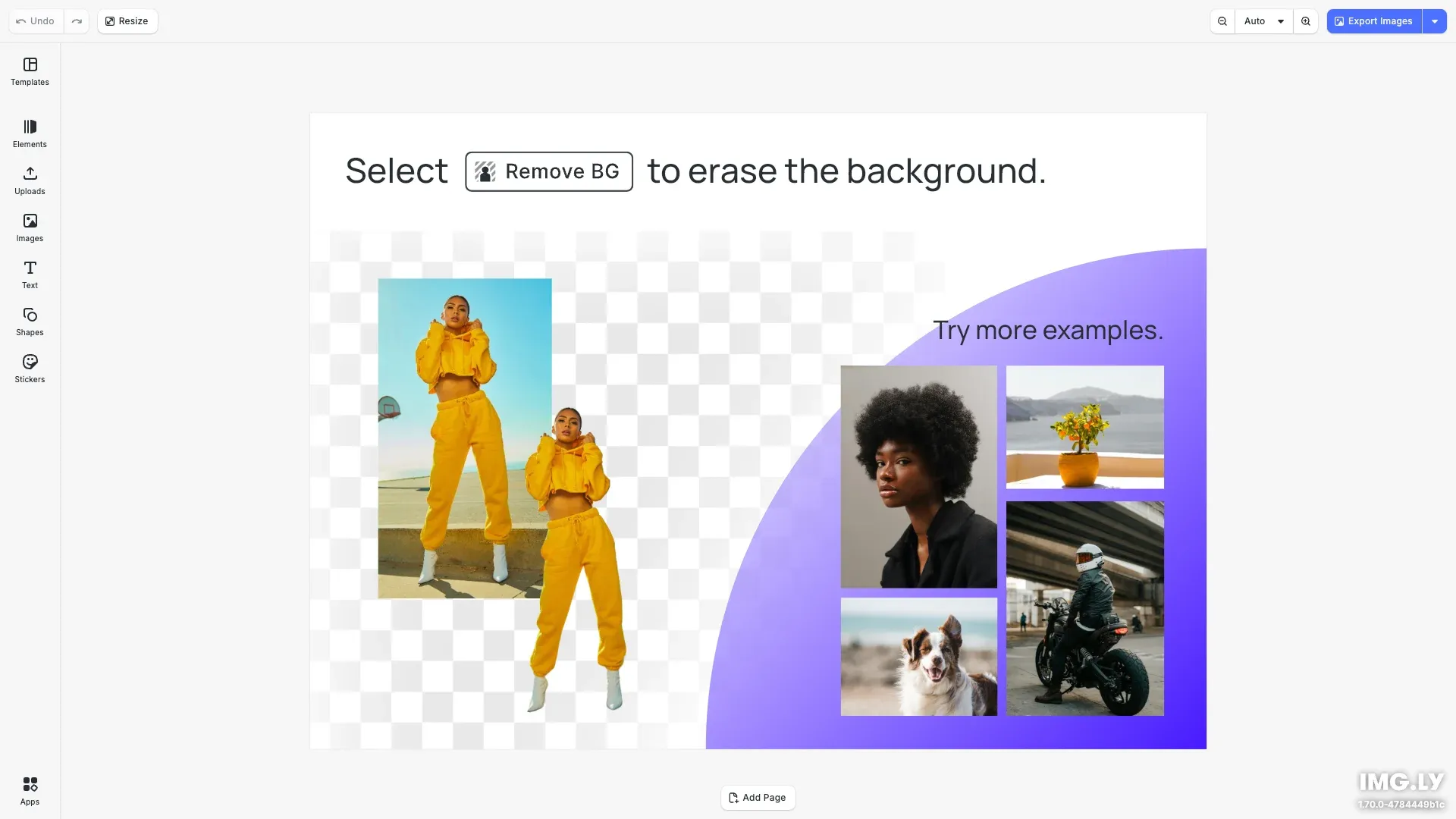
Effortlessly remove background from images directly in the browser with no additional costs and privacy concerns.
Prerequisites#
Before you begin, make sure you have the following:
- Node.js v22+ and npm installed locally – Download Node.js
- A supported browser – Chrome 114+, Edge 114+, Firefox 115+, Safari 15.6+
See Browser Support for the full list.
Get Started#
Create a new Nuxt.js application with Background Removal Editor integration.
Step 1: Create a New Project#
npx nuxi@latest init your-project-name
cd your-project-name
npx nuxi@latest init your-project-name
cd your-project-namepnpm dlx nuxi@latest init your-project-name
cd your-project-namepnpm dlx nuxi@latest init your-project-name
cd your-project-nameyarn dlx nuxi@latest init your-project-name
cd your-project-nameyarn dlx nuxi@latest init your-project-name
cd your-project-nameStep 2: Clone the Starter Kit#
Clone the starter kit and copy the editor configuration to your project:
git clone https://github.com/imgly/starterkit-background-removal-editor-ts-web.git
cp -r starterkit-background-removal-editor-ts-web/app/imgly ./app/imgly
rm -rf starterkit-background-removal-editor-ts-web
git clone https://github.com/imgly/starterkit-background-removal-editor-ts-web.git
cp -r starterkit-background-removal-editor-ts-web/app/imgly ./app/imgly
rm -rf starterkit-background-removal-editor-ts-webnpx degit imgly/starterkit-background-removal-editor-ts-web/app/imgly ./app/imgly
npx degit imgly/starterkit-background-removal-editor-ts-web/public/assets ./public/assetsnpx degit imgly/starterkit-background-removal-editor-ts-web/app/imgly ./app/imgly
npx degit imgly/starterkit-background-removal-editor-ts-web/public/assets ./public/assetsStep 3: Install Dependencies#
Core Editor#
npm install @cesdk/cesdk-js@1.84.0npm install @cesdk/cesdk-js@1.84.0pnpm add @cesdk/cesdk-js@1.84.0pnpm add @cesdk/cesdk-js@1.84.0yarn add @cesdk/cesdk-js@1.84.0yarn add @cesdk/cesdk-js@1.84.0Background Removal#
npm install @imgly/plugin-background-removal-web@1.84.0 onnxruntime-web@1.21.0npm install @imgly/plugin-background-removal-web@1.84.0 onnxruntime-web@1.21.0pnpm add @imgly/plugin-background-removal-web@1.84.0 onnxruntime-web@1.21.0pnpm add @imgly/plugin-background-removal-web@1.84.0 onnxruntime-web@1.21.0yarn add @imgly/plugin-background-removal-web@1.84.0 onnxruntime-web@1.21.0yarn add @imgly/plugin-background-removal-web@1.84.0 onnxruntime-web@1.21.0Step 4: Download Assets#
curl -O https://cdn.img.ly/packages/imgly/cesdk-js/1.84.0/imgly-assets.zip
unzip imgly-assets.zip -d public/
rm imgly-assets.zipcurl -O https://cdn.img.ly/packages/imgly/cesdk-js/1.84.0/imgly-assets.zip
unzip imgly-assets.zip -d public/
rm imgly-assets.zipStep 5: Create the Editor Component#
Create a client-only Vue component using the .client.vue suffix (e.g., BackgroundRemovalEditor.client.vue):
<template> <CreativeEditor :config="{ baseURL: '/assets' }" :init="initBackgroundRemovalEditor" width="100vw" height="100vh" /></template>
<script setup lang="ts">import { initBackgroundRemovalEditor } from '~/imgly';import CreativeEditor from '@cesdk/cesdk-js/vue';</script>Save this file as components/BackgroundRemovalEditor.client.vue to ensure it only renders on the client.
Step 6: Use the Component#
Import and use the component in your page:
<template> <BackgroundRemovalEditor /></template>
<script setup lang="ts">import BackgroundRemovalEditor from '~/components/BackgroundRemovalEditor.client.vue';</script>SSR Error#
If you encounter the error window is not defined, it means the component is being rendered on the server. CE.SDK requires browser APIs and must run client-side only.
Use either the .client.vue suffix (shown above) or wrap the component with <ClientOnly>:
<template> <ClientOnly> <BackgroundRemovalEditor /> </ClientOnly></template>Get Started#
Integrate the Background Removal Editor into an existing Nuxt.js application.
Step 1: Clone#
cd your-projectcd your-projectClone the starter kit and copy the editor configuration:
git clone https://github.com/imgly/starterkit-background-removal-editor-ts-web.git
cp -r starterkit-background-removal-editor-ts-web/app/imgly ./app/imgly
rm -rf starterkit-background-removal-editor-ts-webgit clone https://github.com/imgly/starterkit-background-removal-editor-ts-web.git
cp -r starterkit-background-removal-editor-ts-web/app/imgly ./app/imgly
rm -rf starterkit-background-removal-editor-ts-webnpx degit imgly/starterkit-background-removal-editor-ts-web/app/imgly ./app/imglynpx degit imgly/starterkit-background-removal-editor-ts-web/app/imgly ./app/imglyThe imgly/ folder contains the editor configuration:
imgly/├── config/│ ├── actions.ts # Export/import actions│ ├── features.ts # Feature toggles│ ├── i18n.ts # Translations│ ├── plugin.ts # Main configuration plugin│ ├── settings.ts # Engine settings│ └── ui/│ ├── canvas.ts # Canvas configuration│ ├── components.ts # Custom component registration│ ├── dock.ts # Dock layout configuration│ ├── index.ts # Combines UI customization exports│ ├── inspectorBar.ts # Inspector bar layout│ ├── navigationBar.ts # Navigation bar layout│ └── panel.ts # Panel configuration├── index.ts # Editor initialization function└── plugins/ └── background-removal.tsStep 2: Install Dependencies#
Core Editor#
npm install @cesdk/cesdk-js@1.84.0npm install @cesdk/cesdk-js@1.84.0pnpm add @cesdk/cesdk-js@1.84.0pnpm add @cesdk/cesdk-js@1.84.0yarn add @cesdk/cesdk-js@1.84.0yarn add @cesdk/cesdk-js@1.84.0Background Removal#
npm install @imgly/plugin-background-removal-web@1.84.0 onnxruntime-web@1.21.0npm install @imgly/plugin-background-removal-web@1.84.0 onnxruntime-web@1.21.0pnpm add @imgly/plugin-background-removal-web@1.84.0 onnxruntime-web@1.21.0pnpm add @imgly/plugin-background-removal-web@1.84.0 onnxruntime-web@1.21.0yarn add @imgly/plugin-background-removal-web@1.84.0 onnxruntime-web@1.21.0yarn add @imgly/plugin-background-removal-web@1.84.0 onnxruntime-web@1.21.0Step 3: Download Assets#
curl -O https://cdn.img.ly/packages/imgly/cesdk-js/1.84.0/imgly-assets.zip
unzip imgly-assets.zip -d public/
rm imgly-assets.zip
curl -O https://cdn.img.ly/packages/imgly/cesdk-js/1.84.0/imgly-assets.zip
unzip imgly-assets.zip -d public/
rm imgly-assets.zipStep 4: Create the Editor Component#
<template>  <CreativeEditor    :config="{ baseURL: '/assets' }"    :init="initBackgroundRemovalEditor"    width="100vw"    height="100vh"  /></template>
<script setup lang="ts">import { initBackgroundRemovalEditor } from '~/imgly';import CreativeEditor from '@cesdk/cesdk-js/vue';</script>
Save as components/BackgroundRemovalEditor.client.vue.
Step 5: Use the Component#
<template>  <BackgroundRemovalEditor /></template>
<script setup lang="ts">import BackgroundRemovalEditor from '~/components/BackgroundRemovalEditor.client.vue';</script>Using Background Removal#
To remove a background:
- Select an image in the editor
- The canvas menu appears with a “BG Removal” button
- Click the button to AI-remove the background
Set Up a Scene#
CE.SDK offers multiple ways to load content into the editor. Choose the method that matches your use case:
// Create a blank design canvas - starts with an empty design sceneawait cesdk.actions.run('scene.create');
// Load from a template archive - restores a previously saved projectawait cesdk.load('https://example.com/template.zip');
// Load from an image URL - creates a new scene with the imageawait cesdk.createFromImage('https://example.com/image.jpg');
// Load from a scene file - restores a scene from JSONawait cesdk.load('https://example.com/scene.json');
The createDesignScene() method is ideal for design workflows, as it creates a blank canvas ready for content.
Key Capabilities#
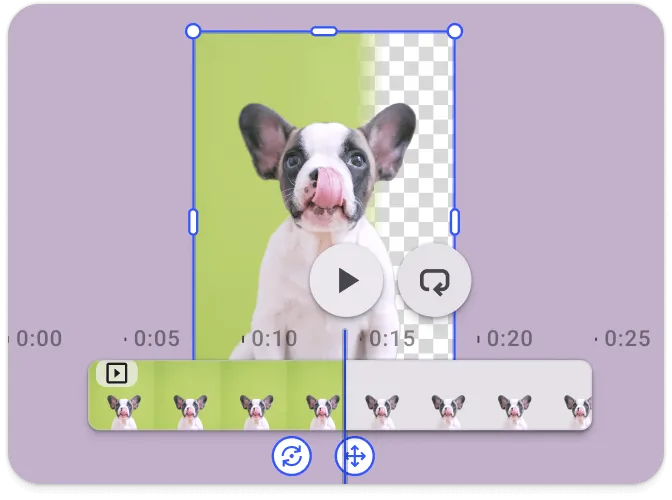
AI Background Removal
Remove backgrounds with one click. Uses ONNX Runtime for client-side AI processing—no server needed.
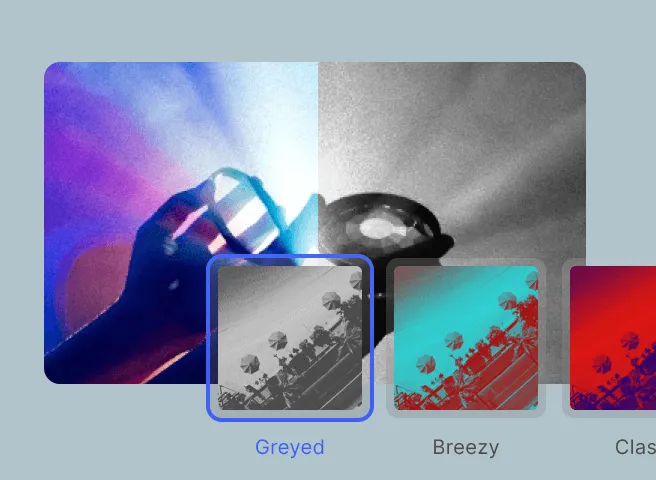
Professional Filters
Apply color grading with LUT filters, duotone effects, and customizable image adjustments.
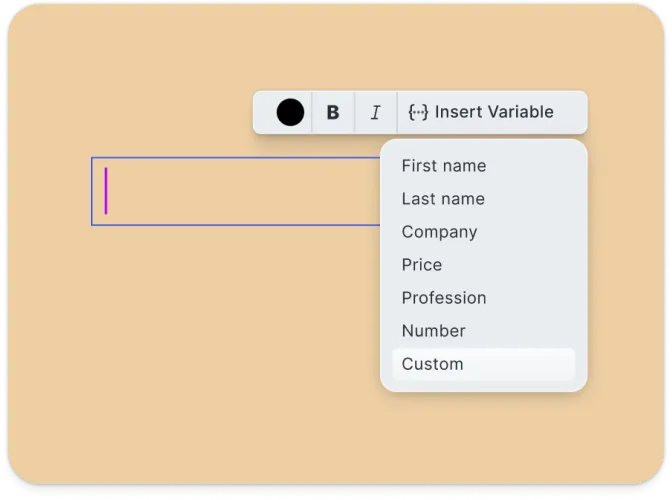
Text & Typography
Add styled text with comprehensive typography controls, fonts, and visual effects.
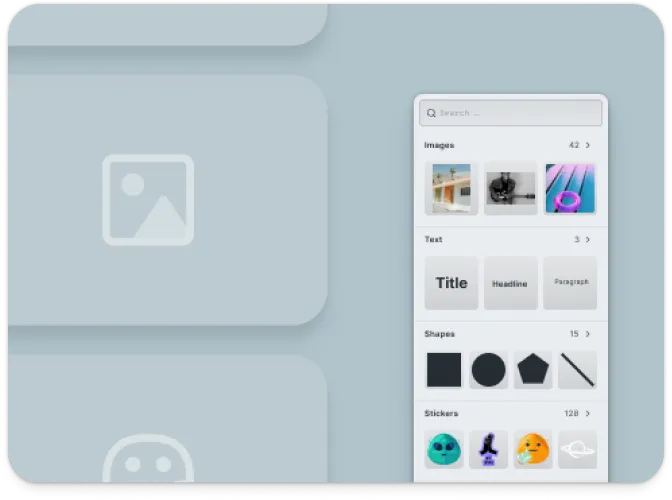
Asset Libraries
Access built-in collections of templates, stickers, shapes, and graphics, plus import custom assets.
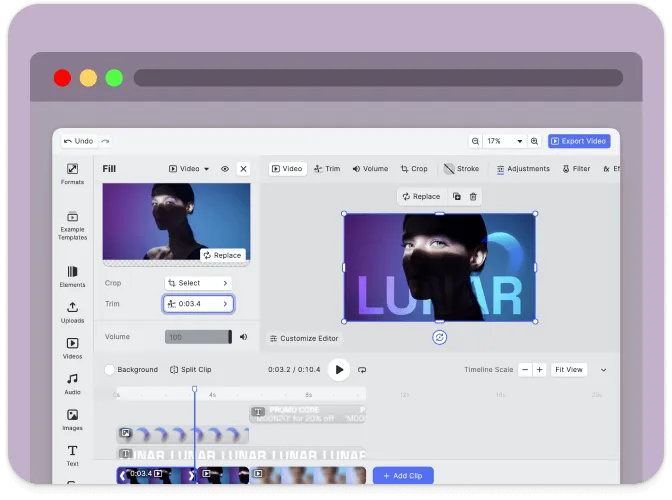
Privacy-First
All processing happens locally in the browser. No data is sent to external servers.

Export Options
Export to multiple formats including PNG, JPEG, and PDF with quality and size controls.
Troubleshooting#
Editor doesn’t load#
- Check the container element exists: Ensure your container element is in the DOM before calling
create() - Verify the baseURL: Assets must be accessible from the CDN or your self-hosted location
SSR Error: “window is not defined”#
CE.SDK requires browser APIs and cannot run during server-side rendering. Use the .client.vue suffix or wrap your component with <ClientOnly>.
Background removal is slow on first use#
- This is expected: The first use downloads AI models (~30MB). Subsequent uses are instant as models are cached by the browser.
Watermark appears in production#
- Add your license key: Set the
licenseproperty in your configuration - Get a license: Contact us at img.ly/forms/contact-sales/
Next Steps#
- Background Removal Plugin – Detailed plugin configuration options
- Configuration – Complete list of initialization options
- Serve Assets – Self-host engine assets for production
- Actions – Build custom export and save workflows
- Theming – Customize colors and appearance