Create a template library where users can browse, preview, and apply templates from a custom asset source.
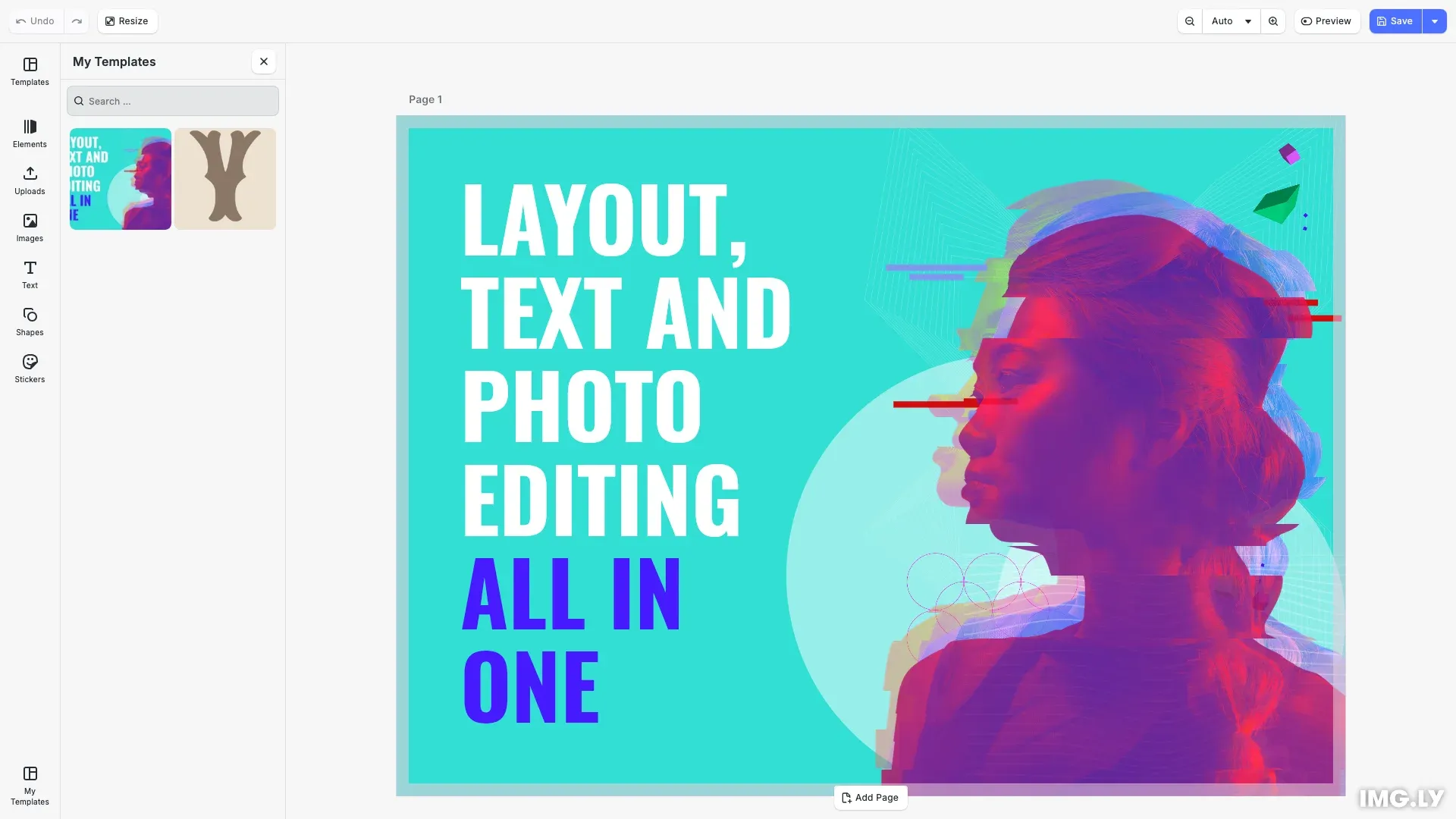
Templates in CE.SDK are stored and accessed through the asset system. A template library is a local asset source configured to hold and serve template assets, allowing users to browse thumbnails and apply templates to their designs.
This guide covers how to save scenes as templates, create a template asset source, and add templates with metadata.
Saving Templates#
Scenes can be exported in two formats for use as templates.
String Format#
Use engine.scene.saveToString() to serialize the scene to a base64 string. This lightweight format references remote assets by URL and is ideal for templates where assets are hosted on a CDN.
// Save as string format (lightweight, references remote assets)const templateString = await engine.scene.saveToString();console.log('Template saved as string. Length:', templateString.length);Archive Format#
For self-contained templates that bundle all assets, use engine.scene.saveToArchive(). This returns a Blob containing all assets bundled together, making templates portable without external dependencies.
// Save as archive format (self-contained with bundled assets)const templateBlob = await engine.scene.saveToArchive();console.log('Template saved as archive. Size:', templateBlob.size, 'bytes');Creating a Template Asset Source#
Register a local asset source using engine.asset.addLocalSource() with an ID and applyAsset callback.
// Create a local asset source for templatesengine.asset.addLocalSource('my-templates', undefined, async (asset) => { // Apply the selected template to the current scene await engine.scene.applyTemplateFromURL(asset.meta!.uri as string); // Set zoom to auto-fit after applying template await cesdk.actions.run('zoom.toPage', { autoFit: true }); return undefined;});The applyAsset callback receives the selected asset and determines how to apply it. We use engine.scene.applyTemplateFromURL() to load the template from the asset’s meta.uri property. The template is applied to the current scene, adjusting content to fit the existing page dimensions.
Adding Templates to the Source#
Register templates using engine.asset.addAssetToSource() with an asset definition that includes metadata for display and loading.
// Add a template to the source with metadataengine.asset.addAssetToSource('my-templates', { id: 'template-postcard', label: { en: 'Postcard' }, meta: { uri: 'https://cdn.img.ly/assets/demo/v3/ly.img.template/templates/cesdk_postcard_1.scene', thumbUri: 'https://cdn.img.ly/assets/demo/v3/ly.img.template/thumbnails/cesdk_postcard_1.jpg' }});Each template asset requires:
id- Unique identifier for the templatelabel- Localized display name shown in the template librarymeta.uri- URL to the.scenefile that will be loaded when the template is selectedmeta.thumbUri- URL to a preview image displayed in the template library grid
Managing Templates#
After the initial setup, you can manage templates programmatically.
// List all registered asset sourcesconst sources = engine.asset.findAllSources();console.log('Registered sources:', sources);
// Notify UI when source contents changeengine.asset.assetSourceContentsChanged('my-templates');
// Query templates from the sourceconst queryResult = await engine.asset.findAssets('my-templates', {  page: 0,  perPage: 10});console.log('Templates in library:', queryResult.total);
// Remove a template from the sourceengine.asset.removeAssetFromSource('my-templates', 'template-social-media');console.log('Removed template-social-media from library');
Use engine.asset.findAllSources() to list registered sources. When you add or remove templates from a source, call engine.asset.assetSourceContentsChanged() to refresh the UI. To remove a template, use engine.asset.removeAssetFromSource().
Troubleshooting#
| Issue | Cause | Solution |
|---|---|---|
| Templates not appearing in UI | Asset source not added to library entry | Ensure sourceIds includes the template source ID |
| Template fails to load | Incorrect URI in asset meta | Verify the uri points to a valid .scene file |
| Thumbnails not displaying | Missing or incorrect thumbUri | Check the thumbnail URL is accessible |
| Apply callback not triggered | applyAsset not defined in addLocalSource | Provide the callback when creating the source |
API Reference#
| Method | Description |
|---|---|
engine.asset.addLocalSource() | Register a local asset source with an apply callback |
engine.asset.addAssetToSource() | Add an asset to a registered source |
engine.asset.removeAssetFromSource() | Remove an asset from a source by ID |
engine.asset.assetSourceContentsChanged() | Notify UI that source contents changed |
engine.scene.saveToString() | Serialize scene to base64 string format |
engine.scene.saveToArchive() | Save scene as self-contained archive blob |
engine.scene.applyTemplateFromURL() | Apply a template to the current scene |
cesdk.ui.addAssetLibraryEntry() | Add a library entry to the asset library |