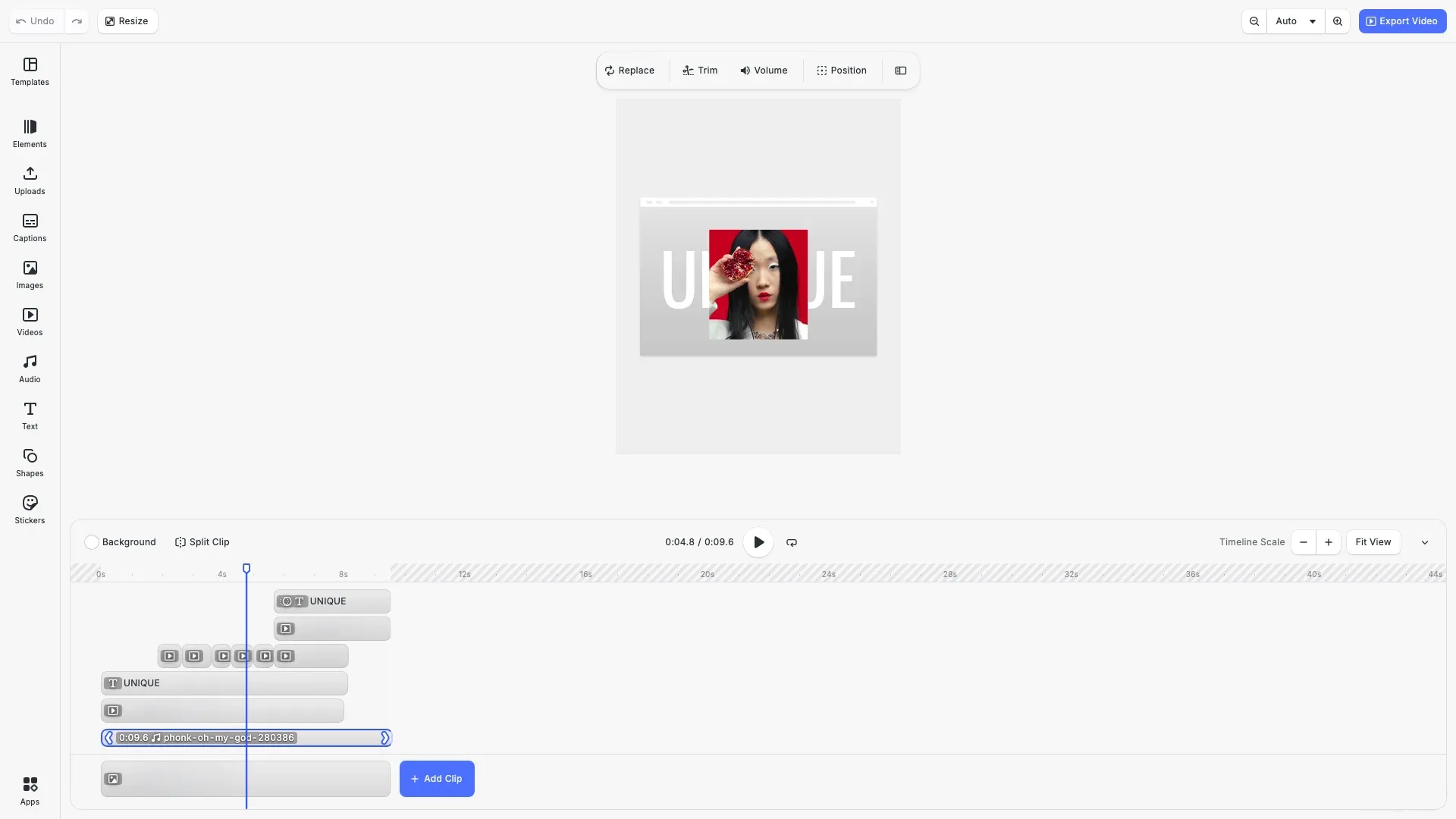
Professional video editing for your Next.js app—edit clips, add effects, trim footage, and export to MP4. Runs entirely in the browser with no server dependencies.
Prerequisites#
Before you begin, make sure you have the following:
- Node.js v20+ and npm installed locally – Download Node.js
- A supported browser – Chrome 114+, Edge 114+, Firefox 115+, Safari 15.6+
See Browser Support for the full list.
Get Started#
Integrate the Video Editor into your Next.js application using the official React wrapper.
Step 1: Create a New Project#
npx create-next-app@latest your-project-name
cd your-project-name
npx create-next-app@latest your-project-name
cd your-project-namepnpm create next-app your-project-name
cd your-project-namepnpm create next-app your-project-name
cd your-project-nameyarn create next-app your-project-name
cd your-project-nameyarn create next-app your-project-name
cd your-project-nameStep 2: Clone the Starter Kit#
Clone the starter kit and copy the editor configuration to your project:
git clone https://github.com/imgly/starterkit-video-editor-ts-web.git
cp -r starterkit-video-editor-ts-web/app/imgly ./app/imgly
rm -rf starterkit-video-editor-ts-web
git clone https://github.com/imgly/starterkit-video-editor-ts-web.git
cp -r starterkit-video-editor-ts-web/app/imgly ./app/imgly
rm -rf starterkit-video-editor-ts-webnpx degit imgly/starterkit-video-editor-ts-web/app/imgly ./app/imglynpx degit imgly/starterkit-video-editor-ts-web/app/imgly ./app/imglyThe imgly/ folder contains the editor configuration:
imgly/├── index.ts # Editor initialization function├── config/│ ├── plugin.ts # Main configuration plugin│ ├── actions.ts # Export/import actions│ ├── features.ts # Feature toggles│ ├── i18n.ts # Translations│ ├── settings.ts # Engine settings│ └── ui/ # UI customization│ ├── index.ts # Combines UI customization exports│ ├── canvas.ts # Canvas configuration│ ├── components.ts # Custom component registration│ ├── dock.ts # Dock layout configuration│ ├── inspectorBar.ts # Inspector bar layout│ ├── navigationBar.ts # Navigation bar layout│ └── panel.ts # Panel configuration└── plugins/ └── background-removal.ts # Background removal pluginStep 3: Install Dependencies#
Install the required packages for the editor:
Core Editor#
Install the Creative Editor SDK:
npm install @cesdk/cesdk-jsnpm install @cesdk/cesdk-jspnpm add @cesdk/cesdk-jspnpm add @cesdk/cesdk-jsyarn add @cesdk/cesdk-jsyarn add @cesdk/cesdk-jsBackground Removal#
Add AI-powered background removal:
npm install @imgly/background-removal onnxruntime-webnpm install @imgly/background-removal onnxruntime-webpnpm add @imgly/background-removal onnxruntime-webpnpm add @imgly/background-removal onnxruntime-webyarn add @imgly/background-removal onnxruntime-webyarn add @imgly/background-removal onnxruntime-webStep 4: Download Assets#
CE.SDK requires engine assets (fonts, icons, UI elements) to function. These must be served as static files from your project’s public/ directory.
curl -O https://cdn.img.ly/packages/imgly/cesdk-js/1.72.1/imgly-assets.zip
unzip imgly-assets.zip -d public/
rm imgly-assets.zipcurl -O https://cdn.img.ly/packages/imgly/cesdk-js/1.72.1/imgly-assets.zip
unzip imgly-assets.zip -d public/
rm imgly-assets.zipStep 5: Create the Editor Component#
Create a client-side React component using the official CE.SDK React wrapper:
'use client';
import { initVideoEditor } from '../imgly';import CreativeEditor from '@cesdk/cesdk-js/react';
export default function VideoEditor() { return ( <CreativeEditor config={{ baseURL: '/assets' }} init={initVideoEditor} width="100vw" height="100vh" /> );}Step 6: Use the Component#
Import and use the Video Editor component in your application:
import VideoEditor from './components/VideoEditor';
export default function Page() { return <VideoEditor />;}SSR Error#
If you encounter the error ReferenceError: window is not defined, it means the component is being rendered on the server. CE.SDK requires browser APIs and must run client-side only.
Use Next.js dynamic imports to disable SSR for the editor component:
'use client';
import dynamic from 'next/dynamic';
const VideoEditor = dynamic( () => import('./components/VideoEditor'), { ssr: false });
export default function VideoEditorComponent() { return <VideoEditor />;}Step 1: Navigate to Your Project#
cd your-projectcd your-projectStep 2: Clone the Configuration#
Copy the Video Editor configuration to your project:
git clone https://github.com/imgly/starterkit-video-editor-ts-web.git
cp -r starterkit-video-editor-ts-web/app/imgly ./app/imgly
rm -rf starterkit-video-editor-ts-webgit clone https://github.com/imgly/starterkit-video-editor-ts-web.git
cp -r starterkit-video-editor-ts-web/app/imgly ./app/imgly
rm -rf starterkit-video-editor-ts-webnpx degit imgly/starterkit-video-editor-ts-web/app/imgly ./app/imglynpx degit imgly/starterkit-video-editor-ts-web/app/imgly ./app/imglyStep 3: Install Dependencies#
Core Editor#
Install the Creative Editor SDK:
npm install @cesdk/cesdk-jsnpm install @cesdk/cesdk-jspnpm add @cesdk/cesdk-jspnpm add @cesdk/cesdk-jsyarn add @cesdk/cesdk-jsyarn add @cesdk/cesdk-jsBackground Removal#
Add AI-powered background removal:
npm install @imgly/background-removal onnxruntime-webnpm install @imgly/background-removal onnxruntime-webpnpm add @imgly/background-removal onnxruntime-webpnpm add @imgly/background-removal onnxruntime-webyarn add @imgly/background-removal onnxruntime-webyarn add @imgly/background-removal onnxruntime-webStep 4: Download Assets#
CE.SDK requires engine assets (fonts, icons, UI elements) to function. These must be served as static files from your project’s public/ directory.
curl -O https://cdn.img.ly/packages/imgly/cesdk-js/1.72.1/imgly-assets.zip
unzip imgly-assets.zip -d public/
rm imgly-assets.zip
curl -O https://cdn.img.ly/packages/imgly/cesdk-js/1.72.1/imgly-assets.zip
unzip imgly-assets.zip -d public/
rm imgly-assets.zipStep 5: Create the Editor Component#
Create a client-side React component using the official CE.SDK React wrapper:
'use client';
import { initVideoEditor } from '../imgly';import CreativeEditor from '@cesdk/cesdk-js/react';
export default function VideoEditor() {  return (    <CreativeEditor      config={{ baseURL: '/assets' }}      init={initVideoEditor}      width="100vw"      height="100vh"    />  );}
Step 6: Use the Component#
Import and use the Video Editor component in your application:
import VideoEditor from './components/VideoEditor';
export default function Page() {  return <VideoEditor />;}
SSR Error#
If you encounter the error ReferenceError: window is not defined, it means the component is being rendered on the server. CE.SDK requires browser APIs and must run client-side only.
Use Next.js dynamic imports to disable SSR for the editor component:
'use client';
import dynamic from 'next/dynamic';
const VideoEditor = dynamic(  () => import('./components/VideoEditor'),  { ssr: false });
export default function VideoEditorComponent() { return <VideoEditor />;}The imgly/ folder contains the editor configuration:
imgly/├── index.ts # Editor initialization function├── config/│ ├── plugin.ts # Main configuration plugin│ ├── actions.ts # Export/import actions│ ├── features.ts # Feature toggles│ ├── i18n.ts # Translations│ ├── settings.ts # Engine settings│ └── ui/ # UI customization│ ├── index.ts # Combines UI customization exports│ ├── canvas.ts # Canvas configuration│ ├── components.ts # Custom component registration│ ├── dock.ts # Dock layout configuration│ ├── inspectorBar.ts # Inspector bar layout│ ├── navigationBar.ts # Navigation bar layout│ └── panel.ts # Panel configuration└── plugins/ └── background-removal.ts # Background removal pluginSet Up a Scene#
CE.SDK offers multiple ways to load content into the editor. Choose the method that matches your use case:
// Load from a video URL - creates a new scene with the videoawait cesdk.createFromVideo('https://example.com/video.mp4');
// Load from a template archive - restores a previously saved projectawait cesdk.loadFromArchiveURL('https://example.com/template.zip');
// Create a blank video canvas - starts with an empty video sceneawait cesdk.actions.run('scene.create', { mode: 'Video' });
// Load from a scene file - restores a scene from JSONawait cesdk.loadFromURL('https://example.com/scene.json');
The createFromVideo() method is ideal for video editing workflows, as it automatically creates a scene with the video on a timeline.
Customize Assets#
The Video Editor uses asset source plugins to provide built-in libraries for video clips, audio, effects, stickers, and fonts. The starter kit includes a curated selection—customize what’s included based on your needs.
Asset sources are added via plugins in app/imgly/index.ts. Enable or disable individual sources:
import {  FiltersAssetSource,  StickerAssetSource,  TextAssetSource,  VectorShapeAssetSource,  EffectsAssetSource,  // ...} from '@cesdk/cesdk-js/plugins';
// Add only the sources you needawait cesdk.addPlugin(new FiltersAssetSource());await cesdk.addPlugin(new StickerAssetSource());await cesdk.addPlugin(new TextAssetSource());await cesdk.addPlugin(new VectorShapeAssetSource());await cesdk.addPlugin(new EffectsAssetSource());// ...For production deployments, self-hosting assets is required—the IMG.LY CDN is intended for development only. See Serve Assets for downloading assets, configuring baseURL, and excluding unused sources to optimize load times.
Configure Actions#
Actions are functions that handle user interactions like exporting videos, saving scenes, and importing files. CE.SDK provides built-in actions that you can run directly or override with custom implementations.
Key built-in actions:
exportDesign– Export the current video to MP4 formatsaveScene– Save the scene as a JSON string for later editingimportScene– Import a previously saved scene (supports.sceneand.cesdkformats)exportScene– Export the scene as a JSON file or.cesdkarchive with all assetsuploadFile– Handle file uploads with progress tracking
Use cesdk.actions.run() to execute any action:
// Run a built-in actionawait cesdk.actions.run('exportDesign', { mimeType: 'video/mp4' });Customize actions in app/imgly/config/actions.ts:
Import from File Picker#
// Let users open videos from their devicecesdk.actions.register('importVideo', async () => { const blobURL = await cesdk.utils.loadFile({ accept: 'video/*', returnType: 'objectURL' }); await cesdk.createFromVideo(blobURL);});Export and Save#
// Register export action that downloads the edited videocesdk.actions.register('exportDesign', async (exportOptions) => { const { blobs, options } = await cesdk.utils.export(exportOptions); await cesdk.utils.downloadFile(blobs[0], options.mimeType);});Upload to Your Backend#
// Override the built-in exportDesign action to send to your servercesdk.actions.register('exportDesign', async (exportOptions) => {  const { blobs } = await cesdk.utils.export(exportOptions);
  const formData = new FormData();  formData.append('video', blobs[0], 'edited-video.mp4');
  const response = await fetch('/api/upload', {    method: 'POST',    body: formData  });
const { url } = await response.json(); console.log('Uploaded to:', url);});Customize (Optional)#
Theming#
CE.SDK supports light and dark themes out of the box, plus automatic system preference detection. Switch between themes programmatically:
// 'light' | 'dark' | 'system' | (() => 'light' | 'dark')cesdk.ui.setTheme('dark');See Theming for custom color schemes, CSS variables, and advanced styling options.
Localization#
Customize UI labels and add support for multiple languages. The i18n system supports translation keys for all UI elements:
// Override specific labelscesdk.i18n.setTranslations({  en: {    'actions.export.video': 'Download Video',    'common.cancel': 'Cancel',    'common.apply': 'Apply'  }});
// Add a new languagecesdk.i18n.setTranslations({  de: {    'actions.export.video': 'Video herunterladen'  }});
// Set the active localecesdk.i18n.setLocale('de');
See Localization for supported languages, translation key reference, and right-to-left language support.
UI Layout#
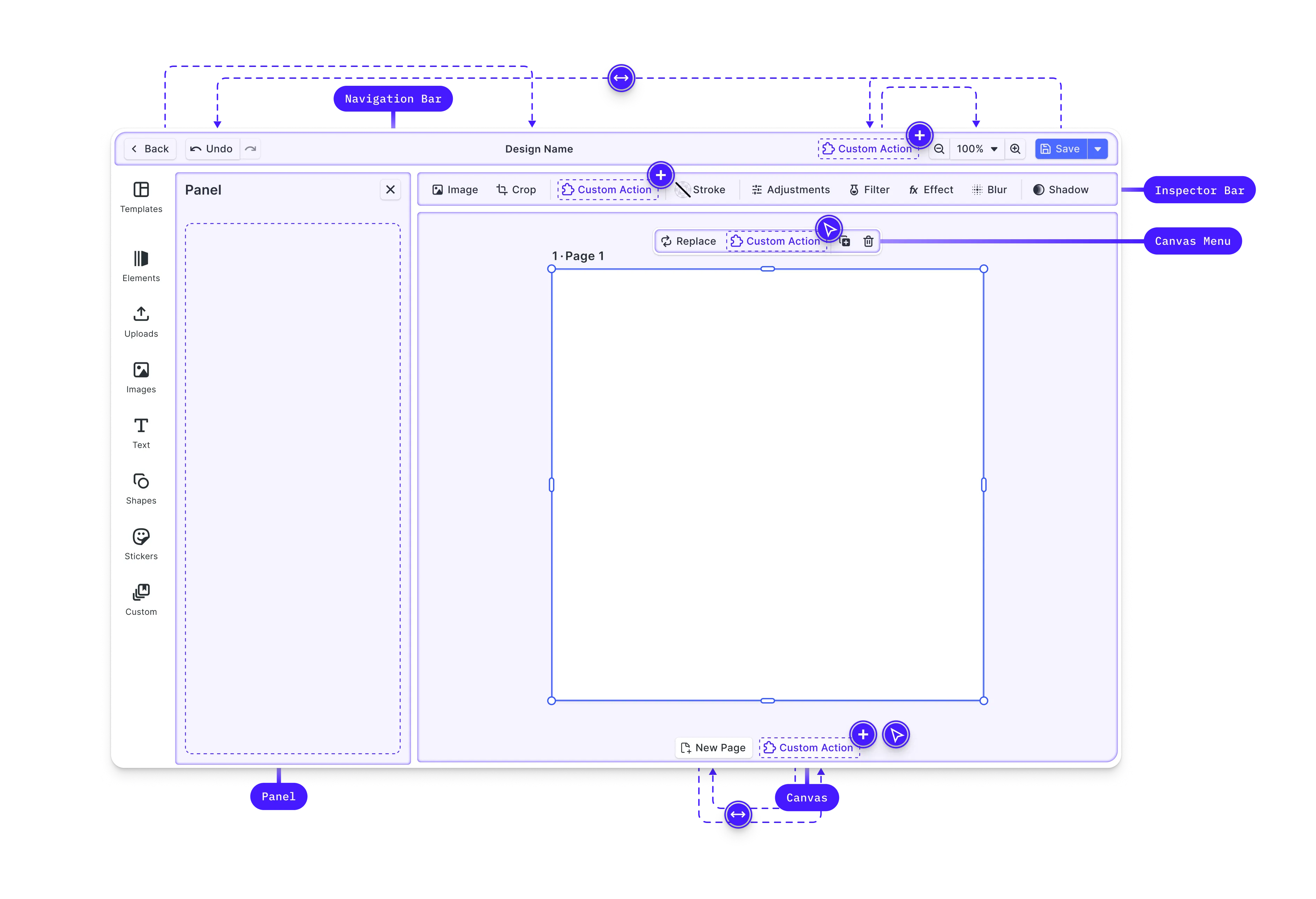
Customize the editor interface by modifying the dock, inspector bar, navigation bar, and canvas menu. CE.SDK provides Order APIs to control which components appear and in what sequence.
// Get current navigation bar componentsconst navOrder = cesdk.ui.getNavigationBarOrder();
// Add a custom button to the navigation barcesdk.ui.insertNavigationBarOrderComponent(  'ly.img.spacer',  { id: 'my-custom-action' },  'after');
// Rearrange dock itemscesdk.ui.setDockOrder([  'ly.img.assetLibrary.dock',  'ly.img.separator',  'my-custom-dock-item']);
// Customize the inspector barcesdk.ui.setInspectorBarOrder([  'ly.img.fill.inspectorBar',  'ly.img.separator',  'ly.img.filter.inspectorBar']);
The Order API methods follow a consistent pattern across all UI areas:
get*Order()– Retrieve the current component orderset*Order()– Replace the entire orderinsert*OrderComponent()– Add components relative to existing ones
See Dock, Inspector Bar, Navigation Bar, Canvas Menu, and Canvas for detailed layout customization options.
Custom Components#
Build custom UI components using the builder system and integrate them in the editor. Custom components receive reactive state updates and can interact with the engine API.
// Register a custom componentcesdk.ui.registerComponent('my-custom-button', ({ builder, engine }) => {  const selectedBlocks = engine.block.findAllSelected();
  builder.Button('apply-effect', {    label: 'Apply Effect',    isDisabled: selectedBlocks.length === 0,    onClick: () => {      // Apply custom logic to selected blocks    }  });});
// Add the component to the navigation barcesdk.ui.insertNavigationBarOrderComponent(  'ly.img.spacer',  'my-custom-button',  'after');
Custom components automatically re-render when the engine state they depend on changes—no manual subscription management required.
See Register New Component for the complete builder API and component patterns.
Settings & Features#
Fine-tune editor behavior through settings and features.
Settings configure core engine behavior—rendering, input handling, and history management:
cesdk.engine.editor.setSettingBool('page/dimOutOfPageAreas', true);cesdk.engine.editor.setSettingBool('mouse/enableZoomControl', true);cesdk.engine.editor.setSettingBool('features/undoHistory', true);Features toggle which editing tools and panels appear in the UI:
// Toggle editor featurescesdk.feature.enable('ly.img.trim', true);cesdk.feature.enable('ly.img.filter', true);cesdk.feature.enable('ly.img.adjustment', true);See Settings and Features for the complete reference.
Explore Plugins#
CE.SDK has a rich plugin ecosystem that extends the editor with powerful capabilities. Plugins can add new features, integrate third-party services, or customize editor behavior.
Background Removal#
Add AI-powered background removal that runs entirely client-side. The background removal plugin processes images directly in the browser without sending data to external servers.
import BackgroundRemovalPlugin from '@imgly/plugin-background-removal';
// Add background removal capabilityawait cesdk.addPlugin(BackgroundRemovalPlugin());
See Background Removal for setup instructions and configuration options.
AI Integration#
Extend the editor with generative AI capabilities for text-to-image generation, image enhancement, and intelligent editing features. CE.SDK integrates with various AI providers.
import AIPlugin from '@imgly/plugin-ai-generation';
// Configure AI generationawait cesdk.addPlugin(AIPlugin({  provider: 'your-ai-provider',  apiKey: 'your-api-key'}));
See AI Integration for provider setup and supported AI features.
Custom Asset Sources#
Connect external asset libraries like Unsplash, Getty Images, or your own content management system. Asset sources let users browse and insert content from any source.
import UnsplashAssetSource from '@imgly/plugin-unsplash';
// Add Unsplash integrationawait cesdk.addPlugin(UnsplashAssetSource({  accessKey: 'your-unsplash-access-key'}));
See Custom Asset Sources for integration patterns.
Discover More Plugins#
Explore the full plugin ecosystem in the IMG.LY plugins repository. Available plugins include:
- Vectorizer – Convert raster images to vectors
- Design Presets – Pre-built design templates
- Social Media Templates – Platform-specific sizing
- And more – Check the repository for the latest additions
Key Capabilities#
The Video Editor includes everything needed for professional video editing.
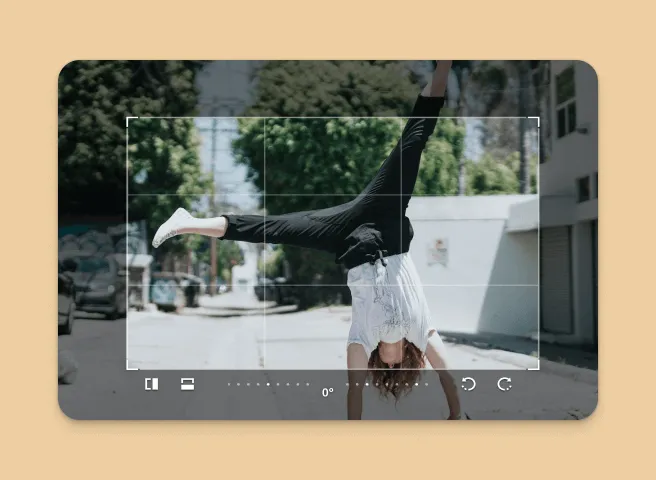
Timeline Editing
Multi-track timeline with drag-and-drop clips, transitions, and precise trimming controls.
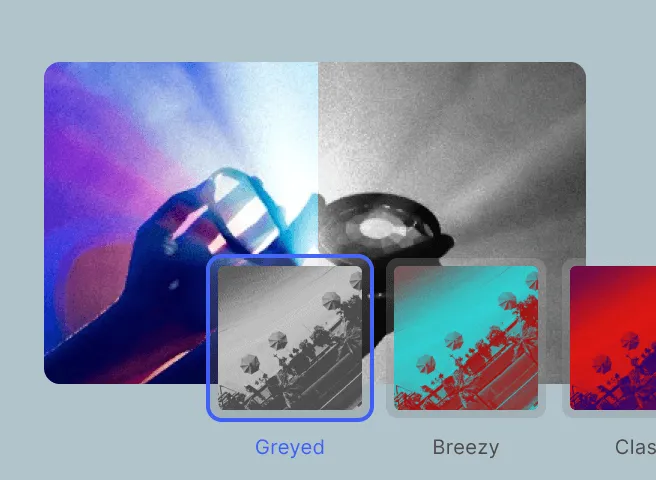
Visual Effects
Apply filters, color grading, and visual effects to enhance your video content.
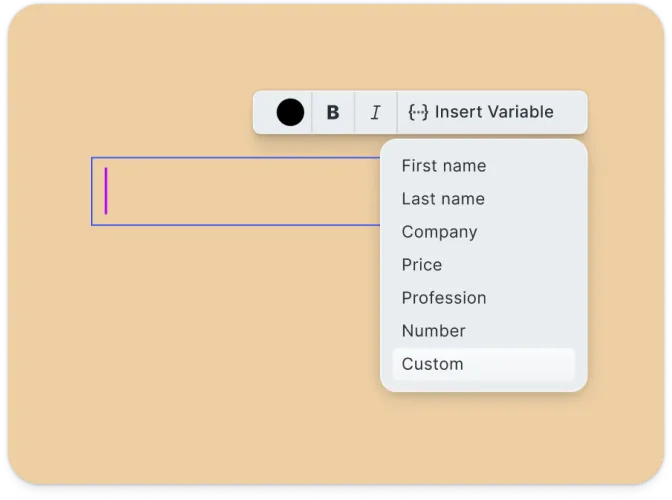
Text & Graphics
Add animated text, titles, and graphic overlays with comprehensive styling controls.
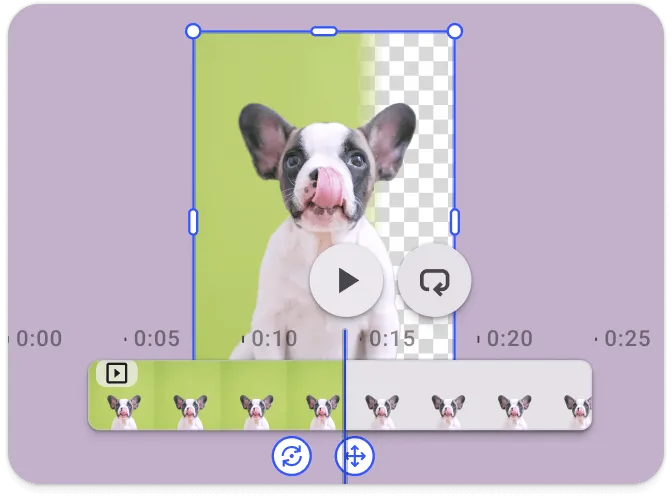
Audio Management
Add background music, voiceovers, and sound effects with volume and timing controls.
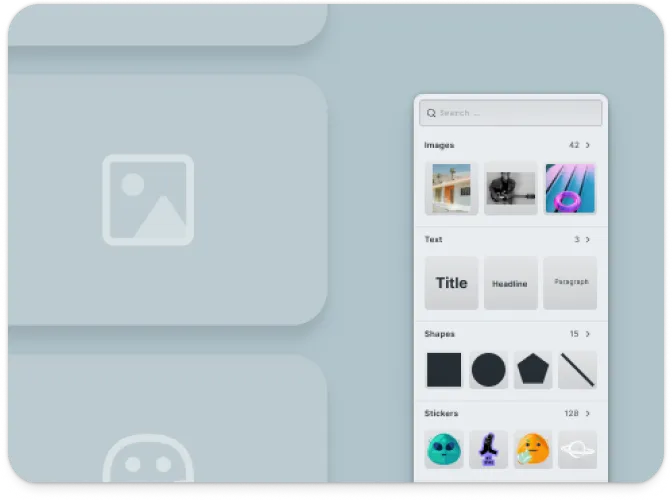
Asset Libraries
Access built-in collections of video clips, stickers, and graphics, plus import custom assets.
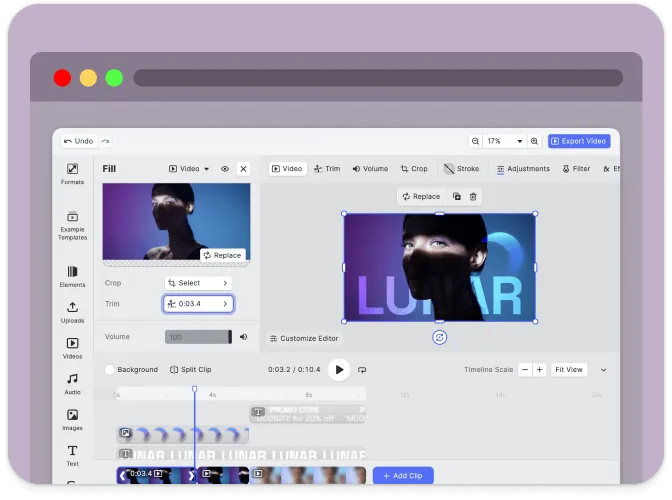
Video Export
Export to MP4 format with customizable resolution, quality, and encoding settings.
Troubleshooting#
Editor doesn’t load#
- Check the container element exists: Ensure your container element is in the DOM before calling
create() - Verify the baseURL: Assets must be accessible from the CDN or your self-hosted location
- Check console errors: Look for CORS or network errors in browser developer tools
Assets don’t appear#
- Check network requests: Open DevTools Network tab and look for failed requests to
cdn.img.ly - Self-host assets for production: See Serve Assets to host assets on your infrastructure
Export fails or produces blank video#
- Wait for content to load: Ensure videos are fully loaded before exporting
- Check CORS on videos: Remote videos must allow cross-origin access
Video export takes too long#
- Reduce resolution: Lower output resolution significantly improves encoding speed
- Shorten clip length: Longer videos take proportionally longer to encode
- Check system resources: Video encoding is CPU-intensive; close other applications
Audio doesn’t play#
- Check browser autoplay policies: Browsers require user interaction before playing audio
- Verify audio format: Ensure audio files are in a supported format (MP3, WAV, AAC)
Watermark appears in production#
- Add your license key: Set the
licenseproperty in your configuration - Sign up for a trial: Get a free trial license at img.ly/forms/free-trial
Next Steps#
- Configuration – Complete list of initialization options
- Serve Assets – Self-host engine assets for production
- Actions – Build custom export and save workflows
- Theming – Customize colors and appearance
- Localization – Add translations and language support