Add synchronized captions to video projects using CE.SDK’s caption system, with support for importing subtitle files, styling with presets, and burning captions into video exports.
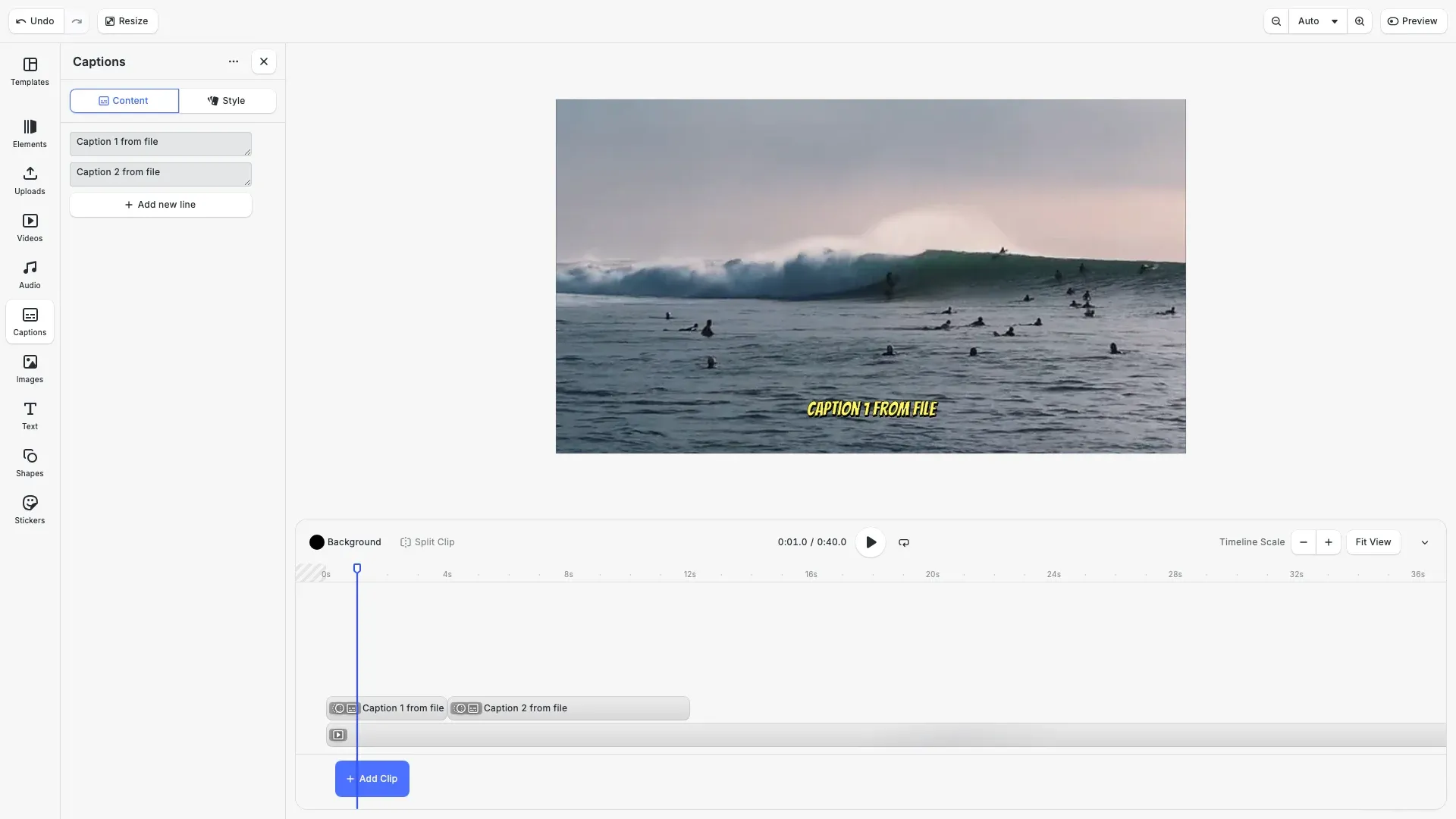
Captions in CE.SDK follow a hierarchy: Page → CaptionTrack → Caption blocks. Each caption has text, timing (time offset and duration), and styling properties. Captions appear and disappear based on their timing, synchronized with video playback.
This guide covers how to import captions from SRT/VTT files, style them using presets and custom properties, create captions programmatically, and export videos with burned-in captions.
Understanding Caption Structure#
Caption Hierarchy#
CE.SDK organizes captions in a parent-child hierarchy. The page contains one or more caption tracks, and each caption track contains individual caption blocks. This structure allows for multiple caption tracks (for different languages or purposes) while keeping captions organized.
When you import captions from a subtitle file, CE.SDK automatically creates the caption track and populates it with caption blocks. Each caption block stores its text content, start time, duration, and styling properties.
Caption Timing#
Each caption has two timing properties: time offset (when the caption appears) and duration (how long it stays visible). These values are in seconds and synchronize with the video playback. A caption with a time offset of 2.0 and duration of 3.0 appears at the 2-second mark and disappears at the 5-second mark.
Importing Captions from Subtitle Files#
Using createCaptionsFromURI#
The fastest way to add captions is importing from an SRT or VTT subtitle file. CE.SDK parses the file and creates caption blocks with timing already configured.
// Import captions from SRT file// createCaptionsFromURI parses SRT/VTT and creates caption blocks with timingconst captionSrtUrl = 'https://img.ly/static/examples/captions.srt';const captionBlocks = await engine.block.createCaptionsFromURI(  captionSrtUrl);
console.log(`Imported ${captionBlocks.length} captions from SRT file`);
// Adjust caption timing to start at the beginning of the video// The SRT file may have different timing, so we reset to start at 0let currentOffset = 0;for (const captionId of captionBlocks) {  const duration = engine.block.getDuration(captionId);  engine.block.setTimeOffset(captionId, currentOffset);  currentOffset += duration;}
The createCaptionsFromURI method downloads the subtitle file, parses the timing and text, and creates a caption track with all captions positioned correctly. It returns an array of caption block IDs for the imported captions.
Creating the Caption Track#
After importing captions, create a caption track to organize them in the composition. The caption track manages caption positioning and display.
// Create a caption track and add captions to it// Caption tracks organize captions in the timelineconst captionTrack = engine.block.create('//ly.img.ubq/captionTrack');engine.block.appendChild(page, captionTrack);
// Add each caption block to the trackfor (const captionId of captionBlocks) {  engine.block.appendChild(captionTrack, captionId);}
console.log(`Caption track created with ${captionBlocks.length} captions`);
Create a caption track with engine.block.create('//ly.img.ubq/captionTrack') and append it to the page. Then add each caption block to the track using appendChild.
Using the Built-in Caption UI#
Caption Panel#
CE.SDK provides a caption panel in the inspector for visual caption management. When you select a caption, the panel shows timing controls, text editing, and styling options. Users can drag caption edges in the timeline to adjust timing or double-click to edit text.
Importing via UI#
The caption panel includes an import button for uploading SRT or VTT files. The interface guides users through file selection and automatically extracts timing information.
Styling with Presets#
Caption presets provide pre-configured styling combinations including font, color, background, and animations. Select a caption and choose from available presets to apply consistent styling. Presets are especially useful for maintaining brand consistency across videos.
Editing Text and Timing#
Double-click a caption in the timeline or panel to edit its text. Drag the edges of caption blocks in the timeline to adjust start time and duration. The timeline provides visual feedback showing caption positions relative to video content.
Creating Captions Programmatically#
Caption Track Setup#
For full control over captions, create them programmatically. First, create a caption track and append it to the page.
const captionTrack = engine.block.create('//ly.img.ubq/captionTrack');engine.block.appendChild(page, captionTrack);Creating Caption Blocks#
Create individual captions with text and timing.
const caption = engine.block.create('//ly.img.ubq/caption');engine.block.appendChild(captionTrack, caption);
// Set caption textengine.block.setString(caption, 'caption/text', 'Hello, world!');
// Set timing - appears at 2 seconds for 3 secondsengine.block.setTimeOffset(caption, 2);engine.block.setDuration(caption, 3);
Set the caption text using setString with the caption/text property. Position the caption in time using setTimeOffset (when it appears) and setDuration (how long it shows).
Styling Captions#
Applying Presets#
The fastest way to style captions is using presets. Presets provide pre-configured styling including fonts, colors, backgrounds, and effects.
// Apply a caption preset for consistent styling// Caption presets provide pre-configured styles (fonts, colors, backgrounds)const captionPresetsSourceId = 'ly.img.caption.presets';const comicPresetId = '//ly.img.caption.presets/comic';
// Fetch the preset assetconst comicPreset = await engine.asset.fetchAsset(  captionPresetsSourceId,  comicPresetId);
// Apply preset to the first caption (styling syncs across all captions)if (comicPreset && captionBlocks.length > 0) {  await engine.asset.applyToBlock(    captionPresetsSourceId,    comicPreset,    captionBlocks[0]  );  console.log('Applied comic preset to captions');}
Fetch a preset using engine.asset.fetchAsset and apply it with engine.asset.applyToBlock. Caption styling automatically syncs across all captions, so applying a preset to one caption styles them all.
Positioning Captions#
Position captions at the bottom of the video frame using percentage-based positioning for responsive layout.
// Position captions at the bottom of the video frame// Caption position and size sync across all captions, so we only set it onceif (captionBlocks.length > 0) {  const firstCaption = captionBlocks[0];
  // Use percentage-based positioning for responsive layout  engine.block.setPositionXMode(firstCaption, 'Percent');  engine.block.setPositionYMode(firstCaption, 'Percent');  engine.block.setWidthMode(firstCaption, 'Percent');  engine.block.setHeightMode(firstCaption, 'Percent');
  // Position at bottom center with padding  engine.block.setPositionX(firstCaption, 0.05); // 5% from left  engine.block.setPositionY(firstCaption, 0.8); // 80% from top (near bottom)  engine.block.setWidth(firstCaption, 0.9); // 90% width  engine.block.setHeight(firstCaption, 0.15); // 15% height}
Use percentage mode (setPositionXMode, setPositionYMode) for positions that adapt to different video resolutions. Caption position and size sync across all captions automatically.
Background#
Enable a background behind caption text for better readability over video content. Use setBool to enable backgroundColor/enabled and setColor to set backgroundColor/color with RGBA values. A semi-transparent black background (alpha 0.7) is common for video captions.
Automatic Font Sizing#
CE.SDK can automatically adjust font size to fit caption text within bounds. Enable automatic sizing and set minimum and maximum size limits.
engine.block.setBool(captionId, 'caption/automaticFontSizeEnabled', true);engine.block.setFloat(captionId, 'caption/minAutomaticFontSize', 24);engine.block.setFloat(captionId, 'caption/maxAutomaticFontSize', 72);This prevents text from overflowing while maintaining readability.
Applying Presets Programmatically#
Finding Available Presets#
Query available caption presets from the asset library.
const presetsResult = await engine.asset.findAssets('ly.img.caption.presets', {  page: 0,  perPage: 100});
const presets = presetsResult.assets;
The findAssets method returns preset metadata including IDs and preview thumbnails.
Applying a Preset#
Apply a preset to a caption using applyToBlock.
const preset = presets[0];await engine.asset.applyToBlock('ly.img.caption.presets', preset, captionId);The preset applies all styling properties at once—font, colors, background, and any animations defined in the preset.
Caption Animations#
Adding Entry Animations#
Make captions more engaging by adding entry animations.
// Add fade-in animation to the first captionif (captionBlocks.length > 0) {  const firstCaption = captionBlocks[0];
  // Create and apply entry animation  const fadeIn = engine.block.createAnimation('fade');  engine.block.setDuration(fadeIn, 0.3);  engine.block.setInAnimation(firstCaption, fadeIn);
  console.log('Added fade-in animation to first caption');}
Create an animation using createAnimation with types like ‘fade’, ‘slide’, or ‘scale’. Set the animation duration and apply it with setInAnimation.
Animation Types#
CE.SDK supports several animation types for captions:
- fade - Opacity transition
- slide - Position movement
- scale - Size change
- blur - Focus effect
Set loop animations with setLoopAnimation for continuous effects, or exit animations with setOutAnimation for departure transitions.
Reading Caption Properties#
Getting Text and Timing#
Retrieve caption properties to display in custom UI or for processing.
// Modify a specific caption's text and timingif (captionBlocks.length > 0) {  const firstCaption = captionBlocks[0];
  // Get current text  const currentText = engine.block.getString(firstCaption, 'caption/text');  console.log('First caption text:', currentText);
  // Get timing info  const offset = engine.block.getTimeOffset(firstCaption);  const duration = engine.block.getDuration(firstCaption);  console.log(`First caption: offset=${offset}s, duration=${duration}s`);}
Use getString for text, getTimeOffset for start time, and getDuration for display length. These values are useful for building custom caption editors or synchronization tools.
Exporting Videos with Captions#
Burned-In Captions#
When you export a video, captions are burned into the video as pixels. They become part of the video image and cannot be turned off by viewers. This ensures captions display correctly on any platform.
const videoBlob = await engine.block.exportVideo(page, { mimeType: 'video/mp4'});The export process renders each frame with captions overlaid at the correct timing. Export time depends on video length and resolution.
Troubleshooting#
| Issue | Cause | Solution |
|---|---|---|
| Captions not visible | Not in caption track hierarchy | Check getParent(): page → captionTrack → caption |
| Wrong timing | Time offset/duration incorrect | Verify getTimeOffset() and getDuration() |
| Import fails | Unsupported format | Use valid SRT or VTT file |
| Styling not applying | Property path wrong | Use caption/ prefix for caption properties |
Captions Not Appearing#
If captions don’t show in the preview, verify the caption hierarchy. Each caption must be a child of a caption track, which must be a child of the page. Use getParent() to trace the hierarchy.
Also check that the playhead position matches caption timing. Captions only appear during their time offset and duration window.
Import Errors#
If createCaptionsFromURI fails, verify the URL is accessible and returns valid SRT or VTT content. Common issues include CORS restrictions and malformed subtitle files. Test the URL in a browser to confirm accessibility.
API Reference#
| Method | Purpose |
|---|---|
engine.block.createCaptionsFromURI(uri) | Import captions from SRT/VTT file |
engine.block.create('//ly.img.ubq/captionTrack') | Create caption track container |
engine.block.create('//ly.img.ubq/caption') | Create caption block |
engine.block.setString(id, property, value) | Set caption text |
engine.block.setTimeOffset(id, offset) | Set caption start time |
engine.block.setDuration(id, duration) | Set caption display duration |
engine.block.setFloat(id, property, value) | Set font size, spacing |
engine.block.setEnum(id, property, value) | Set alignment |
engine.block.setBool(id, property, value) | Enable background |
engine.block.setColor(id, property, value) | Set colors |
engine.block.createAnimation(type) | Create animation |
engine.block.setInAnimation(id, animation) | Set entry animation |
engine.block.exportVideo(id, options) | Export video with captions |
engine.asset.findAssets(sourceId, params) | Find presets |
engine.asset.applyToBlock(sourceId, asset, block) | Apply preset |