Add text and image watermarks to designs programmatically using CE.SDK’s block API.
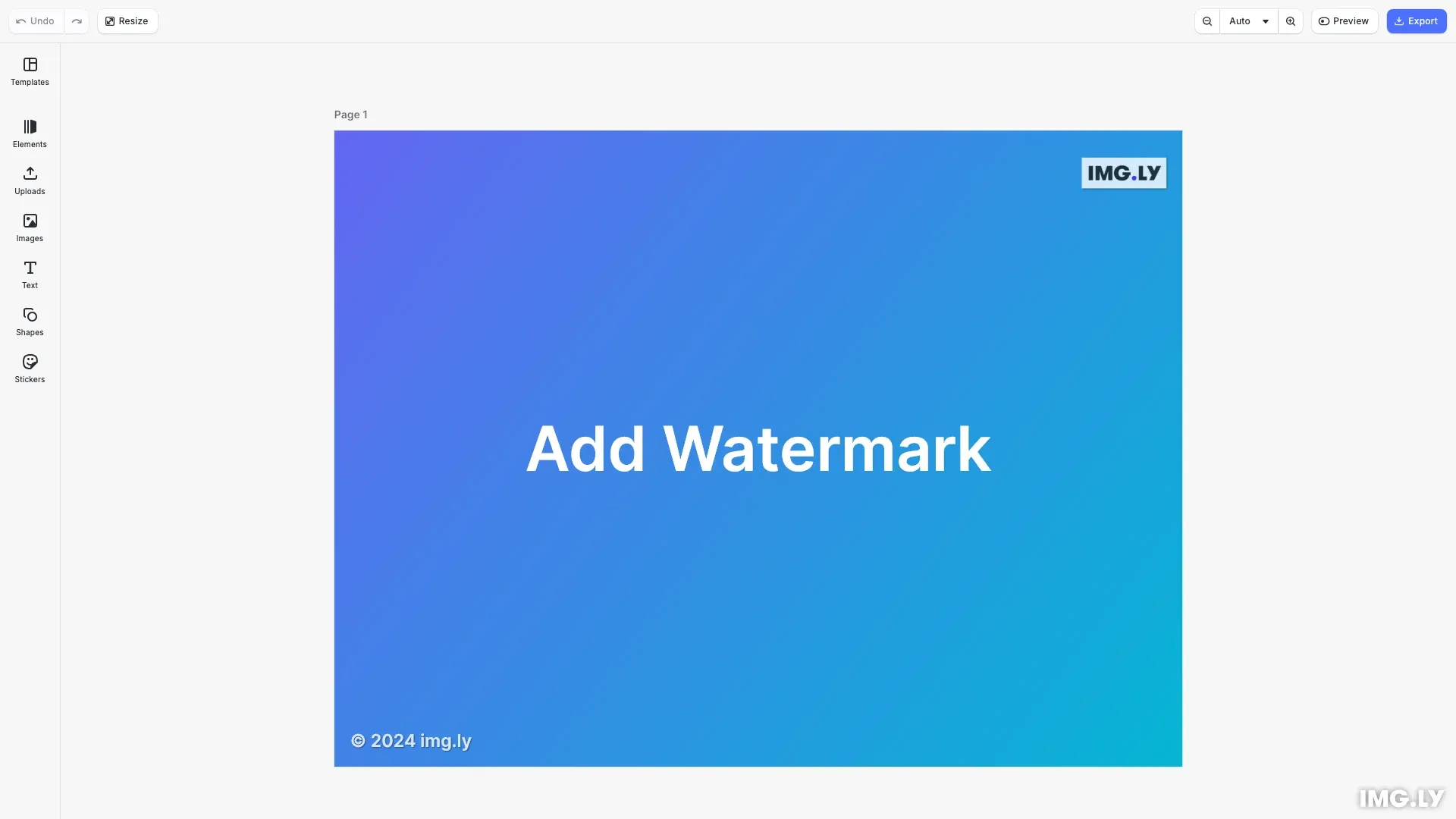
Watermarks protect intellectual property, indicate ownership, add branding, or mark content as drafts. CE.SDK supports two types of watermarks: text watermarks created from text blocks for copyright notices and brand names, and image watermarks created from graphic blocks with image fills for logos and symbols.
This guide covers how to create text and logo watermarks, position them on a design, style them for visibility, and export the watermarked result.
Setup and Prerequisites#
We start by initializing CE.SDK, loading asset sources, and creating a scene with a custom page size. The page provides the canvas where we’ll add our watermarks.
const engine = cesdk.engine;
// Create a scene with custom page dimensionsconst scene = engine.scene.create();const page = engine.block.create('page');engine.block.setWidth(page, 800);engine.block.setHeight(page, 600);engine.block.appendChild(scene, page);
const pageWidth = engine.block.getWidth(page);const pageHeight = engine.block.getHeight(page);
We use engine.scene.create('VerticalStack', {...}) to create a scene with custom page dimensions. The page dimensions are retrieved for positioning calculations later.
Creating Text Watermarks#
Text watermarks display copyright notices, URLs, or brand names. We create a text block, set its content, and add it to the page.
// Create a text block for the watermarkconst textWatermark = engine.block.create('text');
// Set the watermark text contentengine.block.setString(textWatermark, 'text/text', '© 2024 img.ly');
// Left-align the text for the watermarkengine.block.setEnum(textWatermark, 'text/horizontalAlignment', 'Left');
// Add the text block to the pageengine.block.appendChild(page, textWatermark);
The engine.block.create('text') method creates a new text block. We set the text content using engine.block.setString() with the 'text/text' property.
Styling the Text#
We configure the font size, color, and opacity to make the watermark visible but unobtrusive.
// Set font size for the watermarkengine.block.setTextFontSize(textWatermark, 4);
// Set text color to white for contrastengine.block.setTextColor(textWatermark, { r: 1, g: 1, b: 1, a: 1 });
// Set opacity to make it semi-transparentengine.block.setOpacity(textWatermark, 0.8);
// Set width mode to auto so text fits its contentengine.block.setWidthMode(textWatermark, 'Auto');engine.block.setHeightMode(textWatermark, 'Auto');
Key styling options:
- Font size - Use sizes between 14-18px for subtle watermarks
- Text color - White or black depending on the image background
- Opacity - Values between 0.5-0.7 provide a balanced, semi-transparent appearance
- Size mode - Set to
'Auto'so the block automatically fits its text content
Positioning the Watermarks#
We calculate the watermark positions based on the page dimensions and place the logo and text side-by-side at the bottom center of the page.
// Position padding from edgesconst padding = 15;
// Position text watermark at bottom-leftengine.block.setPositionX(textWatermark, padding);engine.block.setPositionY(textWatermark, pageHeight - padding - 20);
// Position logo watermark at top-rightengine.block.setPositionX(logoWatermark, pageWidth - padding - logoWidth);engine.block.setPositionY(logoWatermark, padding);
We retrieve the rendered frame dimensions using engine.block.getFrameWidth() and engine.block.getFrameHeight(), calculate the total width of both watermarks with spacing, then center them horizontally. The vertical position places them near the bottom with padding from the edge.
Creating Logo Watermarks#
Logo watermarks use graphic blocks with image fills to display brand symbols or company logos.
// Create a graphic block for the logo watermarkconst logoWatermark = engine.block.create('graphic');
// Create a rect shape for the logoconst rectShape = engine.block.createShape('rect');engine.block.setShape(logoWatermark, rectShape);
// Create an image fill with a logoconst imageFill = engine.block.createFill('image');engine.block.setString(  imageFill,  'fill/image/imageFileURI',  'https://img.ly/static/ubq_samples/imgly_logo.jpg');
// Apply the fill to the graphic blockengine.block.setFill(logoWatermark, imageFill);
// Set content fill mode to contain the image within boundsengine.block.setContentFillMode(logoWatermark, 'Contain');
// Add to pageengine.block.appendChild(page, logoWatermark);
We create a graphic block, assign a rect shape, then create an image fill with the logo URI. The fill is applied to the graphic block before adding it to the page.
Sizing the Logo#
We set fixed dimensions for the logo and apply opacity to match the text watermark.
// Size the logo watermarkconst logoWidth = 80;const logoHeight = 50;engine.block.setWidth(logoWatermark, logoWidth);engine.block.setHeight(logoWatermark, logoHeight);
// Set opacity for the logo watermarkengine.block.setOpacity(logoWatermark, 0.8);
A good rule is to size logos to 10-20% of the page width. This keeps them visible without dominating the design.
Enhancing Visibility with Drop Shadows#
Drop shadows improve watermark readability against varied backgrounds by adding contrast.
// Add drop shadow to text watermark for better visibilityengine.block.setDropShadowEnabled(textWatermark, true);engine.block.setDropShadowOffsetX(textWatermark, 1);engine.block.setDropShadowOffsetY(textWatermark, 1);engine.block.setDropShadowBlurRadiusX(textWatermark, 2);engine.block.setDropShadowBlurRadiusY(textWatermark, 2);engine.block.setDropShadowColor(textWatermark, {  r: 0,  g: 0,  b: 0,  a: 0.5});
// Add drop shadow to logo watermarkengine.block.setDropShadowEnabled(logoWatermark, true);engine.block.setDropShadowOffsetX(logoWatermark, 1);engine.block.setDropShadowOffsetY(logoWatermark, 1);engine.block.setDropShadowBlurRadiusX(logoWatermark, 2);engine.block.setDropShadowBlurRadiusY(logoWatermark, 2);engine.block.setDropShadowColor(logoWatermark, {  r: 0,  g: 0,  b: 0,  a: 0.5});
Drop shadow parameters:
- Offset X/Y - Distance from the block (2-4 pixels works well)
- Blur Radius X/Y - Softness of the shadow (4-8 pixels for subtle effect)
- Color - Black with 0.5 alpha provides soft contrast without being harsh
Exporting Watermarked Images#
After adding watermarks, we add an export button to the navigation bar that downloads the watermarked image when clicked.
// Add export button to the navigation barcesdk.ui.insertOrderComponent(  { in: 'ly.img.navigation.bar', position: 'end' },  {    id: 'ly.img.actions.navigationBar',    children: [      {        id: 'ly.img.action.navigationBar',        key: 'export-watermarked',        label: 'Export',        icon: '@imgly/Download',        onClick: async () => {          // Export the watermarked design          const blob = await engine.block.export(page, {            mimeType: 'image/png'          });
          // Download the watermarked image          await cesdk.utils.downloadFile(blob, 'image/png');        }      }    ]  });
We use cesdk.ui.insertOrderComponent() to add a custom button to the editor’s navigation bar. When clicked, engine.block.export() renders the page with all watermarks and returns a blob that cesdk.utils.downloadFile() downloads to the user’s device. Supported formats include PNG, JPEG, and WebP.
Labeling AI-Generated Content on Export#
If regulatory or platform rules require you to label images that contain AI-generated material, you can apply a watermark at export time using the same text-watermark technique you used above.
CE.SDK does not mark AI-generated blocks for you. A quick-action generation does write a ly.img.ai.metadata key while it runs, but that key only tracks the in-progress generation and is removed once the user applies or cancels the result. It cannot tell you later that a block came from AI, so you record the origin yourself.
Recording the Origin of Generated Blocks#
Tag blocks with your own metadata key at the moment they are generated. A generation middleware from @imgly/plugin-ai-generation-web receives the blocks a generation operates on in options.blockIds, which you can write to with engine.block.setMetadata().
import type { Middleware, Output } from '@imgly/plugin-ai-generation-web';
const AI_ORIGIN_KEY = 'my.app.aiGenerated';
function markGeneratedBlocks<I, O extends Output>(): Middleware<I, O> {  return async (input, options, next) => {    const result = await next(input, options);
    options.blockIds?.forEach((blockId) => {      options.engine.block.setMetadata(blockId, AI_ORIGIN_KEY, 'true');    });
    return result;  };}
Prefix keys with your own namespace, such as my.app, so they cannot collide with CE.SDK’s own ly.img.* keys. Middlewares are configured per provider in your AI plugin configuration: add markGeneratedBlocks() to the provider’s middlewares option.
The tag is written when the generation completes, not when the user accepts it. For quick actions that show a confirmation step, clear the key again if the user cancels, or a reverted block stays marked as AI-generated.
Adding the Label at Export#
With the origin recorded, the export can add a label only when it is needed. Write a handler that checks the blocks the engine knows about, creates a text watermark when any of them carries your key, and removes that temporary label again after the export.
async function exportWithAILabel() {  const hasGeneratedContent = engine.block    .findAll()    .some((block) => engine.block.hasMetadata(block, AI_ORIGIN_KEY));
  let label: number | undefined;
  try {    if (hasGeneratedContent) {      label = engine.block.create('text');      engine.block.setString(label, 'text/text', 'AI-generated');      engine.block.setTextFontSize(label, 16);      engine.block.setTextColor(label, { r: 1, g: 1, b: 1, a: 1 });      engine.block.setOpacity(label, 0.7);      engine.block.setWidthMode(label, 'Auto');      engine.block.setHeightMode(label, 'Auto');      engine.block.appendChild(page, label);      engine.block.setPositionX(label, 8);      engine.block.setPositionY(label, 8);    }
    const blob = await engine.block.export(page, {      mimeType: 'image/png'    });
    await cesdk.utils.downloadFile(blob, 'image/png');  } finally {    if (label != null) {      engine.block.destroy(label);    }  }}
Point the onClick of the export button you registered above at exportWithAILabel, and keep that single button, so no export path skips the label. The finally block removes the label even when the export fails, so a failed export never leaves the label behind in the design.
Troubleshooting#
Watermark not visible
- Verify the block is within page bounds using position values
- Check opacity is between 0.3-1.0
- Ensure
engine.block.appendChild()was called to add the block to the page
Position appears incorrect
- Recalculate positions using current
pageWidthandpageHeight - Account for watermark dimensions when calculating corner positions
- Remember that coordinates start from the top-left corner
Text not legible
- Increase font size to at least 36px
- Add a drop shadow for contrast against complex backgrounds
- Increase opacity if the watermark is too faint
Logo quality issues
- Use a higher resolution source image for the logo
- Avoid scaling the logo beyond its original dimensions
API Reference#
| Method | Purpose |
|---|---|
engine.block.create(type) |
Create text or graphic blocks |
engine.block.createShape(type) |
Create shapes for graphic blocks |
engine.block.createFill(type) |
Create image fills for logos |
engine.block.setString(id, property, value) |
Set text content or image URI |
engine.block.setTextFontSize(id, size) |
Set text font size |
engine.block.setTextColor(id, color) |
Set text color |
engine.block.setOpacity(id, opacity) |
Set block transparency |
engine.block.setPositionX(id, value) |
Set horizontal position |
engine.block.setPositionY(id, value) |
Set vertical position |
engine.block.setWidth(id, value) |
Set block width |
engine.block.setHeight(id, value) |
Set block height |
engine.block.setWidthMode(id, mode) |
Set how block width is resolved |
engine.block.setHeightMode(id, mode) |
Set how block height is resolved |
engine.block.getFrameWidth(id) |
Get rendered frame width |
engine.block.getFrameHeight(id) |
Get rendered frame height |
engine.block.setDropShadowEnabled(id, enabled) |
Enable drop shadow |
engine.block.setDropShadowOffsetX(id, offset) |
Set shadow X offset |
engine.block.setDropShadowOffsetY(id, offset) |
Set shadow Y offset |
engine.block.setDropShadowBlurRadiusX(id, radius) |
Set shadow blur |
engine.block.setDropShadowColor(id, color) |
Set shadow color |
engine.block.export(id, options) |
Export block to blob |
engine.block.findAll() |
Get all blocks known to the engine |
engine.block.setMetadata(id, key, value) |
Attach a custom key-value pair to a block |
engine.block.hasMetadata(id, key) |
Check whether a block has a value for a key |
engine.block.destroy(id) |
Delete a block and its children |
cesdk.ui.insertOrderComponent(options, component) |
Add custom button to navigation bar |
cesdk.utils.downloadFile(blob, mimeType) |
Download blob as file |
Next Steps#
- Text Styling — Style text blocks with fonts, colors, and effects
- Export Overview — Export options and formats for watermarked images
- Crop Images — Transform images before watermarking
- AI Features — Add AI generation to the editor and configure provider middlewares
- Store Custom Metadata — Attach and manage your own key-value data on blocks