Set the frame rate of a scene and name points and spans on its timeline with markers.
The frame rate of a scene sets how many frames a second of its timeline has. Markers give names to points and spans on that timeline, such as chapters or beats, and travel with the scene. The editor has no controls for either, so you set them with the API.
This guide covers how to set the frame rate, how to add, read and remove markers, how to jump to a marker, and the errors to expect.
Creating the Scene#
We create a video scene with a page of 10 seconds.
await cesdk.actions.run('scene.create', {  mode: 'Video',  layout: 'DepthStack',  page: { width: 1920, height: 1080, unit: 'Pixel' }});
const engine = cesdk.engine;const page = engine.block.findByType('page')[0]!;engine.block.setDuration(page, 10);
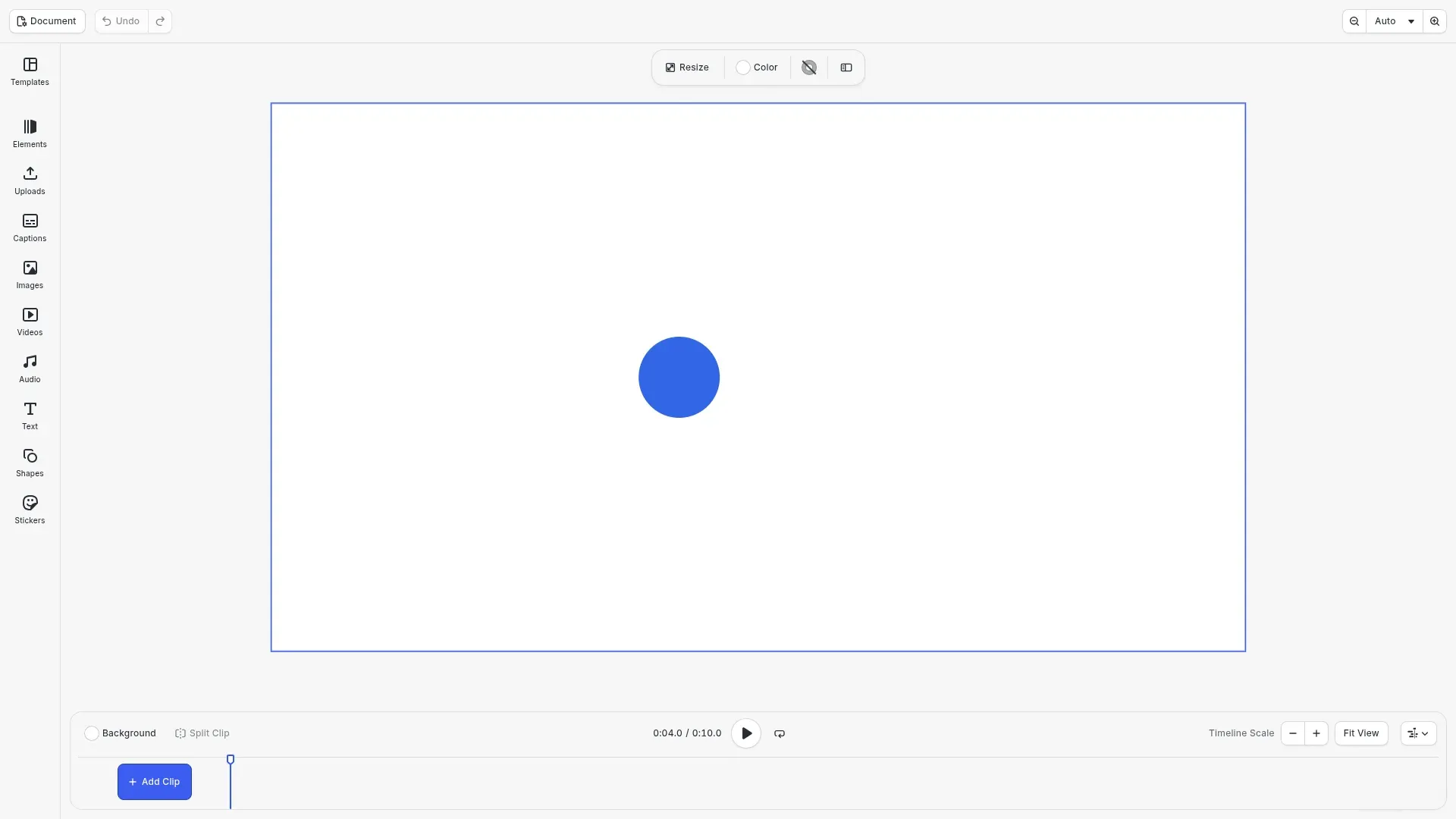
A small helper adds a ball that crosses the page in 10 seconds, so the playback time is easy to see.
/** Creates a ball that crosses the page in 10 seconds. */function createBall(engine: CreativeEngine, page: number): void { const ball = engine.block.create('graphic'); engine.block.setShape(ball, engine.block.createShape('ellipse')); const fill = engine.block.createFill('color'); engine.block.setColor(fill, 'fill/color/value', { r: 0.2, g: 0.4, b: 0.9, a: 1 }); engine.block.setFill(ball, fill); engine.block.setWidth(ball, 160); engine.block.setHeight(ball, 160); engine.block.setPositionY(ball, 460); engine.block.appendChild(page, ball); engine.block.setDuration(ball, 10); engine.block.setKeyframes(ball, 'position/x', [ { time: 0, value: { type: 'Float', value: 100 } }, { time: 1, value: { type: 'Float', value: 1660 } } ]);}The example calls it once.
// A ball crosses the page over the 10 seconds of the pagecreateBall(engine, page);Setting the Frame Rate#
scene/frameRate is a number property of the scene, in frames per second. It is 30 by default and accepts values greater than 0 and up to 240. getFloat() reads it and setFloat() sets it. The preview motion blur uses it, and so does a video export that passes no frame rate of its own.
const scene = engine.scene.get()!;// 30 frames per second by defaultconsole.log(engine.block.getFloat(scene, 'scene/frameRate')); // 30engine.block.setFloat(scene, 'scene/frameRate', 25);Adding Markers#
Markers name points or spans on the scene timeline. engine.scene.addMarker() appends a marker with a name, a start time and a duration in seconds. A duration of 0, the default, marks a point. Several markers may share a name.
// A marker has a name, a start time and a duration in seconds.// A duration of 0 marks a point.engine.scene.addMarker('intro', 0, 2.5);engine.scene.addMarker('beat', 4);engine.scene.addMarker('beat', 6);engine.scene.addMarker('outro', 8, 2);Reading Markers#
engine.scene.getMarkers() returns the markers in the order they were added, as { name, time, duration } objects.
const markers = engine.scene.getMarkers();console.log(markers.map((marker) => marker.name)); // ['intro', 'beat', 'beat', 'outro']Jumping to a Marker#
Markers do not change the playback on their own. To jump to one, find it by name and pass its time to setPlaybackTime() of the page.
// Jump to the first marker named 'beat'const beat = markers.find((marker) => marker.name === 'beat');if (beat) { engine.block.setPlaybackTime(page, beat.time);}console.log(engine.block.getPlaybackTime(page)); // 4Removing a Marker#
engine.scene.removeMarker() removes a marker by its index in the list that engine.scene.getMarkers() returns. The markers after it move up by one.
// Remove the second 'beat' by its index in the listengine.scene.removeMarker(2);console.log(engine.scene.getMarkers().length); // 3Handling Errors#
A finite frame rate outside its range, a negative or non-finite marker time or duration, and an index outside the marker list are refused, and nothing changes. The call throws an error with a code.
try { // A frame rate is greater than 0 and at most 240 engine.block.setFloat(scene, 'scene/frameRate', 0);} catch (error) { if (isEngineError(error)) { console.log(error.code); // 'SCENE.FRAME_RATE_OUT_OF_RANGE' }}try { engine.scene.addMarker('before', -1);} catch (error) { if (isEngineError(error)) { console.log(error.code); // 'SCENE.MARKER_INVALID_TIME' }}try { engine.scene.removeMarker(10);} catch (error) { if (isEngineError(error)) { console.log(error.code); // 'SCENE.MARKER_INDEX_OUT_OF_RANGE' }}Markers, Frame Rate and Other Operations#
- Saving and loading keep the markers and the frame rate. Undo and redo restore edits to them.
- A scene load drops markers with a negative time or duration, and loads a frame rate above 240 as 240.
- The Lottie import sets the scene frame rate from the Lottie file and adds its markers as scene markers.
Troubleshooting#
- The frame rate is not a number (
BLOCK.VALUE_NOT_FINITE): pass a finite value. - The frame rate is refused (
SCENE.FRAME_RATE_OUT_OF_RANGE): pass a value greater than 0 and up to 240. - The marker is refused (
SCENE.MARKER_INVALID_TIME): pass a time and a duration that are finite and not negative. - The marker cannot be removed (
SCENE.MARKER_INDEX_OUT_OF_RANGE): pass an index from 0 to the number of markers minus 1. - The wrong marker is removed: indexes follow the order of the list, and removing a marker moves the later ones up. Read the markers again after you remove one.
API Reference#
| Method | Description |
|---|---|
block.getFloat(scene, 'scene/frameRate') |
Read the frame rate of the scene |
block.setFloat(scene, 'scene/frameRate', value) |
Set the frame rate, greater than 0 and up to 240 |
scene.addMarker(name, time, duration) |
Add a marker; duration defaults to 0 |
scene.getMarkers() |
Read the markers in the order they were added |
scene.removeMarker(index) |
Remove the marker at an index |
block.setPlaybackTime(page, time) |
Jump to a time, for example a marker’s |
block.getPlaybackTime(page) |
Read the playback time |
block.create(type) |
Create the ball |
block.setKeyframes(block, property, keyframes) |
Move the ball |
Next Steps#
- Scenes: the other properties and methods of a scene.
- Motion Blur: blur moving blocks over one frame of the scene frame rate.