Fine-tune images and design elements using CE.SDK’s color adjustments system to control brightness, contrast, saturation, and other visual properties.
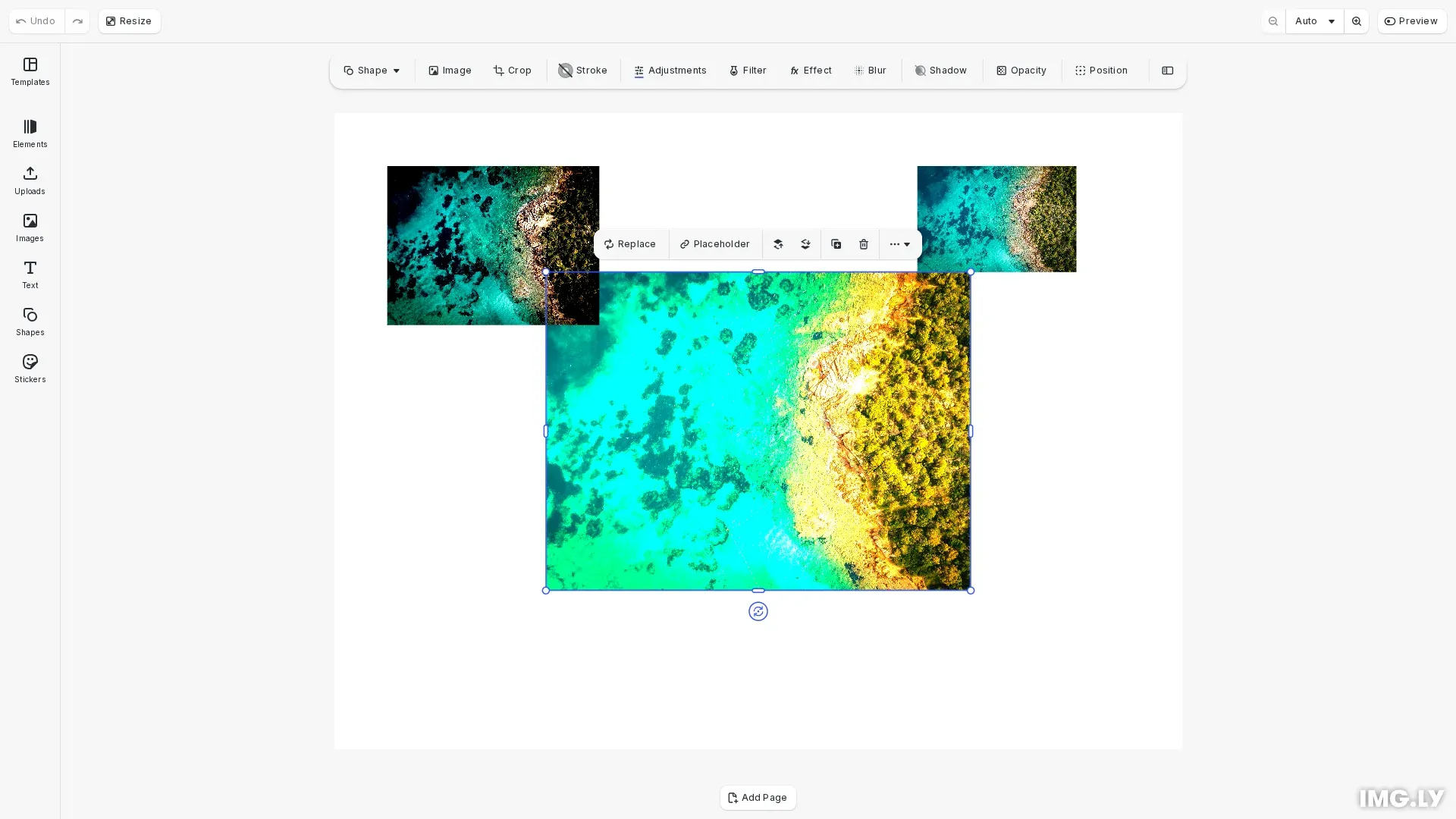
Color adjustments allow you to modify the visual appearance of images and graphics by changing properties like brightness, contrast, saturation, and color temperature. CE.SDK implements color adjustments as an “adjustments” effect type that you can apply to compatible blocks.
This guide covers how to use the built-in adjustments UI panel and how to apply color adjustments programmatically using the block API.
Using the Built-in Adjustments UI#
CE.SDK provides a built-in adjustments panel that allows users to modify color properties interactively. Users can access this panel by selecting an image or graphic block in the editor.
Enable Adjustments Features#
To give users access to adjustments in the inspector panel, we enable the adjustments feature using CE.SDK’s Feature API.
// Enable adjustments in the inspector panelcesdk.feature.enable('ly.img.adjustment');With adjustments enabled, users can:
- Adjust sliders for brightness, contrast, saturation, exposure, and more
- See real-time preview of changes as they adjust values
- Reset adjustments individually or all at once to restore defaults
Programmatic Color Adjustments#
For applications that need to apply adjustments programmatically—whether for automation, batch processing, or dynamic user experiences—we use the block API.
Check Block Compatibility#
Before applying adjustments, we verify the block supports effects. Not all block types support adjustments—for example, page blocks don’t support effects directly, but image and graphic blocks do.
// Check if a block supports effects before applying adjustmentsconst imageBlock = await engine.block.addImage(imageUri, {  size: { width: 400, height: 300 }});engine.block.appendChild(page, imageBlock);engine.block.setPositionX(imageBlock, 200);engine.block.setPositionY(imageBlock, 150);
const supportsEffects = engine.block.supportsEffects(imageBlock);console.log('Block supports effects:', supportsEffects);
Create and Apply Adjustments Effect#
Once we’ve confirmed a block supports effects, we create an adjustments effect and attach it to the block using appendEffect().
// Create an adjustments effectconst adjustmentsEffect = engine.block.createEffect('adjustments');
// Attach the adjustments effect to the image blockengine.block.appendEffect(imageBlock, adjustmentsEffect);
Each block can have one adjustments effect in its effect stack. The adjustments effect provides access to all color adjustment properties through a single effect instance.
Modify Adjustment Properties#
We set individual adjustment values using setFloat() with the effect block ID and property path. Each property uses the effect/adjustments/ prefix followed by the property name.
// Set brightness - positive values lighten, negative values darkenengine.block.setFloat(  adjustmentsEffect,  'effect/adjustments/brightness',  0.4);
// Set contrast - increases or decreases tonal rangeengine.block.setFloat(  adjustmentsEffect,  'effect/adjustments/contrast',  0.35);
// Set saturation - increases or decreases color intensityengine.block.setFloat(  adjustmentsEffect,  'effect/adjustments/saturation',  0.5);
// Set temperature - positive for warmer, negative for cooler tonesengine.block.setFloat(  adjustmentsEffect,  'effect/adjustments/temperature',  0.25);
CE.SDK provides the following adjustment properties:
| Property | Description |
|---|---|
brightness | Overall lightness—positive values lighten, negative values darken |
contrast | Tonal range—increases or decreases the difference between light and dark |
saturation | Color intensity—positive values increase vibrancy, negative values desaturate |
exposure | Exposure compensation—simulates camera exposure adjustments |
gamma | Gamma curve—adjusts midtone brightness |
highlights | Bright area intensity—controls the lightest parts of the image |
shadows | Dark area intensity—controls the darkest parts of the image |
whites | White point—adjusts the brightest pixels |
blacks | Black point—adjusts the darkest pixels |
temperature | Warm/cool color cast—positive for warmer, negative for cooler tones |
sharpness | Edge sharpness—enhances or softens edges |
clarity | Midtone contrast—increases local contrast for more definition |
All properties accept float values. Experiment with different values to achieve the desired visual result.
Read Adjustment Values#
We can read current adjustment values using getFloat() with the same property paths. Use findAllProperties() to discover all available properties on an adjustments effect.
// Read current adjustment valuesconst brightness = engine.block.getFloat(  adjustmentsEffect,  'effect/adjustments/brightness');console.log('Current brightness:', brightness);
// Discover all available adjustment propertiesconst allProperties = engine.block.findAllProperties(adjustmentsEffect);console.log('Available adjustment properties:', allProperties);
This is useful for building custom UI controls or syncing adjustment values across your application.
Enable and Disable Adjustments#
CE.SDK allows you to temporarily toggle adjustments on and off without removing them from the block. This is useful for before/after comparisons.
// Disable adjustments temporarily (effect remains attached)engine.block.setEffectEnabled(adjustmentsEffect, false);console.log(  'Adjustments enabled:',  engine.block.isEffectEnabled(adjustmentsEffect));
// Re-enable adjustmentsengine.block.setEffectEnabled(adjustmentsEffect, true);
When you disable an adjustments effect, it remains attached to the block but won’t be rendered until you enable it again. This preserves all adjustment values while giving you control over when adjustments are applied.
Applying Different Adjustment Styles#
You can apply different adjustment combinations to create distinct visual styles. This example demonstrates a contrasting moody look using negative brightness, high contrast, and desaturation.
// Create a second image to demonstrate a different adjustment styleconst secondImageBlock = await engine.block.addImage(imageUri, {  size: { width: 200, height: 150 }});engine.block.appendChild(page, secondImageBlock);engine.block.setPositionX(secondImageBlock, 50);engine.block.setPositionY(secondImageBlock, 50);
// Apply a contrasting style: darker, high contrast, desaturated (moody look)const combinedAdjustments = engine.block.createEffect('adjustments');engine.block.appendEffect(secondImageBlock, combinedAdjustments);engine.block.setFloat(  combinedAdjustments,  'effect/adjustments/brightness',  -0.15);engine.block.setFloat(  combinedAdjustments,  'effect/adjustments/contrast',  0.4);engine.block.setFloat(  combinedAdjustments,  'effect/adjustments/saturation',  -0.3);
// List all effects on the blockconst effects = engine.block.getEffects(secondImageBlock);console.log('Effects on second image:', effects.length);
By combining different adjustment properties, you can create warm and vibrant looks, cool and desaturated styles, or high-contrast dramatic effects.
Refinement Adjustments#
Beyond basic color corrections, CE.SDK provides refinement adjustments for fine-tuning image detail and tonal balance.
// Add refinement adjustments to demonstrate subtle enhancement propertiesconst refinementEffect = engine.block.createEffect('adjustments');engine.block.appendEffect(tempBlock, refinementEffect);
// Sharpness - enhances edge definitionengine.block.setFloat(  refinementEffect,  'effect/adjustments/sharpness',  0.4);
// Clarity - increases mid-tone contrast for more detailengine.block.setFloat(refinementEffect, 'effect/adjustments/clarity', 0.35);
// Highlights - adjusts bright areasengine.block.setFloat(  refinementEffect,  'effect/adjustments/highlights',  -0.2);
// Shadows - adjusts dark areasengine.block.setFloat(refinementEffect, 'effect/adjustments/shadows', 0.3);
Refinement properties include:
- Sharpness - Enhances edge definition for crisper details
- Clarity - Increases mid-tone contrast for more depth and definition
- Highlights - Controls the intensity of bright areas
- Shadows - Controls the intensity of dark areas
These adjustments are particularly useful for enhancing photos or preparing images for print.
Managing Adjustments#
Remove Adjustments#
When you no longer need adjustments, you can remove them from the effect stack and free resources. Always destroy effects that are no longer in use to prevent memory leaks.
// Demonstrate removing an effectconst tempBlock = await engine.block.addImage(imageUri, {  size: { width: 150, height: 100 }});engine.block.appendChild(page, tempBlock);engine.block.setPositionX(tempBlock, 550);engine.block.setPositionY(tempBlock, 50);
const tempEffect = engine.block.createEffect('adjustments');engine.block.appendEffect(tempBlock, tempEffect);engine.block.setFloat(tempEffect, 'effect/adjustments/brightness', 0.5);
// Remove the effect by indexconst tempEffects = engine.block.getEffects(tempBlock);const effectIndex = tempEffects.indexOf(tempEffect);if (effectIndex !== -1) {  engine.block.removeEffect(tempBlock, effectIndex);}
// Destroy the removed effect to free memoryengine.block.destroy(tempEffect);
The removeEffect() method takes an index position. After removal, destroy the effect instance to ensure proper cleanup.
Reset Adjustments#
To reset all adjustments to their default values, you can either:
- Set each property to
0.0individually usingsetFloat() - Remove the adjustments effect and create a new one
For most cases, setting properties to 0.0 is more efficient than recreating the effect.
Troubleshooting#
Adjustments Not Visible#
If adjustments don’t appear after applying them:
- Verify the block supports effects using
supportsEffects() - Check that the effect is enabled with
isEffectEnabled() - Ensure the adjustments effect was appended to the block, not just created
- Confirm adjustment values are non-zero
Unexpected Results#
If adjustments produce unexpected visual results:
- Check the effect stack order—adjustments applied before or after other effects may produce different results
- Verify property paths include the
effect/adjustments/prefix - Use
findAllProperties()to verify correct property names
Property Not Found#
If you encounter property not found errors:
- Use
findAllProperties()to list all available properties - Ensure property paths use the correct
effect/adjustments/prefix format
API Reference#
| Method | Description |
|---|---|
block.supportsEffects(block) | Check if a block supports effects |
block.createEffect('adjustments') | Create an adjustments effect |
block.appendEffect(block, effect) | Add effect to the end of the effect stack |
block.insertEffect(block, effect, index) | Insert effect at a specific position |
block.getEffects(block) | Get all effects applied to a block |
block.removeEffect(block, index) | Remove effect at the specified index |
block.setEffectEnabled(effect, enabled) | Enable or disable an effect |
block.isEffectEnabled(effect) | Check if an effect is enabled |
block.setFloat(effect, property, value) | Set a float property value |
block.getFloat(effect, property) | Get a float property value |
block.findAllProperties(effect) | List all properties of an effect |
block.destroy(effect) | Destroy an effect and free resources |