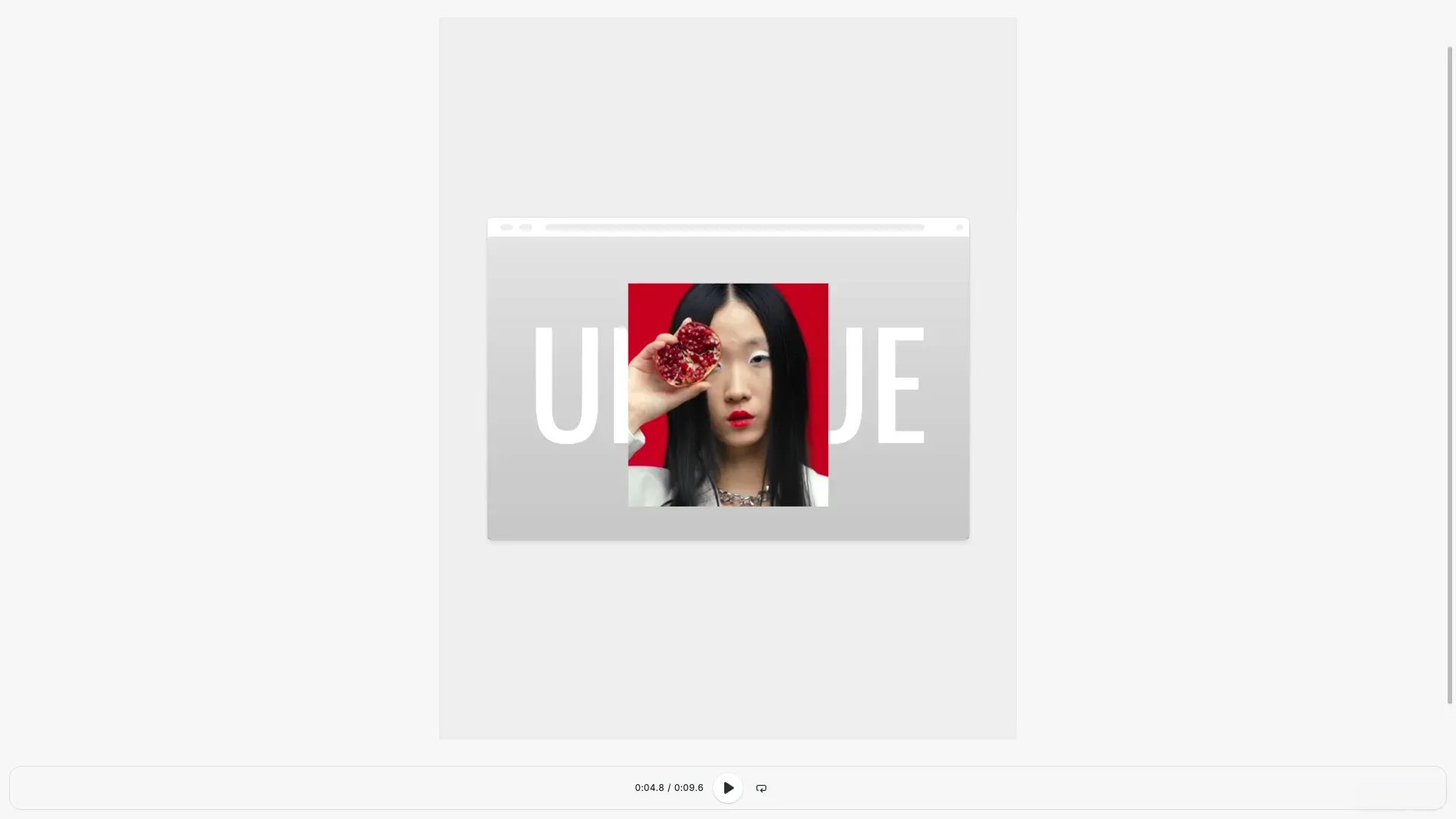
Lightweight video playback for your web app—play, pause, and navigate video content. Runs entirely in the browser with no server dependencies.
Pre-requisites#
This guide assumes basic familiarity with JavaScript or TypeScript.
- Node.js v22+ with npm – Download
- Supported browsers – Chrome 114+, Edge 114+, Firefox 115+, Safari 15.6+
See Browser Support for the full list
Get Started#
Start fresh with a standalone Video Player project. This creates a complete, ready-to-run application.
Step 1: Clone the Repository#
git clone https://github.com/imgly/starterkit-video-player-ts-web.gitgit clone https://github.com/imgly/starterkit-video-player-ts-web.gitnpx degit imgly/starterkit-video-player-ts-web starterkit-video-player-ts-webnpx degit imgly/starterkit-video-player-ts-web starterkit-video-player-ts-webThe src/ folder contains the player code:
src/├── index.ts # Application entry point└── imgly/ ├── index.ts # Player initialization function ├── demo-assets.ts # Demo asset URLs └── config/ ├── plugin.ts # Main configuration plugin ├── actions.ts # Export/import actions ├── features.ts # Feature toggles ├── i18n.ts # Translations ├── settings.ts # Engine settings ├── keyboard/ # Keyboard shortcuts │ ├── keyboard.ts # Shortcut registration │ └── catalogs/ │ └── us-ansi.ts # Key catalog └── ui/ # UI customization ├── index.ts # Combines UI customization exports ├── canvas.ts # Canvas configuration ├── components.ts # Custom component registration ├── dock.ts # Dock layout configuration ├── inspectorBar.ts # Inspector bar layout ├── navigationBar.ts # Navigation bar layout ├── panel.ts # Panel configuration └── videoTimeline.ts # Timeline configurationStep 2: Install Dependencies#
cd starterkit-video-player-ts-web
npm install
cd starterkit-video-player-ts-web
npm installcd starterkit-video-player-ts-web
pnpm installcd starterkit-video-player-ts-web
pnpm installcd starterkit-video-player-ts-web
yarncd starterkit-video-player-ts-web
yarnStep 3: Download Assets#
CE.SDK requires engine assets (fonts, icons, UI elements) to function. For production, serve them as static files from your project’s public/ directory.
curl -O https://cdn.img.ly/packages/imgly/cesdk-js/1.87.0-rc.3/imgly-assets.zip
unzip imgly-assets.zip -d public/
rm imgly-assets.zip
curl -O https://cdn.img.ly/packages/imgly/cesdk-js/1.87.0-rc.3/imgly-assets.zip
unzip imgly-assets.zip -d public/
rm imgly-assets.zipWithout further setup, the editor loads these assets from the IMG.LY CDN, which is for development only. To use the downloaded copy, set baseURL: '/assets' in the editor configuration in src/index.ts. To add your license key, add one of the two license lines below to the same object, without the leading //. Option 1 puts the key in the code. Option 2 reads VITE_CESDK_LICENSE from a .env file, which you create as a copy of .env.example. Without a license key, the editor runs in evaluation mode and adds a watermark to exports.
const config = { // ... baseURL: '/assets', // license: 'YOUR_CESDK_LICENSE_KEY' // Option 1: the key in the code // license: import.meta.env.VITE_CESDK_LICENSE // Option 2: the key from .env // ...};Step 4: Run the Development Server#
npm run devnpm run devpnpm run devpnpm run devyarn devyarn devOpen http://localhost:5173 in your browser.
Get Started#
Integrate the Video Player into an existing web application. This adds the player configuration to your current project structure.
Step 1: Copy Player Configuration#
cd your-projectcd your-projectClone the starter kit and copy the player configuration to your project:
git clone https://github.com/imgly/starterkit-video-player-ts-web.git
cp -r starterkit-video-player-ts-web/src/imgly ./src/imgly
rm -rf starterkit-video-player-ts-webgit clone https://github.com/imgly/starterkit-video-player-ts-web.git
cp -r starterkit-video-player-ts-web/src/imgly ./src/imgly
rm -rf starterkit-video-player-ts-webnpx degit imgly/starterkit-video-player-ts-web/src/imgly ./src/imglynpx degit imgly/starterkit-video-player-ts-web/src/imgly ./src/imglyThe imgly/ folder contains the player configuration:
imgly/├── index.ts # Player initialization function├── demo-assets.ts # Demo asset URLs└── config/ ├── plugin.ts # Main configuration plugin ├── actions.ts # Export/import actions ├── features.ts # Feature toggles ├── i18n.ts # Translations ├── settings.ts # Engine settings ├── keyboard/ # Keyboard shortcuts │ ├── keyboard.ts # Shortcut registration │ └── catalogs/ │ └── us-ansi.ts # Key catalog └── ui/ # UI customization ├── index.ts # Combines UI customization exports ├── canvas.ts # Canvas configuration ├── components.ts # Custom component registration ├── dock.ts # Dock layout configuration ├── inspectorBar.ts # Inspector bar layout ├── navigationBar.ts # Navigation bar layout ├── panel.ts # Panel configuration └── videoTimeline.ts # Timeline configurationStep 2: Install Dependencies#
The Video Player requires one core package:
Core Editor#
The Creative Editor SDK package provides all playback functionality.
npm install @cesdk/cesdk-js@1.87.0-rc.3npm install @cesdk/cesdk-js@1.87.0-rc.3pnpm add @cesdk/cesdk-js@1.87.0-rc.3pnpm add @cesdk/cesdk-js@1.87.0-rc.3yarn add @cesdk/cesdk-js@1.87.0-rc.3yarn add @cesdk/cesdk-js@1.87.0-rc.3Step 3: Download Assets#
CE.SDK requires engine assets (fonts, icons, UI elements) to function. These must be served as static files from your project’s public/ directory.
curl -O https://cdn.img.ly/packages/imgly/cesdk-js/1.87.0-rc.3/imgly-assets.zip
unzip imgly-assets.zip -d public/
rm imgly-assets.zipcurl -O https://cdn.img.ly/packages/imgly/cesdk-js/1.87.0-rc.3/imgly-assets.zip
unzip imgly-assets.zip -d public/
rm imgly-assets.zipThe baseURL in your configuration should point to this location:
const config = { // ... baseURL: '/assets'};Step 4: Add a Container Element#
Add a container element to your HTML where the player will be mounted:
<div id="cesdk_container" style="width: 100%; height: 100vh;"></div>Step 5: Initialize the Player#
Import and call the initialization function from your application’s entry point:
import CreativeEditorSDK from '@cesdk/cesdk-js';
import { initVideoPlayer } from './imgly';
const config = {  userId: 'your-user-id',  baseURL: '/assets'  // license: 'YOUR_LICENSE_KEY',};
CreativeEditorSDK.create('#cesdk_container', config)  .then(async (cesdk) => {    await initVideoPlayer(cesdk);    await cesdk.actions.run('scene.create');  })  .catch((error) => {    console.error('Failed to initialize CE.SDK:', error);  });
Set Up a Scene#
CE.SDK offers multiple ways to load content into the player. Choose the method that matches your use case:
// Load from a template archive - loads a previously saved projectawait cesdk.load('https://example.com/video.zip');
// Load from a scene file - restores a saved sceneawait cesdk.load('https://example.com/scene.scene');
// Zoom to fit the contentawait cesdk.actions.run('zoom.toPage', { page: 'first', autoFit: true, padding: 24});Customize (Optional)#
Theming#
CE.SDK supports light and dark themes out of the box, plus automatic system preference detection. Switch between themes programmatically:
// 'light' | 'dark' | 'system' | (() => 'light' | 'dark')cesdk.ui.setTheme('dark');See Theming for custom color schemes, CSS variables, and advanced styling options.
Localization#
Customize UI labels and add support for multiple languages. The i18n system supports translation keys for all UI elements:
// Override specific labelscesdk.i18n.setTranslations({  en: {    'common.play': 'Play Video',    'common.pause': 'Pause'  }});
// Add a new languagecesdk.i18n.setTranslations({  de: {    'common.play': 'Video abspielen'  }});
// Set the active localecesdk.i18n.setLocale('de');
See Localization for supported languages, translation key reference, and right-to-left language support.
Key Capabilities#
The Video Player includes everything needed for video playback.
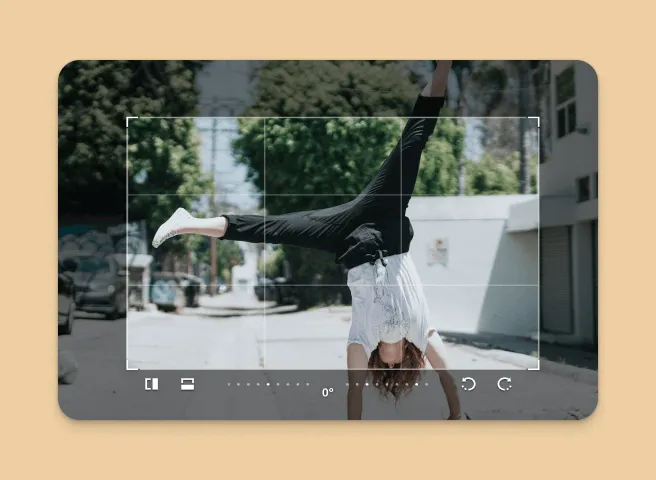
Playback Controls
Play, pause, and seek through video content with intuitive controls.
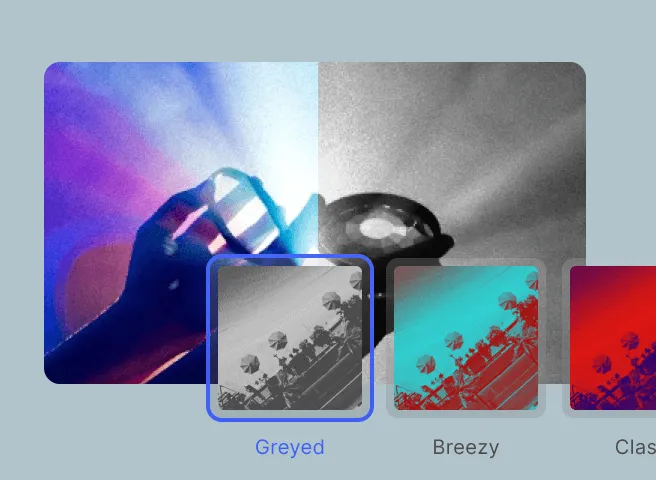
Timeline Navigation
Scrub through the timeline to preview any point in the video.
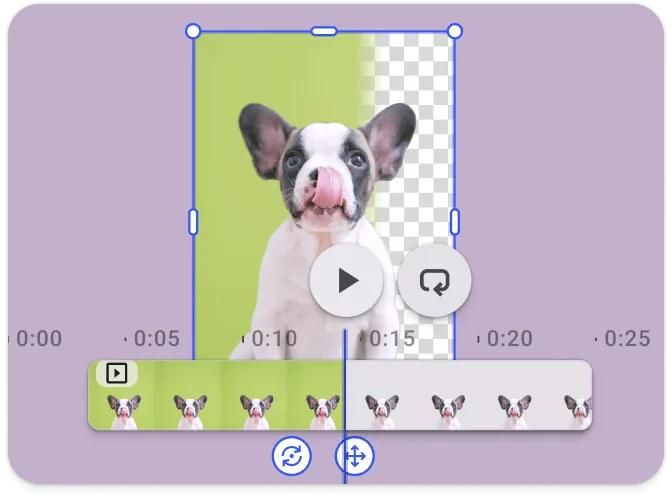
Zoom Controls
Zoom in and out of the video canvas with fit-to-screen options.
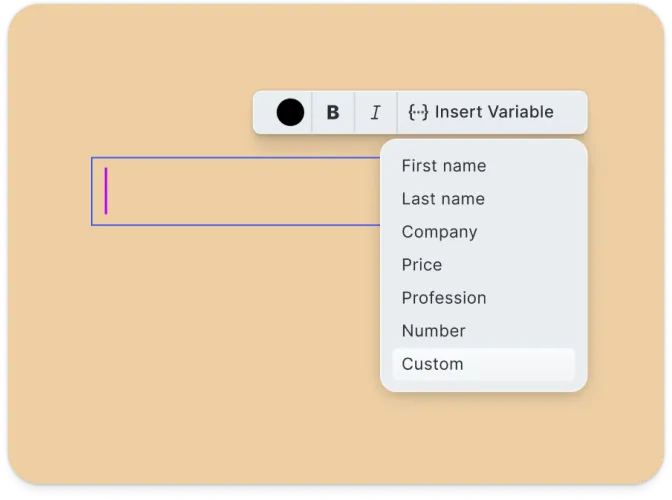
Page Navigation
Navigate between pages in multi-page video projects.
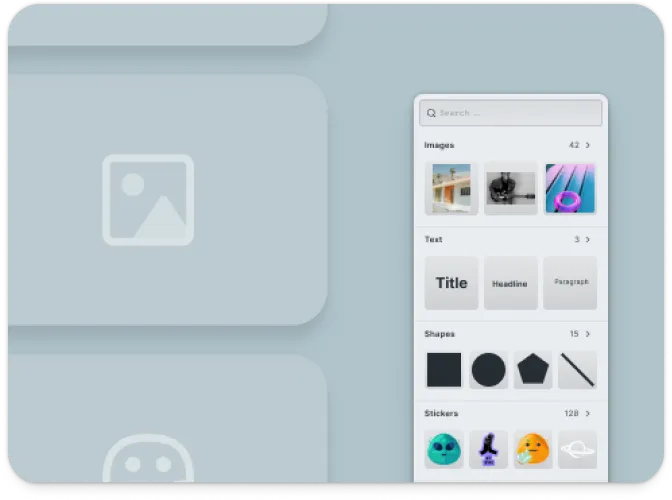
Read-Only Mode
Display video content without editing capabilities for preview and review workflows.
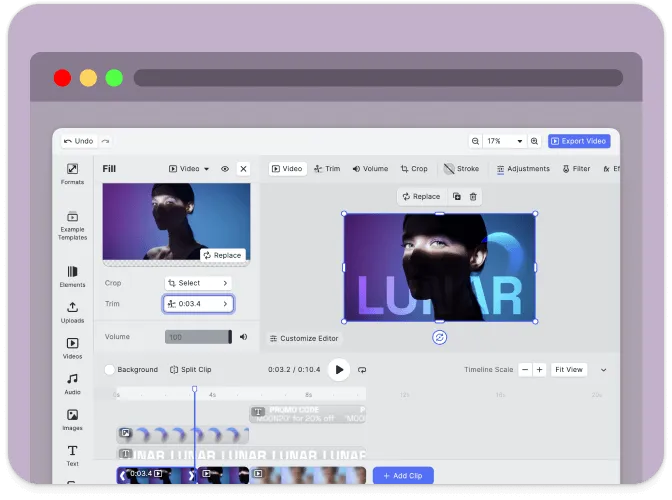
Lightweight Interface
Minimal UI focused on playback experience without editing distractions.
Troubleshooting#
Player doesn’t load#
- Check the container element exists: Ensure your container element is in the DOM before calling
create() - Verify the baseURL: Assets must be accessible from the CDN or your self-hosted location
- Check console errors: Look for CORS or network errors in browser developer tools
Content doesn’t appear#
- Check network requests: Open DevTools Network tab and look for failed requests to
cdn.img.ly - Self-host assets for production: See Serve Assets to host assets on your infrastructure
Video doesn’t play#
- Check browser autoplay policies: Browsers require user interaction before playing video
- Verify video format: Ensure video files are in a supported format (MP4, WebM)
Watermark appears in production#
- Add your license key: Set the
licenseproperty in your configuration - Get a license: Contact us at img.ly/forms/contact-sales/
Next Steps#
- Configuration – Complete list of initialization options
- Serve Assets – Self-host engine assets for production
- Theming – Customize colors and appearance
- Localization – Add translations and language support