Understand the three color spaces in CE.SDK and when to use each for screen or print workflows.
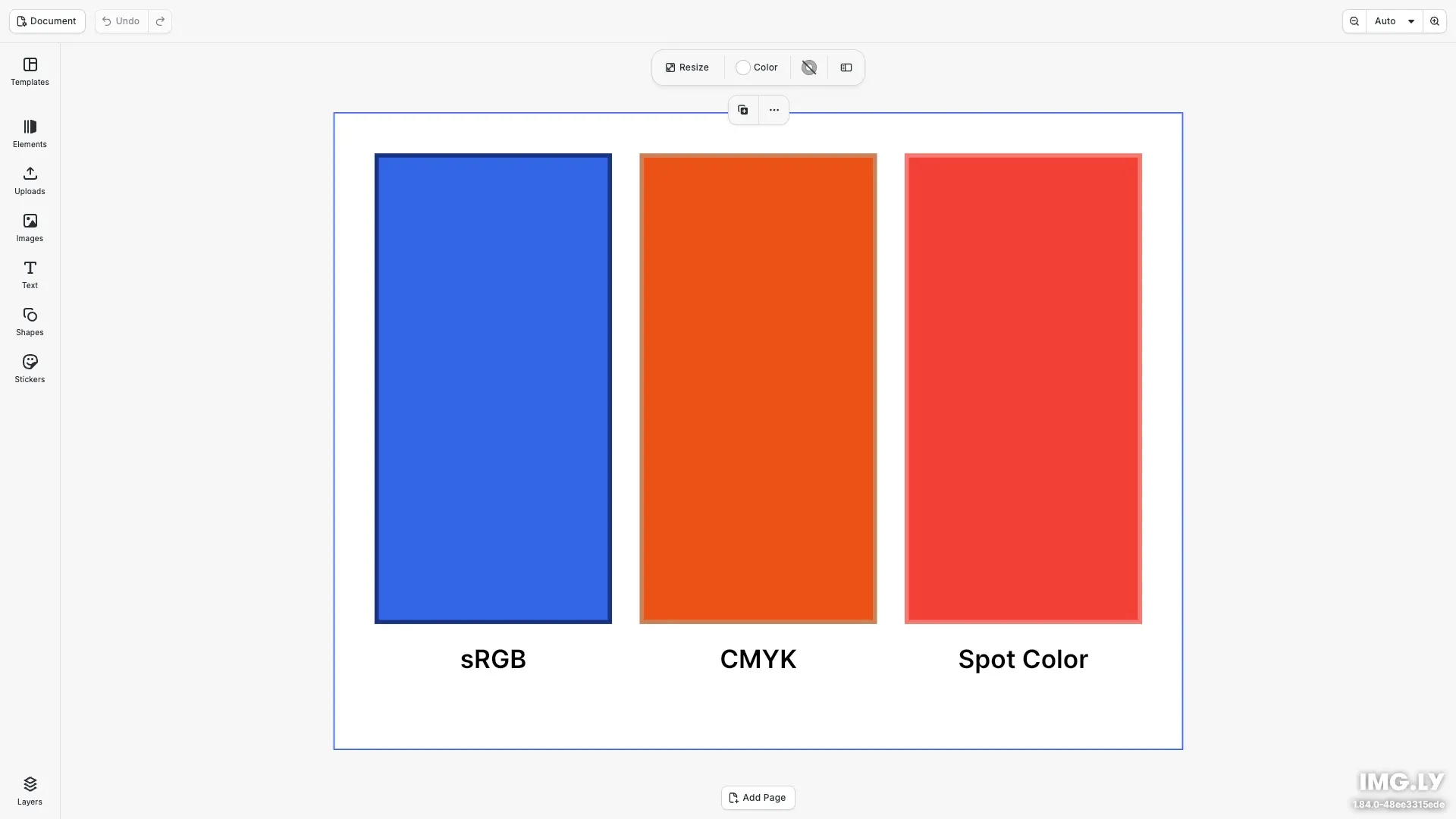
CE.SDK supports three color spaces: sRGB for screen display, CMYK for print workflows, and Spot Color for specialized printing. Each color space serves different output types and has its own object format for the setColor() API.
This guide covers how to choose the correct color space, define and apply colors using the unified setColor() API, and configure spot colors with screen preview approximations. It also shows how CE.SDK converts colors, how to set the document CMYK profile, the rendering intent and black point compensation, the difference between Managed and Legacy scenes, and what each export format writes. The last sections show how a PDF converts its colors to the Output profile of your press.
Color Spaces Overview#
CE.SDK represents colors as objects with different properties depending on the color space. Use engine.block.setColor() to apply any color type to supported properties.
Supported color properties:
'fill/color/value'- Fill color of a block'stroke/color'- Stroke/outline color'dropShadow/color'- Drop shadow color'backgroundColor/color'- Background color'camera/clearColor'- Canvas clear color
sRGB Colors#
sRGB is the default color space for screen display. Pass an RGBAColor object with r, g, b, a components, each in the range 0.0 to 1.0. The a (alpha) component controls transparency.
// Block 1: sRGB color (for screen display)const srgbBlock = engine.block.create('//ly.img.ubq/graphic');engine.block.setShape( srgbBlock, engine.block.createShape('//ly.img.ubq/shape/rect'));const srgbFill = engine.block.createFill('//ly.img.ubq/fill/color');// Set fill color using RGBAColor object (values 0.0-1.0)engine.block.setColor(srgbFill, 'fill/color/value', { r: 0.2, g: 0.4, b: 0.9, a: 1.0});engine.block.setFill(srgbBlock, srgbFill);engine.block.setWidth(srgbBlock, blockWidth);engine.block.setHeight(srgbBlock, blockHeight);engine.block.appendChild(page, srgbBlock);sRGB colors are ideal for web and digital content where the output is displayed on screens.
CMYK Colors#
CMYK is the color space for print workflows. Pass a CMYKColor object with c, m, y, k components (0.0 to 1.0) plus a tint value that scales the ink amounts (1.0 is full ink, 0.0 is no ink).
// Block 2: CMYK color (for print workflows)const cmykBlock = engine.block.create('//ly.img.ubq/graphic');engine.block.setShape( cmykBlock, engine.block.createShape('//ly.img.ubq/shape/rect'));const cmykFill = engine.block.createFill('//ly.img.ubq/fill/color');// Set fill color using CMYKColor object (values 0.0-1.0, tint scales ink)engine.block.setColor(cmykFill, 'fill/color/value', { c: 0.0, m: 0.8, y: 0.95, k: 0.0, tint: 1.0});engine.block.setFill(cmykBlock, cmykFill);engine.block.setWidth(cmykBlock, blockWidth);engine.block.setHeight(cmykBlock, blockHeight);engine.block.appendChild(page, cmykBlock);On screen and in raster exports, CMYK colors convert to RGB through the document CMYK profile. A key-only black and a rich black look different, as they do on press. The tint value (0.0 to 1.0) scales the ink amounts before the conversion, so a lower tint gives a lighter color that stays opaque. A scene saved before CE.SDK 1.83 loads as Legacy and keeps the earlier formula. The sections below explain the profile and both modes.
Spot Colors#
Spot colors are named colors used for specialized printing. Before using a spot color, you must define it with an RGB or CMYK approximation for screen preview.
Defining Spot Colors#
Use engine.editor.setSpotColorRGB() or engine.editor.setSpotColorCMYK() to register a spot color with its screen preview approximation.
// Define a spot color with RGB approximation for screen previewengine.editor.setSpotColorRGB('MyBrand Red', 0.95, 0.25, 0.21);Applying Spot Colors#
Reference a defined spot color using a SpotColor object with the name, tint, and externalReference properties.
// Block 3: Spot color (for specialized printing)const spotBlock = engine.block.create('//ly.img.ubq/graphic');engine.block.setShape( spotBlock, engine.block.createShape('//ly.img.ubq/shape/rect'));const spotFill = engine.block.createFill('//ly.img.ubq/fill/color');// Set fill color using SpotColor object (references the defined spot color)engine.block.setColor(spotFill, 'fill/color/value', { name: 'MyBrand Red', tint: 1.0, externalReference: ''});engine.block.setFill(spotBlock, spotFill);engine.block.setWidth(spotBlock, blockWidth);engine.block.setHeight(spotBlock, blockHeight);engine.block.appendChild(page, spotBlock);When rendered on screen, the spot color uses its RGB approximation. It uses the CMYK approximation only when no RGB approximation is set. During PDF export, spot colors are saved as a Separation Color Space that preserves print information.
Applying Stroke Colors#
Strokes support all three color spaces. Enable the stroke, set its width, then apply a color using the 'stroke/color' property.
// Add strokes to demonstrate stroke color propertyengine.block.setStrokeEnabled(srgbBlock, true);engine.block.setStrokeWidth(srgbBlock, 4);engine.block.setColor(srgbBlock, 'stroke/color', {  r: 0.1,  g: 0.2,  b: 0.5,  a: 1.0});
engine.block.setStrokeEnabled(cmykBlock, true);engine.block.setStrokeWidth(cmykBlock, 4);engine.block.setColor(cmykBlock, 'stroke/color', {  c: 0.0,  m: 0.5,  y: 0.6,  k: 0.2,  tint: 1.0});
engine.block.setStrokeEnabled(spotBlock, true);engine.block.setStrokeWidth(spotBlock, 4);engine.block.setColor(spotBlock, 'stroke/color', {  name: 'MyBrand Red',  tint: 0.7,  externalReference: ''});
Reading Color Values#
Use engine.block.getColor() to retrieve the current color value from a property. The returned object’s shape indicates the color space (RGBAColor, CMYKColor, or SpotColor).
// Retrieve and log color values to demonstrate getColor()const srgbColor = engine.block.getColor(srgbFill, 'fill/color/value');const cmykColor = engine.block.getColor(cmykFill, 'fill/color/value');const spotColor = engine.block.getColor(spotFill, 'fill/color/value');
console.log('sRGB Color:', srgbColor);console.log('CMYK Color:', cmykColor);console.log('Spot Color:', spotColor);
How CE.SDK Converts Colors#
To show a CMYK color on screen, CE.SDK converts it through an ICC profile, the document CMYK profile.
The engine converts a color in these steps:
- The document CMYK profile. Each scene can name one CMYK ICC profile. The profile converts CMYK colors, the CMYK approximation of a spot color, and CMYK images that have no profile of their own.
- Profile priority. The engine uses the document profile when the document names one. Otherwise, it uses the profile in the
fallbackCMYKProfileUrisetting. - A profile that does not load. When a loaded scene names a profile that does not load, the engine logs a warning and uses the fallback profile. When the fallback profile does not load, the engine does not use the bundled profile instead. CMYK colors then show with the unmanaged formula, and
loadColorProfiles()and a conversion that needs the profile fail withCOLOR.PROFILE_MISSING. - Rendering intent and black point compensation. Both apply to every conversion through the document profile. The defaults are relative colorimetric and black point compensation on.
- What changes on screen. A key-only black and a rich black are two different blacks, as they are on press. A tinted CMYK color scales its inks. It does not fade toward white.
- Images. An image with an embedded ICC profile, RGB or CMYK, uses its own profile. The document profile does not change it. A CMYK or YCCK JPEG without a profile decodes through the document CMYK profile.
Converting Colors in Code#
engine.editor.convertColorToColorSpace(color, 'sRGB' | 'CMYK') converts through the same profile as the canvas, so a swatch that you show matches what the user sees. The call is synchronous. You cannot convert to 'SpotColor'.
A scene that you create with engine.scene.create() is Managed, which means that it converts through the profile. Applying a template or loading a scene takes the mode stored in that file. A template or scene saved before CE.SDK 1.83 is Legacy, and this includes the templates of the demo asset library. The section “Managed and Legacy Scenes” below explains the other mode. In a Managed scene, a conversion that needs the profile fails with COLOR.PROFILE_NOT_LOADED while the profile loads. The call starts the load.
Await engine.editor.loadColorProfiles() before you convert. Await it again after each change to the profile source: removeDocumentColorProfile(defaultCMYK), a change of fallbackCMYKProfileUri, or a scene load.
The example awaits the profile and defines a logConversions helper, which logs the sRGB value of each swatch. The later steps call the helper again.
await engine.editor.loadColorProfiles();
const logConversions = (step: string) => {  const values = swatches.map(({ label, color }) => {    const { r, g, b } = engine.editor.convertColorToColorSpace(      color,      'sRGB'    );    return { label, r: +r.toFixed(3), g: +g.toFixed(3), b: +b.toFixed(3) };  });  console.log(step);  console.table(values);};
logConversions('Bundled default profile');- sRGB to CMYK uses the reverse tables of the profile. A profile that has no reverse tables uses a simple formula.
- A spot color converts to CMYK through its CMYK approximation, when it has one.
The logged values change when the profile, the intent, black point compensation or the mode changes. The Color Conversion guide has more conversion examples.
The loader currently waits only for the effective Default/CMYK profile, including fallback resolution. It does not load other document profile slots.
Setting the Document CMYK Profile#
Set the document CMYK profile to the profile of your press and paper. Use the document color profile methods with the Default/CMYK slot. In the example, defaultCMYK is { role: 'Default', space: 'CMYK' }.
engine.scene.setDocumentColorProfile(defaultCMYK, uri)loads a profile from a URI. The call is async and atomic: the previous profile stays in effect while the new one loads, and a failure keeps it.engine.scene.setDocumentColorProfileFromData(defaultCMYK, bytes)sets the profile from bytes that you already have. The change is in effect when the call returns.engine.scene.getDocumentColorProfileInfo(defaultCMYK)returns thecontentHashof the profile that the document names, also when that profile did not load. To learn if the profile is usable, awaitengine.editor.loadColorProfiles(). The getter fails withCOLOR.DOCUMENT_PROFILE_NOT_SETwhen the document names no profile. It never reports the fallback profile.engine.scene.removeDocumentColorProfile(defaultCMYK)goes back to the fallback profile. WhilefallbackCMYKProfileUriis not set, that is the bundled profile. Color management stays on.- The
fallbackCMYKProfileUrisetting changes the profile for every document that names none. Set it withengine.editor.setSetting('fallbackCMYKProfileUri', uri).
The example loads ISOcoated_v2_eci.icc from its own assets and logs the content hash. await engine.scene.setDocumentColorProfile(defaultCMYK, uri) waits for the new profile, so the example converts right after it.
const defaultCMYK = { role: 'Default', space: 'CMYK' } as const;await engine.scene.setDocumentColorProfile( defaultCMYK, new URL(profileUrl, document.baseURI).href);const { contentHash } = engine.scene.getDocumentColorProfileInfo(defaultCMYK);console.log('Document profile hash:', contentHash);logConversions('ISOcoated_v2_eci.icc');Rendering Intent and Black Point Compensation#
The rendering intent selects how the profile maps colors into the destination, for example from the press to the screen:
Perceptualcompresses the full gamut, so the relations between colors stay the same.RelativeColorimetric, the default, keeps the colors inside the gamut and clips the others. It maps the paper white of the profile to the white of the screen.Saturationkeeps colors saturated. Use it for charts and graphics, not for photos.AbsoluteColorimetricdoes not map the paper white to the white of the screen. The screen shows the paper tint of the profile, so the preview simulates the paper color.
Black point compensation maps the darkest black of the profile to the darkest black of the screen. It is on by default. With the relative colorimetric intent, turning it off leaves the press black as a dark gray, so dark areas look lighter. The absolute colorimetric intent does not use black point compensation.
The example sets the Perceptual intent, turns black point compensation off and logs the conversions again. With the example profile, the perceptual intent gives the same values with black point compensation on or off.
engine.scene.setColorRenderingIntent(ColorRenderingIntent.Perceptual);engine.scene.setBlackPointCompensationEnabled(false);logConversions('Perceptual intent, black point compensation off');Both settings are document state. CE.SDK saves them with the scene, and undo does not change them.
Managed and Legacy Scenes#
The scene/colorConversionMode property selects how the scene converts CMYK colors.
- A scene that you create with
engine.scene.create()isManagedand converts through the profile. - Applying a template or loading a scene takes the mode stored in that file. A template or scene saved before CE.SDK 1.83 is
Legacy, and this includes the templates of the demo asset library. - A
Legacyscene keeps the old CMYK conversion, which inverts the ink channels and blends a tint toward white. It also keeps the old decode of untagged CMYK JPEGs. So its CMYK colors and untagged CMYK JPEGs look as they did when you saved them. - A
Legacyscene never needs a profile and never fails a conversion for a missing profile. A profile that you set on aLegacyscene has no effect until the scene becomesManaged. - Spot colors use the corrected approximation and tint in both modes. A CMYK spot approximation follows the mode. So spot gradient stops and tinted spot drop shadows can look different from the saved design, also in a
Legacyscene.
Read the mode with engine.block.getEnum().
const scene = engine.scene.get()!;const mode = engine.block.getEnum(scene, 'scene/colorConversionMode');console.log('Color conversion mode:', mode);To move a saved design to accurate colors, set the mode to Managed with engine.block.setEnum(). Its CMYK colors then change on screen and in raster exports, so review the design after the switch. The example switches to Legacy to show the old values, then back to Managed.
engine.block.setEnum(scene, 'scene/colorConversionMode', 'Legacy');logConversions('Legacy mode');engine.block.setEnum(scene, 'scene/colorConversionMode', 'Managed');What Each Export Writes#
| Output | sRGB colors | CMYK colors | Spot colors | Images |
|---|---|---|---|---|
| PNG, JPEG, WebP | sRGB | Converted through the profile, the same as the preview | Approximation | RGB |
| PDF (default) | DeviceRGB | DeviceRGB, converted through the profile | Separation with a DeviceRGB alternate | RGB |
PDF with outputColorSpace: 'CMYK' |
DeviceRGB | Solid colors: DeviceCMYK, ink values unchanged, tint multiplied in | Named Separation. Its alternate is DeviceCMYK when the spot has a CMYK approximation, otherwise DeviceRGB | RGB |
PDF with outputColorSpace: 'CMYK' and outputProfileMode: 'Convert' |
DeviceCMYK, converted to the Output profile | DeviceCMYK, converted from the document profile to the Output profile | Named Separation. Its tint stays, and its alternate converts to the Output profile | DeviceCMYK, converted to the Output profile. With exportPdfWithHighCompatibility off, a gray image without alpha stays DeviceGray |
- A
Legacyscene uses the earlier formula for these outputs, not the profile. - With
outputProfileMode: 'Convert', a PNG, JPEG or WebP export converts its pixels to the Output RGB profile. WithembedProfiles, the file carries a profile: the Output RGB profile for converted or assigned pixels, else the profile of the working space. WithoutputProfileMode: 'Assign', a PNG, JPEG or WebP export keeps its pixels and carries the Output RGB profile, also withoutembedProfiles. - Gradient stops are converted to RGB, also in a device-CMYK PDF. This includes CMYK and spot color stops. A converting export converts the stops of a gradient that stays a vector to the Output profile instead. High compatibility, the default, keeps only an opaque linear or radial gradient as a vector.
- The engine PDF embeds no OutputIntent unless you set
embedProfiles: true. WithoutputProfileMode'Off', an embedding export also tags each tagged image with the profile of its samples. A converting export converts images. - Overprint (
setFillOverprint(),setStrokeOverprint()) applies to spot colors in a PDF only.
Export for Print#
To keep the print inks in a PDF:
- Set the document CMYK profile to your press condition, keep the scene
Managed, and use CMYK or spot colors. - Export the PDF with
outputColorSpace: 'CMYK', so the inks of solid colors reach the file. The ink values are unchanged, except that a tint below 1 scales them.
const png = await engine.block.export(page, { mimeType: 'image/png' });const pdf = await engine.block.export(page, { mimeType: 'application/pdf', outputColorSpace: 'CMYK'});console.log('PNG bytes:', png.size, 'PDF bytes:', pdf.size);outputColorSpace: 'CMYK' writes the same file as the deprecated exportPdfWithDeviceCMYK: true. Use the new option in new code. An export that is not a PDF fails with ENCODE.OUTPUT_COLOR_SPACE_UNSUPPORTED when you pass 'CMYK'.
Convert Colors to the Output Profile#
A print shop often names the ICC profile of its press. Set that profile as the Output profile of the document, and export with outputProfileMode: 'Convert'. The PDF export then converts every color and image to it.
- The Output slot. The Output CMYK slot is
{ role: 'Output', space: 'CMYK' }. Set it withengine.scene.setDocumentColorProfile(), and await the call before you export. The profile saves with the scene. The export waits for a profile that still loads, at most as long as the settingexportPendingTimeoutSecondsallows. outputProfileMode: 'Convert'converts fills, strokes, text and the alternate of each spot color to the Output profile ofoutputColorSpace. RGB colors convert from sRGB. CMYK colors convert from the document CMYK profile with the rendering intent of the document. A spot color keeps its name and its tint.outputProfileMode: 'Assign'keeps the values of the colors that are already in the space of the Output profile, such as CMYK colors in a CMYK output. It converts the colors in the other space as'Convert'does. WithembedProfiles, the Output profile in the PDF labels the kept values. Without it, they stay device values, as with Convert.embedProfiles: truewrites the Output profile into the PDF as its OutputIntent. The file makes no PDF/X claim. WithoutputProfileMode'Off'andexportPdfWithHighCompatibilityoff, each image keeps its samples, and a tagged image keeps its own profile as its tag, unless the engine cannot use that profile. Then it decodes the image to sRGB and writes it untagged. An untagged CMYK JPEG gets the document CMYK profile. A CMYK JPEG that EXIF rotates, and an image with an effect, a blur or an imported definition, are written from their RGB raster.preserveBlack: truekeeps black on the black ink. An exact RGB black becomes 0/0/0/100 K instead of a rich black. In an RGB output, a K-only black becomes exact RGB black. The option has no effect whileoutputProfileModeis'Off'. Images ignore it, so a black pixel in an image converts like any other color.- An RGB output. With
outputColorSpace: 'RGB', the default, the colors stay DeviceRGB. WithoutputProfileMode: 'Convert'added, the export reads the Output RGB slot and converts every color to that profile.
The example uses the same profile for the document and the Output slots, so the CMYK ink values reach the file unchanged. With a different Output profile, the export converts them.
const outputCMYK = { role: 'Output', space: 'CMYK' } as const;await engine.scene.setDocumentColorProfile( outputCMYK, new URL(profileUrl, document.baseURI).href);const printPdf = await engine.block.export(page, { mimeType: 'application/pdf', outputColorSpace: 'CMYK', outputProfileMode: 'Convert', embedProfiles: true, preserveBlack: true});console.log('Print PDF bytes:', printPdf.size);Images convert too. With exportPdfWithHighCompatibility off, a JPEG, PNG or WebP image converts from its own profile at its native size, and a gray image without alpha stays DeviceGray, so it prints on K only. A CMYK JPEG that EXIF rotates, and an image with an effect, a blur or an imported definition, convert from their RGB raster at the capped size. Brush strokes and the content that the export rasterizes convert from RGB. With outputProfileMode: 'Assign', a JPEG, PNG or WebP image in the space of the Output profile keeps its samples instead. In a CMYK output, a CMYK JPEG with the Adobe marker and EXIF orientation up keeps its bytes. In an RGB output, each RGB image keeps its samples, and with embedProfiles the Output profile labels them. A gradient converts when it stays a vector. High compatibility, the default, keeps only an opaque linear or radial gradient as a vector. The Print Ready PDF Plugin creates a PDF/X file. The Export for Printing guide shows the next steps.
Troubleshooting#
The Error Catalog lists every COLOR.* error.
| Symptom or error | Cause | Fix |
|---|---|---|
| The CMYK colors of an old design look the same after the upgrade | It loaded as Legacy |
Set scene/colorConversionMode to Managed |
| The profile, intent or black point compensation has no effect after you apply a template | The template was saved before 1.83, so the scene is Legacy |
Set scene/colorConversionMode to Managed |
| Black areas look lighter than before | A key-only black now shows as it prints | Use a rich black, or keep the accurate preview |
COLOR.PROFILE_NOT_LOADED |
A conversion ran before the profile loaded | Await engine.editor.loadColorProfiles() |
COLOR.PROFILE_MISSING from setDocumentColorProfile(defaultCMYK, uri) |
The engine cannot load the URI | Check the URI and CORS. The previous profile stays in effect |
COLOR.PROFILE_MISSING from loadColorProfiles() or a conversion |
The fallback profile does not load, so no profile is ready | Check the URI in the error and the fallbackCMYKProfileUri setting |
COLOR.PROFILE_SPACE_MISMATCH, COLOR.PROFILE_DATA_SPACE_MISMATCH |
The profile is not a CMYK profile | Use a CMYK output profile |
COLOR.OUTPUT_PROFILE_NOT_SET |
A converting or embedding export found no profile in the Output slot of outputColorSpace |
Set the Output profile and await the call |
COLOR.OUTPUT_PROFILE_NOT_CONVERTIBLE |
The Output profile has no table into its color space | Use the output profile of the press |
ENCODE.OUTPUT_COLOR_SPACE_UNSUPPORTED |
An export that is not a PDF got outputColorSpace: 'CMYK' |
Pass 'CMYK' only for a PDF |
COLOR.PROFILE_INVALID, COLOR.PROFILE_UNSUPPORTED_SPACE |
The bytes are not a usable ICC profile | Check the file |
COLOR.PROFILE_ASSIGNMENT_SUPERSEDED |
A later set, remove or scene load replaced a pending set | Expected. Await the latest call |
COLOR.DOCUMENT_PROFILE_NOT_SET |
getDocumentColorProfileInfo(defaultCMYK) ran when the document names no profile |
Set a profile, or treat it as “the document uses the fallback” |
COLOR.RENDERING_INTENT_INVALID |
The intent value is not 0 to 3 | Use the ColorRenderingIntent enum |
COLOR.IMAGE_DECODE_FAILED, COLOR.IMAGE_TRANSFORM_FAILED |
The engine cannot read a CMYK image or its profile | The image loads unmanaged. A PDF export that converts or embeds colors fails with COLOR.IMAGE_DECODE_FAILED when it must decode the image. Replace the file |
COLOR.IMAGE_NOT_CONVERTIBLE |
A PDF export whose outputProfileMode is not 'Off' cannot convert an image into the Output profile |
Use an image with another profile, or set outputProfileMode to 'Off' |
ENCODE.INSUFFICIENT_RESOURCES |
A PDF export whose outputProfileMode is not 'Off', or with embedProfiles, has no memory for an image at its native size |
Use a smaller image, or turn exportPdfWithHighCompatibility on |
| A profile set from bytes is lost after a reload | The scene was saved with saveToString() |
Save an archive |
API Reference#
| Method | Description |
|---|---|
engine.block.setColor(id, property, value) |
Set a color property on a block. Pass an RGBAColor, CMYKColor, or SpotColor object. |
engine.block.getColor(id, property) |
Get the current color value from a property. Returns an RGBAColor, CMYKColor, or SpotColor object. |
engine.editor.setSpotColorRGB(name, r, g, b) |
Define a spot color with an RGB approximation for screen preview. Components range from 0.0 to 1.0. |
engine.editor.setSpotColorCMYK(name, c, m, y, k) |
Define a spot color with a CMYK approximation for screen preview. Components range from 0.0 to 1.0. |
engine.scene.setDocumentColorProfile(defaultCMYK, uri) |
Load the document CMYK profile from a URI |
engine.scene.setDocumentColorProfileFromData(defaultCMYK, bytes) |
Set the document CMYK profile from bytes |
engine.scene.getDocumentColorProfileInfo(defaultCMYK) |
Read the content hash of the document profile |
engine.scene.removeDocumentColorProfile(defaultCMYK) |
Go back to the fallback profile |
engine.scene.getColorRenderingIntent() |
Read the rendering intent |
engine.scene.setColorRenderingIntent() |
Set the rendering intent |
engine.scene.isBlackPointCompensationEnabled() |
Read black point compensation |
engine.scene.setBlackPointCompensationEnabled() |
Turn black point compensation on or off |
engine.editor.loadColorProfiles() |
Wait until a CMYK profile is ready |
engine.editor.convertColorToColorSpace() |
Convert a color through the document profile |
engine.editor.setSetting('fallbackCMYKProfileUri', uri) |
Set the profile for documents that name none |
engine.block.getEnum() / setEnum() with scene/colorConversionMode |
Read or switch Managed and Legacy |
engine.block.export() with outputColorSpace: 'CMYK' |
Write CMYK inks to a PDF |
engine.block.export() with outputProfileMode |
Convert the colors and images of a PDF to the Output profile |
engine.block.export() with embedProfiles |
Write the Output profile into a PDF as its OutputIntent |
engine.block.export() with preserveBlack |
Keep black on the black ink while the PDF converts |
engine.scene.setDocumentColorProfile({ role: 'Output', space: 'CMYK' }, uri) |
Set the Output CMYK profile |
| Type | Properties | Description |
|---|---|---|
RGBAColor |
r, g, b, a (0.0-1.0) |
sRGB color for screen display. Alpha controls transparency. |
CMYKColor |
c, m, y, k, tint (0.0-1.0) |
CMYK color for print. Tint scales the ink amounts. |
SpotColor |
name, tint, externalReference |
Named color for specialized printing. |
Next Steps#
- Apply Colors - Apply colors to design elements programmatically
- CMYK Colors - Work with CMYK for print workflows
- Spot Colors - Define and manage spot colors for specialized printing