Text is often the first dynamic element you introduce into a design. Whether you’re inserting personalized names, generating labels, or building your own editor UI, CE.SDK lets you create and configure text blocks from the UI or programmatically with just a few lines of Swift. This guide walks through creating a text block, setting its initial content, choosing a typeface and size, and placing it on the canvas. You’ll also see how this ties into styling and templates.
What You’ll Learn#
You’ll be able to:
- Add text using one of the prebuilt editors.
- Create a text block programmatically.
- Set a text block’s content with
replaceText(). - Adjust width and wrapping behavior.
- Choose a typeface and font size.
- Position the text block on a page.
- Understand where this fits in broader text workflows.
When You’ll Use It#
Programmatic text insertion is ideal when:
- Text comes from user input or API data.
- You’re building custom UI instead of the prebuilt editor.
- You want consistent layout across many scenes.
- You’re generating compositions automatically.
- You’re filling placeholders in templates.
Adding Text with the Prebuilt Editors (iOS only)#
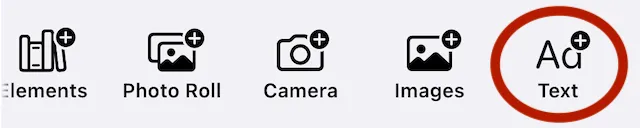
When you’re using the prebuilt editors on iOS, you can add text instantly using the Text button on the toolbar.
After tapping the button, choose one of the predefined plain-text or formatted text options for your text.
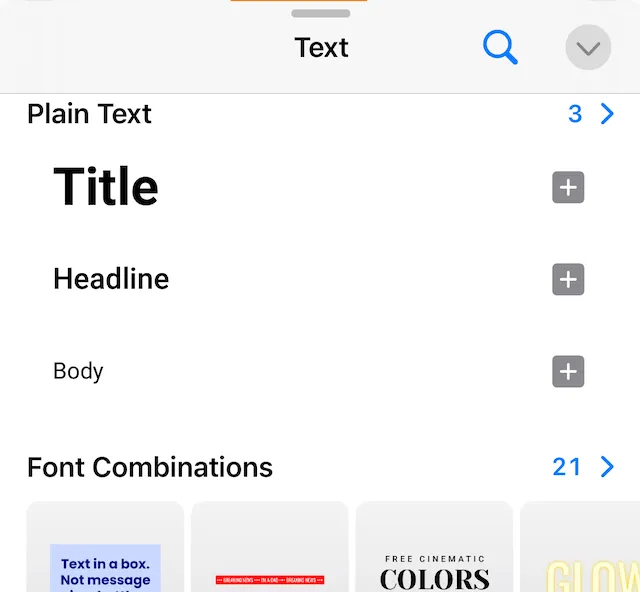
See the guide on font combinations to learn about creating an using predefined text art boxes in your compositions.
For existing text, select the text box in the scene to make further changes using controls in the inspector.
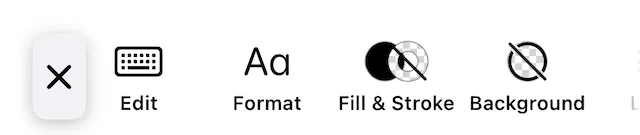
Use:
- The Edit button for changing the text string.
- Fill & Stroke and Background for configuring color.
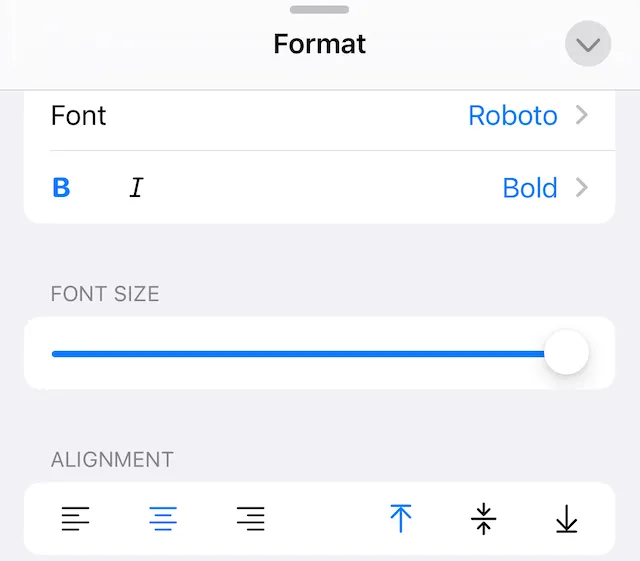
- The Format button for changing:
- font family
- weight
- size
- alignment.
Adding a Text Block to the Canvas#
CE.SDK represents text as a block. You can:
- create a
.textblock - update its contents using the
replaceTextmethod
This method is for both:
- initial text
- subsequent updates.
// 1. Create the text blocklet textID = try engine.block.create(.text)
// 2. Set its contenttry engine.block.replaceText(textID, text: "Hello from CE.SDK")
Use replaceText when:
- The text block displays literal text.
- You are updating labels, titles, captions, or any non-variable content.
- The block isn’t bound to a template variable.
When your text block contains template variables (for example, “{{user-name}}”), you generally don’t call replaceText. Instead, you update the matching variable value, and CE.SDK automatically refreshes all text blocks that reference it.
At this point, you can append the block to the scene to display text. You can set configuration options before or after displaying the text block.
Choose a Font Size#
You can set a clear, readable starting size for the text:
try engine.block.setTextFontSize(textID, fontSize: 36)The typeface (font family) that the block uses comes from the project’s font configuration. Refer to the Styling guide for changing the fonts, styling, colors, and more.
Typeface vs Font in CE.SDK#
CE.SDK distinguishes between typefaces and fonts, and each serves a different role:
Typeface:
- A family of letterforms (such as: System Sans, Inter, Roboto).
- Set with
setTypeface. - Formatting (bold, italic) is preserved where possible.
Font:
- A specific font file such as
Inter-Regular.otforBrand-BoldItalic.ttf. - Set with
setFont. - This overrides the family entirely and resets formatting.
Rule of thumb:
- Use typefaces for general text styling.
- Use fonts when you need exact control over a specific font file.
Control the Width of the Text Block#
The width of a text box defines how the block wraps in the scene.
For a text box, you can set:
- fixed width
absolute - percentage of parent width
percent - let the engine decide
auto
This code sets the width to 280 design units.
try engine.block.setWidthMode(textID, mode: .absolute)try engine.block.setWidth(textID, width: 280)This sets the width of the box to the same size as its parent.
try engine.block.setWidth(textID, width: 1.0) // 100%try engine.block.setWidthMode(textID, mode: .percent)Place the Text Block#
New blocks start at a default location. You can move the text block along the X axis and Y axis. Set the position in the scene using either:
absolutemodepercentagemode
Set the mode on both axes using the functions:
setPositionXModefor the position along the x axis.setPositionYModefor the position along the y axis.
try engine.block.setPositionX(textID, positionX: 40)try engine.block.setPositionY(textID, positionY: 120)Troubleshooting#
| Symptom | Possible Cause | Fix |
|---|---|---|
| Text not visible | Not attached to page | Use appendChild |
| Text off-screen | Incorrect position | Reset X/Y |
| Text doesn’t wrap | Width not set | Set width + width mode |
| Font looks too small/large | Design units vs points | Adjust font size |
| Literal text not updating | Wrong API | Use replaceText |
| Variable text not updating | Modified content instead of variable | Update the variable |
Next Steps#
Explore more text features:
- Text Variables Bind text to dynamic data.
- Auto-Size Let text blocks expand or shrink with content.
- Edit Text Interactively edit text.