Create stickers from images for use in your designs, perfect for adding icons, logos, emoji, and detailed multi-color graphics that preserve their original appearance.
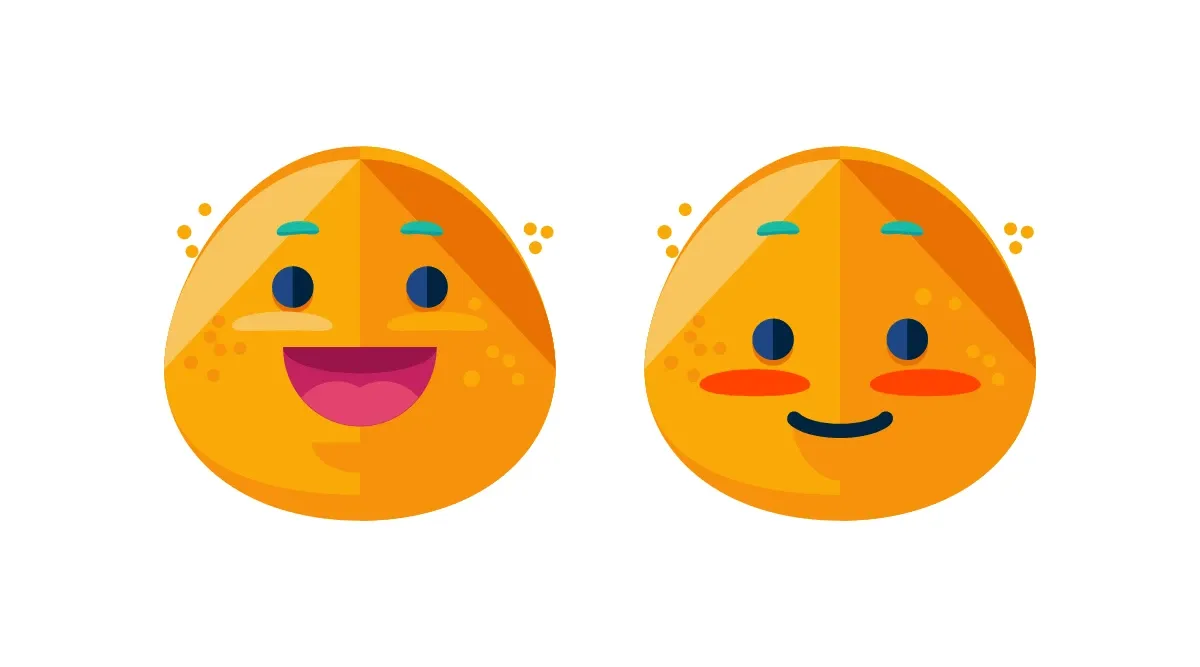
Stickers are graphic blocks with image fills that cannot be recolored. They work well for icons, brand logos, emoji, and complex multi-color graphics. Unlike shapes (which use solid or gradient fills and can be recolored), stickers preserve the original colors and details of the source image.
Creating Stickers from Images#
Build a sticker by composing the primitives that make a graphic block visible: a rect shape, an image fill, and the "sticker" kind tag. The image fill reads its source from the fill/image/imageFileURI property, and the .contain content fill mode preserves the source artwork’s aspect ratio inside the block bounds. Repeat the same recipe for each additional sticker — each block carries its own image fill, so colors stay independent.
// A 450x250 page hosts the sticker.let scene = try engine.scene.create()let page = try engine.block.create(.page)try engine.block.setWidth(page, value: 450)try engine.block.setHeight(page, value: 250)try engine.block.appendChild(to: scene, child: page)
// A sticker is a graphic block with a rect shape and an image fill.let sticker = try engine.block.create(.graphic)let stickerShape = try engine.block.createShape(.rect)try engine.block.setShape(sticker, shape: stickerShape)
let stickerFill = try engine.block.createFill(.image)try engine.block.setString(  stickerFill,  property: "fill/image/imageFileURI",  value: "https://cdn.img.ly/packages/imgly/cesdk-swift/1.76.0"    + "/assets/ly.img.sticker/images/emoticons/imgly_sticker_emoticons_grin.svg",)try engine.block.setFill(sticker, fill: stickerFill)
// Preserve the source artwork's aspect ratio inside the block bounds.if try engine.block.supportsContentFillMode(sticker) {  try engine.block.setContentFillMode(sticker, mode: .contain)}
// Tag the block as a sticker so the editor categorizes it correctly and// exposes the sticker-specific inspector bar.try engine.block.setKind(sticker, kind: "sticker")
try engine.block.setWidth(sticker, value: 150)try engine.block.setHeight(sticker, value: 150)try engine.block.setPositionX(sticker, value: 60)try engine.block.setPositionY(sticker, value: 50)try engine.block.appendChild(to: page, child: sticker)
setKind(_:kind:) records a semantic tag the editor reads back to choose the right inspector controls; the engine itself ignores the value. Without the tag the block still renders, but the editor treats it as a regular image and may offer recolor options that do not apply to multi-color artwork.
Sticker vs Shape Decision#
Choose between stickers and shapes based on your requirements:
| Requirement | Use Stickers | Use Shapes |
|---|---|---|
| Multi-color graphics | ✓ Yes | ✗ No (single fill) |
| Recolorable | ✗ No | ✓ Yes |
| Preserve original artwork | ✓ Yes | ✗ N/A |
| Boolean operations | ✗ No | ✓ Yes |
| Complex paths/gradients | ✓ Yes | ✗ Limited |
| Icons, logos, emoji | ✓ Preferred | - |
Troubleshooting#
Sticker Not Appearing#
Verify the image URL returns a valid image. Check that the sticker is appended to the current page. Ensure dimensions are non-zero. Confirm the image format is supported (SVG, PNG, JPG).
Manually Created Sticker Is Blank#
Graphic blocks need both a shape and a fill to render. Call engine.block.setShape(_:shape:) with a rect shape before setting the image fill — without the shape the engine has nothing to draw, even when the fill is correctly configured.
Sticker Appears Blurry#
For raster stickers, ensure the source image resolution matches or exceeds the displayed size. Use SVG stickers for scalable graphics that remain sharp at any size.
Sticker Appears Cropped#
The block may render with the image cropped to its bounds. Switch to .contain so the entire image displays without cropping. Always check support first with supportsContentFillMode(_:).
Sticker Cannot Be Recolored#
This is expected behavior — stickers preserve the original colors of their source image. For recolorable graphics, create shapes with vector paths and a color or gradient fill instead.
Wrong Editor Behavior#
Confirm engine.block.setKind(_:kind: "sticker") was called. The kind tag controls which editor surfaces the block is offered to and which inspector actions are exposed for it.
API Reference#
Quick reference for the sticker creation methods used in this guide:
| Method | Category | Purpose |
|---|---|---|
engine.block.create(.graphic) |
Creation | Create a graphic block |
engine.block.createShape(.rect) |
Shapes | Create a rect shape (required for visibility) |
engine.block.setShape(_:shape:) |
Shapes | Apply a shape to a graphic block |
engine.block.createFill(.image) |
Fills | Create an image fill |
engine.block.setFill(_:fill:) |
Fills | Apply a fill to a graphic block |
engine.block.setString(_:property:value:) |
Fills | Set fill/image/imageFileURI on the fill |
engine.block.supportsContentFillMode(_:) |
Content | Check whether the block supports a content fill mode |
engine.block.setContentFillMode(_:mode:) |
Content | Switch the content fill mode to .contain |
engine.block.setKind(_:kind:) |
Configuration | Tag the block as a sticker |
engine.block.setPositionX/Y(_:value:) |
Transform | Set the block’s position |
engine.block.setWidth/Height(_:value:) |
Transform | Set the block’s dimensions |
engine.block.appendChild(to:child:) |
Hierarchy | Add the block to a page |