This guide explains how to set up and manage local asset sources in the CreativeEditor SDK (CE.SDK) for iOS. Local assets are files stored on the user’s device, such as images, videos, or audio, that can be imported into the editor for use in designs. A local source can hold:
- Images
- Videos
- Audio
The Asset Panel filters by type automatically.
What You’ll Learn#
- Set up local asset sources in CE.SDK
- Integrate local asset sources into the Asset Panel of the prebuilt editors
When to Use It#
Use this feature for:
- Apps where users can add their personal assets from the documents directory.
- Apps that ship with assets stored in their app bundle.
Key Terms#
- Asset: a single media item (video, image, or audio)
- Asset Definition: an asset with metadata (ID, URI, label, tags).
- Asset Source: a named repository you register with the engine (e.g., “user-media,” Unsplash, your server) that owns a list of assets and can be local or remote.
- Asset Library or Asset Catalog: all of the asset sources that are present in an app (the SDK uses the term “library”, but “catalog” appears in the documentation and marketing materials sometimes as a synonym).
- Asset Panel: the prebuilt editors’ UI that lists and searches across all registered sources.
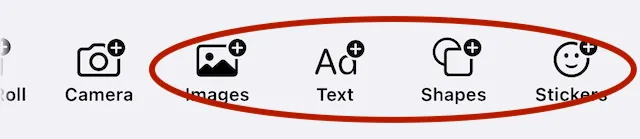 In the dock of the Design Editor, there are buttons to display the app’s asset library filtered by the type of asset.
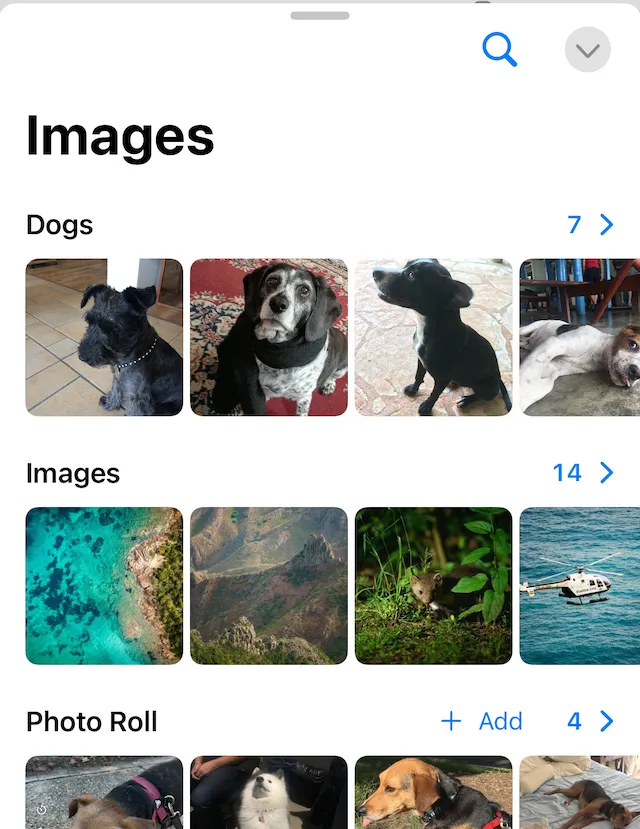 When opening the Images Asset Panel, it displays three asset sources: “Dogs”, “Images” and “Photo Roll”.
In this guide you’ll:
- Create a local source.
- Add files as assets.
- Display the assets in the catalog.
Once the assets are in the catalog, you can place an asset from the catalog to the canvas. The editor creates a block that references that asset.
For information on working with the Photo Roll and Camera buttons in the prebuilt editors and with dynamically adding assets to a local source at runtime, refer to the photo roll and user upload guides.
Where to Store Local Assets#
There are several regular locations for storing local assets in an iOS application:
- The application bundle, for assets you want to include with the application itself. These assets will be read-only
- The app’s
librarydirectory (the FileManager calls itapplicationSupportDirectory) if the app is going to manage the assets - The app’s
documentsdirectory or a sub-directory indocuments. A location indocumentscan centralize user-generated assets. The user and you both have full control of assets in thedocumentsdirectory; therefore, the user could delete or move them.
Creating an Asset Source#
The first step is to create a local source repository for the assets. The minimum requirement is to supply a unique source id:
try engine.asset.addLocalSource(sourceID: "my-local-source")The addLocalSource method has optional parameters to:
- restrict mime types allowed in the repository
- modify the default behavior of adding the asset to a scene or block when it is selected.
An asset source can contain different mime types. When the editor displays an asset source in the Asset Panel, it will filter based on mime type. For example:
- The
ImagesAsset Panel displays a particular asset source. - It automatically filters out audio, video and other non-image assets.
Whether your app has one asset source or multiple asset sources depends on how you want to organize the assets.
If it is possible that the Asset Panel is open when you add or remove assets, notify the app to refresh immediately using code similar to:
try engine.asset.assetSourceContentsChanged(sourceID: "my-local-source")Adding a Definition#
The asset itself, combined with metadata becomes an asset definition. This is what is stored in the asset source.
To include the asset, these are the minimum requirements for AssetDefinition:
- A unique
id. - A
metaproperty dictionary where you can supply auriand optionally amimeType.
An AssetDefinition can also include a label property for these features:
- Voice over uses
labelfor the asset. - Free text search matches on the
labelproperty.
It can also have a tags property to help organize and search. The label and tags properties can be localized.
The local asset needs a URL that points to the actual file. For example:
- The assets are in the app bundle.
- There is an Xcode project named “dogs”.
- You want to get an array of all of the
jpegimages from a bundle folder in the project.
You could get the array with code that looks like this:
let bundleURLs: [URL]? = Bundle.main.urls(forResourcesWithExtension: "jpeg", subdirectory: "dogs")or you can get a single asset using its name:
let bundleURL: URL? = Bundle.main.url(forResource: "mattie01", withExtension: "jpeg")When the assets are in the app’s library directory, use the FileManager to get their URLs.
let assetsURL = FileManager.default.url(for: .applicationSupportDirectory,            in: .userDomainMask,            appropriateFor: nil,            create: false)
let allJpegURLs = FileManager.default.contentsOfDirectory(              at: assetsURL,              includingPropertiesForKeys: nil,              options: [.skipsHiddenFiles]).filter {                ["jpeg", "jpg"].contains($0.pathExtension.lowercased()) }
let singleImageURL = assetsURL.appendingPathComponent("mattie02", conformingTo: .jpeg)
In the code above:
- The
assetsURLpoints to the app’slibrarydirectory. contentsOfDirectoryreturns an array of all of the files in a directory.- It adds a filter to return only the
jpegfiles. - The
singleImageURLreturns the URL for a specific file in the library directory, assuming it exists.
An AssetDefinition for the singleImageURL asset above could look like this:
let mattieImage = AssetDefinition( id: UUID().uuidString, meta: ["uri": singleImageURL.absoluteString, "mimeType": MIMEType.jpeg.rawValue], label: ["en": "Mattie"], tags: ["en": ["local", "dog"]])Some other properties you might include in the meta dictionary are:
widthheightthumbUri
Once an asset has a definition, the last step is to add it to an asset source.
try engine.asset.addAsset(to: "my-local-source", asset: mattieImage)Adding to the Asset Panel#
The prebuilt editors have a modifier specifically for updating the assets upon launch. In this guide, you’ve been working with images, so we’ll add our assets to the default “Images” tab. Depending on the editor you may also have video, audio, shape, and others.
DesignEditor(engineSettings).imgly.onCreate { engine in //Set up the scene and populate the asset source}.imgly.assetLibrary { // Extend the default asset library DefaultAssetLibrary(tabs: DefaultAssetLibrary.Tab.allCases) .images { // Add your directory asset source as a new tab AssetLibrarySource.image( .title("Dogs"), source: .init(id: "my-local-source") ) // Include the default images tab DefaultAssetLibrary.images }}The example above:
- Creates a
DesignEditor. - Adds the “my-local-source” asset source to the “Images” tab with the title of “Dogs”.
Check the screenshot at the beginning of this guide for reference.
Troubleshooting#
❌ Assets disappear after relaunch
- Check that you are storing the assets in the app container before creating the asset definition.
❌ Asset added programmatically doesn’t appear in the Asset Panel
- If the panel was already open, notify the editor to refresh.
try engine.asset.assetSourceContentsChanged(sourceID: "your source id")❌ Video or Image Shows as Gray/Error Icon
- Check that the mimeType is correct in the AssetDefinition.
- Missing or invalid
thumbUrifor a video asset. - Confirm that
uripoints to the asset.
❌ My Mixed Asset Source (images + video) only shows the images, the video is missing
- Make sure that a mixed asset source gets added to all of the tabs it matches.
- Ensure every asset has the proper
mimeType.
❌ Bundle Assets Aren’t Found
- Verify the asset file is in the “Copy Bundle Resources” build step.
- Verify that the name and subdirectory match exactly.
- Confirm that you are pointing to the correct
Bundle(many apps have more than one).
❌ Users Can Delete Files via Files App and Assets Break
Store editor-managed files in Application Support (Library). Ony use Documents when you expect user visibility and can handle missing assets gracefullly.
❌ Assets Added, but Search Doesn’t Find Them
Make sure to populate localized label and tags in the AssetDefinition. The Asset Panel’s search indexes these fields.
Next Steps#
Now that you’ve seen how to import assets stored locally you might explore:
- Pulling assets directly from the Photos library.