Apply uniform solid colors to shapes, text, and design blocks using CE.SDK’s comprehensive color fill system with support for multiple color spaces.
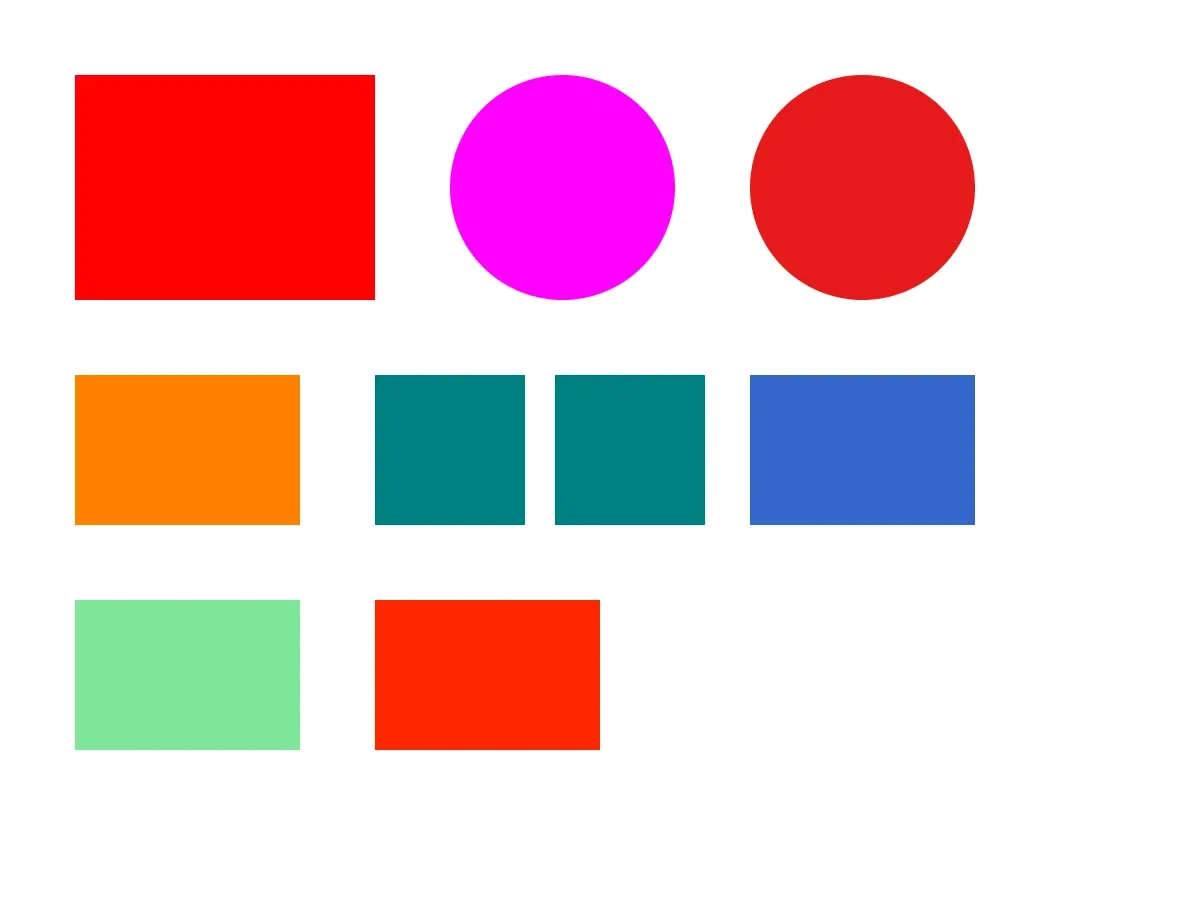
Color fills are one of the fundamental fill types in CE.SDK, allowing you to paint design blocks with solid, uniform colors. Unlike gradient fills that transition between colors or image fills that display photo content, color fills apply a single color across the entire block. The color fill system supports multiple color spaces including RGB for screen display, CMYK for print workflows, and Spot Colors for brand consistency.
This guide demonstrates how to create, apply, and modify color fills programmatically, work with different color spaces, and manage fill properties for various design elements.
Understanding Color Fills#
What is a Color Fill?#
A color fill is a fill object identified by the type .color (or the full form "//ly.img.ubq/fill/color") that paints a design block with a single, uniform color. Color fills are part of the broader fill system in CE.SDK and contain a "fill/color/value" property that defines the actual color using various color space formats.
Color fills differ from other fill types available in CE.SDK:
- Color fills: Solid, uniform color across the entire block
- Gradient fills: Color transitions (linear, radial, conic)
- Image fills: Photo or raster content
- Video fills: Animated video content
Supported Color Spaces#
CE.SDK’s color fill system supports multiple color spaces to accommodate different design and production workflows:
- RGB/sRGB: Red, Green, Blue with alpha channel (standard for screen display) —
Color.rgba(r:g:b:a:) - CMYK: Cyan, Magenta, Yellow, Key (black) with tint (for print production) —
Color.cmyk(c:m:y:k:tint:) - Spot Colors: Named colors with RGB/CMYK approximations (for brand consistency) —
Color.spot(name:tint:externalReference:)
Each color space serves specific use cases — use RGB for digital designs, CMYK for print-ready content, and Spot Colors to maintain brand standards across projects.
Checking Color Fill Support#
Verifying Block Compatibility#
Before applying color fills to a block, verify that the block type supports fills. Not all block types can have fills — for example, scene blocks typically don’t support fills.
guard try engine.block.supportsFill(page) else { return }Graphic blocks, shapes, and text blocks typically support fills. Always check supportsFill(_:) before accessing fill APIs to avoid runtime errors.
Creating Color Fills#
Creating a New Color Fill#
Create a new color fill instance using createFill(.color):
let colorFill = try engine.block.createFill(.color)The createFill(_:) method returns a DesignBlockID. The fill exists independently until you attach it to a block using setFill(_:fill:). If you create a fill but don’t attach it to a block, you must destroy it manually with destroy(_:) to prevent memory leaks.
Default Color Fill Properties#
New color fills start with a default black color at full opacity. Use findAllProperties(_:) to discover the available properties on a color fill:
let allFillProperties = try engine.block.findAllProperties(colorFill)print("Fill properties:", allFillProperties)The returned array includes "fill/color/value" — the property key used with setColor(_:property:color:) and getColor(_:property:) throughout this guide.
Applying Color Fills#
Setting a Fill on a Block#
Once you’ve created a color fill, attach it to a block using setFill(_:fill:):
let block = try engine.block.create(.graphic)try engine.block.setShape(block, shape: engine.block.createShape(.rect))try engine.block.setWidth(block, value: 200)try engine.block.setHeight(block, value: 150)try engine.block.setPositionX(block, value: 50)try engine.block.setPositionY(block, value: 50)try engine.block.appendChild(to: page, child: block)
try engine.block.setFill(block, fill: colorFill)
This example creates a graphic block with a rectangle shape and applies the color fill to it. The block renders with the fill’s color.
Getting the Current Fill#
Retrieve the current fill attached to a block using getFill(_:) and inspect its type:
let currentFill = try engine.block.getFill(block)let fillType = try engine.block.getType(currentFill)print("Fill type:", fillType)Modifying Color Fill Properties#
Setting RGB Colors#
Set the fill color using RGB values with setColor(_:property:color:). RGB values are normalized floats from 0.0 to 1.0, and the alpha channel controls opacity.
try engine.block.setColor( colorFill, property: "fill/color/value", color: .rgba(r: 1.0, g: 0.0, b: 0.0),)The alpha channel (a) controls opacity: 1.0 is fully opaque, 0.0 is fully transparent. Both default to 1.0 when omitted. This allows you to create semi-transparent overlays and layered color effects.
Setting CMYK Colors#
For print workflows, use CMYK color space with setColor(_:property:color:). CMYK values are also normalized from 0.0 to 1.0, and include a tint value for partial color application.
let cmykBlock = try engine.block.create(.graphic)try engine.block.setShape(cmykBlock, shape: engine.block.createShape(.ellipse))try engine.block.setWidth(cmykBlock, value: 150)try engine.block.setHeight(cmykBlock, value: 150)try engine.block.setPositionX(cmykBlock, value: 300)try engine.block.setPositionY(cmykBlock, value: 50)try engine.block.appendChild(to: page, child: cmykBlock)
let cmykFill = try engine.block.createFill(.color)try engine.block.setFill(cmykBlock, fill: cmykFill)try engine.block.setColor(  cmykFill,  property: "fill/color/value",  color: .cmyk(c: 0.0, m: 1.0, y: 0.0, k: 0.0),)
The tint value allows partial application of the color, useful for creating lighter variations without changing the base CMYK values. It defaults to 1.0 when omitted.
Setting Spot Colors#
Spot colors are named colors that must be defined before use. They’re ideal for maintaining brand consistency and can have both RGB and CMYK approximations for different output scenarios.
engine.editor.setSpotColor(name: "BrandRed", r: 0.9, g: 0.1, b: 0.1)
let spotBlock = try engine.block.create(.graphic)try engine.block.setShape(spotBlock, shape: engine.block.createShape(.ellipse))try engine.block.setWidth(spotBlock, value: 150)try engine.block.setHeight(spotBlock, value: 150)try engine.block.setPositionX(spotBlock, value: 500)try engine.block.setPositionY(spotBlock, value: 50)try engine.block.appendChild(to: page, child: spotBlock)
let spotFill = try engine.block.createFill(.color)try engine.block.setFill(spotBlock, fill: spotFill)try engine.block.setColor(  spotFill,  property: "fill/color/value",  color: .spot(name: "BrandRed", externalReference: "Brand-Colors"),)
First, define the spot color globally using engine.editor.setSpotColor(name:r:g:b:) or engine.editor.setSpotColor(name:c:m:y:k:), then apply it to your fill using Color.spot(name:tint:externalReference:). The externalReference parameter identifies the color in an external named-color system (for example, a print vendor’s library or your in-house brand palette); omit it when you don’t need this mapping. The tint value controls intensity from 0.0 to 1.0.
Getting Current Color Value#
Retrieve the current color value from a fill using getColor(_:property:):
let currentColor: Color = try engine.block.getColor(colorFill, property: "fill/color/value")print("Current color:", currentColor)The returned Color enum value preserves the original color space — an RGB color returns as .rgba(...), a CMYK color as .cmyk(...), and a Spot Color as .spot(...).
Enabling and Disabling Color Fills#
Toggle Fill Visibility#
You can temporarily disable a fill without removing it from the block. This preserves all fill properties while making the block transparent:
let toggleBlock = try engine.block.create(.graphic)try engine.block.setShape(toggleBlock, shape: engine.block.createShape(.rect))try engine.block.setWidth(toggleBlock, value: 150)try engine.block.setHeight(toggleBlock, value: 100)try engine.block.setPositionX(toggleBlock, value: 50)try engine.block.setPositionY(toggleBlock, value: 250)try engine.block.appendChild(to: page, child: toggleBlock)
let toggleFill = try engine.block.createFill(.color)try engine.block.setFill(toggleBlock, fill: toggleFill)try engine.block.setColor(  toggleFill,  property: "fill/color/value",  color: .rgba(r: 1.0, g: 0.5, b: 0.0),)
let isEnabled = try engine.block.isFillEnabled(toggleBlock)print("Fill enabled:", isEnabled)
try engine.block.setFillEnabled(toggleBlock, enabled: false)try engine.block.setFillEnabled(toggleBlock, enabled: true)
Disabling fills is useful for creating stroke-only designs or for temporarily hiding fills during interactive editing sessions. The fill properties remain intact and can be re-enabled at any time.
Additional Techniques#
Sharing Color Fills#
You can share a single fill instance between multiple blocks. Changes to the shared fill affect all blocks using it:
let block1 = try engine.block.create(.graphic)try engine.block.setShape(block1, shape: engine.block.createShape(.rect))try engine.block.setWidth(block1, value: 100)try engine.block.setHeight(block1, value: 100)try engine.block.setPositionX(block1, value: 250)try engine.block.setPositionY(block1, value: 250)try engine.block.appendChild(to: page, child: block1)
let block2 = try engine.block.create(.graphic)try engine.block.setShape(block2, shape: engine.block.createShape(.rect))try engine.block.setWidth(block2, value: 100)try engine.block.setHeight(block2, value: 100)try engine.block.setPositionX(block2, value: 370)try engine.block.setPositionY(block2, value: 250)try engine.block.appendChild(to: page, child: block2)
let sharedFill = try engine.block.createFill(.color)try engine.block.setColor(  sharedFill,  property: "fill/color/value",  color: .rgba(r: 0.5, g: 0.0, b: 0.5),)
try engine.block.setFill(block1, fill: sharedFill)try engine.block.setFill(block2, fill: sharedFill)
try engine.block.setColor(  sharedFill,  property: "fill/color/value",  color: .rgba(r: 0.0, g: 0.5, b: 0.5),)
With shared fills, modifying the fill’s color updates all blocks simultaneously. Note that setFill(_:fill:) does not automatically destroy the previous fill on the target block — you must call destroy(_:) on replaced fills manually if they are no longer needed.
Color Space Conversion#
Convert colors between different color spaces using convertColorToColorSpace(color:colorSpace:):
let rgbColor = Color.rgba(r: 1.0, g: 0.0, b: 0.0)try await engine.editor.loadCMYKProfile()let cmykColor = try engine.editor.convertColorToColorSpace(color: rgbColor, colorSpace: .cmyk)print("Converted CMYK color:", cmykColor)This is useful when you need to ensure color consistency across different output mediums (screen vs. print). The ColorSpace enum provides .sRGB, .cmyk, and .spotColor cases.
Common Use Cases#
Brand Color Application#
Define a palette of spot colors up front, then apply them across multiple design elements. Updating a spot color definition later automatically changes every fill that references it:
engine.editor.setSpotColor(name: "PrimaryBrand", r: 0.2, g: 0.4, b: 0.8)engine.editor.setSpotColor(name: "SecondaryBrand", r: 0.9, g: 0.5, b: 0.1)
let brandBlock = try engine.block.create(.graphic)try engine.block.setShape(brandBlock, shape: engine.block.createShape(.rect))try engine.block.setWidth(brandBlock, value: 150)try engine.block.setHeight(brandBlock, value: 100)try engine.block.setPositionX(brandBlock, value: 500)try engine.block.setPositionY(brandBlock, value: 250)try engine.block.appendChild(to: page, child: brandBlock)
let brandFill = try engine.block.createFill(.color)try engine.block.setFill(brandBlock, fill: brandFill)try engine.block.setColor(  brandFill,  property: "fill/color/value",  color: .spot(name: "PrimaryBrand"),)
Transparency Effects#
Create semi-transparent overlays and visual effects by adjusting the alpha channel:
let transparentBlock = try engine.block.create(.graphic)try engine.block.setShape(transparentBlock, shape: engine.block.createShape(.rect))try engine.block.setWidth(transparentBlock, value: 150)try engine.block.setHeight(transparentBlock, value: 100)try engine.block.setPositionX(transparentBlock, value: 50)try engine.block.setPositionY(transparentBlock, value: 400)try engine.block.appendChild(to: page, child: transparentBlock)
let transparentFill = try engine.block.createFill(.color)try engine.block.setFill(transparentBlock, fill: transparentFill)try engine.block.setColor(  transparentFill,  property: "fill/color/value",  color: .rgba(r: 0.0, g: 0.8, b: 0.2, a: 0.5),)
Print-Ready Colors#
Use CMYK color space for designs destined for print production:
let printBlock = try engine.block.create(.graphic)try engine.block.setShape(printBlock, shape: engine.block.createShape(.rect))try engine.block.setWidth(printBlock, value: 150)try engine.block.setHeight(printBlock, value: 100)try engine.block.setPositionX(printBlock, value: 250)try engine.block.setPositionY(printBlock, value: 400)try engine.block.appendChild(to: page, child: printBlock)
let printFill = try engine.block.createFill(.color)try engine.block.setFill(printBlock, fill: printFill)try engine.block.setColor( printFill, property: "fill/color/value", color: .cmyk(c: 0.0, m: 0.85, y: 1.0, k: 0.0),)Troubleshooting#
Fill Not Visible#
If your fill doesn’t appear:
- Check if fill is enabled:
engine.block.isFillEnabled(block) - Verify alpha channel is not 0: check the
aparameter in.rgba(...)colors - Ensure block has valid dimensions (width and height > 0)
- Confirm block is in the scene hierarchy
Color Looks Different Than Expected#
If colors don’t match expectations:
- Verify you’re using the correct color space (
.rgbavs.cmyk) - Check if spot color is properly defined before use
- Review tint values (should be 0.0–1.0)
- Consider color space conversion for your output medium
Memory Leaks#
To prevent memory leaks:
- Always destroy replaced fills:
engine.block.destroy(oldFill) - Don’t create fills without attaching them to blocks
- Clean up shared fills when they’re no longer needed
Cannot Apply Color to Block#
If you can’t apply a color fill:
- Verify block supports fills:
engine.block.supportsFill(block) - Check if block has a shape: some blocks require shapes before fills work
- Ensure fill object is valid and not already destroyed
API Reference#
| Method | Description |
|---|---|
engine.block.createFill(.color) |
Create a new color fill object |
engine.block.setFill(_:fill:) |
Assign fill to a block |
engine.block.getFill(_:) |
Get the fill ID from a block |
engine.block.setColor(_:property:color:) |
Set color value (Color.rgba, .cmyk, or .spot) |
engine.block.getColor(_:property:) -> Color |
Get current color value |
engine.block.setFillEnabled(_:enabled:) |
Enable or disable fill rendering |
engine.block.isFillEnabled(_:) |
Check if fill is enabled |
engine.block.supportsFill(_:) |
Check if block supports fills |
engine.block.findAllProperties(_:) |
List all properties of the fill |
engine.editor.convertColorToColorSpace(color:colorSpace:) |
Convert between color spaces |
engine.editor.setSpotColor(name:r:g:b:) |
Define spot color with RGB approximation |
engine.editor.setSpotColor(name:c:m:y:k:) |
Define spot color with CMYK approximation |
Next Steps#
Now that you understand color fills, explore other fill types and color management features:
- Fills Overview — Understand the comprehensive fill system and all available fill types
- Apply Colors — Learn about color management across fills, strokes, and shadows
- Gradient Fills — Create color transitions with linear, radial, and conical gradients
- Image Fills — Display photo and raster content in design blocks