Scaling lets users enlarge or shrink a block directly on the canvas. In CE.SDK, scaling is a transform property that applies uniformly to most block types. This guide shows how to scale images using CE.SDK in your app. You’ll learn how to scale image blocks proportionally, scale groups, and apply scaling constraints to protect template structure.
The standard UI already supports pinch-to-zoom and on-screen scale handles. Scaling programmatically gives you finer control. This is ideal for automation, custom UI, or template-driven apps.
When you want to scale the image inside the block and leave the block dimensions unchanged, you’ll use crop scale instead.
What You’ll Learn#
- Scale images programmatically using Swift.
- Scale images proportionally or non-uniformly.
- Scale grouped elements.
- Enable or disable scaling via pinch gestures or gizmo handles.
When to Use#
Use image scaling when your UI needs to:
- Let users zoom artwork smoothly without cropping
- Enforce a canonical image size in templates
- Support controls like sliders instead of gestures
- Scale multiple elements together (logos, product bundles, captions)
Scaling Basics#
On iOS, you scale blocks using the block API. The main pieces you’ll use are:
engine.block.scale(_ id: DesignBlockID, to: Float, anchorX: Float = 0, anchorY: Float = 0)width/heightand their modes (width/mode,height/mode)- crop-related properties like
crop/scaleX,crop/scaleY, andcrop/translationX/Y
Control the size with the following scale values:
1.0: represents the original size.- Larger than
1.0: increases the size. - Smaller than
1.0: shrinks the size.
Scale an Image Uniformly#
Uniform scaling uses the scale(_ id: DesignBlockID, to: Float) function. A scale value of 1.0 is the original scale. Values larger than 1.0 increase the scale of the block and values lower than 1.0 scale the block smaller. A value of 2.0, for example makes the block twice as large.
This scales the image to 150% of its original size. Because the default anchor point is the top-left corner, the block grows outward from that corner.
try engine.block.scale(imageBlock, to: 1.5)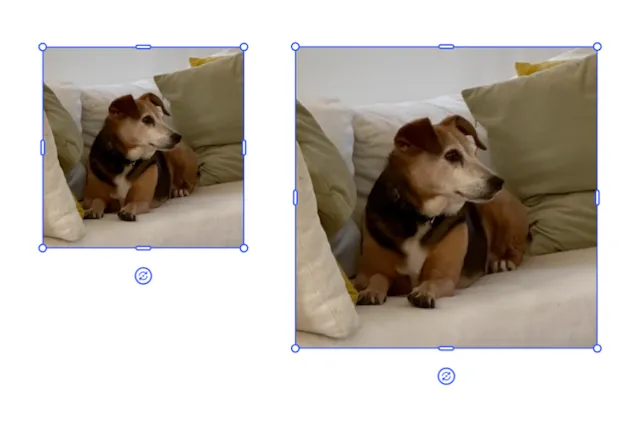
By default, the anchor point for the image when scaling is the origin point on the top left. The scale function has two optional parameters to move the anchor point in the x and y direction. They can have values between 0.0 and 1.0
This scales the image to 150% of its original size. The origin anchor point is 0.5, 0.5 so the image expands from the center.
try engine.block.scale(block, to: 1.5, anchorX: 0.5, anchorY: 0.5)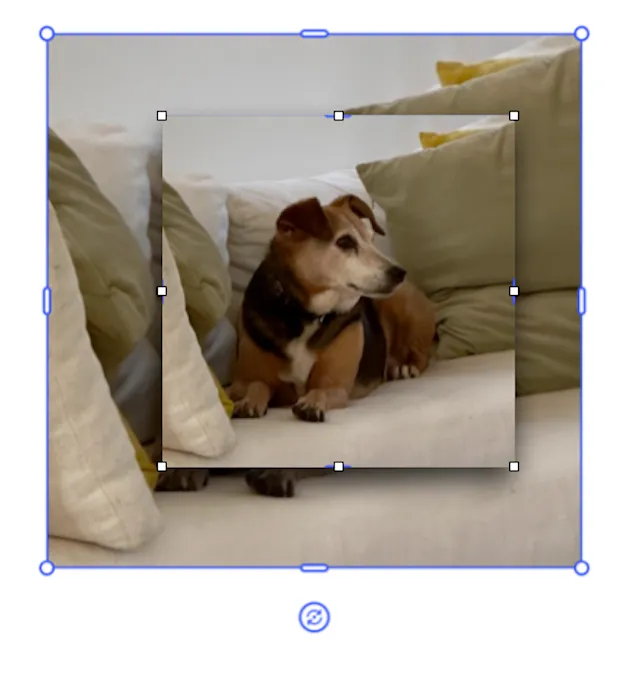
Scale Non-Uniformly#
To stretch or compress only one axis, thus distorting an image, use this combination:
- The crop scale function
- The width or height function
How you decide to make the adjustment will have different results. Below are three examples of scaling the original image in the x direction only.
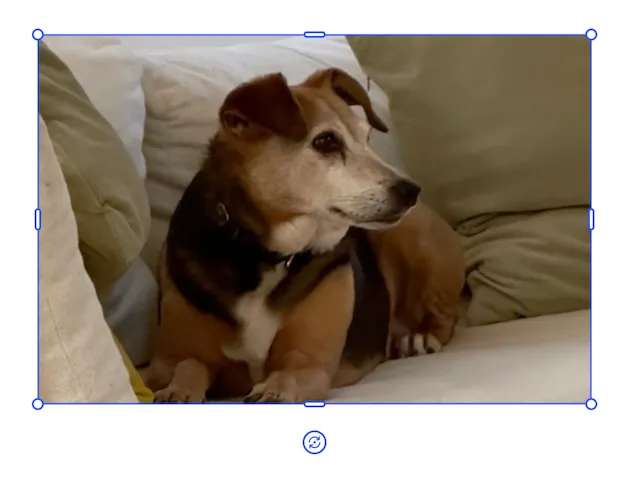
try engine.block.setWidthMode(imageBlock, mode: .absolute)let newWidth: Float = try engine.block.getWidth(imageBlock) * 1.5try engine.block.setWidth(imageBlock, value: newWidth)The image continues respecting its fill mode (usually .cover), so the content scales automatically as the frame widens.
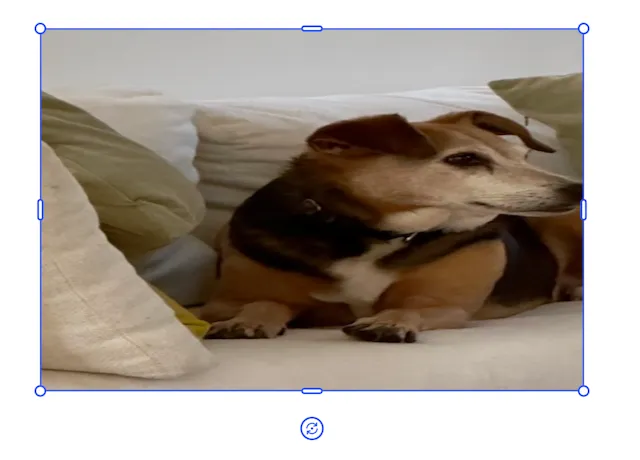
try engine.block.setCropScaleX(imageBlock, scaleX: 1.50)try engine.block.setWidthMode(imageBlock, mode: .absolute)let newWidth: Float = try engine.block.getWidth(imageBlock) * 1.5try engine.block.setWidth(imageBlock, value: newWidth)This uses crop scale to scale the image in a single direction and then adjusts the block’s width to match the change. The change in width does not take the crop into account and so distorts the image as it’s scaling the scaled image.
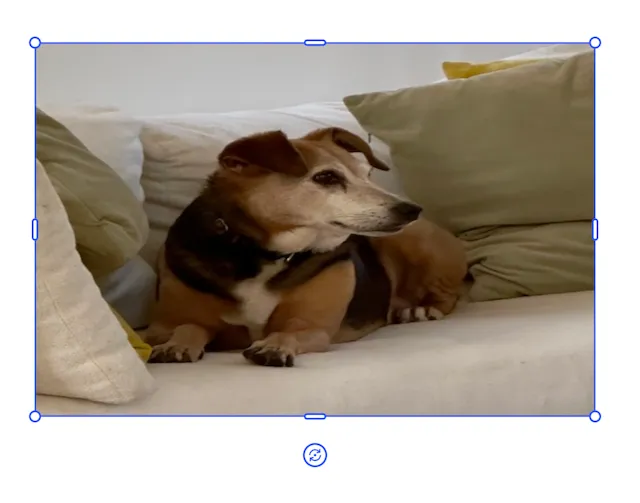
try engine.block.setCropScaleX(imageBlock, scaleX: 1.50)try engine.block.setWidthMode(imageBlock, mode: .absolute)let newWidth: Float = try engine.block.getWidth(imageBlock) * 1.5try engine.block.setWidth(imageBlock, value: newWidth, maintainCrop: true)By setting the maintainCrop option to true, expanding the width of the image by the scale factor respects the crop scale and the image is less distorted.
Scale Images with Built-In Gestures or Gizmos#
The CE.SDK UI supports these interactions automatically:
Pinch to Zoom#
Enabled by default:
try engine.editor.setSettingBool("touch/pinchAction", value: true)Setting this to false disables pinch scaling entirely. For environments with keyboard and mouse a similar property exists:
try engine.editor.setSettingBool("mouse/enableZoom", value: true)Gizmo Scale Handles#
The UI can show corner handles for drag-scaling:
try engine.editor.setSettingBool("controlGizmo/showScaleHandles", value: true)This mirrors the behavior of native editors.
Scale Multiple Elements Together#
If you combine multiple blocks into a group, scaling the group scales every member:
let groupId = try engine.block.group([imageBlock, textBlock])try engine.block.scale(groupId, to: 0.75)This scales the entire group to 75%.
Lock Scaling#
When working with templates, you can lock a block from scaling by setting its scope. The guide on locking provides more information.
try engine.block.setScopeEnabled(imageBlock, key: "layer/resize", enabled: false)To prevent users from applying any transform to a block:
try engine.block.setTransformLocked(imageBlock, locked: true)Troubleshooting#
| Symptom | Likely Cause | Fix |
|---|---|---|
| “Property not found: transform/scale/x” | Using old spec property names that no longer exist. | Replace with engine.block.scale(_, to:) for uniform scale. See Crop for more on how crop scale affects scaling results. |
| Image changes size but looks oddly distorted | Combining crop and width changes in a surprising way. | Use a simpler pattern: either change width alone, or use a controlled crop/scaleX + width approach and test with sample images. |
| Pinch does nothing on canvas | Pinch scaling disabled | Ensure “touch/pinchAction” is true (or not overridden in settings). |
| Scale handles don’t appear | Gizmo handles disabled in editor settings | Set controlGizmo/showScaleHandles to true. |
| Image won’t scale at all | Block is transform-locked or scope-locked | Check transformLocked and any related scopes like “layer/resize”. Unlock or re-enable scope if needed. |
Next Steps#
Once you’re comfortable scaling images, explore the other transform tools:
- Resize for changing the size of a block’s frame.
- Crop for changing what part of the image is visible.
- Rotate for rotating images around an anchor.
- Flip to mirror images horizontally or vertically.
- Move to reposition blocks on the canvas.
Together, these guides give you a complete picture of how to position and transform images in CE.SDK on iOS, macOS, and Catalyst.