Rotation is a common transform you apply to images to:
- straighten horizons
- add dynamic tilt
- correct orientation issues
Learn how to programmatically and interactively rotate images in your app using CE.SDK. Rotation applies at the block level, rotating the entire graphic on the canvas. This differs from crop rotation, which rotates the content inside the block frame. This guide focuses on block rotation and shows how to wire interactive controls into your SwiftUI app.
What you’ll learn#
- How to rotate an image as a user using the handles
- Rotate an image block by a specific angle
- How to lock image rotation
- How to rotate multiple images as a group
When You’ll Use It#
Use rotation when:
- Straightening an image or aligning it with other design elements.
- Adding expressive tilt to photos or stickers.
- Correcting imported images that appear sideways.
- Building custom editing experiences where users can freely or incrementally rotate media.
Understanding Rotation in CE.SDK#
Rotation’s center is the block’s center point, and its definition is in radians.
Block Rotation vs Crop Rotation#
- Block rotation moves the whole block on the canvas.
- Crop rotation turns the content inside the crop region and is part of the crop API.
Usage depends on your goal:
- To tilt the image visually on the canvas, use block rotation.
- To rotate the content inside a zoomed or constrained frame, use crop rotation.
See the Crop guide: Crop.
Content Fill Mode#
Rotation can change how your content fits inside its frame: for example, a rotated image using .contain may reveal empty areas that .cover would fill. You rarely need to update fill mode for rotation, but know that rotated images sometimes behave differently.
Rotate an Image Using the UI#
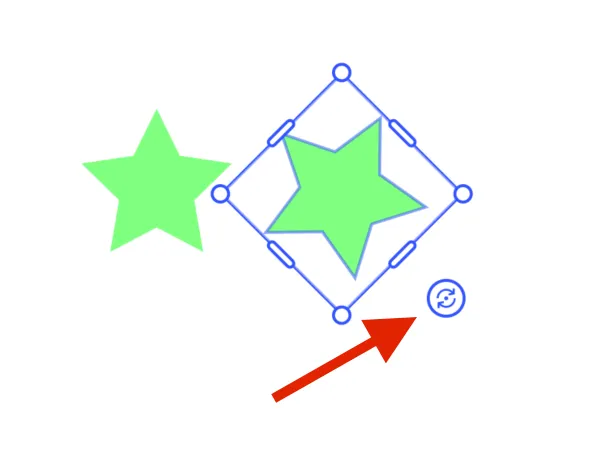
By default selecting a block will show handles for resizing and rotating. You can freeform rotate a block by dragging the rotation handle.
Rotate an Image Using Code#
You can rotate an image block using the setRotation function. It takes the id of the block and a rotation amount in radians.
try engine.block.setRotation(star, radians: .pi / 4)If you need to convert between radians and degrees, multiply the number in degrees by pi and divide by 180.
let angleInRadians: Double = angleInDegrees * Double.pi / 180
let angleInDegrees: Double = angleInRadians * 180 / Double.pi
You can discover the current rotation of a block using the getRotation function.
let rotationOfStar = try engine.block.getRotation(starID)Reset the rotation at any time by setting the radians to 0.
try engine.block.setRotation(blockID, radians: 0)You can rotate a block incrementally by reading it’s current value and then adjusting it and setting the new value.
let delta = 0.26let currentRotation = try engine.block.getRotation(imageID)try engine.block.setRotation(imageID, radians: currentRotation + delta)Lock Rotation#
You can remove the rotation handle from the UI by changing the setting for the engine. This will affect all blocks.
try engine.editor.setSettingBool("controlGizmo/showRotateHandles", value: false)Though the handle is gone, the user can still use the two finger rotation gesture on a touch device. You can disable that gesture with the following setting.
try engine.editor.setSettingBool("touch/rotateAction", value: false)When you want to lock only certain blocks, you can toggle the transform lock property. This will apply to all transformations for the block.
try engine.block.setTransformLocked(star, locked: true)To lock just the rotation transform for a block, set its rotation scope to false.
try engine.editor.setScopeEnabled(imageID, key: "layer/rotate", enabled: false)Refer to the template constraints guide for more detailed examples.
Rotate a Group of Images#
To rotate multiple elements together, first add them to a group and then rotate the group.
let groupId = try engine.block.group([star, textBlock])engine.block.setRotation(groupId, radians: pi / 2)Update UI During User Interaction (Advanced)#
Users can tap an image to select it and rotate it with the gizmo handle or a gesture. To keep any UI in sync with these updates, you’ll need to subscribe to block update events using the CE.SDK’s event api.
//Event subscriptionfunc watchForUpdates() {  guard let engine, let imageID else { return }
  Task {    for await events in engine.event.subscribe(to: [imageID]) {      // Look for updates to this specific block      guard events.contains(where: { $0.type == .updated && $0.block == imageID }) else {        continue      }
      // Read the updated rotation value from the engine and update the      //view's rotation variable      //this will fire on _all_ updates, not just rotation      if let newValue = try? engine.block.getRotation(imageID) {        rotation = newValue      }    }  }}
The preceding code subscribes to updates from a single block. Whenever that block updates, it reads the block’s rotation value and updates a rotation variable. You would call a function like this one at the end of your setup code for the View.
Troubleshooting#
| Symptom | Likely Cause | Solution |
|---|---|---|
| Rotation does nothing | Block has rotation scope disabled or incorrect block ID | Enable layer/rotate or unlock transform. Check block ID value. Ensure block has been appended to the page |
| Image appears offset after rotation | Pivot point isn’t at image center | Make sure the pivot point is centered (default is center). |
| Rotation resets unexpectedly | Setting crop rotation instead of block rotation | Use setRotation, not crop APIs |
| Image shows empty areas after rotation | Content fill mode exposing background | Use .cover or adjust frame |
| Rotation handle not visible | Gizmo settings disabled | Check that interactive UI controls are enabled in the settings. |
Next Steps#
Explore a minimal but complete code sample on GitHub.
Continue shaping your transform workflow with these related guides: