This guide shows how to resize image blocks using CE.SDK with Swift. The APIs and behavior are identical on iOS, macOS, and Catalyst. You’ll learn how to change how much space individual image elements or groups occupy on the canvas. You’ll also see how to maintain aspect ratios and apply responsive resizing rules within templates.
What You’ll Learn#
- Resize blocks using the UI.
- Resize images programmatically using Swift.
- Choose the correct size mode for fixed, responsive, or content-driven layouts.
- Resize all blocks in a group.
- Lock a user’s ability to resize a block.
- Understand when to resize versus when to scale.
When to Use#
Resizing is the right tool when you need to:
- Match exact dimensions for layouts, templates, or exports.
- Build responsive designs that adapt to different canvas sizes.
- Control how much space an image occupies without distorting its content.
- Enforce consistent layout rules across different designs.
- Prepare designs for automated resizing workflows.
If you want to visually enlarge or shrink an image without changing its frame, use Scale instead.
Resize vs Scale#
Resizing and scaling both change how much space a block occupies on the canvas, but they do so in different ways:
- Resize changes width and height independently
- Scale changes width and height by the same factor, preserving aspect ratio
Use resize when you need non-uniform control, such as stretching or constraining a layout. Use scale when you want to grow or shrink a block proportionally.
Cropping is a separate operation that affects framing image content inside the block without changing the block’s size.
Resize a Block Using the UI#
When a block is selected, handles appear on the four sides to allow the user to resize either the width or the height of the block. Control the visibility of the handles by a setting in the editor. When the handles are invisible, a user can’t resize using touch or a mouse.
try engine.editor.setSettingBool("controlGizmo/showResizeHandles", value: false)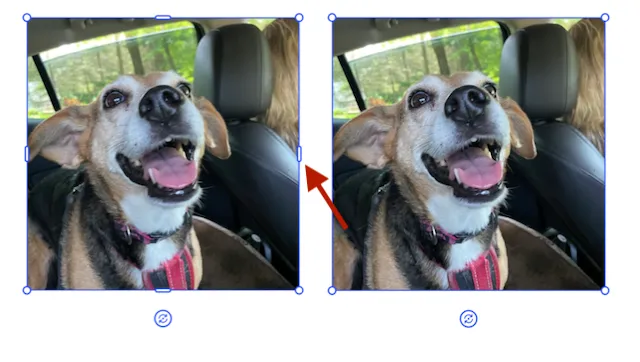
In the image above, the block on the right has its resize handles hidden. It cannot be resized by the user. The scale handles on the corner and the rotate handle below are still visible and the user can use those to modify the image block.
Resize a Block Programmatically#
Each block has a width and height property you can update to resize the block. These can be .absolute values or .percent values for their mode.
try engine.block.setWidth(block, value: 400.0)try engine.block.setHeight(block, value: 400.0)Sets a block to be 400 × 400 px.
Resize Using Size Modes#
Each dimension has an associated size mode that controls how the value is interpreted. CE.SDK supports three size modes:
- absolute
- percent
- auto
Understanding these modes is key to building predictable layouts.
Absolute Size#
Absolute sizing uses fixed design units. This is the most common and most explicit form of resizing.
try engine.block.setWidthMode(imageID, mode: .absolute)try engine.block.setHeightMode(imageID, mode: .absolute)
try engine.block.setWidth(imageID, value: 300)try engine.block.setHeight(imageID, value: 200)
Use absolute sizing when you need precise control, such as for print layouts or fixed UI designs.
Percentage-Based Size#
Percentage sizing makes the block responsive to its parent container. A value of 1.0 represents 100% of the parent size.
try engine.block.setWidthMode(imageID, mode: .percent)try engine.block.setWidth(imageID, value: 0.5)This sets the image block to 50% of its parent’s width. Percentage sizing is especially useful for templates and dynamic layouts that must adapt to different formats.
Automatic Size#
Automatic sizing lets CE.SDK determine the block’s size based on its content and layout context.
try engine.block.setWidthMode(imageID, mode: .auto)try engine.block.setHeightMode(imageID, mode: .absolute)try engine.block.setHeight(imageID, value: 200)The engine determines the width of the block during the layout pass.
Auto sizing is useful when:
- The image’s intrinsic size should drive layout
- You want CE.SDK to resolve size during layout calculation
- You’re working with responsive or generated designs
Maintain Aspect Ratio#
When working with a block with an imageFill, when you modify the width or height of the block, the fill will adapt its dimensions to maintain its aspect ratio. For other types of blocks, it is necessary to calculate the dimensions and apply them.
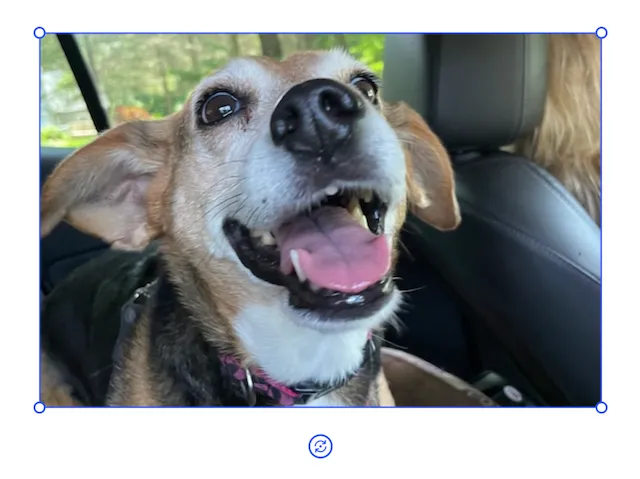
In the block above, the width has been changed from 400 to 600. Notice that the subject has been scaled when compared to the images earlier in this guide.
Control Crop Behavior While Resizing#
When you resize an image block, you are changing the size of its frame, not the image itself. The block’s current crop state and fill rules govern the image content inside that frame.
The maintainCrop option lets you control whether resizing should preserve the current crop framing or allow CE.SDK to recalculate it.
Preserve the Existing Crop#
try engine.block.setWidth(imageID, value: 300, maintainCrop: true)try engine.block.setHeight(imageID, value: 200, maintainCrop: true)Use this when:
- The user has manually adjusted the crop.
- You are resizing as part of layout changes.
- Visual continuity matters.
Think of this as keeping the same view through a differently sized window.
Allow the Crop to Adjust#
try engine.block.setWidth(imageID, value: 300, maintainCrop: false)Use this when:
- You want the image to re-fit the new size
- You are normalizing or generating layouts
- You expect CE.SDK to resolve the best framing automatically
If you don’t specify maintainCrop, CE.SDK may adjust the crop automatically. For predictable results, it’s best to set this value explicitly.
Resizing a Group of Blocks#
You can group multiple items and then change the width and height property of the entire group. When resizing, the group will always scale in both dimensions the same amount.
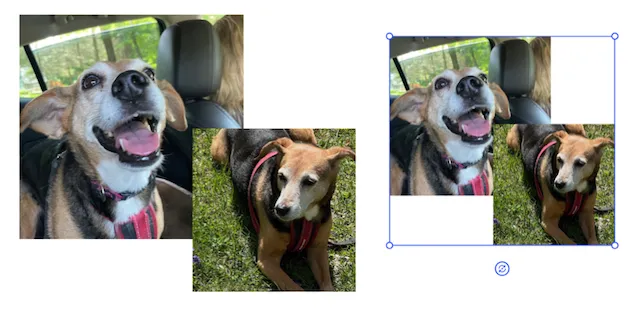
let group = try engine.block.group([carDogBlock, lawnDogBlock])try engine.block.setWidth(group, value: 400)In this code, the group of images is resized to have a width of 400. Groups are always resized uniformly, so the height was also changed. Notice that, when selected, the group does not have resize handles, only scale and rotate handles.
Lock or Constrain Resizing (optional)#
When building templates, you might want to lock resizing of particular blocks to protect the layout:
try engine.block.setScopeEnabled(block, key: "layer/resize", enabled: false)You can also disable all transformations for a block by locking, this is regardless of working with a template.
try engine.block.setTransformLocked(block, locked: true)Troubleshooting#
| Problem | Likely Cause | Solution |
|---|---|---|
| Resize has no effect | Size mode isn’t compatible | Verify widthMode / heightMode |
| Image appears cropped | Frame resized but crop preserved | Adjust maintainCrop or crop settings |
| Block won’t resize | Editing or transform is locked | Check template constraints |
| Group resizes unexpectedly | Mixed size modes | Normalize size modes before resizing |
Next Steps#
- Resize images proportionally using Scale.
- Control image framing and visible content with Crop.
- Apply resizing programmatically across many designs with Auto-Resize.