Apply crop presets programmatically without user interaction through CE.SDK’s force crop system.
We use force crop to enforce specific formats, automate template workflows, or ensure content matches required dimensions through the event system.
Explore the complete code sample on GitHub.
Understanding Force Crop#
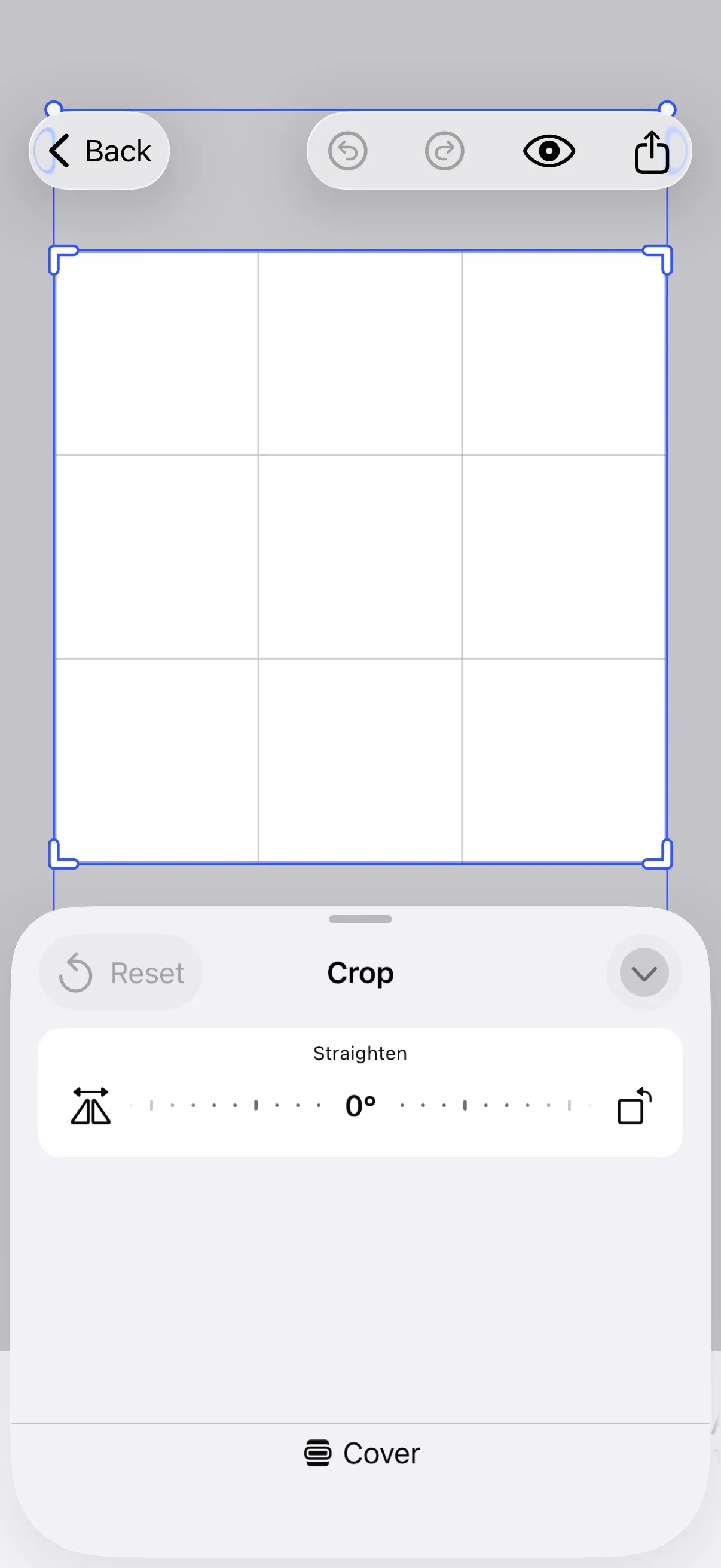
Force crop programmatically applies crop presets to design blocks without requiring user interaction. We send an .applyForceCrop event within the .imgly.onLoaded callback, triggering the crop system to apply a preset from our specified candidates.
Purpose: Apply crop presets programmatically rather than manually
Use Cases:
- Enforcing aspect ratios in templates
- Automating crop application during scene loading
- Ensuring content matches platform requirements (social media, print)
- Template workflows with predefined dimensions
System Overview: Force crop operates through CE.SDK’s event system. We send the event using context.eventHandler.send(_:), which triggers the crop system to evaluate preset candidates and apply the best match.
Core Properties#
Mode Options#
Force crop behavior is controlled by the mode parameter:
| Mode | Behavior |
|---|---|
.silent | Applies preset without opening crop UI |
.always | Applies preset and always opens crop UI |
.ifNeeded | Only applies if dimensions differ, then opens crop UI |
Preset Types#
Transform presets define how content is cropped:
| Type | Purpose | Example |
|---|---|---|
.fixedAspectRatio(width:height:) | Maintains proportions | .fixedAspectRatio(width: 1, height: 1) for square |
.fixedSize(width:height:unit:) | Exact dimensions | .fixedSize(width: 900, height: 900, unit: .pixel) |
.freeAspectRatio | No constraints | .freeAspectRatio allows any ratio |
Force Crop System Architecture#
Force crop integrates with several CE.SDK systems:
Event-Based System: Force crop operates through EditorEvent pattern. We send the .applyForceCrop event using context.eventHandler.send(_:), which triggers the crop system.
OnLoaded Callback Requirement: Force crop must be invoked within .imgly.onLoaded callback. This ensures the engine and asset system are fully initialized before applying presets.
Asset System Integration: Crop presets are stored as AssetDefinition instances in asset sources. Force crop references these presets by sourceID and presetID.
Best-Match Algorithm: When multiple preset candidates are provided, the system calculates a score for each preset based on how closely it matches the block’s current dimensions, then selects the best fit.
Enabling Force Crop#
We enable force crop by implementing the .imgly.onLoaded callback:
.imgly.onLoaded { context in  let pages = try context.engine.scene.getPages()  if let page = pages.first {    // Create a custom 1:1 aspect ratio preset    let preset = AssetDefinition(      id: "custom-preset-1-1",      payload: .init(        transformPreset: .fixedAspectRatio(width: 1, height: 1),      ),      label: ["en": "Square"],    )
    // Isolate the forced preset in the source    let sourceID = Engine.DefaultAssetSource.pagePresets.rawValue    try context.engine.asset.removeSource(sourceID: sourceID)    try context.engine.asset.addLocalSource(sourceID: sourceID)    try context.engine.asset.addAsset(to: sourceID, asset: preset)
// Apply force crop context.eventHandler.send(.applyForceCrop( to: page, with: [ForceCropPreset(sourceID: sourceID, presetID: preset.id)], mode: .always, )) } try await OnLoaded.photoEditorDefault(context)}Prerequisites:
- Must use
.imgly.onLoadedcallback - Access to
OnLoaded.Context - Valid page or block that supports cropping
Programmatic Application#
We apply force crop through a three-step process:
Step 1: Create the Preset#
We define an AssetDefinition with a transformPreset property that determines crop behavior:
// Create a custom 1:1 aspect ratio presetlet preset = AssetDefinition( id: "custom-preset-1-1", payload: .init( transformPreset: .fixedAspectRatio(width: 1, height: 1), ), label: ["en": "Square"],)Transform Preset Options:
.fixedAspectRatio(width: 1, height: 1)- Locks to square ratio.fixedSize(width: 900, height: 900, unit: .pixel)- Locks to exact size.freeAspectRatio- Allows any aspect ratio
Step 2: Set Up the Source#
We manage the asset source to ensure our presets are available:
// Isolate the forced preset in the sourcelet sourceID = Engine.DefaultAssetSource.pagePresets.rawValuetry context.engine.asset.removeSource(sourceID: sourceID)try context.engine.asset.addLocalSource(sourceID: sourceID)try context.engine.asset.addAsset(to: sourceID, asset: preset)Source Management:
- Demo sources: Remove existing source first for isolation
- Custom sources: Add presets directly without removing
Step 3: Apply Force Crop#
We send the force crop event with our preset candidates and desired mode:
// Apply force cropcontext.eventHandler.send(.applyForceCrop( to: page, with: [ForceCropPreset(sourceID: sourceID, presetID: preset.id)], mode: .always,))Mode Selection:
- Use
.silentfor background application - Use
.alwaysto show crop UI after applying - Use
.ifNeededfor conditional application
Best Match Selection#
When we provide multiple preset candidates, the system automatically selects the best match based on how closely each preset matches the block’s current dimensions:
For fixed aspect ratio presets: Calculates the difference between the block’s aspect ratio and the preset’s aspect ratio
For fixed size presets: Calculates the total dimensional difference after harmonizing units
For free aspect ratio presets: These receive the lowest priority (highest score)
The preset with the smallest difference (best fit) is automatically selected and applied.
Example with Multiple Candidates:
context.eventHandler.send(.applyForceCrop( to: page, with: [ ForceCropPreset(sourceID: sourceID, presetID: "preset-1-1"), // Square ForceCropPreset(sourceID: sourceID, presetID: "preset-16-9"), // Widescreen ForceCropPreset(sourceID: sourceID, presetID: "preset-4-3") // Standard ], mode: .ifNeeded))// System selects preset closest to current page dimensionsCommon Use Cases#
Format Enforcement#
We use force crop to ensure all images match template requirements:
// Enforce square format for social media postlet preset = AssetDefinition( id: "instagram-square", payload: .init(transformPreset: .fixedAspectRatio(width: 1, height: 1)), label: ["en": "Instagram Post"])Use when: Template scenes require specific aspect ratios or platform guidelines mandate format constraints.
Template Workflows#
We apply presets automatically when loading templates:
.imgly.onLoaded { context in let pages = try context.engine.scene.getPages() for page in pages { // Apply format based on page type context.eventHandler.send(.applyForceCrop(to: page, with: [preset], mode: .silent)) }}Use when: Users open templates that should enforce correct dimensions.
Social Media Publishing#
We apply platform-specific aspect ratios:
// Instagram Stories: 9:16let storiesPreset = AssetDefinition(  id: "instagram-stories",  payload: .init(transformPreset: .fixedAspectRatio(width: 9, height: 16)),  label: ["en": "Stories"])
// Instagram Posts: 1:1let postPreset = AssetDefinition(  id: "instagram-post",  payload: .init(transformPreset: .fixedAspectRatio(width: 1, height: 1)),  label: ["en": "Post"])
Print Products#
We apply exact dimensions for physical products:
// Business cards: 3.5" x 2"let businessCardPreset = AssetDefinition( id: "business-card", payload: .init(transformPreset: .fixedSize(width: 3.5, height: 2, unit: .inch)), label: ["en": "Business Card"])Troubleshooting#
Crop Not Applied#
Symptom: Force crop event sent but no crop applied to block
Causes:
- Not called within
.imgly.onLoadedcallback - Invalid block ID
- Block doesn’t support cropping
- Preset candidates all invalid
Solutions:
// ✅ Check if block supports crop first.imgly.onLoaded { context in  let pages = try context.engine.scene.getPages()  guard let page = pages.first else { return }
  if try context.engine.block.supportsCrop(page) {    context.eventHandler.send(.applyForceCrop(...))  }}
// ❌ Called outside onLoaded (won't work)DesignEditor(settings)  .onAppear {    eventHandler.send(.applyForceCrop(...))  // Too early!  }
Wrong Preset Selected#
Symptom: Unexpected preset applied when providing multiple candidates
Cause: Best-match algorithm selected different preset than expected based on dimensional similarity
Solutions:
// Provide single preset for explicit controllet presetCandidates = [  ForceCropPreset(sourceID: sourceID, presetID: "specific-preset")]
// OR: Review block dimensions and preset dimensionslet blockWidth = try context.engine.block.getWidth(page)let blockHeight = try context.engine.block.getHeight(page)print("Block: \(blockWidth) x \(blockHeight)")// Choose preset that matches
Source Not Found#
Symptom: Error message about invalid sourceID or presetID
Causes:
- Asset source removed before applying force crop
- Typo in sourceID string
- Source not created yet when event sent
Solutions:
// ✅ Always create source before applying.imgly.onLoaded { context in  let sourceID = "my.crop.presets"
  // Create source first  try context.engine.asset.addLocalSource(sourceID: sourceID)  try context.engine.asset.addAsset(to: sourceID, asset: preset)
  // Then apply force crop  let page = try context.engine.scene.getPages().first!  context.eventHandler.send(.applyForceCrop(    to: page,    with: [ForceCropPreset(sourceID: sourceID, presetID: preset.id)],    mode: .always  ))}
UI Not Showing#
Symptom: Crop UI doesn’t open with .always or .ifNeeded mode
Causes:
- Using
.silentmode instead of.always - Block dimensions already match preset exactly (with
.ifNeeded) - Editor not in correct state
Solutions:
// ✅ Use .always for guaranteed UIcontext.eventHandler.send(  .applyForceCrop(to: page, with: candidates, mode: .always))
// For .ifNeeded, check if dimensions differlet currentWidth = try context.engine.block.getWidth(page)let currentHeight = try context.engine.block.getHeight(page)print("Current: \(currentWidth) x \(currentHeight)")// If dimensions match preset, .ifNeeded won't show UI
// ❌ .silent never shows UIcontext.eventHandler.send(  .applyForceCrop(to: page, with: candidates, mode: .silent))
Preset Not in Crop Options UI#
Symptom: Applied preset works, but doesn’t appear in manual crop options
Cause: Preset added to source but source not configured for crop UI
Solution: Ensure source is configured as crop preset source in editor settings (separate from force crop usage).
Next Steps#
Explore related force crop and asset management guides:
- Crop Presets - Configure available crop preset options
- UI Events - Learn about editor event handling
- Asset Library - Manage asset sources and definitions