Build a library of reusable text components — pre-designed, pre-styled text layouts that appear in your asset library and drop into the user’s scene with a tap.
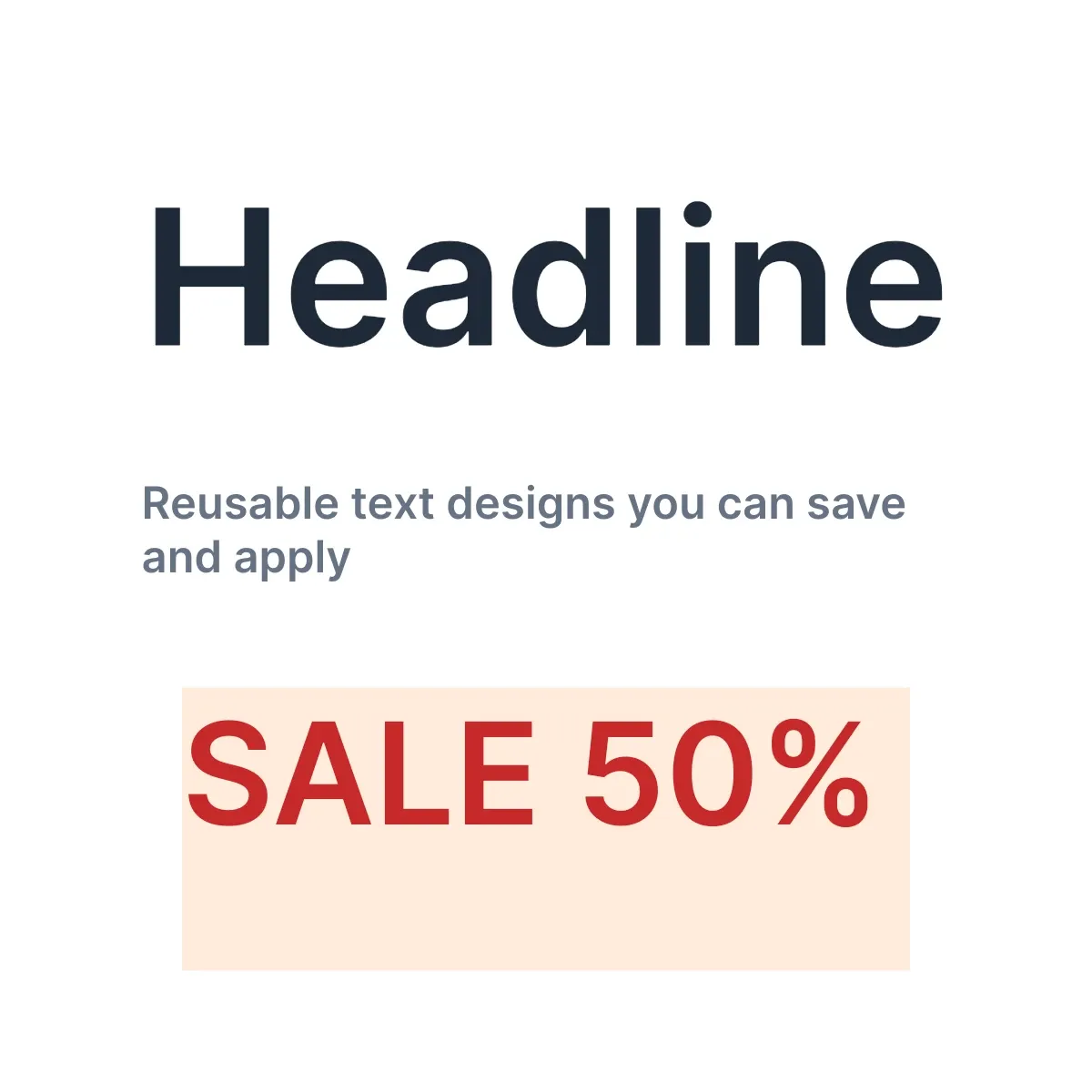
Text designs (also known as text components) are serialized text blocks with styling, constraints, and behavior baked in. Users browse them in the asset library and tap to insert one — the engine loads the bundled archive, attaches the resulting block to the current page, and the user is editing in place.
What are Text Designs?#
A text design is a .zip archive produced by engine.block.saveToArchive(blocks:). The archive packs the block hierarchy together with every resource it references (fonts, images), so the component is self-contained and portable across environments. Each design pairs with a PNG thumbnail rendered to fit the asset library’s cell.
Default Components#
CE.SDK ships with over 20 pre-built text designs covering common layouts — bold headlines, quotes, callouts, romantic and handwritten styles, promotional banners, and more. They live in the ly.img.text.components asset source and are available to every editor out of the box. This guide shows how to add your own components alongside (or in place of) the defaults.
Content.json Structure#
Text designs are served from a content.json file using version "5.0.0" of the asset source schema. Each entry references either the .blocks file from an extracted archive (matching the layout of CE.SDK’s built-in ly.img.text.components) or the archive itself, and a thumbnail.
{ "version": "5.0.0", "id": "ly.img.text.components", "assets": [ { "id": "ly.img.text.components.headline", "label": { "en": "Headline", "de": "Überschrift" }, "meta": { "uri": "{{base_url}}/ly.img.text.components/data/headline/blocks.blocks", "thumbUri": "{{base_url}}/ly.img.text.components/thumbnails/headline.png", "mimeType": "application/ubq-blocks-string" } } ], "blocks": []}Each asset entry requires:
id— Unique identifier, conventionallyly.img.text.components.<name>label— Localized display name.IMGLYEngine.Localeis aStringtypealias, so plain language keys work (["en": "Headline"])meta.uri— URL to the asset payload. Useapplication/ubq-blocks-stringwhen the URL points to ablocks.blocksfile inside an extracted archive, andapplication/ubq-blocks-archivewhen the URL points to the.ziparchive directly.meta.thumbUri— URL to the PNG previewmeta.mimeType—"application/ubq-blocks-string"(extracted archive layout, matching the built-in source) or"application/ubq-blocks-archive"(raw.zip)
{{base_url}} resolves to the directory that contains the content.json you register with addLocalAssetSourceFromJSON(_:matcher:).
Creating Custom Components#
Design Your Component#
Create a text block and style it. Use absolute width and height so the component holds its frame when inserted, and place it at known coordinates so the export below crops predictably.
let component = try engine.block.create(.text)try engine.block.replaceText(component, text: "Headline")try engine.block.setTextFontSize(component, fontSize: 160)try engine.block.setTextColor(component, color: .rgba(r: 0.122, g: 0.161, b: 0.216, a: 1.0))try engine.block.setWidthMode(component, mode: .absolute)try engine.block.setHeightMode(component, mode: .absolute)try engine.block.setWidth(component, value: 800)try engine.block.setHeight(component, value: 280)try engine.block.setPositionX(component, value: 140)try engine.block.setPositionY(component, value: 160)try engine.block.appendChild(to: page, child: component)Configure Constraints#
The two settings that make a text design behave like a component — rather than a free-form text block — are clipping and automatic font-size. Clipping is already on by default for new text blocks (text/clipLinesOutsideOfFrame defaults to true), so the explicit setBool documents the intent and locks the value. Automatic font-size, in contrast, defaults to false; enabling it with a min/max range lets the text scale to fit between the bounds you choose, so the layout looks balanced for any reasonable amount of text.
try engine.block.setBool(component, property: "text/clipLinesOutsideOfFrame", value: true)try engine.block.setBool(component, property: "text/automaticFontSizeEnabled", value: true)try engine.block.setFloat(component, property: "text/minAutomaticFontSize", value: 32)try engine.block.setFloat(component, property: "text/maxAutomaticFontSize", value: 200)Serialize to an Archive#
engine.block.saveToArchive(blocks:) returns a Blob (a Data typealias) holding a .zip archive with blocks.blocks plus every referenced resource. Write the archive to a known location — temporary storage in the example, your hosting bucket in production.
let archive = try await engine.block.saveToArchive(blocks: [component])let archiveURL = FileManager.default.temporaryDirectory .appendingPathComponent("text-design-\(UUID().uuidString).zip")try archive.write(to: archiveURL)Bundling resources into the archive is the recommended approach because the component stays self-contained: the engine resolves fonts and images from the archive directly, so the component works in any environment that can read it. engine.block.saveToString(blocks:) is the legacy alternative, but it leaves resources as external URLs that must remain reachable at load time and requires you to configure allowedResourceSchemes. Prefer saveToArchive.
Generate a Thumbnail#
Render a PNG preview with engine.block.export(_:mimeType:options:) so the asset library grid has something to display. ExportOptions(targetWidth:targetHeight:) controls the minimum render size; the engine scales the block so it fills the target in at least one axis while preserving the block’s aspect ratio. With an 800×240 block and a 400×320 target, the resulting image is 1067×320 — wider than 400, exactly 320 tall.
let thumbnail = try await engine.block.export( component, mimeType: .png, options: ExportOptions(targetWidth: 400, targetHeight: 320),)let thumbnailURL = FileManager.default.temporaryDirectory .appendingPathComponent("text-design-\(UUID().uuidString).png")try thumbnail.write(to: thumbnailURL)Registering the Asset Source#
Register a local asset source with engine.asset.addLocalSource(sourceID:applyAsset:). The applyAsset closure runs each time a user picks a component: it reads the asset’s meta["uri"], calls engine.block.loadArchive(from:), and appends the resulting block to the current page.
Capture engine weakly — the source retains the callback for its lifetime, so a strong capture would risk a retain cycle.
try engine.asset.addLocalSource(sourceID: "my-text-components", applyAsset: { [weak engine] asset in guard let engine, let uri = asset.meta?["uri"], let url = URL(string: uri) else { return nil } let loaded = try await engine.block.loadArchive(from: url) guard let newBlock = loaded.first else { return nil } if let currentPage = try await engine.scene.getCurrentPage() { try await engine.block.appendChild(to: currentPage, child: newBlock) } return newBlock})Then register each component with engine.asset.addAsset(to:asset:), passing an AssetDefinition that carries the display label and URLs. The runtime example below points meta["uri"] at the .zip archive on disk and tags it with application/ubq-blocks-archive. Call engine.asset.assetSourceContentsChanged(sourceID:) after batched changes so the library refreshes.
let component1 = AssetDefinition( id: "ly.img.text.components.headline", meta: [ "uri": archiveURL.absoluteString, "thumbUri": thumbnailURL.absoluteString, "mimeType": "application/ubq-blocks-archive", ], label: ["en": "Headline", "de": "Überschrift"],)try engine.asset.addAsset(to: "my-text-components", asset: component1)try engine.asset.assetSourceContentsChanged(sourceID: "my-text-components")Hosting Custom Components#
For production, extract the archive on your server so it lives as a directory of static files alongside the thumbnail and a content.json:
/ly.img.text.components/├── content.json├── data/│ ├── headline/│ │ ├── blocks.blocks│ │ ├── fonts/...│ │ └── images/...│ └── ...└── thumbnails/ ├── headline.png └── ...Register the source from the hosted content.json URL with engine.asset.addLocalAssetSourceFromJSON(_:matcher:). The engine resolves every {{base_url}} placeholder against the parent directory of the URL you pass.
let contentJSONURL = URL( string: "https://your-backend.example.com/assets/ly.img.text.components/content.json",)!// try await engine.asset.addLocalAssetSourceFromJSON(contentJSONURL)See Serve Assets for guidance on routing CE.SDK to a custom backend.
Troubleshooting#
| Issue | Cause | Solution |
|---|---|---|
| Component fails to load | meta["uri"] points to a missing or unreadable archive |
Verify the URL is reachable and the archive has not been truncated |
| Component appears unstyled | Fonts are referenced by external URL and that URL is unreachable | Use saveToArchive so fonts are bundled into the archive instead of left as external references |
| Inserted text scales unexpectedly | Width or height is in .auto mode |
Set both modes to .absolute with setWidthMode(_:mode:) and setHeightMode(_:mode:) so the frame stays fixed |
| User input overflows the frame | text/clipLinesOutsideOfFrame is false |
Set the property to true so long input is clipped rather than expanding the frame |
| Thumbnail is the wrong size | ExportOptions.targetWidth and targetHeight were not set, or the block’s aspect ratio differs from the target |
Pass both values to ExportOptions. The engine fills the target in at least one axis and preserves the block’s aspect ratio, so the output is at least the target size; design the source block at the same aspect ratio if you need an exact match. |
API Reference#
| Method | Description |
|---|---|
engine.block.saveToArchive(blocks:) |
Save blocks to a .zip archive bundling every resource |
engine.block.loadArchive(from:) |
Load blocks from an archive URL |
engine.block.export(_:mimeType:options:) |
Export a block as image data with target dimensions |
engine.block.setBool(_:property:value:) |
Set a boolean property (text/clipLinesOutsideOfFrame, text/automaticFontSizeEnabled) |
engine.block.setFloat(_:property:value:) |
Set a float property (text/minAutomaticFontSize, text/maxAutomaticFontSize) |
engine.asset.addLocalSource(sourceID:applyAsset:) |
Register a local asset source with an apply callback |
engine.asset.addAsset(to:asset:) |
Add an asset to a registered source |
engine.asset.assetSourceContentsChanged(sourceID:) |
Notify the UI that a source’s contents changed |
engine.asset.addLocalAssetSourceFromJSON(_:matcher:) |
Register an asset source from a hosted content.json URL |
Next Steps#
- Serve Assets — Configure CE.SDK to load assets from your own backend
- Text Overview — Add, style, and customize text layers in your design using CE.SDK’s flexible text editing tools
- Text Styling — Apply colors, backgrounds, and typeface styling programmatically
- Auto-Size — Configure text blocks to auto-size based on content