Generate a QR code with Core Image and place it on a CE.SDK page as an image fill, with control over size, position, colors, and metadata for later updates.
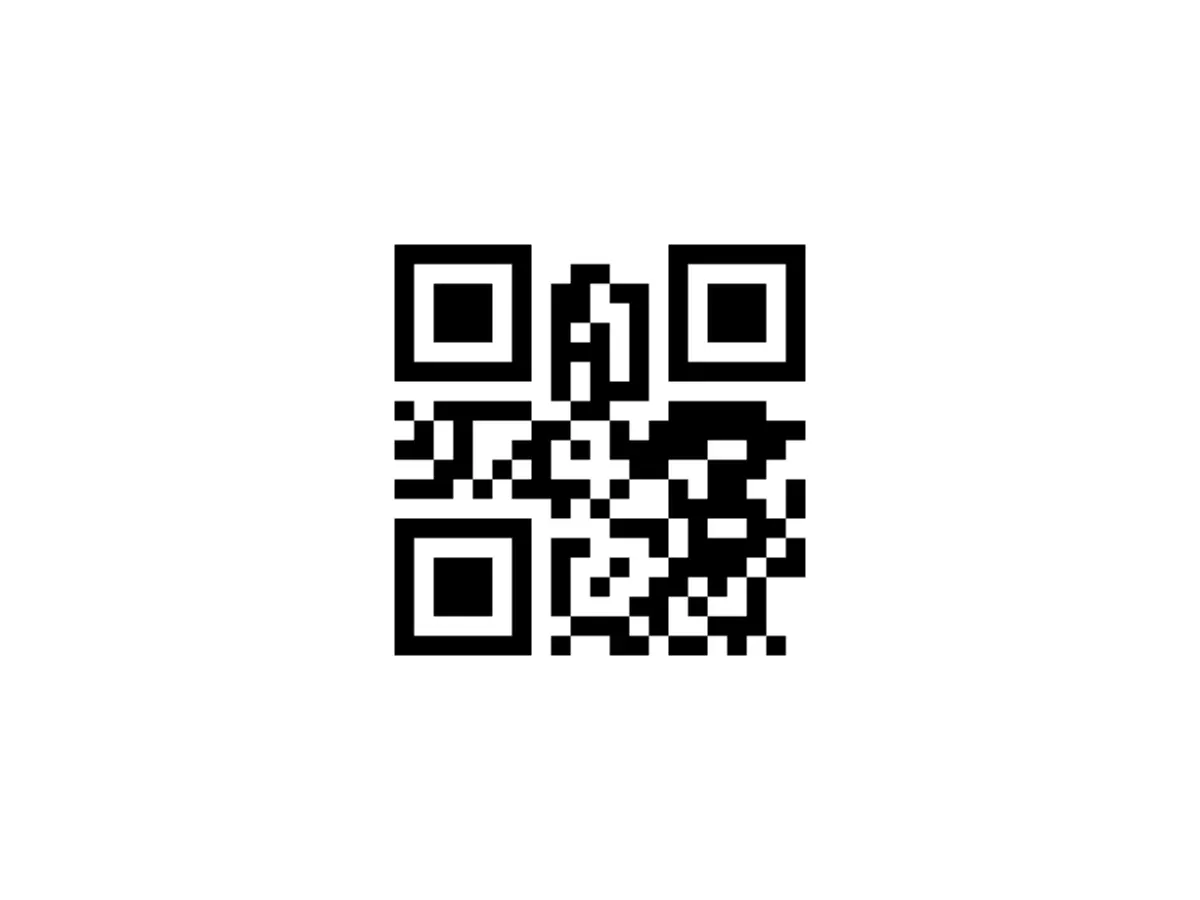
QR codes are a practical way to turn any design into a scannable gateway for landing pages, app installs, product info, or event tickets. CE.SDK does not ship a built-in QR generator, but Core Image includes one — encode the URL, colorize it, and hand the resulting image to a graphic block through an image fill.
Platform Setup#
The example defines PlatformColor and PlatformImage type aliases so the QR generation code compiles unchanged across every Apple target.
import CoreImage.CIFilterBuiltinsimport Foundationimport IMGLYEngine
#if canImport(UIKit)  import UIKit
  private typealias PlatformColor = UIColor  private typealias PlatformImage = UIImage#elseif canImport(AppKit)  import AppKit
  private typealias PlatformColor = NSColor  private typealias PlatformImage = NSImage#endif
Generate a QR Code Image#
Use Core Image’s CIFilter.qrCodeGenerator() to encode the string, then run the output through CIFilter.falseColor() to remap the default black-and-white pixels onto the requested foreground and background colors. Scale without interpolation so the QR modules stay sharp when the block is rendered or exported.
/// Generate a QR code image from a string using Core Image./// - Parameters:///   - string: Content to encode; use a full URL with scheme.///   - correction: Error correction level (L, M, Q, H). "M" is a good default.///   - scale: Pixel scale factor. Increase for print.///   - foreground: Dark module color.///   - background: Light background color.private func makeQRCode(  from string: String,  correction: String = "M",  scale: CGFloat = 10,  foreground: PlatformColor = .black,  background: PlatformColor = .white,) throws -> PlatformImage {  guard let data = string.data(using: .utf8) else {    throw QRGenerationError.invalidInput  }
  let qr = CIFilter.qrCodeGenerator()  qr.setValue(data, forKey: "inputMessage")  qr.setValue(correction, forKey: "inputCorrectionLevel")  guard let output = qr.outputImage else {    throw QRGenerationError.filterFailed  }
  // Map the filter's default black-and-white output to the requested colors.  let falseColor = CIFilter.falseColor()  falseColor.inputImage = output  #if canImport(UIKit)    falseColor.color0 = CIColor(color: foreground)    falseColor.color1 = CIColor(color: background)  #elseif canImport(AppKit)    falseColor.color0 = CIColor(color: foreground) ?? CIColor.black    falseColor.color1 = CIColor(color: background) ?? CIColor.white  #endif  guard let colored = falseColor.outputImage else {    throw QRGenerationError.filterFailed  }
  // Scale without interpolation so QR modules stay crisp.  let scaled = colored.transformed(by: CGAffineTransform(scaleX: scale, y: scale))  let context = CIContext(options: [.useSoftwareRenderer: false])  guard let cg = context.createCGImage(scaled, from: scaled.extent) else {    throw QRGenerationError.filterFailed  }
  #if canImport(UIKit)    return UIImage(cgImage: cg, scale: 1.0, orientation: .up)  #elseif canImport(AppKit)    return NSImage(cgImage: cg, size: NSSize(width: cg.width, height: cg.height))  #endif}
private enum QRGenerationError: Error {  case invalidInput  case filterFailed  case encodingFailed}
Keep the foreground dark and the background light for reliable scanning. The correction argument selects the error-correction level (L, M, Q, H) — higher levels tolerate more damage at the cost of encoded capacity.
Insert the QR as an Image Fill#
The engine’s image fill reads pixel data from a file URL, so encode the QR image to PNG bytes, write them to a temporary file, and point the fill at that file. Then create a graphic block with a rect shape, apply the image fill, and set square dimensions so the modules do not distort.
let qrImage = try makeQRCode(from: "https://img.ly")
// Both PNG-encoding branches share the same output format.
#if canImport(UIKit)  guard let png = qrImage.pngData() else {    throw QRGenerationError.encodingFailed  }#elseif canImport(AppKit)  guard let tiff = qrImage.tiffRepresentation,        let bitmap = NSBitmapImageRep(data: tiff),        let png = bitmap.representation(using: .png, properties: [:]) else {    throw QRGenerationError.encodingFailed  }#endif
let qrFileURL = FileManager.default.temporaryDirectory  .appendingPathComponent(UUID().uuidString)  .appendingPathExtension("png")try png.write(to: qrFileURL)
let qrBlock = try engine.block.create(.graphic)let rectShape = try engine.block.createShape(.rect)try engine.block.setShape(qrBlock, shape: rectShape)
let imageFill = try engine.block.createFill(.image)try engine.block.setURL(imageFill, property: "fill/image/imageFileURI", value: qrFileURL)try engine.block.setFill(qrBlock, fill: imageFill)
try engine.block.setWidth(qrBlock, value: 300)try engine.block.setHeight(qrBlock, value: 300)try engine.block.setPositionX(qrBlock, value: 250)try engine.block.setPositionY(qrBlock, value: 150)
try engine.block.appendChild(to: page, child: qrBlock)
The snippet keeps width and height equal. Stretching a QR code prevents scanners from decoding it.
Add Optional Metadata#
Store the encoded URL alongside the block so a future update can regenerate the image without decoding it back out of the pixels. Metadata key values are free-form, and both the key and value must be String.
try engine.block.setMetadata(qrBlock, key: "qr/url", value: "https://img.ly")Update an Existing QR Code#
When the encoded URL changes, generate a new QR image, write it to a fresh temporary file, and repoint the block’s fill URI at the new file. Read the block’s fill with getFill(_:) — the URI property lives on the fill, not the graphic block.
let updatedURL = "https://img.ly/showcases"let updatedImage = try makeQRCode(from: updatedURL)
#if canImport(UIKit)  guard let updatedPng = updatedImage.pngData() else {    throw QRGenerationError.encodingFailed  }#elseif canImport(AppKit)  guard let updatedTiff = updatedImage.tiffRepresentation,        let updatedBitmap = NSBitmapImageRep(data: updatedTiff),        let updatedPng = updatedBitmap.representation(using: .png, properties: [:]) else {    throw QRGenerationError.encodingFailed  }#endif
let updatedFileURL = FileManager.default.temporaryDirectory  .appendingPathComponent(UUID().uuidString)  .appendingPathExtension("png")try updatedPng.write(to: updatedFileURL)
let fill = try engine.block.getFill(qrBlock)try engine.block.setURL(fill, property: "fill/image/imageFileURI", value: updatedFileURL)try engine.block.setMetadata(qrBlock, key: "qr/url", value: updatedURL)
To generate many QR codes in a batch, loop through your data and call the same insert flow once per URL.
Troubleshooting#
| Symptom | Cause | Solution |
|---|---|---|
| QR looks blurry | Image scaled too small | Increase the Core Image scale and the block dimensions. |
| QR won’t scan | Low contrast or invalid URL | Use dark-on-light colors and percent-encode URLs. |
| QR not visible | Shape missing from block | Call setShape before applying the fill. |
| App crash writing file | Invalid temp URL | Always use FileManager.default.temporaryDirectory. |
API Reference#
Methods#
| Method | Description |
|---|---|
engine.scene.create() |
Create a new scene to host the QR code. |
engine.block.create(_:) |
Create a graphic or page block. |
engine.block.createShape(_:) |
Create a rectangle shape for the QR code. |
engine.block.setShape(_:shape:) |
Apply the shape to the graphic block. |
engine.block.createFill(_:) |
Create an image fill for the QR code. |
engine.block.setURL(_:property:value:) |
Point the fill at the QR PNG file URL. |
engine.block.setFill(_:fill:) |
Apply the fill to the graphic block. |
engine.block.getFill(_:) |
Read the current fill when updating the QR image. |
engine.block.setWidth(_:value:) |
Set the QR code width. |
engine.block.setHeight(_:value:) |
Set the QR code height (keep equal to width). |
engine.block.setPositionX(_:value:) |
Set the horizontal position. |
engine.block.setPositionY(_:value:) |
Set the vertical position. |
engine.block.appendChild(to:child:) |
Add the QR block to the page. |
engine.block.setMetadata(_:key:value:) |
Store the encoded URL on the block for later updates. |
Properties#
| Property | Type | Description |
|---|---|---|
fill/image/imageFileURI |
URL | File URL of the QR PNG on the image fill. |
Next Steps#
Now that you can generate QR codes, here are some related guides.
- Insert Shapes or Stickers — Learn how fills and shapes interact.
- Batch Processing — Automate multiple QR insertions.
- Export to PDF — Prepare print-ready designs.
- Use Templates: Overview — Add a placeholder for QR blocks in templates.