In this guide, you’ll learn how to use the built-in Photo Roll integration to let users add images from their iOS photo library into your CE.SDK-based app. Unlike a custom upload source, CE.SDK provides Photo Roll as a system-backed asset source with its own tab in the Asset Panel.
What You’ll Learn#
- How the built-in Photo Roll tab works inside the Asset Panel.
- How to handle assets selected from Photo Roll with the
onUploadcallback. - How to persist Photo Roll imports across app launches.
When To Use This#
- When you want the fastest path to letting users select from their device’s photo library.
- When you don’t need custom UI for picking photos.
- When you want to extend Photo Roll imports with your own metadata or persistence logic.
Using the Photo Roll Tab#
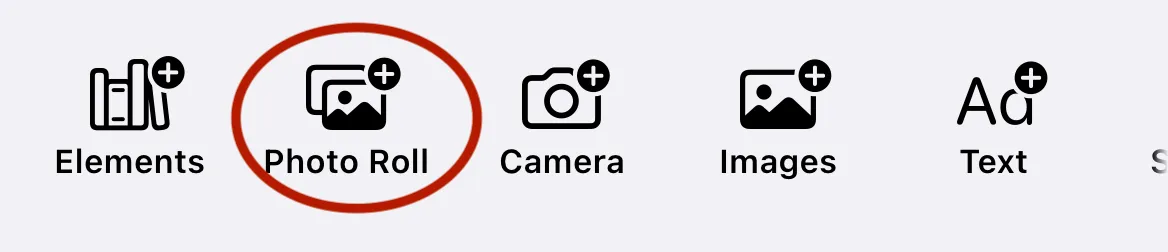
CE.SDK includes a built-in Photo Roll tab in the Dock. You don’t need to register it manually. When tapped, it:
- Launches the system photo picker (
PHPickerViewController). - Returns one or more images.
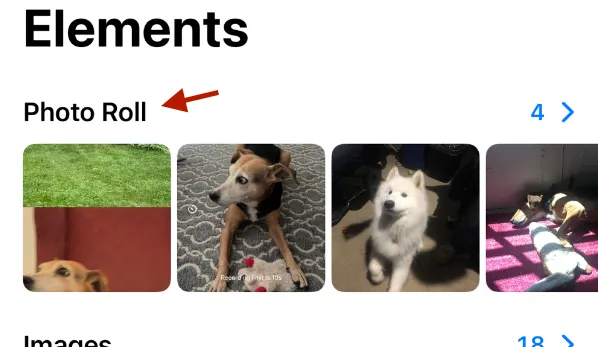
Each selected photo appears in a predefined asset source with the ID "ly.img.image.upload". You can intercept these assets in your onUpload handler just like you would for a custom source.
The onUpload Callback for Photo Roll#
Whenever the user picks from Photo Roll, CE.SDK fires your .onUpload callback. You’ll receive:
enginewhich is a reference to the CE.SDK enginesourceIDwith a value of"ly.img.image.upload"assetanAssetDefinitionwith metadata for the photo
Here’s an example handler:
.imgly.onUpload { engine, sourceID, asset in    guard sourceID == "ly.img.image.upload" else { return asset }
    var updated = asset    // Add searchable labels and tags    updated.labels = ["Camera Roll"]    updated.tags = ["photo-roll", "imported"]
    // Persist the file into Documents so it survives relaunch    return persistAsset(updated)}
The persistAsset function is an example described below. It’s not a standard function. It does the following:
- Copies files into persistent storage.
- Updates the URI with the new location.
Persisting Photo Roll Imports#
Just like with other asset uploads, Photo Roll imports only exist in memory during the current session by default.
To persist them:
- Copy the selected photo to Documents/Uploads (or upload to your backend).
- Update the URI in the asset definition.
- Save metadata with:
- UserDefaults
- Core Data
- A database.
- Re-register the saved definitions into your asset source when the app launches.
This ensures the Photo Roll tab looks the same even after restarting the app. Here is a minimal example that:
- Uses
FileManagerto copy the URL of anAssetDefinitionto a safe place. - Modifies the
AssetDefinitionto point to the new URL.
func persistAsset(_ asset: AssetDefinition) -> AssetDefinition {  guard let originalURL = URL(string: asset.meta["uri"] ?? "") else {    return asset  }
  let docs = FileManager.default.urls(for: .documentDirectory, in: .userDomainMask).first!  //This copies the filename to the new path  let dest = docs.appendingPathComponent(originalURL.lastPathComponent)
  do {    // Copy the file if it’s not already in Documents    if !FileManager.default.fileExists(atPath: dest.path) {      try FileManager.default.copyItem(at: originalURL, to: dest)    }
    var updated = asset    updated.meta["uri"] = dest.absoluteString    return updated
} catch { print("Failed to persist asset: \(error)") return asset }}Troubleshooting#
❌ Error: Photo Roll tab doesn’t appear
- Make sure you’re including the default tabs in the
imgly.dock. The photo roll isDock.Buttons.photoRoll().
❌ Error: Photos Disappear After Relaunch
- Photo Roll assets originate in temporary directories. Use a persistence function to save them to the app’s documents directory or your back end. Then reload the assets on app launch.
❌ Error: Duplicate Photos
- If the user imports the same photo multiple times, you may want to de-duplicate by comparing URLs or hashes before registering new photos.
Next Steps#
Now that you can import from the Photo Roll, you may want to explore:
- From User Upload to let users add files via the camera or Files app.
- Capture from Camera using the IMGLY standalone camera to record video.
- Import media From a Remote Source to bring assets from a service or your backend.