This guide shows you how to scale video clips using CE.SDK in your iOS project. You’ll learn how to scale video blocks proportionally, scale groups and apply scaling constraints to protect template structure. Because of the CE.SDK block architecture, many of the commands and concepts apply to all types of graphical fills. Methods for scaling video work the same when scaling images, text and other types of blocks.
What you’ll learn#
- Scale video using the UI
- Scale video programmatically using Swift
- Scale proportionally or non-uniformly
- Scale grouped elements
- Apply scale constraints in templates
When to use#
Use scaling to:
- Emphasize or de-emphasize elements
- Fit video to available space without cropping
- Enable pinch-to-zoom gestures or dynamic layouts
Scale video using the UI#
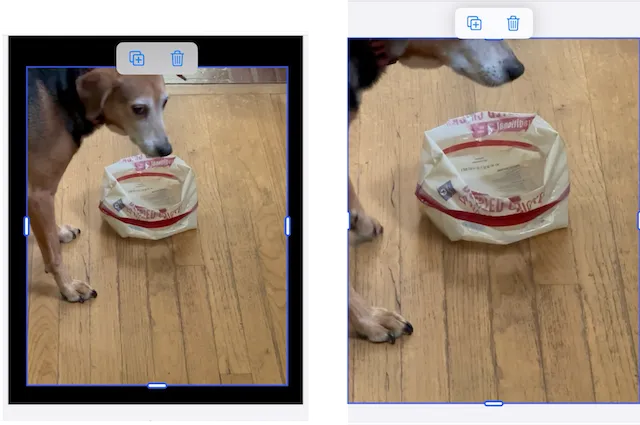
When using an editor such as the Video Editor there are two methods for scaling video clip blocks, touch controls or the Crop menu. CE.SDK supports the standard pinch-to-zoom gesture for scaling. Scaling using the touch controls changes the scale of the entire video block. Scaling in the Crop menu changes the scale of the underlying video, but leaves the block’s scale unchanged. Learn more about scaling while cropping in the Crop guide. The Video Editor also has a Resize menu, but those settings are for resizing the entire scene, not individual clips.
Scale video programmatically using Swift#
Scale uniformly#
Scaling uses the scale(_ id: DesignBlockID, to scale: Float) function. A scale value of 1.0 is the original scale. Values larger than 1.0 increase the scale of the block and values lower than 1.0 scale the block smaller. A value of 2.0, for example makes the block twice as large.
This scales the video to 150% of its original size. The origin anchor point is unchanged, so the image expands down and to the right.
try engine.block.scale(block, to: 1.5)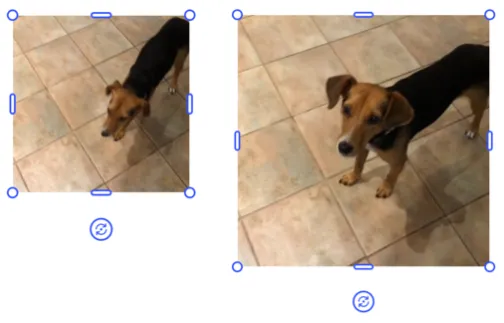
By default, the anchor point for the video when scaling is the origin point on the top left. The scale function has two optional parameters to move the anchor point in the x and y direction. They can have values between 0.0 and 1.0
This scales the video to 150% of its original size. The origin anchor point is 0.5, 0.5 so the video expands from the center.
try engine.block.scale(block, to: 1.5, anchorX: 0.5, anchorY: 0.5)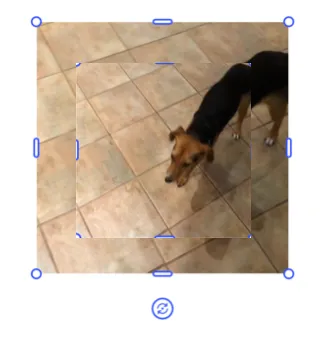
Scale non-uniformly#
To stretch or compress only one axis, thus distorting a video, use the crop scale function in combination with the width or height function. How you decide to make the adjustment will have different results. Below are three examples of scaling the original video in the x direction only.
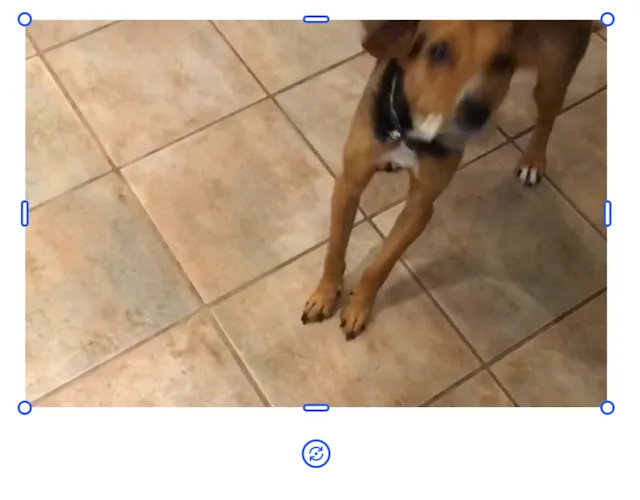
try engine.block.setWidthMode(imageBlock, mode: .absolute)let newWidth: Float = try engine.block.getWidth(imageBlock) * 1.5try engine.block.setWidth(imageBlock, value: newWidth)This adjusts the width of the block and allows the engine to adjust the scale of the video to maintain it as a fill. The video isn’t distorted, but it no longer fits the frame of the block.
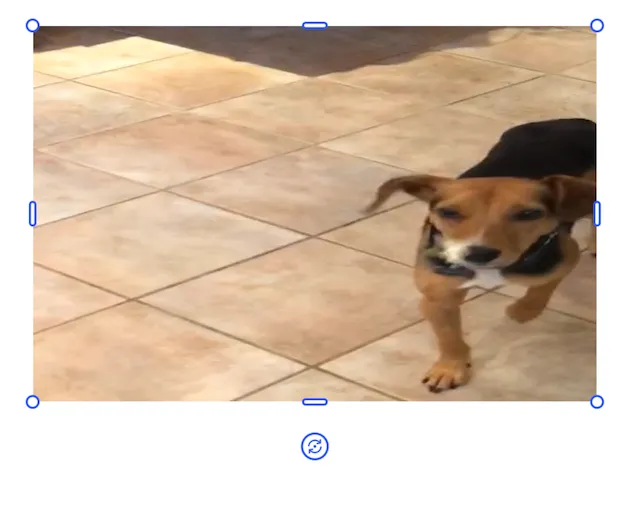
try engine.block.setCropScaleX(block, scaleX: 1.50)try engine.block.setWidthMode(block, mode: .absolute)let newWidth: Float = try engine.block.getWidth(block) * 1.5try engine.block.setWidth(block, value: newWidth)This uses crop scale to scale the video in a single direction and then adjusts the block’s width to match the change. The change in width does not take the crop into account and so distorts the video as it’s scaling the scaled video.
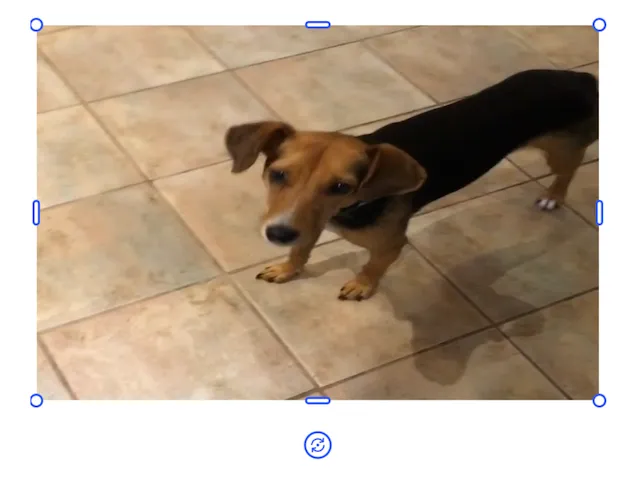
try engine.block.setCropScaleX(block, scaleX: 1.50)try engine.block.setWidthMode(block, mode: .absolute)let newWidth: Float = try engine.block.getWidth(block) * 1.5try engine.block.setWidth(block, value: newWidth, maintainCrop: true)By setting the maintainCrop option to true, expanding the width of the video by the scale factor respects the crop scale and the video is less distorted.
Scale multiple elements together#
Group blocks to scale them proportionally:
let groupId = try engine.block.group([videoBlock, textBlock])try engine.block.scale(groupId, to: 0.75)This scales the entire group to 75%.
Lock scaling#
A standard pinch-to-zoom gesture allows a user to scale a block. Toggle this ability for users by changing the “touch/pinchAction” property of the editor:
//disable pinch-to-scaletry engine.editor.setSettingBool("touch/pinchAction", value: false)By default, video clip blocks in the Video Editor do not enable their scale handles, toggle this ability using the controlGizmo/showScaleHandles property of the editor. Displaying the scale handles will allow the user to scale even when pinch-to-zoom is disabled.
//show scale handlestry engine.editor.setSettingBool("controlGizmo/showScaleHandles", value: true)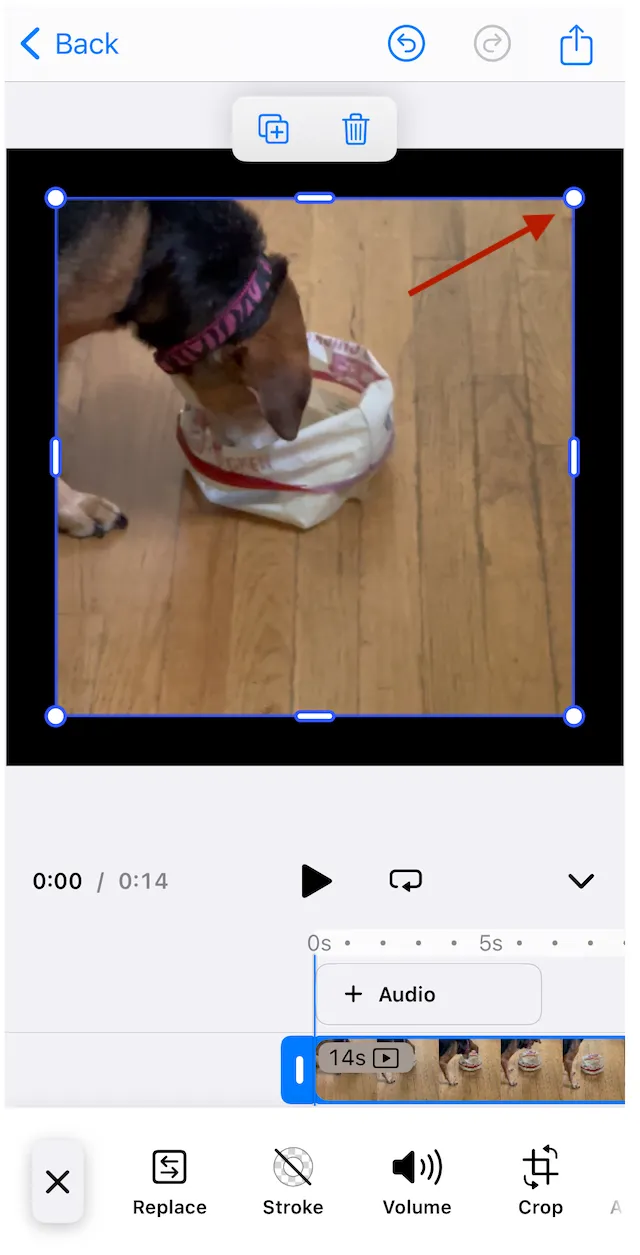
When working with templates, you can lock a block from scaling by setting its scope. Remember that the global layer has to defer to the blocks using setGlobalScope.
try engine.block.setScopeEnabled(videoBlock, key: "layer/resize", enabled: false)To prevent users from transforming an element at all:
try engine.block.setTransformLocked(videoBlock, locked: true)