Redact sensitive video content using blur, pixelization, or solid overlays for privacy protection.
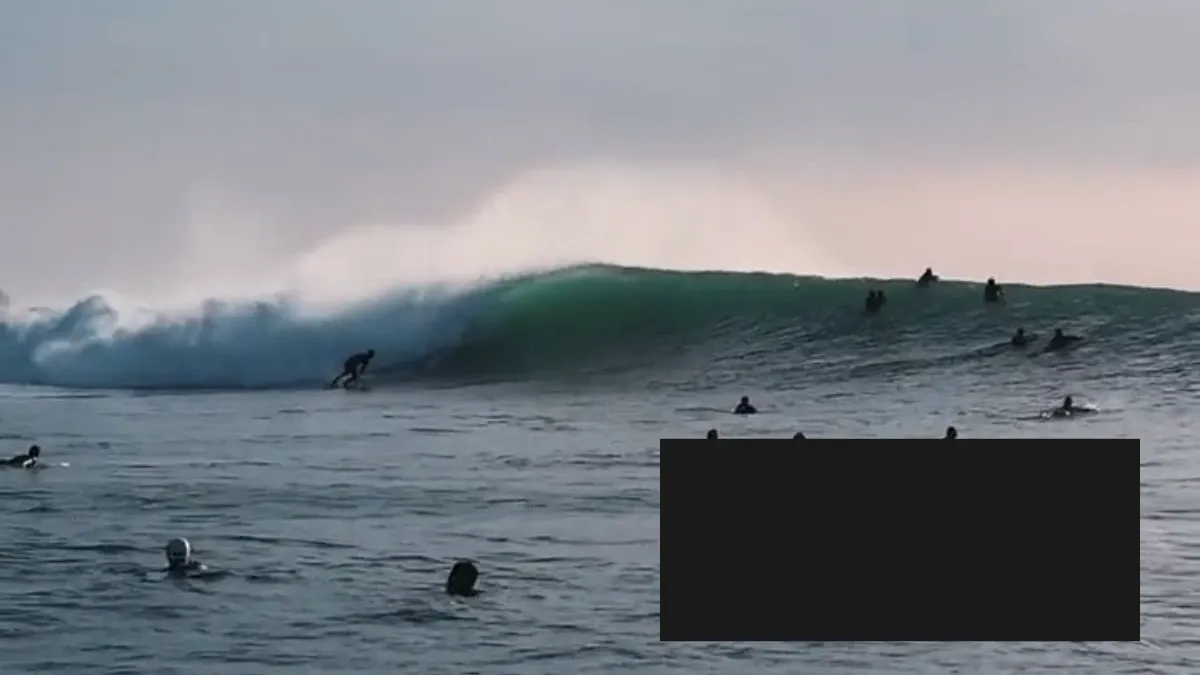
CE.SDK applies effects to blocks themselves, not as overlays affecting content beneath. Redaction therefore means applying effects directly to the block you want to obscure. Four techniques cover most privacy scenarios: full-block blur, radial blur, pixelization, and solid overlays.
Creating the Scene#
Start with a scene and a single page sized to 16:9. The page duration must cover every segment you plan to redact — the example uses five 5-second segments, so the page runs for 25 seconds total.
let pageWidth: Float = 1280let pageHeight: Float = 720
let scene = try engine.scene.create()let page = try engine.block.create(.page)try engine.block.appendChild(to: scene, child: page)try engine.block.setWidth(page, value: pageWidth)try engine.block.setHeight(page, value: pageHeight)
try engine.block.setDuration(page, duration: 5 * segmentDuration)
Creating Video Blocks#
Each redaction technique is demonstrated on its own clip. A track holds the clips so they play back sequentially; assigning a setTimeOffset per clip places it at a specific point on the timeline. The example reuses the same video URL for every segment to keep the loop fast, but in your app each clip can use different content.
let track = try engine.block.create(.track)try engine.block.appendChild(to: page, child: track)
var videos: [DesignBlockID] = []var videoFills: [DesignBlockID] = []for index in 0 ..< 5 {  let video = try engine.block.create(.graphic)  try engine.block.setShape(video, shape: engine.block.createShape(.rect))
  let videoFill = try engine.block.createFill(.video)  try engine.block.setURL(videoFill, property: "fill/video/fileURI", value: videoURL)  try engine.block.setFill(video, fill: videoFill)
  try engine.block.appendChild(to: track, child: video)  try engine.block.setDuration(video, duration: segmentDuration)  try engine.block.setTimeOffset(video, offset: Double(index) * segmentDuration)
  videos.append(video)  videoFills.append(videoFill)}
try engine.block.fillParent(track)
fillParent(track) resizes the track to the page dimensions. The track’s own layout then sizes each clip to fit the track.
Understanding Redaction in CE.SDK#
How Effects Work#
Effects in CE.SDK modify the block’s appearance directly rather than creating transparent overlays that affect content beneath. When you blur a video block, the entire block becomes blurred — not just a region on top of the video.
Choosing a Redaction Technique#
Select the technique based on privacy requirements and visual impact:
- Full-block blur: Complete obscuration for backgrounds or placeholder content
- Radial blur: Circular blur patterns ideal for face-like regions
- Pixelization: Clearly intentional censoring that renders faster than heavy blur
- Solid overlays: Complete blocking for highly sensitive information like documents or credentials
Programmatic Redaction#
Full-Block Blur#
When the entire video needs obscuring, apply blur directly to the original block. This approach works well for background content or privacy placeholders.
if try engine.block.supportsBlur(fullBlurVideo) { let uniformBlur = try engine.block.createBlur(.uniform) try engine.block.setFloat(uniformBlur, property: "blur/uniform/intensity", value: 0.7) try engine.block.setBlur(fullBlurVideo, blurID: uniformBlur) try engine.block.setBlurEnabled(fullBlurVideo, enabled: true)}Gate the work on supportsBlur(_:) so the code stays safe when applied to blocks that cannot accept blur. Create a uniform blur, configure its intensity with blur/uniform/intensity (a Float from 0.0 to 1.0, where higher values produce stronger blur), attach it to the video block with setBlur(_:blurID:), and enable it with setBlurEnabled(_:enabled:).
Pixelization#
Pixelization creates a mosaic effect that is clearly intentional and renders faster than heavy blur. It uses the effect system rather than the blur system.
if try engine.block.supportsEffects(pixelVideo) { let pixelizeEffect = try engine.block.createEffect(.pixelize) try engine.block.setInt(pixelizeEffect, property: "effect/pixelize/horizontalPixelSize", value: 24) try engine.block.setInt(pixelizeEffect, property: "effect/pixelize/verticalPixelSize", value: 24) try engine.block.appendEffect(pixelVideo, effectID: pixelizeEffect) try engine.block.setEffectEnabled(effectID: pixelizeEffect, enabled: true)}Check supportsEffects(_:) before creating the pixelize effect, then set effect/pixelize/horizontalPixelSize and effect/pixelize/verticalPixelSize to control the mosaic dimensions. Larger values produce stronger obscuration; values in the 15-30 range work well for standard redaction.
Solid Overlays#
For complete blocking without any visual hint of the underlying content, create an opaque shape overlay. This approach does not require duplicating the video block.
let overlay = try engine.block.create(.graphic)try engine.block.setShape(overlay, shape: engine.block.createShape(.rect))
let solidFill = try engine.block.createFill(.color)try engine.block.setColor(  solidFill,  property: "fill/color/value",  color: .rgba(r: 0.1, g: 0.1, b: 0.1, a: 1.0),)try engine.block.setFill(overlay, fill: solidFill)
try engine.block.setWidth(overlay, value: pageWidth * 0.4)try engine.block.setHeight(overlay, value: pageHeight * 0.3)try engine.block.setPositionX(overlay, value: pageWidth * 0.55)try engine.block.setPositionY(overlay, value: pageHeight * 0.65)try engine.block.appendChild(to: page, child: overlay)
// Show the overlay only during the fourth segment (15–20 seconds).try engine.block.setTimeOffset(overlay, offset: 3 * segmentDuration)try engine.block.setDuration(overlay, duration: segmentDuration)
Create a graphic with a rectangle shape and a solid color fill, then position and size it using absolute page coordinates. Use an alpha of 1.0 for complete opacity. The example attaches the overlay to the page (not the track) and gives it its own setTimeOffset and setDuration so it only appears during the fourth segment.
Time-Based Redaction#
A redaction applied to a track clip is automatically time-bounded by the clip’s own timeline window — the blur below covers the fifth segment because the clip itself only plays during 20–25 seconds. Use a stronger intensity (0.9 here, versus 0.7 for the first blur) when a particular segment needs more aggressive obscuration.
let timedBlur = try engine.block.createBlur(.uniform)try engine.block.setFloat(timedBlur, property: "blur/uniform/intensity", value: 0.9)try engine.block.setBlur(timedVideo, blurID: timedBlur)try engine.block.setBlurEnabled(timedVideo, enabled: true)For redactions that should appear or disappear independent of a clip — a censor bar that covers an always-visible region for only part of the timeline, a logo cover-up tied to a specific scene — give the redaction block its own setTimeOffset(_:offset:) and setDuration(_:duration:) instead, as shown in the Solid Overlays section above.
Radial Blur#
For face-like regions, radial blur creates a circular blur pattern that fits rounded subjects.
let radialBlur = try engine.block.createBlur(.radial)try engine.block.setFloat(radialBlur, property: "blur/radial/blurRadius", value: 50)try engine.block.setFloat(radialBlur, property: "blur/radial/radius", value: 25)try engine.block.setFloat(radialBlur, property: "blur/radial/gradientRadius", value: 35)try engine.block.setFloat(radialBlur, property: "blur/radial/x", value: 0.5)try engine.block.setFloat(radialBlur, property: "blur/radial/y", value: 0.45)try engine.block.setBlur(radialVideo, blurID: radialBlur)try engine.block.setBlurEnabled(radialVideo, enabled: true)Radial blur properties control the blur center (blur/radial/x, blur/radial/y from 0.0 to 1.0), the unblurred center area (blur/radial/radius), the blur transition zone (blur/radial/gradientRadius), and the blur strength (blur/radial/blurRadius).
Saving the Scene#
After applying redactions, serialize the scene to a string. Use this to persist the work for later editing or to hand off to an export pipeline.
let sceneData = try await engine.scene.saveToString()saveToString() returns the full scene definition, including all blocks, effects, and timeline data. Load it later with engine.scene.load(from:) to continue editing.
Performance Considerations#
Different redaction techniques have different performance impacts:
- Solid overlays: Minimal impact — you can create many without significant overhead.
- Pixelization: Faster than blur; larger pixel sizes have minimal impact.
- Blur effects: Higher intensity values increase rendering time, especially at high resolutions.
For complex scenes with many redactions, prefer solid overlays where blur is not required, or reduce blur intensity to maintain smooth playback.
Troubleshooting#
Redaction Not Visible#
If a redaction does not appear, verify that:
- The overlay is a child of the page with
appendChild(to:child:). - Blur is enabled with
setBlurEnabled(_:enabled:)after attaching it withsetBlur(_:blurID:). - Effects are enabled with
setEffectEnabled(effectID:enabled:)after appending them withappendEffect(_:effectID:).
Performance Issues#
Reduce blur intensity, switch to pixelization instead of heavy blur, or use solid overlays for some redactions.
Best Practices#
- Preview thoroughly: Scrub the entire timeline to verify all sensitive content is covered.
- Add safety margins: Make redaction regions slightly larger than the sensitive area.
- Test at export resolution: Higher resolutions may need stronger blur settings.
- Archive originals: Exported redactions are permanent and cannot be reversed.
- Document redactions: For compliance requirements, maintain records of what was redacted.
API Reference#
| Method | Description |
|---|---|
block.supportsBlur(_:) |
Check if a block supports blur effects |
block.createBlur(_:) |
Create a blur instance (.uniform, .radial, .linear, .mirrored) |
block.setBlur(_:blurID:) |
Attach a blur to a block |
block.setBlurEnabled(_:enabled:) |
Enable or disable blur on a block |
block.supportsEffects(_:) |
Check if a block supports effects |
block.createEffect(_:) |
Create an effect instance (.pixelize, others) |
block.appendEffect(_:effectID:) |
Add an effect to a block |
block.setEffectEnabled(effectID:enabled:) |
Enable or disable an effect |
block.setTimeOffset(_:offset:) |
Set when a block appears on the timeline |
block.setDuration(_:duration:) |
Set how long a block remains on the timeline |
block.create(_:) |
Create a block of the given type (.graphic, .page, .track, etc.) |
block.createShape(_:) |
Create a shape (.rect) for graphic blocks |
block.setShape(_:shape:) |
Assign a shape to a graphic block |
block.createFill(_:) |
Create a fill (.color, .video, others) |
block.setFill(_:fill:) |
Apply a fill to a block |
block.setFloat(_:property:value:) |
Set a float property value |
block.setInt(_:property:value:) |
Set an integer property value |
block.setColor(_:property:color:) |
Set a color property value |
scene.saveToString() |
Serialize the scene to a string |