Expose a template’s variables and placeholders through your own input controls so users customize designs by filling fields instead of manipulating the canvas — ideal for non-designers and consistent, on-brand output.
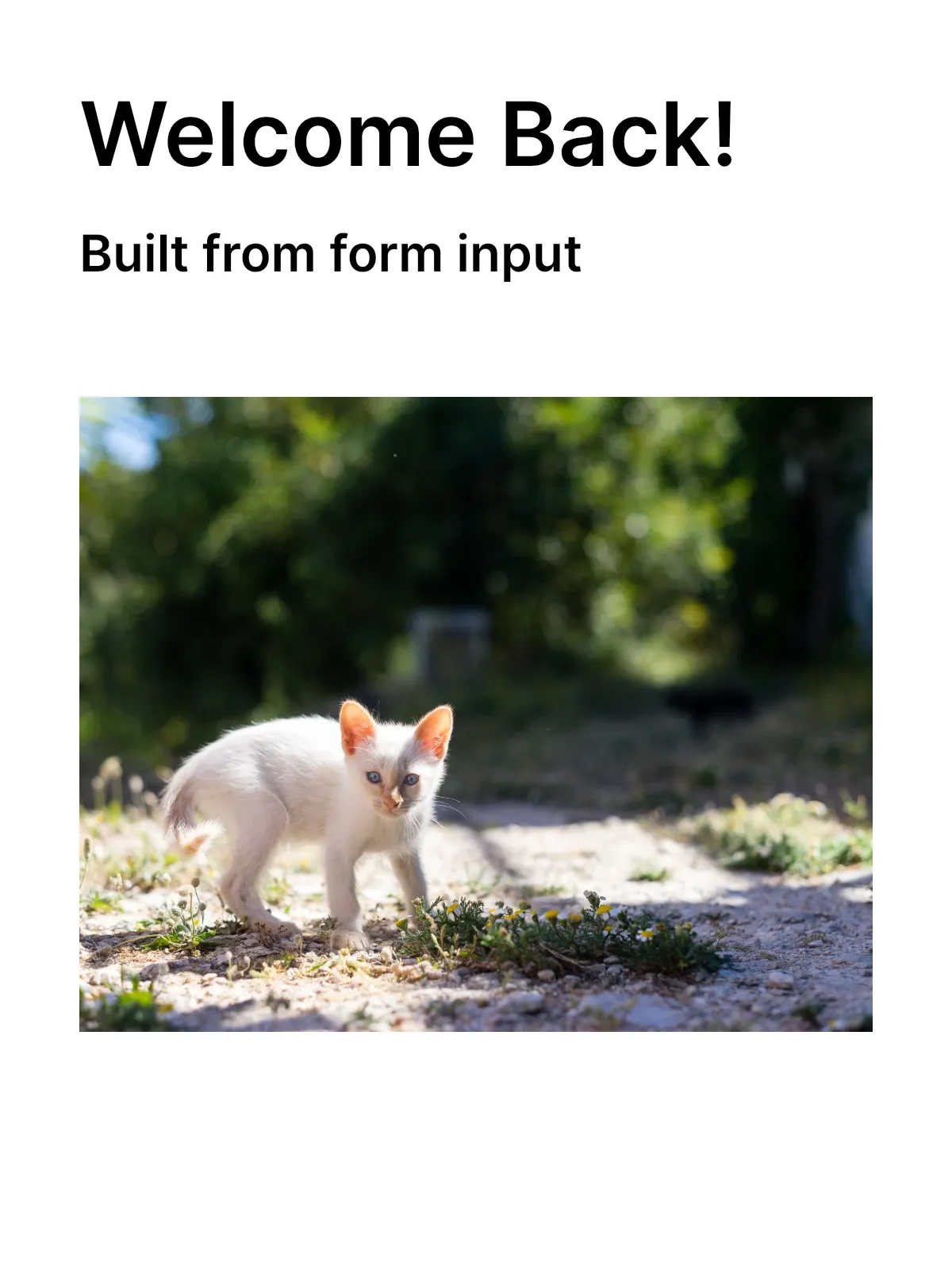
Form-based editing turns template adoption into structured data entry. Instead of asking users to locate and edit elements on the canvas, you read a template’s customization points with the headless Creative Engine and build your own form — text fields for variables, image pickers for placeholders — that writes values back through the engine API.
This guide walks through discovering a template’s variables and placeholders, reading and updating their values, replacing placeholder images, and validating input before export.
Understanding Form-Based Editing#
Form-based editing replaces direct canvas manipulation with input controls you design yourself. Two kinds of customization points drive a form:
- Variables hold text values referenced from text blocks. Each variable maps to a text field.
- Placeholders are image blocks marked as editable. Each maps to an image picker.
You discover both programmatically, render matching controls in a SwiftUI form, and write user input back through the engine. The engine updates the design immediately, so a live preview reflects every change. Because the form only exposes the fields you choose, the rest of the design stays locked and on-brand.
Discovering Template Metadata#
Inspect a loaded template to learn what it lets users customize. engine.variable.findAll() returns every defined variable name, and filtering graphic blocks by isPlaceholderEnabled(_:) finds the editable images.
// List every variable the template defines — render one form field per entry.let variableNames = engine.variable.findAll()
// Find image placeholders: graphic blocks flagged as placeholders.let graphicBlocks = try engine.block.find(byType: .graphic)let placeholders = try graphicBlocks.filter { try engine.block.isPlaceholderEnabled($0) }print("Variables:", variableNames, "Placeholders:", placeholders.count)
Use one form field per variable name and one image picker per placeholder. engine.block.findAllPlaceholders() is a convenience that returns the placeholder blocks directly if you do not need the intermediate graphic-block list.
Working with Variables#
Variables store text values that text blocks reference with a {{variableName}} token. The engine substitutes the value at render time.
Using Variables in Text#
Reference a variable by wrapping its name in double curly braces. referencesAnyVariables(_:) confirms whether a block depends on variables before you expose it in a form.
// Reference a variable in text by wrapping its name in double curly braces.// The engine substitutes `{{tagline}}` with the variable's value at render time.try engine.block.replaceText(subtitle, text: "{{tagline}}")
// `referencesAnyVariables(_:)` confirms a block depends on variable tokens.let subtitleUsesVariables = try engine.block.referencesAnyVariables(subtitle)print("Subtitle references variables:", subtitleUsesVariables)
Defining Variables#
Give each variable an initial value so the form shows something on first load. A template authored on the web ships with these defaults already set; when you build a template in code, define them with engine.variable.set(key:value:).
// Give each variable an initial value. A web-authored template ships with// these defaults already set; here we define them so the form has something// to show on first load.try engine.variable.set(key: "tag", value: "Welcome")try engine.variable.set(key: "tagline", value: "Your personalized design")Updating Variables#
Read a variable with engine.variable.get(key:) to seed a field, then write the user’s edit back with engine.variable.set(key:value:). Call the setter from a TextField’s onChange(of:) handler so the design updates as the user types.
// Read a variable to seed a form field, then write the user's edit back.// In SwiftUI, call the setter from a TextField's `onChange(of:)` handler.let currentTag = try engine.variable.get(key: "tag")print("Seeding field with:", currentTag)try engine.variable.set(key: "tag", value: "Hello")Replacing Placeholder Content#
Placeholders are graphic blocks marked editable, letting users replace images while the rest of the design stays fixed.
Reading the Current Image#
Read a placeholder’s fill to preview its current image in the form. engine.block.getURL(_:property:) returns the image’s file URL.
// Read a placeholder's current image so the form can preview it.guard let placeholder = placeholders.first else { return }let fill = try engine.block.getFill(placeholder)let currentImageURL = try engine.block.getURL(fill, property: "fill/image/imageFileURI")print("Current placeholder image:", currentImageURL.lastPathComponent)Setting a New Image#
Swap the image by pointing the same fill at a new file URL with engine.block.setURL(_:property:value:). The URL can come from a photo picker, a bundled asset, or a downloaded file.
// Swap the placeholder's content when the user picks a new image. Point the// fill at any local file URL — a photo from the picker, a bundled asset, or// a downloaded file.try engine.block.setURL( fill, property: "fill/image/imageFileURI", value: baseURL.appendingPathComponent("ly.img.image/images/sample_2.jpg"),)Driving Updates from Your Own Form#
Keep your form state in a dictionary keyed by variable name, then write each entry back through the engine in one pass — for example when the user taps “Apply”. The same engine API works regardless of the UI framework you build the form with.
// Apply an entire form's current values in one pass — for example when the// user taps "Apply". Keep your form state in a dictionary keyed by variable// name and write each entry back through the engine.let formValues: [String: String] = [ "tag": "Welcome Back", "tagline": "Built from form input",]for (key, value) in formValues where variableNames.contains(key) { try engine.variable.set(key: key, value: value)}Validating Before Export#
Before exporting, confirm every variable the form exposes has a value. Read each one with engine.variable.get(key:) and block the export while any are empty, then render the finished design with engine.block.export(_:mimeType:).
// Before exporting, confirm every variable the form exposes has a value.let missingFields = try variableNames.filter { try engine.variable.get(key: $0).isEmpty }guard missingFields.isEmpty else {  print("Cannot export — required fields are empty:", missingFields)  return}
let exported = try await engine.block.export(page, mimeType: .png)print("Exported personalized template:", exported.count, "bytes")
Error Handling#
Engine calls throw, so handle failures where they can occur:
- Missing values: Validate before export and tell users which fields are required.
- Invalid images: Check a file’s type before assigning it to a placeholder fill.
- Unreachable files: Handle failures when loading images from a URL.
- Unknown variables:
engine.variable.get(key:)throws if the key was never defined — guard against keys your form does not recognize.
API Reference#
| Method | Description |
|---|---|
engine.variable.findAll() |
List every variable name defined in the template |
engine.variable.get(key:) |
Read a variable’s current value |
engine.variable.set(key:value:) |
Set or update a variable’s value |
engine.block.referencesAnyVariables(_:) |
Check whether a block depends on variables |
engine.block.find(byType:) |
Find blocks by type, such as .graphic |
engine.block.isPlaceholderEnabled(_:) |
Check whether a block is an editable placeholder |
engine.block.findAllPlaceholders() |
Return every placeholder block in the scene |
engine.block.getFill(_:) |
Get the fill block of a design block |
engine.block.getURL(_:property:) |
Read a URL property, such as an image fill’s file URI |
engine.block.setURL(_:property:value:) |
Set a URL property to replace placeholder content |
engine.block.export(_:mimeType:) |
Export the finished design as image data |
Next Steps#
- Text Variables — Deep dive into variable management.
- Placeholders — Understand placeholder configuration.
- Lock the Template — Combine forms with locked designs.
- Set Editing Constraints — Fine-tune what users can modify.