Extend the asset library by adding custom asset sources, enabling user uploads, and organizing content with groups and categories.
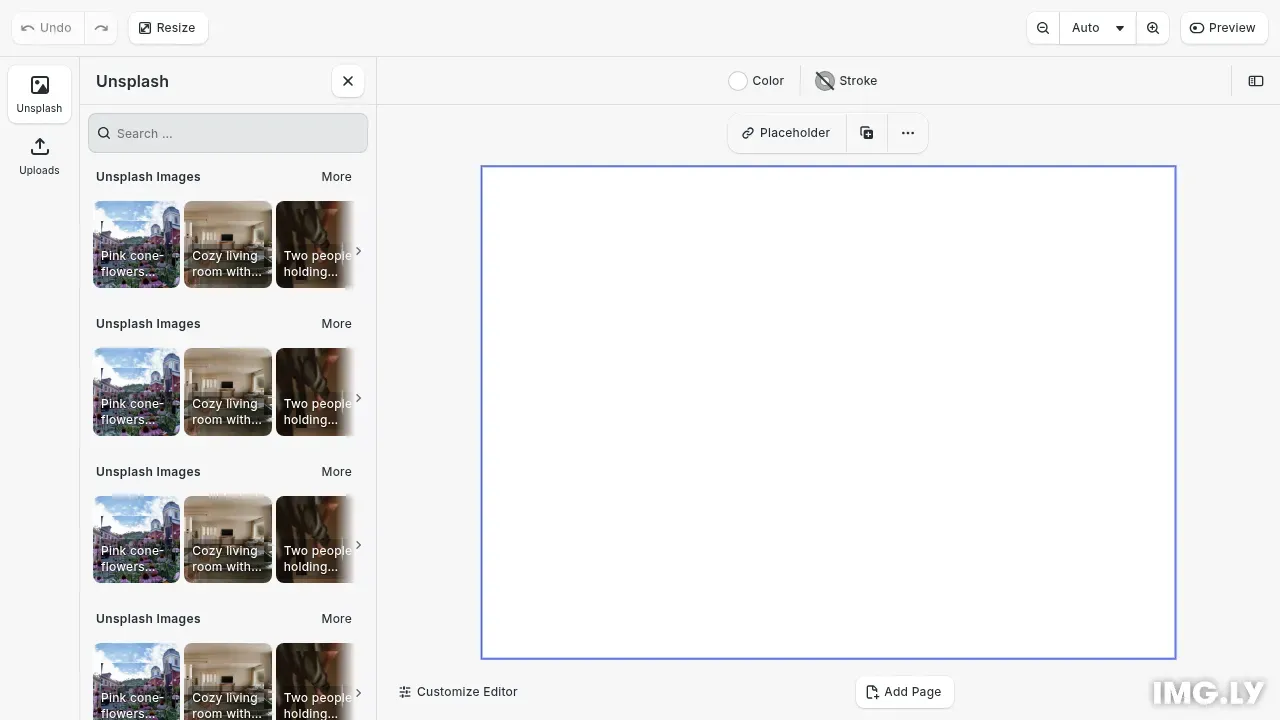
CE.SDK’s asset library lets users browse and add media to designs. You can extend this system by registering custom asset sources that fetch content from your own APIs, DAM systems, or third-party services like Unsplash.
This guide covers creating custom asset sources, enabling user uploads, organizing assets with groups, and displaying content in the asset library UI.
Creating Custom Asset Sources#
We register a source with engine.asset.addSource(), providing a unique ID and a findAssets function. This function receives query parameters and returns paginated asset results with metadata.
// Create an Unsplash asset source with remote API fetchingengine.asset.addSource({  id: 'unsplash-images',  async findAssets(queryData: AssetQueryData): Promise<AssetsQueryResult> {    try {      const { photos, total } = await fetchUnsplashPhotos(queryData);
      // Calculate if there are more pages      const startIndex = queryData.page * queryData.perPage;      const hasNextPage = startIndex + photos.length < total;
      return {        assets: photos,        currentPage: queryData.page,        nextPage: hasNextPage ? queryData.page + 1 : undefined,        total      };    } catch (error) {      console.error('Failed to fetch Unsplash photos:', error);      return {        assets: [],        currentPage: queryData.page,        nextPage: undefined,        total: 0      };    }  },  // Provide available groups for filtering  async getGroups(): Promise<string[]> {    return ['nature', 'architecture', 'people', 'animals'];  },  // Unsplash credits and license  credits: {    name: 'Unsplash',    url: 'https://unsplash.com'  },  license: {    name: 'Unsplash License',    url: 'https://unsplash.com/license'  }});
The source configuration includes:
- A unique
idto identify the source - The
findAssetsfunction that returns assets matching the query - Optional
getGroupsfunction to provide filtering categories - Credits and license information for attribution
The findAssets function receives query parameters including search text, groups, tags, pagination, and locale. Return matching results with proper pagination metadata.
Enabling User Uploads#
Local sources support dynamic asset management at runtime. Create them with engine.asset.addLocalSource() and add or remove individual assets programmatically.
// Create a local asset source for user uploadsengine.asset.addLocalSource('user-uploads', [ 'image/jpeg', 'image/png', 'image/webp']);When creating the source, specify supported MIME types to restrict which file types can be added. This is useful for user uploads or runtime-generated content.
The addAssetToSource method adds new assets that become immediately available in query results. Each asset needs an ID, optional localized labels and tags, and metadata with URIs and block types.
Organizing Assets with Groups#
Groups help users find assets through filtering. Return group arrays in asset results to organize content into categories.
// Provide available groups for filteringasync getGroups(): Promise<string[]> { return ['nature', 'architecture', 'people', 'animals'];},Implement getGroups() to provide the complete list of available categories. This populates filter options in the asset library panel. Users can then filter results by selecting specific groups.
Adding Asset Library Panels#
Asset library entries define how a panel looks and what it displays. Each entry connects one or more asset sources to a visual presentation with grid layouts, card styling, and interaction behaviors.
// Add a custom asset library panel to display Unsplash imagescesdk.ui.addAssetLibraryEntry({  id: 'unsplash-panel',  sourceIds: ['unsplash-images'],  title: 'Unsplash Images',  icon: 'ly.img.image',  gridColumns: 3,  gridItemHeight: 'square',  cardLabel: (asset: AssetResult) => asset.label || '',  cardStyle: (asset: AssetResult) => ({    backgroundImage: `url(${asset.meta?.thumbUri})`,    backgroundSize: 'cover',    backgroundPosition: 'center'  })});
// Add an asset library panel for user uploadscesdk.ui.addAssetLibraryEntry({  id: 'uploads-panel',  sourceIds: ['user-uploads'],  title: 'My Uploads',  icon: 'ly.img.upload',  gridColumns: 3,  gridItemHeight: 'square',  canAdd: true,  cardLabel: (asset: AssetResult) => asset.label || '',  cardStyle: (asset: AssetResult) => ({    backgroundImage: `url(${asset.meta?.thumbUri})`,    backgroundSize: 'cover',    backgroundPosition: 'center'  })});
// Set dock to show both Unsplash and Uploads panelscesdk.ui.setComponentOrder({ in: 'ly.img.dock' }, [  {    id: 'ly.img.assetLibrary.dock',    key: 'unsplash-images',    icon: '@imgly/Image',    label: 'Unsplash',    entries: ['unsplash-panel']  },  {    id: 'ly.img.assetLibrary.dock',    key: 'user-uploads',    icon: '@imgly/Upload',    label: 'Uploads',    entries: ['uploads-panel']  }]);
The panel configuration includes:
sourceIdslinking to your asset sources- Visual settings like grid columns and item height
cardStylefunction to display thumbnails as background imagescardLabelfunction to show asset descriptionscanAddto enable the upload button for local sources
Creating an Uploads Panel#
For user uploads, create a dedicated panel that references the local source and enables the add functionality.
// Add an asset library panel for user uploadscesdk.ui.addAssetLibraryEntry({ id: 'uploads-panel', sourceIds: ['user-uploads'], title: 'My Uploads', icon: 'ly.img.upload', gridColumns: 3, gridItemHeight: 'square', canAdd: true, cardLabel: (asset: AssetResult) => asset.label || '', cardStyle: (asset: AssetResult) => ({ backgroundImage: `url(${asset.meta?.thumbUri})`, backgroundSize: 'cover', backgroundPosition: 'center' })});Setting canAdd: true displays an upload button in the panel. When users click it, they can add new assets to the local source.
Use setComponentOrder to control which panels appear in the dock and their order.
Using Apply Middleware#
Register middleware with engine.asset.registerApplyMiddleware() to intercept all asset applications regardless of source. Middleware can modify data, track usage, or implement custom placement logic.
// Register middleware to handle asset applicationengine.asset.registerApplyMiddleware(  async (sourceId, assetResult, apply, context) => {    // Log asset application for debugging    console.log(`Applying asset from source: ${sourceId}`);    console.log('Asset:', assetResult.label);
    // For Unsplash, you would typically track the download here    // using the download_location URL to comply with Unsplash guidelines
    // Call the original apply function to create the block    const blockId = await apply(sourceId, assetResult);
    return blockId;  });
The middleware receives the source ID, asset result, original apply function, and application context. Call the original apply function and optionally modify the created block afterward.
Querying Asset Sources#
Inspect registered sources and retrieve their metadata for debugging or displaying attribution.
// Query available asset sourcesconst allSources = engine.asset.findAllSources();console.log('All asset sources:', allSources);
// Get metadata from the Unsplash sourceconst credits = engine.asset.getCredits('unsplash-images');console.log('Source credits:', credits);
const license = engine.asset.getLicense('unsplash-images');console.log('Source license:', license);
The getCredits and getLicense methods return the attribution information provided when registering the source.
Managing Asset Library Entries#
List, retrieve, and update asset library entries to adjust the UI dynamically.
// Query and manage asset library entriesconst allEntries = cesdk.ui.findAllAssetLibraryEntries();console.log('All asset library entries:', allEntries);
// Get the Unsplash panel entryconst unsplashEntry = cesdk.ui.getAssetLibraryEntry('unsplash-panel');console.log('Unsplash entry:', unsplashEntry);
// Update the panel configurationcesdk.ui.updateAssetLibraryEntry('unsplash-panel', {  gridColumns: 4});
These methods let you modify panel configuration at runtime, such as changing the grid layout based on screen size or user preferences.
Remote API Integration Example#
This example demonstrates fetching images from Unsplash using the unsplash-js library. The same pattern applies to any remote API or DAM system.
Setting Up the API Client#
// Create Unsplash API client with proxy URL// For production, use your own Unsplash proxy with your API keyconst unsplashApi = createApi({ apiUrl: 'https://api.img.ly/unsplashProxy'});The createApi function accepts an apiUrl parameter pointing to a proxy server. The proxy handles authentication and avoids CORS issues.
Transforming API Responses#
Transform external API responses into the AssetResult structure that CE.SDK expects.
// Transform Unsplash photo to CE.SDK AssetResult formatfunction transformToAssetResult(photo: { id: string; description: string | null; alt_description: string | null; width: number; height: number; urls: { regular: string; small: string }; user: { name: string; links: { html: string } };}): AssetResult { return { id: photo.id, label: photo.alt_description || photo.description || 'Unsplash Photo', tags: photo.alt_description?.split(' ').slice(0, 5), meta: { uri: photo.urls.regular, thumbUri: photo.urls.small, blockType: '//ly.img.ubq/graphic', fillType: '//ly.img.ubq/fill/image', shapeType: '//ly.img.ubq/shape/rect', kind: 'image', width: photo.width, height: photo.height }, credits: { name: photo.user.name, url: photo.user.links.html }, utm: { source: 'CE.SDK Demo', medium: 'referral' } };}Map the external fields to CE.SDK properties:
- Image URLs for
uriandthumbUri - Descriptions for labels and search tags
- Author information for attribution credits
Fetching from the Remote API#
// Fetch photos from Unsplash APIasync function fetchUnsplashPhotos(  queryData: AssetQueryData): Promise<{ photos: AssetResult[]; total: number }> {  // Unsplash uses 1-indexed pages, CE.SDK uses 0-indexed  const page = queryData.page + 1;
  if (queryData.query) {    // Search endpoint for query-based searches    const response = await unsplashApi.search.getPhotos({      query: queryData.query,      page,      perPage: queryData.perPage    });
    if (response.type === 'error') {      throw new Error('Failed to search Unsplash photos');    }
    const results = response.response.results;    return {      photos: results.map(transformToAssetResult),      total: response.response.total    };  } else {    // List endpoint for browsing popular photos    const response = await unsplashApi.photos.list({      orderBy: OrderBy.POPULAR,      page,      perPage: queryData.perPage    });
    if (response.type === 'error') {      throw new Error('Failed to list Unsplash photos');    }
    const results = response.response.results;    return {      photos: results.map(transformToAssetResult),      // For list endpoint, estimate total as large number since it's paginated      total: 10000    };  }}
Handle pagination differences between your API and CE.SDK. Unsplash uses 1-indexed pages while CE.SDK uses 0-indexed.
Troubleshooting#
Assets Not Appearing in UI#
Verify the source ID appears in an asset library entry’s sourceIds array. Check that findAssets returns the correct structure with all required fields. Ensure the asset library entry is added to the dock order.
Search Not Working#
Confirm your findAssets function handles the query parameter and filters results. Check that asset labels and tags are properly set for the requested locale.
Upload Errors#
Validate MIME types against getSupportedMimeTypes() before attempting to add assets. Ensure local sources are created with addLocalSource() before calling addAssetToSource().
Remote API Issues#
Verify the proxy URL is correct and accessible. Check browser console for CORS errors or API response issues. Ensure proper error handling in the findAssets function.