This guide shows you how to control CE.SDK’s UI panels programmatically, allowing you to show, hide, position, and configure panels like the inspector, asset library, and settings. You’ll learn how to use the Panel API to customize panel behavior for your specific user interface requirements.
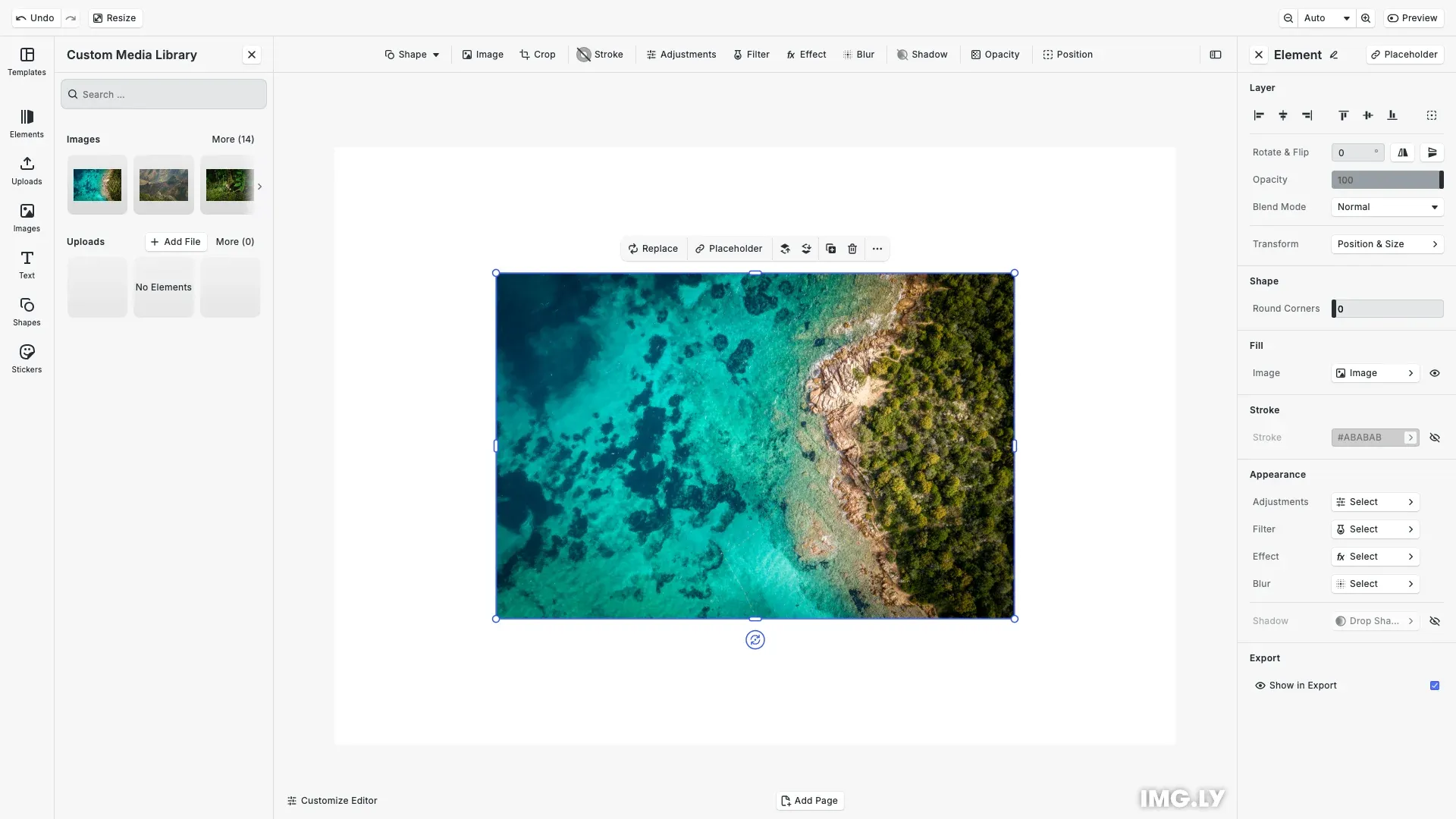
This guide demonstrates CE.SDK’s Panel API through a working example that shows how to control panels programmatically, including opening, closing, positioning, and configuring panel behavior.
Understanding CE.SDK Panels#
Panels are reusable UI components in CE.SDK that provide different editing and configuration capabilities. Each panel has a unique ID and can be positioned on the left or right side of the canvas (or bottom on mobile viewports). The Panel API gives you programmatic control over when and how these panels appear.
Available Default Panels#
CE.SDK provides several built-in panels:
//ly.img.panel/inspector- Displays properties and editing controls for the currently selected block//ly.img.panel/assetLibrary- Main asset library panel for inserting new content into your design//ly.img.panel/assetLibrary.replace- Replacement library for swapping the content of the selected block//ly.img.panel/settings- Settings panel for customizing the editor during runtime
These panels must be enabled through the Feature API before they can be used:
// Enable panel features through Feature APIcesdk.feature.enable('ly.img.inspector', () => true);cesdk.feature.enable('ly.img.library.panel', () => true);cesdk.feature.enable('ly.img.settings', () => true);Opening and Closing Panels#
The Panel API provides methods to open and close panels programmatically, giving you control over the user’s interface workflow.
Opening Panels#
Use cesdk.ui.openPanel() to display a panel. The panel will only open if it exists, is registered, and isn’t already open:
// Open inspector panel with default settingscesdk.ui.openPanel('//ly.img.panel/inspector');You can override the panel’s default position and floating behavior with options:
// Open replace library with custom options// This panel will float and be positioned on the rightcesdk.ui.openPanel('//ly.img.panel/assetLibrary.replace', { position: 'right' as PanelPosition, floating: true, closableByUser: true});The options parameter accepts:
position:'left'or'right'- Override the default panel positionfloating:boolean- Override whether the panel floats over the canvasclosableByUser:boolean- Control if users can close the panelpayload:object- Pass data to the panel (see Panel Payloads section)
Closing Panels#
Use cesdk.ui.closePanel() to hide panels. This method supports both exact panel IDs and wildcard patterns:
if (cesdk.ui.isPanelOpen('//ly.img.panel/assetLibrary.replace')) { cesdk.ui.closePanel('//ly.img.panel/assetLibrary.replace');}You can also use wildcard patterns to close multiple panels at once:
// cesdk.ui.closePanel('//ly.img.*');Wildcard patterns are useful for cleaning up multiple panels at once or closing all panels from a specific namespace.
Checking Panel State#
Before opening or manipulating panels, you can check their current state using cesdk.ui.isPanelOpen():
// Check if a panel is open before openingif (!cesdk.ui.isPanelOpen('//ly.img.panel/inspector')) { console.log('Inspector is not open yet');}Finding Panels#
To discover all available panels or filter panels by their state, use cesdk.ui.findAllPanels():
// Find all currently open panelsconst openPanels = cesdk.ui.findAllPanels({ open: true });console.log('Currently open panels:', openPanels);
// Find all panels on the leftconst leftPanels = cesdk.ui.findAllPanels({  position: 'left' as PanelPosition});console.log('Panels on the left:', leftPanels);
This method is particularly useful for debugging or building custom UI that needs to reflect the current panel state.
Positioning Panels#
Panels can be positioned on the left or right side of the canvas. Use cesdk.ui.setPanelPosition() to set the default position:
// Position inspector on the leftcesdk.ui.setPanelPosition('//ly.img.panel/inspector', 'left');
// Position asset library on the rightcesdk.ui.setPanelPosition('//ly.img.panel/assetLibrary', 'right');
You can also use a function for dynamic positioning:
// Position based on viewport widthcesdk.ui.setPanelPosition('//ly.img.panel/inspector', () => { const viewportWidth = window.innerWidth; return viewportWidth > 1200 ? 'right' : 'left';});To get the current position and floating state of a panel:
// Get panel position and floating stateconst inspectorPosition = cesdk.ui.getPanelPosition( '//ly.img.panel/inspector');const inspectorFloating = cesdk.ui.getPanelFloating( '//ly.img.panel/inspector');console.log( `Inspector is on the ${inspectorPosition} side, floating: ${inspectorFloating}`);Note that setting the position affects both the default behavior and currently open panels, unless the panel was opened with an explicit position option.
Floating Panels#
Panels can either float over the canvas (potentially obscuring content) or dock beside it. Floating is useful for compact layouts or temporary panels.
Making Panels Float#
Use cesdk.ui.setPanelFloating() to control floating behavior:
// Make inspector float over the canvascesdk.ui.setPanelFloating('//ly.img.panel/inspector', true);
// Dock asset library beside the canvascesdk.ui.setPanelFloating('//ly.img.panel/assetLibrary', false);
Like positioning, you can use a function for responsive floating:
// Float on narrow viewports, dock on widecesdk.ui.setPanelFloating('//ly.img.panel/inspector', () => { return window.innerWidth < 768;});Checking Floating State#
To check if a panel is currently floating:
const isFloating = cesdk.ui.getPanelFloating('//ly.img.panel/inspector');if (isFloating) { console.log('Inspector is floating over the canvas');} else { console.log('Inspector is docked beside the canvas');}Panel Payloads#
Some panels accept a payload object that determines their content and behavior. The asset library panel is the most common example:
cesdk.ui.openPanel('//ly.img.panel/assetLibrary', { payload: { title: 'Custom Media Library', entries: ['ly.img.image', 'ly.img.video', 'ly.img.upload'] }});The asset library payload accepts:
title:string | string[]- Panel title, or breadcrumb navigation if an arrayentries:string[]- Array of asset library entry IDs to display
Custom panels registered through plugins can define their own payload types.
Common Workflows#
Here are practical examples combining Panel API methods for common use cases.
Conditional Panel Opening#
Check if a panel is open before opening it to avoid unnecessary operations:
// Only open inspector if it's not already visibleif (!cesdk.ui.isPanelOpen('//ly.img.panel/inspector')) { cesdk.ui.openPanel('//ly.img.panel/inspector', { position: 'left', floating: false });}Asset Selection with Replace Library#
Open the replace library for users to swap content of the selected block:
// Create scene and add an imageawait cesdk.actions.run('scene.create');// Note: Add asset source plugins here (imported from @cesdk/cesdk-js/plugins)// e.g. await cesdk.addPlugin(new StickerAssetSource());// await cesdk.addPlugin(new DemoAssetSources({ include: [...] }));
const engine = cesdk.engine;const image = await engine.asset.defaultApplyAsset({  id: 'ly.img.cesdk.images.samples/sample.1',  meta: {    uri: 'https://cdn.img.ly/assets/demo/v3/ly.img.image/images/sample_1.jpg',    width: 2500,    height: 1667  }});
if (image) {  // Select the image  engine.block.setSelected(image, true);
  // Open replace library if not already open  if (!cesdk.ui.isPanelOpen('//ly.img.panel/assetLibrary.replace')) {    cesdk.ui.openPanel('//ly.img.panel/assetLibrary.replace', {      position: 'right',      floating: false    });  }}
Feature API Integration#
The Panel API works with the Feature API to control panel availability and behavior.
Enabling Panel Features#
Before using panels, enable their features:
// Enable inspector featurecesdk.feature.enable('ly.img.inspector', () => true);
// Enable asset library featurecesdk.feature.enable('ly.img.library.panel', () => true);
// Enable settings featurecesdk.feature.enable('ly.img.settings', () => true);
// Check if a feature is enabledconst isInspectorEnabled = cesdk.feature.isEnabled('ly.img.inspector', { engine: cesdk.engine});Troubleshooting#
Panel Not Opening#
Problem: Calling openPanel() does nothing.
Solutions:
- Verify the panel ID is correct using
findAllPanels() - Check that the panel’s feature is enabled via Feature API
- Ensure the panel isn’t already open with
isPanelOpen() - Confirm the panel is registered and exists in the system
// Debug panel availabilityconst allPanels = cesdk.ui.findAllPanels();console.log('Available panels:', allPanels);
const isEnabled = cesdk.feature.isEnabled('ly.img.inspector', {  engine: cesdk.engine});console.log('Inspector feature enabled:', isEnabled);
Position or Floating Settings Not Applied#
Problem: Panel appears in unexpected position or floating state.
Solutions:
- Check if the panel was opened with explicit
positionorfloatingoptions that override defaults - Call
setPanelPosition()orsetPanelFloating()before opening the panel - Remember that session options in
openPanel()take precedence over default settings
// Set defaults firstcesdk.ui.setPanelPosition('//ly.img.panel/inspector', 'left');cesdk.ui.setPanelFloating('//ly.img.panel/inspector', false);
// Then open without overriding optionscesdk.ui.openPanel('//ly.img.panel/inspector');
Replace Library Shows Nothing#
Problem: Opening //ly.img.panel/assetLibrary.replace displays an empty panel.
Solutions:
- Ensure a block is selected before opening the replace library
- Verify the selected block has asset replacement configured
- Check that relevant asset library entries are set up in your asset sources
// Ensure a block is selectedconst selectedBlocks = cesdk.engine.block.findAllSelected();if (selectedBlocks.length === 0) { console.warn('No block selected - replace library will be empty');}Panels Overlap on Mobile#
Problem: Multiple panels overlap on narrow viewports.
Solutions:
- Close unnecessary panels before opening new ones
- Use
findAllPanels({ open: true })to check currently open panels - Make panels floating on mobile to save space
- Implement responsive panel management (see Responsive Panel Layout workflow)
// Close all panels before opening one on mobileif (window.innerWidth < 768) { cesdk.ui.closePanel('//ly.img.*');}cesdk.ui.openPanel('//ly.img.panel/inspector', { floating: true });API Reference#
| Method | Parameters | Returns | Purpose |
|---|---|---|---|
cesdk.ui.openPanel() | panelId: stringoptions?: { position?, floating?, closableByUser?, payload? } | void | Opens a panel with optional configuration override |
cesdk.ui.closePanel() | panelId: string | void | Closes panels matching ID or wildcard pattern |
cesdk.ui.isPanelOpen() | panelId: stringoptions?: { position?, floating?, payload? } | boolean | Checks if panel is open with optional criteria matching |
cesdk.ui.findAllPanels() | options?: { open?, position?, floating?, payload? } | string[] | Returns panel IDs matching specified criteria |
cesdk.ui.setPanelPosition() | panelId: stringposition: 'left' | 'right' | (() => PanelPosition) | void | Sets default panel position |
cesdk.ui.getPanelPosition() | panelId: string | 'left' | 'right' | Returns current panel position |
cesdk.ui.setPanelFloating() | panelId: stringfloating: boolean | (() => boolean) | void | Sets whether panel floats over canvas |
cesdk.ui.getPanelFloating() | panelId: string | boolean | Returns whether panel is floating |
Next Steps#
- Create Custom Panels - Learn how to register your own custom panels
- Asset Library - Configure which assets appear in library panels
- Inspector Bar - Customize the inspector bar for editing properties