Configure the layer and page list — which parts of it your users get, where it opens, what it shows, and which commands each row offers.
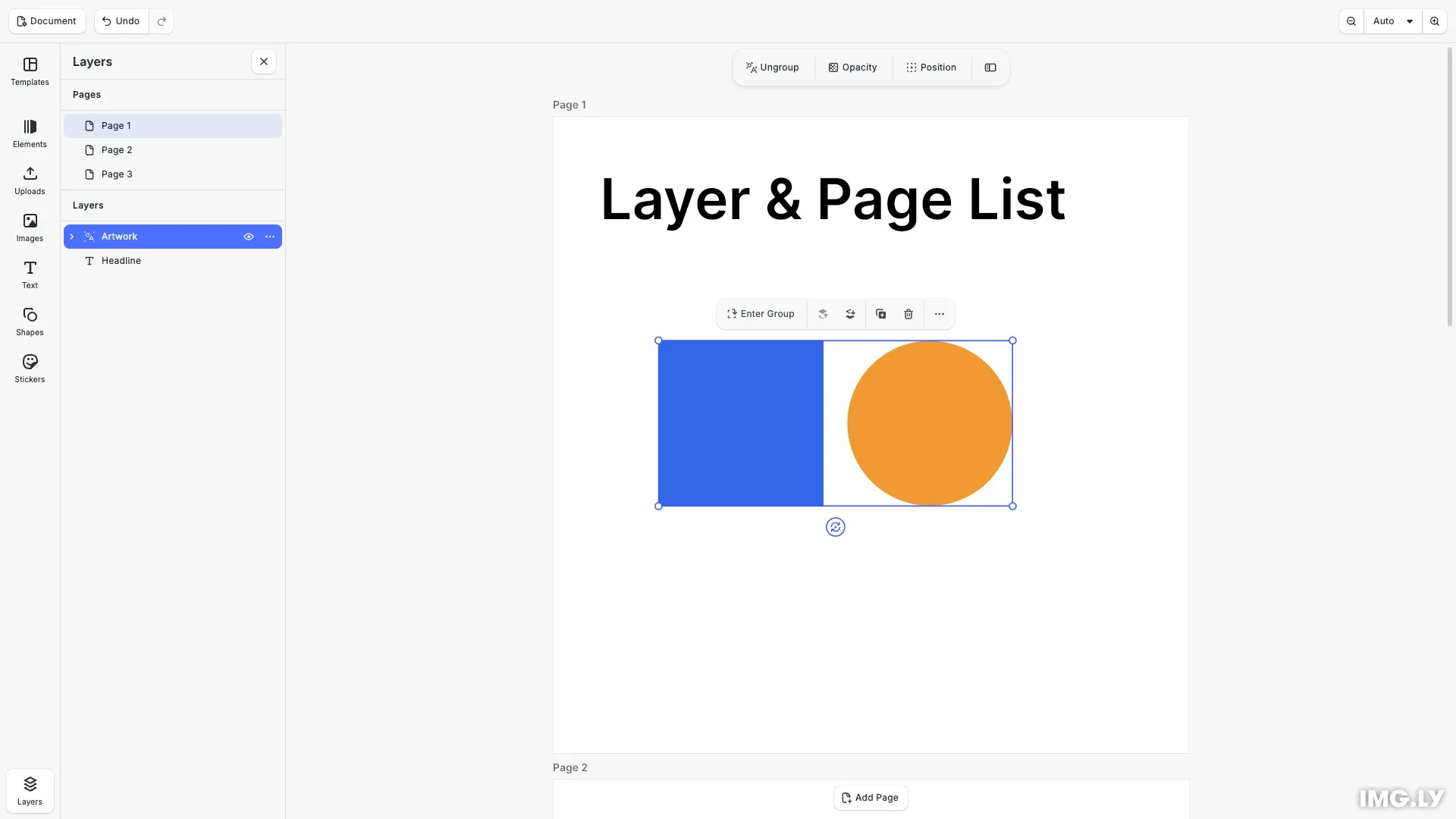
The layer and page list is the panel the dock’s Layers button opens. It shows the document’s pages above the layers of the page being worked on, one row per block, and each row selects, renames, hides, locks and reorders the block it stands for.
This guide covers the three APIs that configure it, each in its own section below:
- Enable / Disable — the
ly.img.layerList.*feature keys decide which parts of the list exist, which sections it shows, and whether picking a row moves the canvas. - Opening the List — the Panel API opens, places and floats it; the dock order decides where its button sits.
- Row Menu — the Component Order API drives the menu on each row, per row kind.
For what the list does once it is on screen — selection, drag-to-reorder, the keyboard — see Layers.
Enable / Disable#
The list is governed by the Feature API. ly.img.layerList is the parent key; its ten children each control one part of the list, so turning one off leaves the rest working.
// Each row control has its own key, so turning one off leaves the rest of// the list working.cesdk.feature.disable('ly.img.layerList.lock');| Feature key | Controls |
|---|---|
ly.img.layerList |
Parent key: enables all children below |
ly.img.layerList.panel |
The panel |
ly.img.layerList.pages |
The pages section |
ly.img.layerList.layers |
The layers section |
ly.img.layerList.combined |
One tree of every page with its layers, in place of the two sections |
ly.img.layerList.canvasFollow |
Scrolling the canvas to the block a row picks |
ly.img.layerList.visibility |
The hide/show toggle on a row |
ly.img.layerList.lock |
The lock toggle on a row |
ly.img.layerList.reorder |
Dragging a row to reorder it |
ly.img.layerList.rename |
Renaming a row in place |
ly.img.layerList.menu |
The menu on a row |
The design and advanced editor configurations enable every key except ly.img.layerList.combined. A configuration lists the keys it wants one by one; enabling the parent key instead turns on every child, combined included, and the list becomes a single tree.
Sections#
Three keys choose what the list shows. With ly.img.layerList.pages and ly.img.layerList.layers enabled, the pages sit above the current page’s layers. Disabling one of the two leaves the other on its own. ly.img.layerList.combined replaces both with a single tree of every page and its layers.
// The pages sit above the current page's layers. `combined` would replace// both with one tree of every page and its layers.cesdk.feature.enable('ly.img.layerList.pages');cesdk.feature.enable('ly.img.layerList.layers');// cesdk.feature.enable('ly.img.layerList.combined');Canvas Follow#
ly.img.layerList.canvasFollow decides whether picking a row moves the canvas. Its default predicate follows a page row only, so navigating between pages works while clicking a layer already on screen leaves the canvas alone. cesdk.feature.set('ly.img.layerList.canvasFollow', true) follows every row, and cesdk.feature.disable() follows none. It scrolls rather than zooms, so the zoom level is left where the user put it.
// By default picking a page row scrolls the canvas to it and picking a// layer row leaves the canvas alone. `true` follows every row; `disable`// follows none.cesdk.feature.set('ly.img.layerList.canvasFollow', true);Opening the List#
The list is a panel like any other, registered under the id //ly.img.panel/layers. Open it with cesdk.ui.openPanel(), close it with cesdk.ui.closePanel(), and read its state with cesdk.ui.isPanelOpen().
// The list is a panel like any other, so the Panel API opens it.cesdk.ui.openPanel('//ly.img.panel/layers');It takes the same placement APIs as the inspector and the asset library. cesdk.ui.setPanelPosition() moves it between the two sides, and cesdk.ui.setPanelFloating() decides whether it floats over the canvas or docks beside it. It belongs to no panel group, so an asset library opened over it does not close it.
// Place it beside the canvas rather than floating over it.cesdk.ui.setPanelPosition('//ly.img.panel/layers', 'left');cesdk.ui.setPanelFloating('//ly.img.panel/layers', false);The Dock Button#
The Layers button is an ordinary dock entry: ly.img.assetLibrary.dock with the key ly.img.layerList, no entries, and a click handler that opens and closes the panel. The design and advanced editor configurations end their dock order with a spacer, a separator and that entry, which holds it at the bottom.
{ id: 'ly.img.assetLibrary.dock', key: 'ly.img.layerList', icon: '@imgly/Layers', label: 'component.layerList', entries: [], isSelected: () => cesdk.ui.isPanelOpen('//ly.img.panel/layers'), onClick: () => { if (cesdk.ui.isPanelOpen('//ly.img.panel/layers')) { cesdk.ui.closePanel('//ly.img.panel/layers'); } else { cesdk.ui.openPanel('//ly.img.panel/layers'); } }}The spacer takes the leftover room, so a dock button appended with position: 'end' lands below the Layers button. Pass before: 'ly.img.spacer' to keep your own button up with the asset libraries.
cesdk.ui.insertOrderComponent( { in: 'ly.img.dock', before: 'ly.img.spacer' }, { id: 'ly.img.assetLibrary.dock', key: 'my-library', entries: ['my.library'] });An integration that opens the list from its own control removes the built-in button and keeps the panel:
cesdk.ui.removeOrderComponent({ in: 'ly.img.dock', match: { id: 'ly.img.assetLibrary.dock', key: 'ly.img.layerList' }});For the rest of the dock order, see Dock.
Row Menu#
The menu on each row is a Component Order API area identified by ly.img.layerList.menu, gated by the ly.img.layerList.menu feature. A page row and a layer row hold separate orders, selected with the rowKind context. An order read or written without a when clause is the layer row’s.
// Without a `when` clause the layer row order is returned.const layerMenu = cesdk.ui.getComponentOrder({  in: 'ly.img.layerList.menu'});console.log('Default layer row menu:', layerMenu);
const pageMenu = cesdk.ui.getComponentOrder({  in: 'ly.img.layerList.menu',  when: { rowKind: 'page' }});console.log('Default page row menu:', pageMenu);
Default Menu Order#
A layer row offers rename, duplicate and delete, then group and ungroup, then the four arrange commands, with separators between the three runs.
A page row offers rename, duplicate and delete, then add page above and add page below. A page has no place in the stacking order and cannot be grouped, so those commands are absent from its menu rather than present and disabled.
Built-in Component IDs#
These IDs are available for a row menu order, alongside any component you register yourself.
| Component ID | Description |
|---|---|
ly.img.separator |
Visual divider between groups |
ly.img.layerList.menu.rename |
Rename the block in place |
ly.img.layerList.menu.duplicate |
Duplicate the block |
ly.img.layerList.menu.delete |
Delete the block |
ly.img.layerList.menu.group |
Group the selected blocks |
ly.img.layerList.menu.ungroup |
Dissolve the selected group |
ly.img.layerList.menu.bringToFront |
Move in front of every sibling |
ly.img.layerList.menu.bringForward |
Move one step towards the front |
ly.img.layerList.menu.sendBackward |
Move one step towards the back |
ly.img.layerList.menu.sendToBack |
Move behind every sibling |
ly.img.layerList.menu.page.addAbove |
Add a page above this one |
ly.img.layerList.menu.page.addBelow |
Add a page below this one |
Trimming the Menu#
cesdk.ui.removeOrderComponent() drops an entry. Here the four arrange commands come out of the layer row’s menu, leaving dragging a row and the bracket shortcuts as the ways to reorder a block.
// Drop the four arrange commands from a layer row's menu. Dragging a row// and the bracket shortcuts still reorder blocks.( [ 'ly.img.layerList.menu.bringToFront', 'ly.img.layerList.menu.bringForward', 'ly.img.layerList.menu.sendBackward', 'ly.img.layerList.menu.sendToBack' ] as const).forEach((match) => { cesdk.ui.removeOrderComponent({ in: 'ly.img.layerList.menu', match });});cesdk.ui.setComponentOrder() replaces an order outright, and cesdk.ui.updateOrderComponent() edits an entry in place — to relabel it, or to disable it under a condition.
Adding Your Own Entry#
A custom entry is a component registered with cesdk.ui.registerComponent() and inserted into the order. Passing when: { rowKind: 'page' } puts it on page rows only.
// A custom entry is a registered component like any other.cesdk.ui.registerComponent(  'ly.img.layerList.menu.copyName',  ({ builder, engine }) => {    const [block] = engine.block.findAllSelected();    builder.Button('ly.img.layerList.menu.copyName', {      label: 'Copy Name',      icon: '@imgly/Copy',      isDisabled: block == null,      onClick: () => {        if (block == null) return;        void navigator.clipboard.writeText(engine.block.getName(block));      }    });  });
// Page rows only, so a layer row's menu is left alone.cesdk.ui.insertOrderComponent(  {    in: 'ly.img.layerList.menu',    when: { rowKind: 'page' },    after: 'ly.img.layerList.menu.delete'  },  'ly.img.layerList.menu.copyName');
A command from a row’s menu applies to the whole selection when the row it was opened from is part of that selection, and to that row alone otherwise.
For every matcher and position option these methods accept, see Component Order API.
Troubleshooting#
No Layers button in the dock: the editor configuration has no entry keyed ly.img.layerList in its dock order. Only the design and advanced editor configurations declare one.
A custom dock button sits below the Layers button: it was appended with position: 'end', which lands past the spacer the configuration ends with. Insert it with before: 'ly.img.spacer' instead.
Rows carry no padlock: either ly.img.layerList.lock is disabled, or the active role lacks the ui/fixLayers scope.
The list shows one tree instead of two sections: ly.img.layerList.combined is enabled, most likely because the parent key ly.img.layerList was enabled and cascaded to it. Disable combined, or list the child keys instead of the parent.
A menu change does not reach page rows: the order was set without when: { rowKind: 'page' }, so it applied to layer rows. Page rows read their own order.
API Reference#
| Method | Purpose |
|---|---|
cesdk.feature.enable(id) |
Enable a layer list feature or the whole family |
cesdk.feature.disable(id) |
Disable a layer list feature |
cesdk.feature.set(id, enabled) |
Replace a feature’s predicate, e.g. follow every row |
cesdk.ui.openPanel('//ly.img.panel/layers') |
Open the list |
cesdk.ui.closePanel('//ly.img.panel/layers') |
Close the list |
cesdk.ui.isPanelOpen('//ly.img.panel/layers') |
Read whether the list is open |
cesdk.ui.setPanelPosition(id, position) |
Place the list on the left or the right |
cesdk.ui.setPanelFloating(id, floating) |
Float the list over the canvas |
cesdk.ui.getComponentOrder({ in, when }) |
Read a row menu order |
cesdk.ui.setComponentOrder({ in, when }, order) |
Replace a row menu order |
cesdk.ui.insertOrderComponent({ in, when, before }, c) |
Insert an entry into a row menu |
cesdk.ui.updateOrderComponent({ in, when, match }, update) |
Edit an entry of a row menu |
cesdk.ui.removeOrderComponent({ in, when, match }) |
Remove an entry from a row menu, or the dock button |
cesdk.ui.registerComponent(id, renderFunction) |
Register a custom row menu entry |
Next Steps#
- Layers - What the list does once it is on screen, and the block APIs behind it
- Component Order API - Every matcher and option a row menu order accepts
- Dock - Move, replace, or remove the Layers button
- Panel - Place and float the list alongside the other panels