Search
Loading...
Skip to content

Inspector Bar

This guide shows you how to customize the inspector bar in CE.SDK, the contextual toolbar that appears above the canvas when a block is selected. You’ll learn how to control which components appear, reorder them, add custom components, and configure layouts for different edit modes.

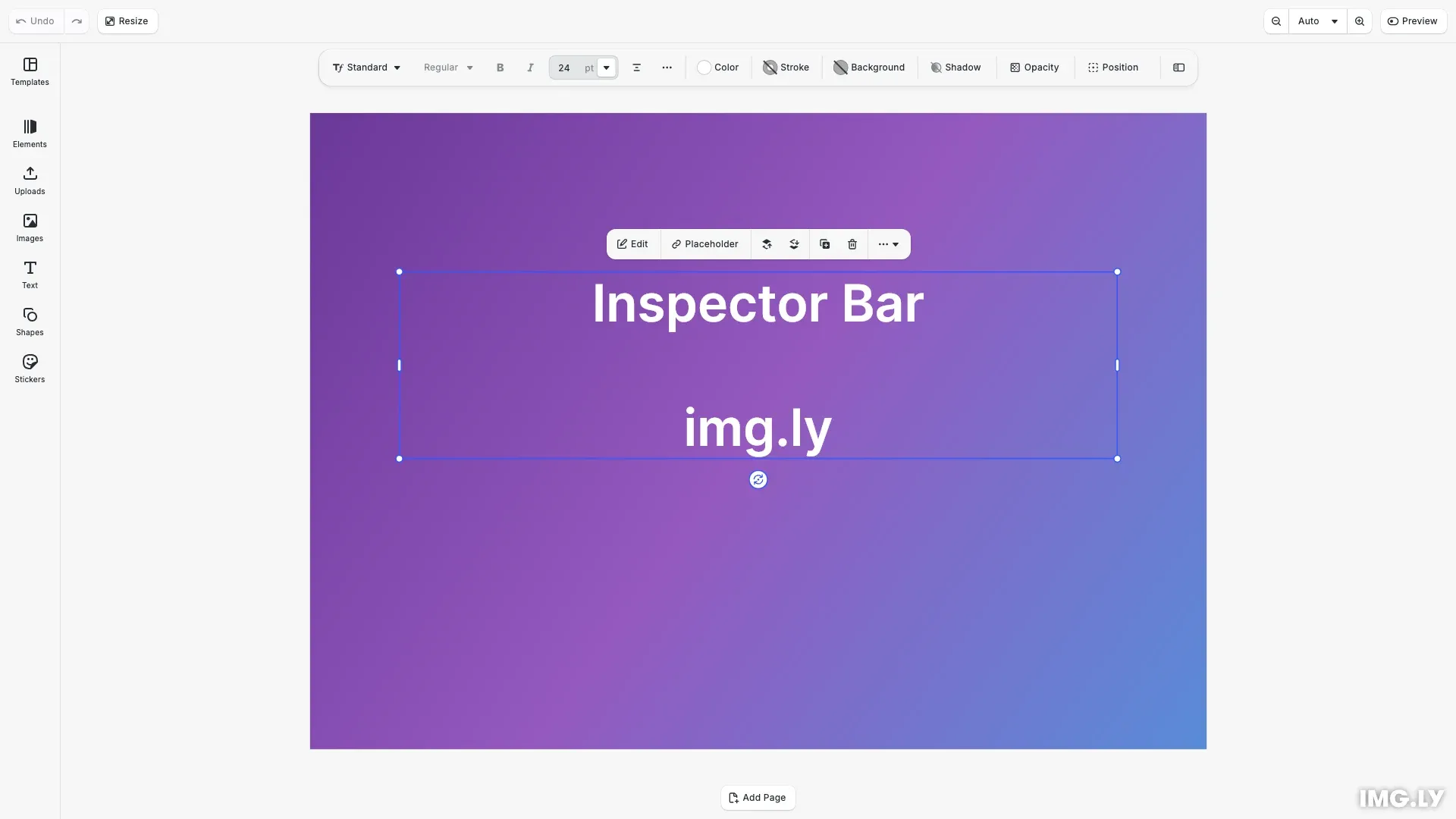
Inspector Bar customization showing CE.SDK with customized inspector bar controls

10 mins
estimated time
Download
StackBlitz
GitHub

This guide demonstrates CE.SDK’s Inspector Bar Order API through a working example that shows how to customize the inspector bar programmatically, including getting and setting the component order, inserting custom components, removing built-in components, and configuring different layouts for different edit modes.

The main location for block-specific functionality is the inspector bar. Any action or setting available to the user for the currently selected block that does not appear in the canvas menu should be added here.

Show or Hide the Inspector Bar#

Two different views of the editor are available:

  • The ‘advanced’ view always shows an inspector panel to the side of the canvas.
  • The ‘default’ view hides the inspector panel until it is needed, and uses a minimal inspector bar on top of the canvas instead.

Use cesdk.ui.setView() to toggle between 'advanced' and 'default' view after initializing the editor.

// Control inspector bar visibility with view modes
// The inspector bar appears in 'default' view and is hidden in 'advanced' view
const currentView = cesdk.ui.getView();
console.log('Current view mode:', currentView);
// Toggle between default (inspector bar visible) and advanced (inspector panel visible)
// Uncomment to switch views:
// cesdk.ui.setView('advanced'); // Hides inspector bar, shows inspector panel
// cesdk.ui.setView('default'); // Shows inspector bar

Show or Hide Sections#

  • opacity: boolean shows or hides the opacity section in the inspector ui for every block.
  • transform: boolean shows or hides the transform section in the inspector ui for every block.
  • adjustments: boolean shows or hides the adjustments section in the inspector ui for the image block.
  • filters: boolean shows or hides the filters section in the inspector ui for the image block.
  • effects: boolean shows or hides the effects section in the inspector ui for the image block.
  • blur: boolean shows or hides the blur section in the inspector ui for the image block.
  • crop: boolean shows or hides the crop section in the inspector ui for the image block.
import CreativeEditorSDK from 'https://cdn.img.ly/packages/imgly/cesdk-js/1.67.0/index.js';
const config = {
// license: 'YOUR_CESDK_LICENSE_KEY',
userId: 'guides-user',
ui: {
elements: {
/* ... */
navigation: {
/* ... */
},
panels: {
/* ... */
},
dock: {
/* ... */
},
libraries: {
/* ... */
},
blocks: {
opacity: false, // true or false
transform: false, // true or false
'//ly.img.ubq/graphic': {
adjustments: true, // true or false
filters: false, // true or false
effects: false, // true or false
blur: true, // true or false
crop: false, // true or false
},
/* ... */
},
},
},
};
CreativeEditorSDK.create('#cesdk_container', config).then(async instance => {
// Set the editor view mode
instance.ui.setView('default');
// Do something with the instance of CreativeEditor SDK, for example:
// Populate the asset library with default / demo asset sources.
cesdk.addDefaultAssetSources();
cesdk.addDemoAssetSources({
sceneMode: 'Design',
withUploadAssetSources: true,
});
await cesdk.createDesignScene();
});

Pages#

  • manage: boolean if false removes all UI elements to add/duplicate/delete pages for every role.
  • format: boolean if false removes all UI elements to change the format of pages for every role.
  • maxDuration: number controls the maximum allowed duration of a page, if in video mode
import CreativeEditorSDK from 'https://cdn.img.ly/packages/imgly/cesdk-js/1.67.0/index.js';
const config = {
// license: 'YOUR_CESDK_LICENSE_KEY',
userId: 'guides-user',
ui: {
elements: {
/* ... */
navigation: {
/* ... */
},
panels: {
/* ... */
},
dock: {
/* ... */
},
libraries: {
/* ... */
},
blocks: {
/* ... */
'//ly.img.ubq/page': {
manage: true,
format: true,
maxDuration: 30 * 60,
},
},
},
},
};
CreativeEditorSDK.create('#cesdk_container', config).then(async instance => {
// Set the editor view mode
instance.ui.setView('default');
// Do something with the instance of CreativeEditor SDK, for example:
// Populate the asset library with default / demo asset sources.
cesdk.addDefaultAssetSources();
cesdk.addDemoAssetSources({
sceneMode: 'Design',
withUploadAssetSources: true,
});
await cesdk.createDesignScene();
});

Rearrange Components#

There are 6 APIs for getting, setting, updating, removing, and inserting components in the Inspector Bar.

The content of the Inspector Bar changes based on the current edit mode ('Transform' (the default), 'Text', 'Crop', 'Trim', or a custom value), so all APIs accept an orderContext argument to specify the mode.

For example usage of these APIs, see also Moving Existing Buttons in the Guides section.

Get the Current Order#

Retrieve the current order of components with cesdk.ui.getInspectorBarOrder(). This returns an array of OrderComponent objects, each with an id and optional key property.

// Get the current inspector bar order
const currentOrder = cesdk.ui.getInspectorBarOrder();
console.log('Current inspector bar order:', currentOrder);
// Get the order for a specific edit mode
const cropOrder = cesdk.ui.getInspectorBarOrder({ editMode: 'Crop' });
console.log('Crop mode inspector bar order:', cropOrder);

When omitting the orderContext parameter, the order for the 'Transform' edit mode is returned. You can pass an orderContext object with an editMode property to get the order for a specific edit mode.

Set a new Order#

Replace the entire inspector bar order with cesdk.ui.setInspectorBarOrder(). You can pass either component ID strings or OrderComponent objects.

// Set a completely new inspector bar order
// This replaces all existing components with a simplified set
cesdk.ui.setInspectorBarOrder([
'ly.img.fill.inspectorBar',
'ly.img.separator',
'ly.img.stroke.inspectorBar',
'ly.img.separator',
'ly.img.filter.inspectorBar',
'ly.img.effect.inspectorBar',
'ly.img.spacer',
'ly.img.crop.inspectorBar'
]);

This completely replaces the existing order with the specified components. When omitting the orderContext parameter, the order is set for the default edit mode ('Transform').

Update Components#

Update properties of existing components with cesdk.ui.updateInspectorBarOrderComponent(). The key property can be used to identify specific instances when the same component ID appears multiple times.

// Update an existing component's properties
// Add a custom key to identify this specific instance
cesdk.ui.updateInspectorBarOrderComponent('ly.img.fill.inspectorBar', {
key: 'main-fill-control'
});

The matcher can be:

  • 'first' or 'last' - matches the first or last component
  • A number - matches the component at that index
  • A component ID string
  • A partial object describing the component to match
  • A function that receives the component and index, returning true if it matches

The update can be a partial object with updated properties or a function that receives the current component and returns the updated properties.

Remove Components#

Remove components from the inspector bar with cesdk.ui.removeInspectorBarOrderComponent(). This method accepts various matchers to identify which components to remove.

// Remove specific components from the inspector bar
// Remove shadow controls for a simpler UI
const removeResult = cesdk.ui.removeInspectorBarOrderComponent(
'ly.img.shadow.inspectorBar'
);
console.log('Removed components:', removeResult.removed);
// Remove multiple components using a matcher function
cesdk.ui.removeInspectorBarOrderComponent((component) =>
component.id.includes('blur')
);

The method returns an object with a removed count and the updated order array.

The matcher can be:

  • 'first' or 'last' - matches the first or last component
  • A number - matches the component at that index
  • A component ID string
  • A partial object describing the component to match
  • A function that receives the component and index, returning true if it matches

Insert Components#

Insert components at specific positions with cesdk.ui.insertInspectorBarOrderComponent().

// Insert the custom component after the crop controls
cesdk.ui.insertInspectorBarOrderComponent(
'ly.img.crop.inspectorBar',
'my.custom.quickExport.inspectorBar',
'after'
);
// Insert a component at the beginning of the inspector bar
cesdk.ui.insertInspectorBarOrderComponent(
'first',
'ly.img.opacityOptions.inspectorBar',
'before'
);

The third parameter specifies the insertion location relative to the matched component:

  • 'before' - Insert before the matched component
  • 'after' - Insert after the matched component (default)
  • 'replace' - Replace the matched component

You can use 'first' or 'last' as matchers to insert at the beginning or end of the order.

Registering Custom Components#

Before adding a custom component to the inspector bar, you must register it with cesdk.ui.registerComponent().

// Register a custom component for the inspector bar
cesdk.ui.registerComponent(
'my.custom.quickExport.inspectorBar',
({ builder }) => {
builder.Button('quick-export', {
label: 'Quick Export',
icon: '@imgly/icons/Download',
onClick: async () => {
const pages = engine.block.findByType('page');
if (pages.length > 0) {
const blob = await engine.block.export(pages[0], {
mimeType: 'image/png'
});
const url = URL.createObjectURL(blob);
const link = document.createElement('a');
link.href = url;
link.download = 'export.png';
link.click();
URL.revokeObjectURL(url);
}
}
});
}
);

The render function receives a builder object for creating UI elements like buttons, inputs, and other controls.

Edit Mode-Specific Configuration#

Configure different inspector bar layouts for different edit modes by passing an orderContext with the editMode property.

// Configure different inspector bar orders for different edit modes
// Set a minimal order for Crop mode
cesdk.ui.setInspectorBarOrder(['ly.img.cropControls.inspectorBar'], {
editMode: 'Crop'
});
// Set a custom order for Text editing mode
cesdk.ui.setInspectorBarOrder(
[
'ly.img.text.typeFace.inspectorBar',
'ly.img.text.fontSize.inspectorBar',
'ly.img.separator',
'ly.img.text.bold.inspectorBar',
'ly.img.text.italic.inspectorBar',
'ly.img.separator',
'ly.img.text.alignHorizontal.inspectorBar',
'ly.img.spacer',
'ly.img.fill.inspectorBar'
],
{ editMode: 'Text' }
);

Edit modes without specific configurations fall back to the Transform mode order.

Inspector Bar Components#

The following lists the default Inspector Bar components available within CE.SDK.

Take special note of the “Feature ID” column. Most components can be hidden/disabled by disabling the corresponding feature using the Feature API.

Also note that many components are only rendered for the block types listed in the “Renders for” column, because their associated controls (e.g. font size) are only meaningful for specific kinds of blocks (e.g. text).

Layout Helpers#

Component IDDescription
ly.img.separatorAdds a vertical separator (<hr> element) in the Inspector Bar.
Separators follow some special layouting rules:
- If 2 or more separators end up next to each other (e.g. due to other components not rendering), only 1 separator will be rendered.
- Separators that end up being the first or last element in the Inspector Bar will not be rendered.
- Separators directly adjacent to the left side of a spacer (see below) will not be rendered.
ly.img.spacerAdds horizontal spacing in the Inspector Bar.
Spacers will try to fill all available whitespace, by distributing the available space between all spacers found in the Inspector Bar.

Common Controls#

These components are useful for editing various different block types.

Component IDDescriptionFeature IDRenders for
ly.img.fill.inspectorBarFill controls button:
Opens the Fill panel, containing controls for selecting the fill type (Color, Image, Video, Audio) , and for editing the fill. For Color, this contains the Color Picker and the Color Library. For Images, this contains a Preview card, a “Replace” button to replace the media, and a “Crop” button for opening the Crop panel. For Video, this contains a Preview card, a “Replace” button to replace the media, a “Crop” button for opening the Crop panel, a “Trim” button for opening the Trim panel, and a Volume slider.
ly.img.fillAll blocks except: Stickers and Cutouts
ly.img.combine.inspectorBarCombine button:
Opens a dropdown offering a choice of boolean operations (Union, Subtract, Intersect, Exclude).
ly.img.combineSelections containing multiple Shapes or Cutouts
ly.img.crop.inspectorBarCrop button:
Enters Crop mode when pressed. See the section on Crop Mode below for components used during that mode.
ly.img.cropImage, Video, Shapes with Image Fill
ly.img.stroke.inspectorBarStroke controls button:
Renders a labeled color swatch button when stroke is inactive, which opens the Color Panel when pressed. When stroke is active, renders 2 additional controls: a “Width” button opening a dropdown containing a number input to control stroke width, and a “Style” button opening a dropdown containing a selection of stroke styles (Solid, Dashed, Dashed Round, Long Dashes, Long Dashed Round, Dotted).
ly.img.strokeImage, Shape, Text, Video
ly.img.adjustment.inspectorBarAdjustment button:
Opens the Adjustment panel containing sliders to influence numerous image properties (Brightness, Saturation, Contrast, Gamma, Clarity, Exposure, Shadows, Highlights, Blacks, Whites, Temperature, Sharpness).
ly.img.adjustmentImage, Shape, Text, Video
ly.img.filter.inspectorBarFilter button:
Opens the Filter panel containing a large selection of image filters, and an “Intensity” slider for the currently selected filter.
ly.img.filterImage, Shape, Text, Video
ly.img.effect.inspectorBarEffect button:
Opens the Effect panel containing a large selection of image effects, and various sliders controlling the properties of the selected effect.
ly.img.effectImage, Shape, Text, Video
ly.img.blur.inspectorBarBlur button:
Opens the Blur panel containing a selection of blur effects, and various sliders controlling the properties of the selected blur.
ly.img.blurImage, Shape, Text, Video
ly.img.shadow.inspectorBarShadow controls button:
Opens the Shadow panel containing a “Color” Subinspector controlling the shadow color, an “Angle” number input controlling the shadow offset direction, a “Distance” number input controlling the shadow offset, and a “Blur” number input controlling the shadows blur intensity).
ly.img.shadowAll blocks expect Pages, Cutouts, and Groups
ly.img.position.inspectorBarPosition button:
Opens a dropdown containing a selection of position commands (Bring to Front, Bring Forward, Send Backward, Send to Back, Fixed to Front, Fixed to Back, Align Left/Centered/Right/Top/Middle/Bottom)
ly.img.positionAny block except: Pages. Selections containing multiple elements.
ly.img.options.inspectorBarMore options button:
Opens a dropdown containing an Opacity slider (if opacity is supported by the selected block), a Blend mode button opening a dropdown containing a selection of different blend modes (if blending is supported by the selected block), a “Copy Element” button to copy the element, a “Paste Element” button to insert a previously copied element, and a “Show Inspector” button that opens the Advanced UI Inspector when pressed.
ly.img.optionsEvery block
ly.img.inspectorToggle.inspectorBarInspector Toggle Button:
Opens the Advanced UI Inspector when pressed.
ly.img.inspector.toggleEvery block

Text#

These components are relevant for editing text blocks, and will only render when a text block is selected.

Component IDDescriptionFeature ID
ly.img.text.typeFace.inspectorBar Typeface selection button:
Opens a dropdown containing available typefaces.
ly.img.text.typeface
ly.img.text.fontSize.inspectorBarFont size controls:
A labeled number input to set the font size, with a button to open a dropdown containing many preset sizes and the “Auto-Size” option.
ly.img.text.fontSize
ly.img.text.bold.inspectorBarBold font toggle:
Toggles the bold cut for the selected text, if available in the currently used font.
ly.img.text.fontStyle
ly.img.text.italic.inspectorBarItalic font toggle:
Toggles the italic cut for the selected text, if available in the currently used font.
ly.img.text.fontStyle
ly.img.text.alignHorizontal.inspectorBarText alignment button:
Opens a dropdown containing options to align the selected text horizontally (to the left, to the right, or centered).
ly.img.text.alignment

Shape#

These components are relevant for editing shape blocks, and will only render when a shape block is selected.

Component IDDescriptionFeature ID
ly.img.shape.options.inspectorBarShape options button:
Opens a dropdown containing sliders to set number of sides, number of points, and inner diameter (depending on the specific shape selected).
Only renders when a shape block is selected.
ly.img.shape.options

Cutout#

These components are relevant for editing cutouts, and will only render when a cutout block is selected.

Component IDDescriptionFeature ID
ly.img.cutout.type.inspectorBarCutout type button:
Opens a dropdown to select the cut type (Cut, Perforated).
ly.img.cutout
ly.img.cutout.offset.inspectorBarCutout offset button:
Opens a dropdown containing a labeled number input to set the cutout offset.
ly.img.cutout
ly.img.cutout.smoothing.inspectorBarCutout smoothing button:
Opens a dropdown containing a labeled slider controlling the outline smoothing.
ly.img.cutout

Video, Audio#

These components are relevant for editing video and audio.

Component IDDescriptionFeature IDRenders for
ly.img.trim.inspectorBarTrim button:
Enters Trim mode when pressed. See the section on Trim Mode below for components used during that mode.
ly.img.trimVideo, Audio
ly.img.volume.inspectorBarVolume control for audio and video.ly.img.volumeVideo, Audio
ly.img.audio.replace.inspectorBarReplace button:
Opens the “Replace Audio” panel when pressed.
ly.img.replaceAudio

Groups#

Component IDDescriptionFeature IDRenders for
ly.img.group.create.inspectorBarGroup button:
When pressed, creates a new group from all selected elements.
ly.img.groupSelections containing multiple elements
ly.img.group.ungroup.inspectorBarUngroup button:
When pressed, the selected group is dissolved, and all contained elements are released.
ly.img.groupGroups

Crop#

This component only appears in Crop mode by default. Registering it for other edit modes is not meaningful.

Component IDDescriptionFeature ID
ly.img.cropControls.inspectorBarControls used when cropping images:
These include a “Done” button to finish cropping, a “Straighten” slider for rotating the image, a “Turn” button to rotate the image by 90 degrees, “Mirror” buttons to flip the image vertically/horizontally, and a “Reset” button to reset the crop.)
ly.img.crop

Trim#

This component only appears in Trim mode by default. Registering it for other edit modes is not meaningful.

Component IDDescriptionFeature ID
ly.img.trimControls.inspectorBarControls used when trimming video and audio:
These include a “Play” button to preview the trimmed video, a “Duration” number input to set the trim duration, a video/audio strip visualizing the trimmed section in relation to the full media, and a “Done” button to finish trimming.
ly.img.trim

Default Order#

The default order of the Inspector Bar is the following:

Transform Mode#

[
'ly.img.spacer',
'ly.img.shape.options.inspectorBar',
'ly.img.cutout.type.inspectorBar',
'ly.img.cutout.offset.inspectorBar',
'ly.img.cutout.smoothing.inspectorBar',
'ly.img.group.create.inspectorBar',
'ly.img.group.ungroup.inspectorBar',
'ly.img.audio.replace.inspectorBar',
'ly.img.separator',
'ly.img.text.typeFace.inspectorBar',
'ly.img.text.style.inspectorBar',
'ly.img.text.bold.inspectorBar',
'ly.img.text.italic.inspectorBar',
'ly.img.text.fontSize.inspectorBar',
'ly.img.text.alignHorizontal.inspectorBar',
'ly.img.text.advanced.inspectorBar',
'ly.img.combine.inspectorBar',
'ly.img.separator',
'ly.img.fill.inspectorBar',
'ly.img.trim.inspectorBar',
'ly.img.volume.inspectorBar',
'ly.img.crop.inspectorBar',
'ly.img.separator',
'ly.img.stroke.inspectorBar',
'ly.img.separator',
'ly.img.text.background.inspectorBar',
'ly.img.separator',
'ly.img.animations.inspectorBar',
'ly.img.separator',
'ly.img.adjustment.inspectorBar',
'ly.img.filter.inspectorBar',
'ly.img.effect.inspectorBar',
'ly.img.blur.inspectorBar',
'ly.img.separator',
'ly.img.shadow.inspectorBar',
'ly.img.separator',
'ly.img.opacityOptions.inspectorBar',
'ly.img.separator',
'ly.img.position.inspectorBar',
'ly.img.spacer',
'ly.img.separator',
'ly.img.inspectorToggle.inspectorBar',
];

Crop Mode#

['ly.img.cropControls.inspectorBar'];

Trim Mode#

['ly.img.trimControls.inspectorBar'];

API Reference#

MethodParametersReturnsPurpose
cesdk.ui.getInspectorBarOrder()orderContext?: { editMode: EditMode }OrderComponent[]Get current component order
cesdk.ui.setInspectorBarOrder()order: (string | OrderComponent)[], orderContext?: { editMode: EditMode }voidSet complete component order
cesdk.ui.insertInspectorBarOrderComponent()matcher, component, location?, orderContext?{ inserted: boolean, order: OrderComponent[] }Insert component at position
cesdk.ui.removeInspectorBarOrderComponent()matcher, orderContext?{ removed: number, order: OrderComponent[] }Remove matching components
cesdk.ui.updateInspectorBarOrderComponent()matcher, update, orderContext?{ updated: number, order: OrderComponent[] }Update component properties
cesdk.ui.registerComponent()id: string | string[], renderFunctionvoidRegister custom component
cesdk.ui.setView()view: 'default' | 'advanced'voidControl inspector bar visibility
cesdk.ui.getView()none'default' | 'advanced'Get current view mode