Add AI-powered text-to-speech and sound effect generation directly into your CE.SDK application using the Audio Generation plugin powered by ElevenLabs.
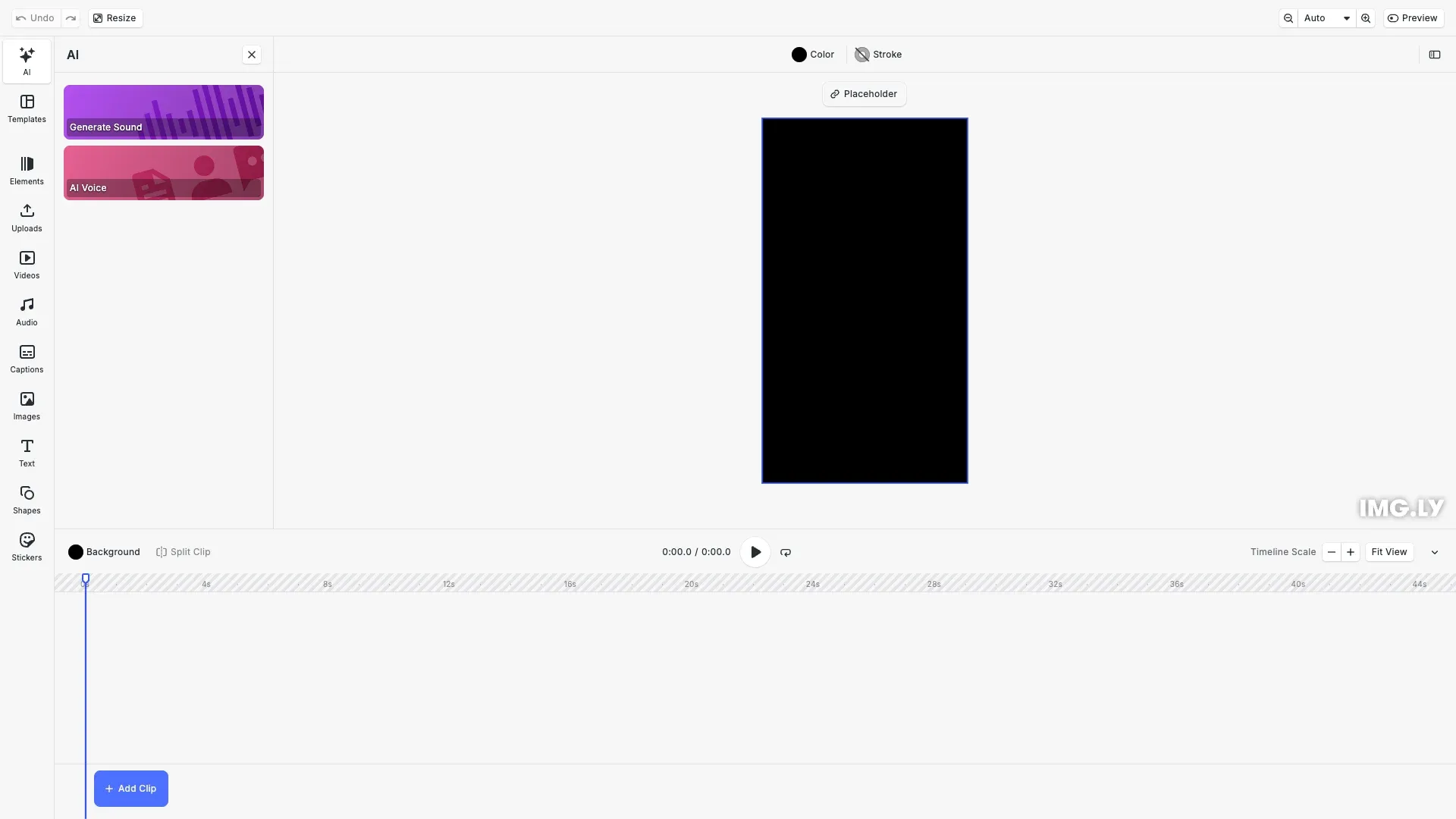
The Audio Generation plugin provides two main capabilities: text-to-speech with multiple voice options and sound effect generation from text descriptions. The plugin adds a built-in UI to CE.SDK that allows end users to generate audio content, while also providing programmatic control for automation workflows.
This guide covers installing the plugin, configuring providers, customizing voice parameters, controlling feature visibility, implementing middleware, and troubleshooting common issues.
Prerequisites#
Before integrating audio generation, ensure you have:
- CE.SDK installed in your project
- An ElevenLabs API account for audio generation
- A proxy server to securely forward API requests (required for production)
- Basic familiarity with plugin installation in CE.SDK
Using the Built-in Audio Generation UI#
When the Audio Generation plugin is configured, users can access audio generation features directly within the CE.SDK interface. The plugin automatically adds UI panels that allow users to:
- Choose between text-to-speech and sound effects generation
- Select from available voices (for text-to-speech)
- Enter text prompts describing the desired audio
- Adjust generation parameters like speed and stability
- Preview and use generated audio in their designs
Generated audio automatically appears in the asset library and can be added to scenes like any other audio asset. The plugin handles all UI rendering, asset management, and integration with CE.SDK’s existing workflows.
Installing the Plugin#
Install the audio generation plugin package:
npm install @imgly/plugin-ai-audio-generation-webyarn add @imgly/plugin-ai-audio-generation-webpnpm add @imgly/plugin-ai-audio-generation-webImport the plugin and provider modules in your application:
import AiApps from '@imgly/plugin-ai-apps-web';import Elevenlabs from '@imgly/plugin-ai-audio-generation-web/elevenlabs';The plugin provides the AudioGeneration function for configuration and the Elevenlabs module containing provider implementations.
Configuring Audio Generation Providers#
We configure audio generation by calling cesdk.addPlugin() with the AudioGeneration plugin and provider settings. The configuration includes the provider type, a proxy URL for secure API communication, and optional headers for request metadata.
For available voices and models, see the ElevenLabs Models documentation.
// Configure audio generation with text-to-speech and sound effectsawait cesdk.addPlugin( AiApps({ providers: { text2speech: Elevenlabs.ElevenMultilingualV2({ proxyUrl, properties: { voice_id: 'pNInz6obpgDQGcFmaJgB' // Default voice } } as any), text2sound: Elevenlabs.ElevenSoundEffects({ proxyUrl } as any) }, // IMPORTANT: dryRun mode simulates generation without API calls dryRun: true }));The proxyUrl parameter is required and should point to your proxy server that forwards requests to ElevenLabs. Custom headers allow you to add metadata like client version or request tracking information.
Setting Up a Proxy Server#
A proxy server protects your API keys by forwarding requests server-side. See the Proxy Server guide for implementation details and examples.
Customizing Voice Parameters#
The properties configuration object allows you to set default voice properties and generation parameters:
text2speech: Elevenlabs.ElevenMultilingualV2({ proxyUrl, properties: { voice_id: 'pNInz6obpgDQGcFmaJgB', // Default voice voice_settings_stability: 0.5, voice_settings_similarity_boost: 0.75, },});The voice_id parameter selects which ElevenLabs voice to use. Stability controls voice consistency (higher values = more consistent), while similarity boost affects how closely the generated voice matches the selected voice model. These defaults can still be adjusted by users through the UI.
Multiple Provider Configuration#
We can configure multiple providers to give users a choice of voices or generation models. When multiple providers are configured, the plugin automatically displays a provider selection interface:
await cesdk.addPlugin( AiApps({ providers: { text2speech: [ Elevenlabs.ElevenMultilingualV2({ proxyUrl, properties: { voice_id: 'voice_1' }, }), Elevenlabs.ElevenMultilingualV2({ proxyUrl, properties: { voice_id: 'voice_2' }, }), ], }, }),);Each provider in the array can have different voice settings, allowing you to offer users a curated selection of voice options with predefined characteristics.
Controlling Feature Visibility#
We can control which plugin features are visible to users using cesdk.feature.enable(). This is useful when you want to restrict users to a single provider or hide certain UI elements:
cesdk.feature.enable( 'ly.img.plugin-ai-audio-generation-web.speech.providerSelect', false,);The feature ID ly.img.plugin-ai-audio-generation-web.speech.providerSelect controls the provider selection UI. Setting it to false hides the selection interface when you’ve configured only one provider and don’t want users choosing between options.
Customizing Labels and Translations#
We can customize the plugin’s UI text using cesdk.i18n.setTranslations(). The i18n system supports both provider-specific and generic translation keys:
cesdk.i18n.setTranslations({ en: { 'ly.img.plugin-ai-generation-web.property.prompt': 'Describe the audio you want to generate', 'ly.img.plugin-ai-audio-generation-web.elevenlabs/multilingual/v2.property.voice_id': 'Select Voice', },});Translation keys follow a hierarchy where provider-specific keys (including the provider name) take precedence over generic keys. This allows you to customize text differently for each provider or apply consistent changes across all providers.
Implementing Middleware#
Middleware functions intercept generation requests and responses, enabling logging, rate limiting, or custom error handling:
const loggingMiddleware = async (input, options, next) => {  console.log('Generation started:', input);  const result = await next(input, options);  console.log('Generation completed:', result);  return result;};
await cesdk.addPlugin(  AiApps({    providers: {      text2speech: Elevenlabs.ElevenMultilingualV2({ proxyUrl }),    },    middleware: [loggingMiddleware],  }),);
Middleware receives the input parameters, an options object, and a next callback. Calling next continues the generation process. Middleware can modify inputs before generation, process outputs after generation, or implement cross-cutting concerns like logging and rate limiting.
Testing Without API Calls#
We can test the plugin configuration without making actual API calls using the debug and dryRun options:
await cesdk.addPlugin( AiApps({ providers: { text2speech: Elevenlabs.ElevenMultilingualV2({ proxyUrl }), }, debug: true, // Enable console logging dryRun: true, // Simulate generation without API calls }),);Debug mode logs request and response details to the console, helping you verify configuration. Dry-run mode simulates generation without calling the ElevenLabs API, useful for testing integration and UI flows without incurring API costs.
Accessing Generated Audio#
Generated audio is automatically stored in provider-specific history sources within the asset library. We can access these assets programmatically if needed:
const assets = await cesdk.engine.asset.findAssets( 'elevenlabs/multilingual/v2.history',);The history source ID follows the pattern {provider}/{variant}.history. Assets include metadata like the prompt used and generation parameters. Users can also access generated audio through the asset library UI and add it to their scenes.
Troubleshooting#
Common issues when configuring the Audio Generation plugin:
Plugin not appearing in UI: Verify the plugin package is installed and the addPlugin() call completed successfully. Check the browser console for initialization errors.
Proxy errors: Ensure your proxy URL is accessible from the client and properly configured for CORS. Verify the proxy is forwarding requests correctly to ElevenLabs with your API key.
Generation failures: Check that your ElevenLabs API key is valid and has sufficient quota. Verify the proxy is passing through error responses for debugging.
Provider selection not showing: Confirm you’ve configured multiple providers in an array. A single provider configuration doesn’t display the selection UI.
Custom translations not applying: Verify the translation key format matches the plugin’s expected pattern. Check that setTranslations() is called before the plugin UI is rendered.
Middleware not executing: Ensure the middleware array is included in the plugin configuration at the top level, not inside individual provider configurations.
Audio not appearing in scene: Check that the asset library is configured to show audio assets and that the history source is enabled.
API Reference#
| Method | Purpose |
|---|---|
cesdk.addPlugin() | Register and initialize the Audio Generation plugin with CE.SDK |
AudioGeneration() | Create the plugin instance with provider configuration and options |
Elevenlabs.ElevenMultilingualV2() | Configure a text-to-speech generation provider with voice selection |
Elevenlabs.ElevenSoundEffects() | Configure a sound effect generation provider for ambient audio |
cesdk.feature.enable() | Control visibility of plugin features like provider selection |
cesdk.i18n.setTranslations() | Customize UI labels and translations for different languages |
engine.asset.findAssets() | Query generated audio assets from provider history sources |
Next Steps#
- Proxy Server — Set up secure API communication
- Custom Provider — Create custom AI providers
- Integrate AI Features — Overview of AI integration
- Asset Library Basics — Work with generated assets
- Customize Asset Library — Configure asset sources