Use variable fonts to offer a full range of font weights and styles from a single font file.
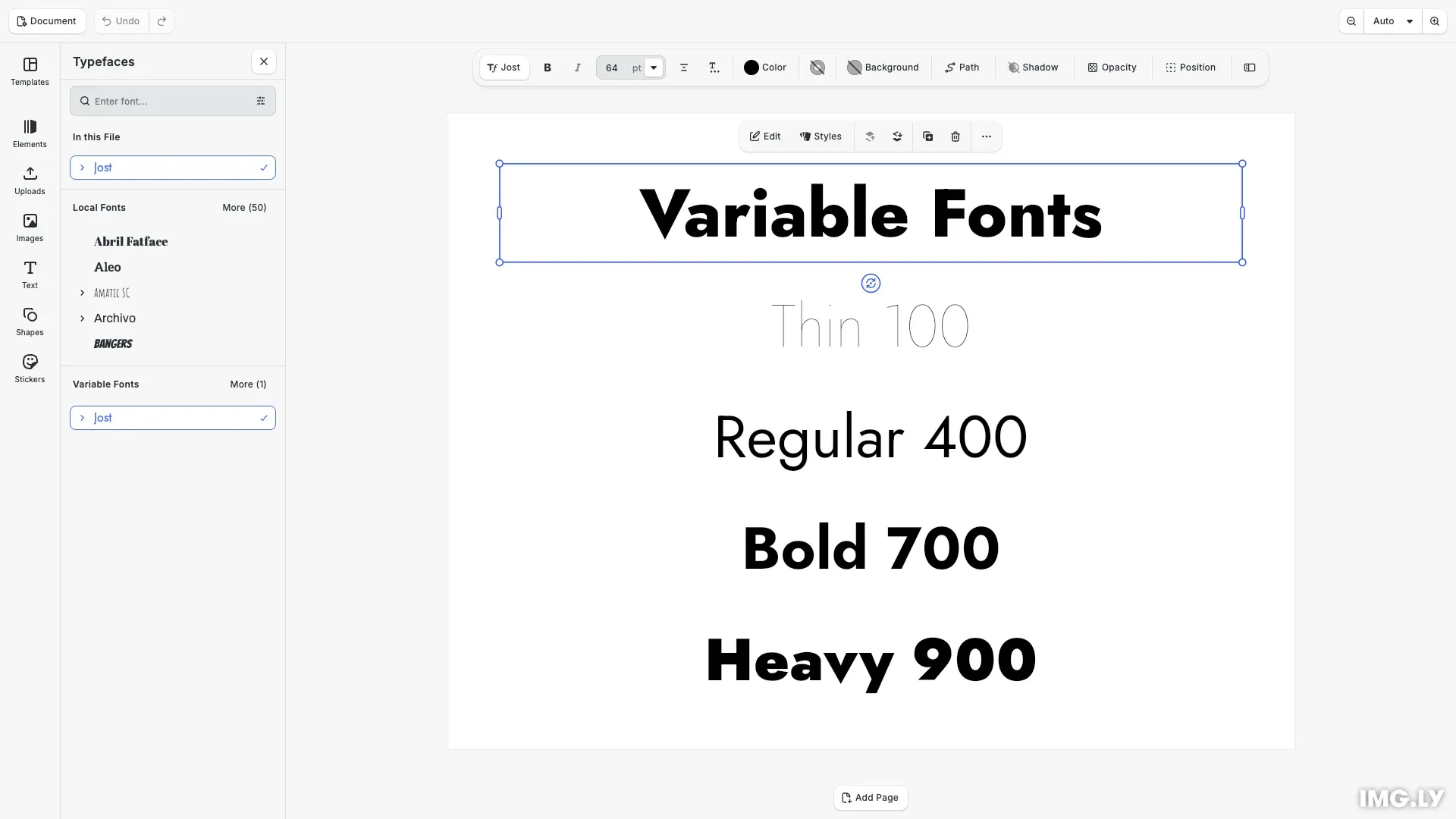
Variable fonts are OpenType fonts that pack multiple variations of a font family into a single file. Instead of loading one file per weight, you register a single file and CE.SDK renders each variant by applying variation axis values. This reduces network requests and simplifies font management, especially for typefaces with many weights.
This guide covers how CE.SDK detects variable fonts, how to generate all font variants from a single file with createVariableFontCombinations(), how to register the result as a custom typeface, and how to switch between weights and styles both in the editor UI and programmatically.
How CE.SDK Handles Variable Fonts#
A typeface in CE.SDK is a font family with a fonts array, where each font declares a uri, subFamily, weight and style. CE.SDK treats a typeface as a variable font when multiple fonts in the array share the same file URI. Internally, the engine encodes the selected weight and style as axis values on the font’s URI (for example font.woff2#wght=700&ital=1), so each variant has a unique identity while sharing one underlying font resource.
CE.SDK supports two variation axes:
wght- the font weight, mapped from the nine standard weightsthin(100) throughheavy(900)ital- the italic style, mapped fromnormal(0) anditalic(1)
Axis values outside the range the font file supports are clamped to the nearest supported value. Aside from how the fonts array is built, variable fonts require no special handling: the same typeface and font APIs work for static and variable fonts, and exports render the selected variant.
Generate Font Variants#
The createVariableFontCombinations() helper builds the fonts array for a variable font. It generates one font entry per weight and style combination, all pointing to the same file. The helper is exported from the @cesdk/engine package, which ships as a dependency of CE.SDK.
The second parameter controls weight variants: when true, the helper generates entries for all nine standard weights. The third parameter controls italic variants: only pass true when the font file actually provides an ital axis, otherwise the italic entries would render upright. Jost, the font we use here, has a weight axis but no italic axis:
// Jost is a variable font: one file covers all weights from 100 to 900.const fontFileURI =  'https://cdn.jsdelivr.net/fontsource/fonts/jost:vf@5/latin-wght-normal.woff2';
// Generate a font entry for every variant the file supports. All entries// share the same URI but declare different weights.const fonts = createVariableFontCombinations(  fontFileURI,  true, // weight variants: Thin (100) through Heavy (900)  false // italic variants: this file has no `ital` axis);
const typeface: Typeface = {  name: 'Jost',  fonts};
With both parameters set to true, the helper returns 18 entries (nine weights, each in normal and italic).
Register the Variable Font Typeface#
We register the variable font like any custom font: create a local asset source and add a typeface asset whose payload.typeface contains the generated fonts. See Customize Fonts for the full asset source workflow:
const sourceId = 'my-variable-fonts';engine.asset.addLocalSource(sourceId);
await engine.asset.addAssetToSource(sourceId, {  id: 'jost',  meta: { languages: 'latin' },  payload: { typeface }});
Show the Font in the Typeface Library#
To make the variable font selectable in the editor, we add the source to the typeface library entry. Keeping the default ly.img.typeface source in the list shows the new font alongside the built-in typefaces:
cesdk.ui.updateAssetLibraryEntry('ly.img.typefaces', { sourceIds: ['ly.img.typeface', 'my-variable-fonts']});Once registered, the typeface appears in the font library, and selecting a text block lists every generated variant in the font style dropdown of the inspector. Switching between them updates the rendering without loading another file.
Apply Weights to Text Blocks#
Programmatically, we apply the variable font with engine.block.setTypeface() and pick a variant with engine.block.setTextFontWeight(). Here we create four text blocks at different weights, all rendered from the same file:
// Every block renders from the same font file at a different weight.const weightSamples = [  { weight: 'thin', label: 'Thin 100' },  { weight: 'normal', label: 'Regular 400' },  { weight: 'bold', label: 'Bold 700' },  { weight: 'heavy', label: 'Heavy 900' }] as const;
weightSamples.forEach(({ weight, label }, index) => {  const text = engine.block.create('text');  engine.block.appendChild(page, text);  engine.block.replaceText(text, label);  engine.block.setTextFontSize(text, 56);  engine.block.setEnum(text, 'text/horizontalAlignment', 'Center');  engine.block.setWidth(text, 700);  engine.block.setHeightMode(text, 'Auto');  engine.block.setPositionX(text, 50);  engine.block.setPositionY(text, 160 + index * 105);
  engine.block.setTypeface(text, typeface);  engine.block.setTextFontWeight(text, weight);});
Switch Weights and Styles#
Weight and style can change at any time, on whole blocks or on selected text ranges. The engine resolves the matching variant from the typeface, applies the axis values and renders it from the already loaded font file:
// Switch to another weight at any time. The engine resolves the matching// variant from the typeface and renders it from the same font file.engine.block.setTextFontWeight(headline, 'extraBold');
// If the font file also provides an `ital` axis, styles switch the same way:// engine.block.setTextFontStyle(headline, 'italic');
// Query the weights used in a text block or rangeconst currentWeights = engine.block.getTextFontWeights(headline);console.log('Headline font weights:', currentWeights); // ['extraBold']
The same variants drive the editor UI: users can switch between them in the font style dropdown, and bold or italic toggles resolve against the generated font entries.
Troubleshooting#
All weights render the same: The font file is not a variable font or lacks a wght axis. Verify the file contains the axes you need, for example with a font inspection tool.
Italic variants render upright: The font file has no ital axis. Only pass true for italic variants when the file provides one; italic-only families often ship as a separate file.
A weight looks different than expected: Axis values outside the font’s supported range are clamped. For example, requesting thin (100) from a font whose weight axis starts at 300 renders at 300.
Font not appearing in UI: Verify the asset source is registered and that updateAssetLibraryEntry includes your source ID. See Customize Fonts for details.
API Reference#
| Method | Purpose |
|---|---|
createVariableFontCombinations(uri, weights, italics) |
Generate all font entries for a variable font file |
engine.asset.addLocalSource(sourceId) |
Create a local asset source for the typeface |
engine.asset.addAssetToSource(sourceId, asset) |
Add the variable font typeface asset to the source |
cesdk.ui.updateAssetLibraryEntry(entryId, options) |
Show the variable font in the typeface library |
engine.block.setTypeface(block, typeface, from, to) |
Apply the typeface to a text block or range |
engine.block.setTextFontWeight(block, weight, from, to) |
Switch the rendered weight |
engine.block.setTextFontStyle(block, style, from, to) |
Switch between normal and italic |
engine.block.getTextFontWeights(block, from, to) |
Query the weights used in a text range |
Next Steps#
- Customize Fonts — the full custom typeface workflow, including static multi-file fonts
- Text Styling — fills, sizing, color, and alignment for text blocks