Create cutout paths for cutting printers to produce die-cut stickers, iron-on decals, and custom-shaped prints programmatically.
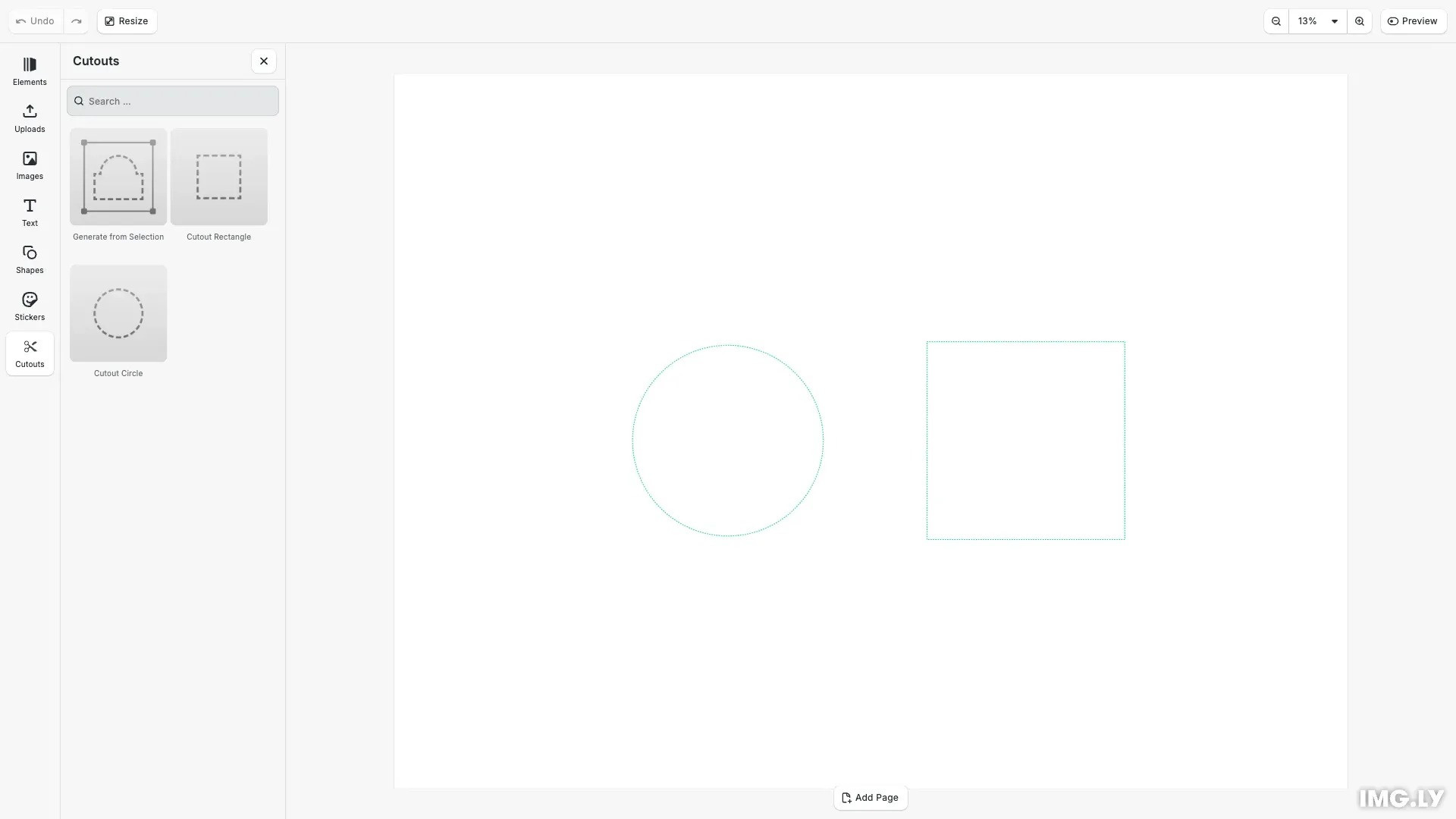
Cutouts define outline paths that cutting printers cut with a blade rather than print with ink. CE.SDK supports creating cutouts from SVG paths, generating them from block contours, and combining them with boolean operations.
This guide covers creating cutouts programmatically from SVG paths, configuring cutout types and offsets, combining cutouts with boolean operations, customizing spot colors for printer compatibility, and integrating the cutout library plugin for interactive creation.
Understanding Cutouts#
Cutouts are special blocks that contain SVG paths interpreted by cutting printers as cut lines. Printers recognize cutouts through specially named spot colors: CutContour for solid continuous cuts and PerfCutContour for dashed perforated cuts.
The spot color RGB values affect on-screen rendering but not printer behavior. By default, solid cutouts render as magenta and dashed cutouts render as green.
Creating Cutouts from SVG Paths#
Create cutouts using engine.block.createCutoutFromPath(path) with standard SVG path syntax. The path coordinates define the cutout dimensions.
// Create a circular cutout from SVG path (scaled up for visibility)const circle = engine.block.createCutoutFromPath( 'M 0,75 a 75,75 0 1,1 150,0 a 75,75 0 1,1 -150,0 Z');engine.block.appendChild(page, circle);engine.block.setPositionX(circle, 200);engine.block.setPositionY(circle, 225);The method accepts standard SVG path commands: M (move), L (line), H (horizontal), V (vertical), C (cubic curve), Q (quadratic curve), A (arc), and Z (close path).
Configuring Cutout Type#
Set the cutout type using engine.block.setEnum() to control whether the printer creates a continuous or perforated cut line.
// Set cutout type to Dashed for perforated cut lineengine.block.setEnum(circle, 'cutout/type', 'Dashed');Solid creates a continuous cutting line (default), while Dashed creates a perforated cutting line for tear-away edges.
Configuring Cutout Offset#
Adjust the distance between the cutout line and the source path using engine.block.setFloat().
// Set cutout offset distance from source pathengine.block.setFloat(circle, 'cutout/offset', 5.0);Positive offset values expand the cutout outward from the path. Use offset to add bleed or margin around designs for cleaner cuts.
Creating Multiple Cutouts#
Create additional cutouts with different properties to demonstrate various shapes and configurations.
// Create a square cutout with solid type (scaled up for visibility)const square = engine.block.createCutoutFromPath('M 0,0 H 150 V 150 H 0 Z');engine.block.appendChild(page, square);engine.block.setPositionX(square, 450);engine.block.setPositionY(square, 225);engine.block.setFloat(square, 'cutout/offset', 8.0);Each cutout can have independent type and offset settings based on your production requirements.
Combining Cutouts with Boolean Operations#
Combine multiple cutouts into compound shapes using engine.block.createCutoutFromOperation(ids, operation). Available operations are Union, Difference, Intersection, and XOR.
// Combine cutouts using Union operationconst combined = engine.block.createCutoutFromOperation(  [circle, square],  'Union');engine.block.appendChild(page, combined);engine.block.setPositionX(combined, 200);engine.block.setPositionY(combined, 225);
// Destroy original cutouts to avoid duplicate cutsengine.block.destroy(circle);engine.block.destroy(square);
The combined cutout inherits the type from the first cutout in the array and has an offset of 0. Destroy the original cutouts after combining to avoid duplicate cuts.
Customizing Spot Colors#
Modify the spot color RGB approximation using engine.editor.setSpotColorRGB() to change how cutouts render without affecting printer behavior.
// Customize spot color RGB for rendering (bright blue for visibility)engine.editor.setSpotColorRGB('CutContour', 0.0, 0.4, 0.9);Spot color names (CutContour, PerfCutContour) are what printers recognize. Adjust the names if your printer uses different conventions.
Using the Cutout Library Plugin#
The @imgly/plugin-cutout-library-web plugin provides an interactive UI for creating cutouts directly in the editor. Users can add rectangular or elliptical cutouts from the asset library dock, or generate cutouts from selected shapes via the canvas menu.
Install the plugin:
bash npm install @imgly/plugin-cutout-library-web
bash yarn add @imgly/plugin-cutout-library-web
bash pnpm add @imgly/plugin-cutout-library-web
Import and register the plugin:
import CutoutLibraryPlugin from '@imgly/plugin-cutout-library-web';Add the plugin to your editor instance with canvas menu support:
// Add cutout library plugin for UI-based cutout creationawait cesdk.addPlugin( CutoutLibraryPlugin({ ui: { locations: ['canvasMenu'] } }));Configure the dock to display the cutout library and open it by default:
// Add cutout library to dock as the last entryconst cutoutAssetEntry = cesdk.ui.getAssetLibraryEntry(  'ly.img.cutout.entry');cesdk.ui.setComponentOrder({ in: 'ly.img.dock' }, [  ...cesdk.ui    .getComponentOrder({ in: 'ly.img.dock' })    .filter(({ key }) => key !== 'ly.img.templates'),  {    id: 'ly.img.assetLibrary.dock',    label: 'Cutouts',    key: 'ly.img.assetLibrary.dock',    icon: cutoutAssetEntry?.icon,    entries: ['ly.img.cutout.entry']  }]);
// Open cutout library panel on startupcesdk.ui.openPanel('//ly.img.panel/assetLibrary', {  payload: {    entries: ['ly.img.cutout.entry']  }});
The setComponentOrder method adds a “Cutouts” entry to the dock panel with the plugin’s icon. The openPanel call displays the cutout library immediately when the editor loads, giving users instant access to cutout creation tools.
Troubleshooting#
Cutout Not Visible#
Cutouts render using spot color RGB approximations. Verify the cutout is appended to the page hierarchy and positioned within the visible canvas area.
Printer Not Cutting#
Check that spot color names match your printer’s requirements. Some printers need specific names like CutContour or Thru-cut. Consult your printer documentation.
Combined Cutout Has Wrong Type#
Combined cutouts inherit the type from the first cutout in the array. Reorder the array or set the type explicitly after combination.
API Reference#
| Method | Category | Purpose |
|---|---|---|
cesdk.addPlugin(CutoutLibraryPlugin(config)) | Plugin | Register cutout library plugin |
cesdk.ui.getAssetLibraryEntry(id) | UI | Get asset library entry for dock |
cesdk.ui.setComponentOrder({ in: 'ly.img.dock' }, entries) | UI | Configure dock panel order |
cesdk.ui.openPanel(id, options) | UI | Open panel programmatically |
engine.block.createCutoutFromPath(path) | Cutout | Create cutout from SVG path string |
engine.block.createCutoutFromBlocks(ids, vThresh, sThresh, useShape) | Cutout | Create cutout from block contours |
engine.block.createCutoutFromOperation(ids, op) | Cutout | Combine cutouts with boolean operation |
engine.block.setEnum(id, 'cutout/type', value) | Property | Set cutout type (Solid/Dashed) |
engine.block.setFloat(id, 'cutout/offset', value) | Property | Set cutout offset distance |
engine.block.setFloat(id, 'cutout/smoothing', value) | Property | Set corner smoothing threshold |
engine.block.appendChild(parent, child) | Hierarchy | Add cutout to scene |
engine.block.setPositionX/Y(id, value) | Transform | Position cutout on canvas |
engine.block.destroy(id) | Lifecycle | Remove cutout from scene |
engine.editor.setSpotColorRGB(name, r, g, b) | Editor | Customize spot color rendering |
Next Steps#
- Combine Shapes - Boolean operations on graphic blocks
- Create Shapes - Create geometric shapes programmatically
- Export for Printing - Export print-ready PDFs with spot colors
Cutout Type#
A block that defines a cutout path for another block.
This section describes the properties available for the Cutout Type (//ly.img.ubq/cutout) block type.
| Property | Type | Default | Description |
|---|---|---|---|
alwaysOnBottom | Bool | false | If true, this element’s global sorting order is automatically adjusted to be lower than all other siblings. |
alwaysOnTop | Bool | true | If true, this element’s global sorting order is automatically adjusted to be higher than all other siblings. |
clipped | Bool | false | This component is used to identify elements whose contents and children should be clipped to their bounds. |
contentFill/mode | Enum | "Cover" | Defines how content should be resized to fit its container (e.g., Crop, Cover, Contain)., Possible values: "Crop", "Cover", "Contain" |
cutout/offset | Float | 0 | The offset from path at which to draw the cutout line. |
cutout/path | String | "" | The path string, accepts a subset of SVG path strings. |
cutout/smoothing | Float | 0 | Pixel threshold by which to round out the path’s corners. |
cutout/type | Enum | "Solid" | The type of cutout line., Possible values: "Solid", "Dashed" |
flip/horizontal | Bool | "-" | Whether the block is flipped horizontally. |
flip/vertical | Bool | "-" | Whether the block is flipped vertically. |
globalBoundingBox/height | Float | "-" | The height of the block’s axis-aligned bounding box in world coordinates., (read-only) |
globalBoundingBox/width | Float | "-" | The width of the block’s axis-aligned bounding box in world coordinates., (read-only) |
globalBoundingBox/x | Float | "-" | The x-coordinate of the block’s axis-aligned bounding box in world coordinates., (read-only) |
globalBoundingBox/y | Float | "-" | The y-coordinate of the block’s axis-aligned bounding box in world coordinates., (read-only) |
height | Float | 100 | The height of the block’s frame. |
height/mode | Enum | "Absolute" | A mode describing how the height dimension may be interpreted (Absolute, Percent, Auto)., Possible values: "Absolute", "Percent", "Auto" |
highlightEnabled | Bool | true | Show highlighting when selected or hovered |
lastFrame/height | Float | "-" | The height of the block’s frame from the previous layout pass., (read-only) |
lastFrame/width | Float | "-" | The width of the block’s frame from the previous layout pass., (read-only) |
lastFrame/x | Float | "-" | The x-coordinate of the block’s frame from the previous layout pass., (read-only) |
lastFrame/y | Float | "-" | The y-coordinate of the block’s frame from the previous layout pass., (read-only) |
placeholder/enabled | Bool | false | Whether the placeholder behavior is enabled or not. |
placeholderControls/showButton | Bool | false | Show the placeholder button. |
placeholderControls/showOverlay | Bool | false | Show the overlay pattern. |
position/x | Float | 0 | The x-coordinate of the block’s origin. |
position/x/mode | Enum | "Absolute" | A mode describing how the x-position may be interpreted., Possible values: "Absolute", "Percent", "Auto" |
position/y | Float | 0 | The y-coordinate of the block’s origin. |
position/y/mode | Enum | "Absolute" | A mode describing how the y-position may be interpreted., Possible values: "Absolute", "Percent", "Auto" |
rotation | Float | 0 | The rotation of the block in radians. |
selected | Bool | false | Indicates if the block is currently selected. |
transformLocked | Bool | false | DesignBlocks with this tag can’t be transformed (moved, rotated, scaled, cropped, or flipped). |
visible | Bool | true | If the block is visible in the editor. |
width | Float | 100 | The width of the block’s frame. |
width/mode | Enum | "Absolute" | A mode describing how the width dimension may be interpreted (Absolute, Percent, Auto)., Possible values: "Absolute", "Percent", "Auto" |