Let users upload EPS artwork to the editor’s media Gallery, then select it to add an editable group to an existing design.
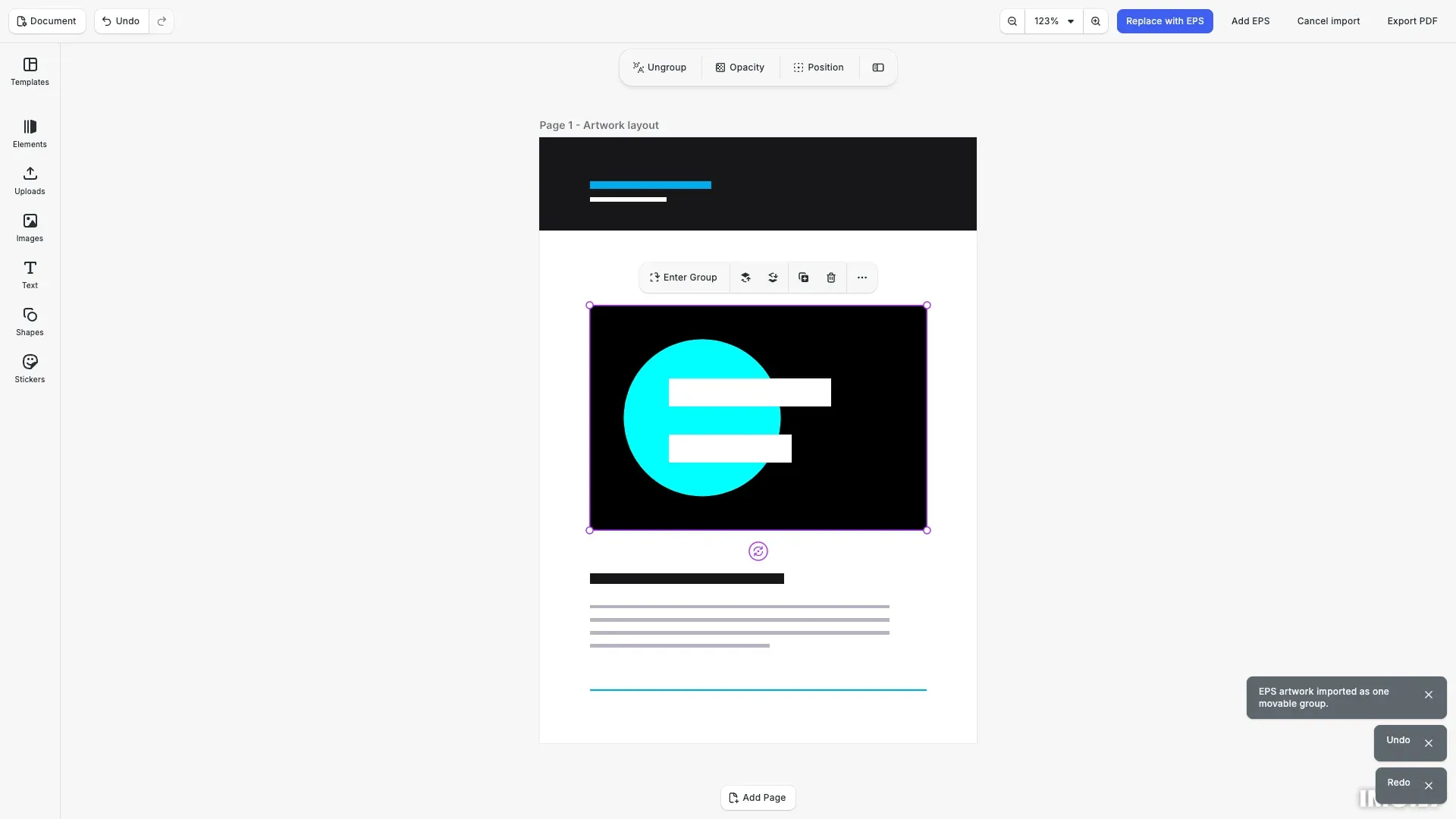
This Vanilla TypeScript showcase includes a reusable EPSGalleryPlugin, a saved-layout workflow, and editor controls for editing imported objects. The downloadable example uses CE.SDK 1.82.2, @imgly/eps-importer@0.1.0, and @imgly/pdf-conversion-utils@0.1.0. EPS import requires CE.SDK 1.82 or later.
Run the Showcase#
Download the standalone source and install the showcase’s dependencies:
curl -L https://cdn.img.ly/demo/cesdk-web-examples/v1.82.2/examples/demo-eps-import/source.zip -o eps-gallery.zipunzip eps-gallery.zip -d eps-gallerycd eps-gallerynpm installnpm run devOpen the URL printed by Vite. The editor starts in trial mode; configure your CE.SDK license before using it in production. The included Vite configuration serves the conversion worker, JavaScript, WebAssembly, and PDF standard fonts during development and copies them into the production build.
Upload and Insert Artwork#
Open EPS Artwork in the editor’s dock. Select the sample card to insert it as one editable group. Upload your own file with Add File, Add EPS to Gallery, or the outer drop zone.
Uploading adds a Gallery card without changing the design. Selecting a card imports its EPS into the current page. Selecting it again creates an independent instance. Conversion assets load on the first import, so opening the Gallery does not delay the editor’s initial load.
Use Replace “Artwork” placeholder to fit the selected file inside the template’s named rectangular placeholder. The surrounding layout stays in place. Cancel an active import from the status area or retry after an error.
Reuse the Gallery Plugin#
Copy src/imgly/ and the sample files in public/ into your project. The Gallery plugin uses public CE.SDK APIs to register a local asset source, an asset-library entry, a dock button, and a source-specific upload handler. The host supplies the import callback and owns placement, progress, cancellation, and error reporting.
After initializing your editor and loading a scene, register the plugin:
import { placeEPS } from '@imgly/eps-importer';import { createConversionRuntime } from '@imgly/pdf-conversion-utils';import { EPSGalleryPlugin } from './imgly';
const runtime = createConversionRuntime({  assetBaseURL: new URL('pdf-conversion/', document.baseURI)});const gallery = new EPSGalleryPlugin({  importFile: async (file) => {    const page = cesdk.engine.scene.getCurrentPage();    if (page === null) throw new Error('Open a page before adding artwork.');    const result = await placeEPS(cesdk.engine, file, {      parent: page,      frame: { x: 54, y: 180, width: 360, height: 240 },      runtime    });    cesdk.engine.block.select(result.group);    return result.group;  }});await cesdk.addPlugin(gallery);gallery.open();
Frame coordinates use your scene’s design unit. Adapt the frame to your layout. For applications that use a placeholder instead, call replaceEPS() with its explicitly captured block ID. See Import EPS Artwork for the replacement contract, diagnostics, and runtime configuration.
When closing the editor, cancel any active import, then call gallery.dispose() and runtime.dispose() before disposing the editor. A runtime shared by multiple consumers belongs to their common owner.
Edit, Save, and Export#
Move or scale the imported group using the standard editor controls. Double-click it to edit its child objects, or select them in Layers. Supported text remains editable, vectors remain vector paths, and embedded images remain images. Placement and replacement support undo and redo.
Download PDF exports the containing page with DeviceCMYK enabled. This is standard PDF output; it does not certify PDF/X compliance. Save a scene archive to retain the imported groups and their referenced resources for later editing.
Host Assets and Persist the Gallery#
Run npm run build and serve the entire dist/ directory. Keep worker.browser.js, gs.js, and gs.wasm from the same conversion runtime build together with COPYING.AGPL-3.0, LICENSE.md, PROVENANCE.md, and THIRD_PARTY_NOTICES.md. These files contain the runtime license, notices, and matching source links. See Import EPS Artwork for CORS and content-security-policy requirements.
The sample Gallery uses session-local blob URLs. Uploaded cards disappear after a reload and use an EPS file icon rather than a generated preview; the bundled sample has an authored thumbnail. For persistent libraries, store files on your backend and supply thumbnails through the asset source. Imported artwork can still be saved in a scene archive independently of the Gallery.
The browser file picker recognizes PostScript MIME types. If the browser does not recognize an EPSF, EPSI, or DOS EPS file, use Add EPS to Gallery or the outer drop zone, which also accept the .eps extension. Import-time validation checks the actual file contents.
Next Steps#
- Import EPS Artwork – Use the importer directly in browsers or Node.js.
- Asset Library Basics – Customize Gallery entries and asset sources.
- Serve Assets – Host CE.SDK assets for production.