Position, align, and distribute design elements precisely using CE.SDK’s layout APIs and snapping system.
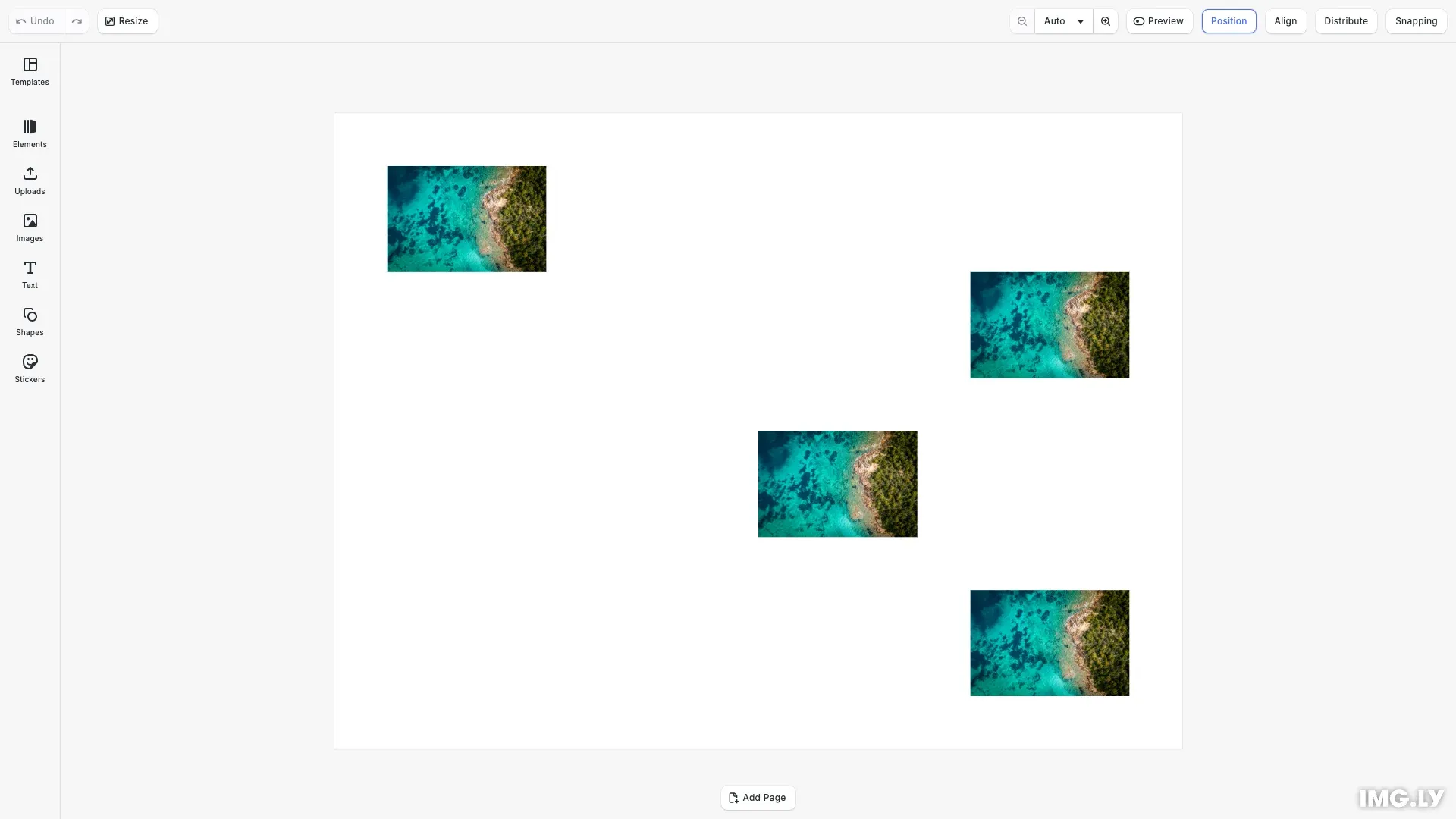
CE.SDK positions blocks relative to their parent container with the origin at the top left. You can set positions using absolute values (design units) or as percentages of the parent’s dimensions. For multi-element layouts, alignment and distribution APIs arrange blocks precisely without manual calculations. In the browser, snapping guides provide visual feedback when dragging elements.
This guide covers how to set block positions using different modes, align blocks horizontally and vertically, distribute blocks with even spacing, and configure snapping for interactive editing.
Coordinate System#
CE.SDK uses a coordinate system where the origin (0, 0) is at the top-left corner of the parent container. The X axis extends to the right and the Y axis extends downward. All positions are relative to the block’s parent.
Setting Block Positions#
Absolute Positioning#
We can position blocks using absolute coordinates in design units. This is useful when you need precise control over element placement.
// Set position using absolute coordinates (in design units)engine.block.setPositionX(block1, 50);engine.block.setPositionY(block1, 50);
// Query the current positionconst x1 = engine.block.getPositionX(block1);const y1 = engine.block.getPositionY(block1);console.log(`Block 1 position: (${x1}, ${y1})`);
The engine.block.setPositionX() and engine.block.setPositionY() methods set the block’s position relative to its parent. Use engine.block.getPositionX() and engine.block.getPositionY() to query the current position.
Percentage-Based Positioning#
Positions can also be set as percentages of the parent’s dimensions. This approach is useful for responsive layouts that adapt to different container sizes.
// Block 2: Percentage-based positioning (relative to parent)const block2 = await engine.block.addImage(imageUri, { size: blockSize });engine.block.appendChild(page, block2);
// Set position mode to Percent and use percentage valuesengine.block.setPositionXMode(block2, 'Percent');engine.block.setPositionYMode(block2, 'Percent');engine.block.setPositionX(block2, 0.5); // 50% from leftengine.block.setPositionY(block2, 0.5); // 50% from top
// Query the position modeconst xMode = engine.block.getPositionXMode(block2);const yMode = engine.block.getPositionYMode(block2);console.log(`Block 2 position modes: X=${xMode}, Y=${yMode}`);
Position modes are set using engine.block.setPositionXMode() and engine.block.setPositionYMode(). When set to 'Percent', position values represent a fraction of the parent’s size (0.5 = 50%). Query the current mode with engine.block.getPositionXMode() and engine.block.getPositionYMode().
Using the Convenience Method#
CE.SDK provides a convenience method that sets both coordinates at once, optionally with a position mode.
// Block 3: Using the convenience method setPosition()const block3 = await engine.block.addImage(imageUri, { size: blockSize });engine.block.appendChild(page, block3);
// Set both X and Y at once with a specific position modeengine.block.setPosition(block3, 0.75, 0.25, { positionMode: 'Percent' });
console.log(  `Block 3 set to 75% horizontal, 25% vertical using setPosition()`);
The engine.block.setPosition() method accepts X and Y values along with an optional positionMode parameter. This simplifies code when setting both coordinates simultaneously.
Aligning Blocks#
Aligning Multiple Blocks#
Multiple blocks can be aligned within their combined bounding box. This is useful for creating visually organized layouts.
// Check if blocks can be alignedconst canAlign = engine.block.isAlignable(blocks);console.log('Can align blocks:', canAlign);Before aligning, we check if the blocks can be aligned using engine.block.isAlignable(). This method returns true if the blocks support alignment operations.
// Align blocks horizontally to the left edge of their bounding boxengine.block.alignHorizontally(blocks, 'Left');console.log('Blocks aligned to left edge');The engine.block.alignHorizontally() method accepts an array of block IDs and an alignment value: 'Left', 'Right', or 'Center'. Similarly, engine.block.alignVertically() accepts 'Top', 'Bottom', or 'Center'.
Aligning a Single Block to Parent#
When you pass a single block to the alignment methods, it aligns within its parent container rather than a group bounding box.
// Create a single block to demonstrate aligning within parentconst singleBlock = await engine.block.addImage(imageUri, {  size: { width: 150, height: 100 }});engine.block.appendChild(page, singleBlock);
// Position initially off-centerengine.block.setPositionX(singleBlock, 500);engine.block.setPositionY(singleBlock, 300);
// Align single block to center of parent (page)if (engine.block.isAlignable([singleBlock])) {  engine.block.alignHorizontally([singleBlock], 'Center');  engine.block.alignVertically([singleBlock], 'Center');  console.log('Single block centered within parent');}
This approach is useful for centering elements on a page or positioning them at specific edges of the container.
Distributing Blocks#
Distribution spaces blocks evenly within their bounding box. This is ideal for creating consistent spacing in grid layouts or navigation elements.
// Check if blocks can be distributedconst canDistribute = engine.block.isDistributable(blocks);console.log('Can distribute blocks:', canDistribute);The engine.block.isDistributable() method verifies that the blocks can be distributed.
// Distribute blocks horizontally with even spacingengine.block.distributeHorizontally(blocks);console.log('Blocks distributed horizontally with even spacing');The engine.block.distributeHorizontally() method arranges blocks so the horizontal space between them is equal. The first and last blocks remain in place while the middle blocks are repositioned.
// Create another set of blocks for vertical distributionconst verticalBlocks: number[] = [];const yPositions = [50, 150, 350, 500];
for (let i = 0; i < yPositions.length; i++) {  const block = await engine.block.addImage(imageUri, { size: blockSize });  engine.block.appendChild(page, block);  engine.block.setPositionX(block, 600); // Same X for vertical distribution  engine.block.setPositionY(block, yPositions[i]);  verticalBlocks.push(block);}
if (engine.block.isDistributable(verticalBlocks)) {  engine.block.distributeVertically(verticalBlocks);  console.log('Vertical blocks distributed with even spacing');}
Similarly, engine.block.distributeVertically() distributes blocks with equal vertical spacing.
Configuring Snapping#
Snapping provides visual guides when dragging elements in the editor, helping users align blocks precisely. Configure the snapping sensitivity and appearance using editor settings.
Setting Snapping Thresholds#
// Configure position snapping threshold (pixels)// Higher values = snapping activates from further awayengine.editor.setSettingFloat('positionSnappingThreshold', 10);
// Configure rotation snapping threshold (degrees)engine.editor.setSettingFloat('rotationSnappingThreshold', 5);console.log('Snapping thresholds configured: position=10px, rotation=5deg');
The positionSnappingThreshold setting controls how close (in pixels) a block must be to a snap target before snapping activates. Higher values make snapping more “sticky”. The rotationSnappingThreshold setting controls rotation snapping sensitivity in radians.
Customizing Snapping Guide Colors#
// Customize snapping guide colorsengine.editor.setSettingColor('snappingGuideColor', {  r: 0.2,  g: 0.6,  b: 1.0,  a: 1.0});
engine.editor.setSettingColor('rotationSnappingGuideColor', {  r: 1.0,  g: 0.4,  b: 0.2,  a: 1.0});
engine.editor.setSettingColor('ruleOfThirdsLineColor', {  r: 0.5,  g: 0.5,  b: 0.5,  a: 0.5});console.log('Snapping guide colors configured');
Customize the appearance of snapping guides using color settings. The snappingGuideColor controls position snapping lines, rotationSnappingGuideColor controls rotation guides, and ruleOfThirdsLineColor controls composition guide lines.
Troubleshooting#
Position Not Updating#
If a block’s position doesn’t change after calling the setter methods:
- Verify the block’s transform is not locked with
engine.block.isTransformLocked() - Check that the block has the
'layer/move'scope enabled - Ensure you’re using the correct position mode for your values
Alignment Not Working#
If engine.block.alignHorizontally() or engine.block.alignVertically() has no effect:
- Confirm
engine.block.isAlignable()returnstruefor the blocks - Verify all block IDs in the array are valid
- Check that blocks have the
'layer/move'scope enabled
Blocks Cannot Be Distributed#
If engine.block.distributeHorizontally() or engine.block.distributeVertically() doesn’t work:
- Verify
engine.block.isDistributable()returnstrue - Ensure you have at least three blocks in the array
- Check that all blocks share the same parent
API Reference#
| Method | Description |
|---|---|
engine.block.getPositionX(id) | Get block’s X position |
engine.block.getPositionY(id) | Get block’s Y position |
engine.block.setPositionX(id, value) | Set block’s X position |
engine.block.setPositionY(id, value) | Set block’s Y position |
engine.block.getPositionXMode(id) | Get X position mode (Absolute/Percent) |
engine.block.getPositionYMode(id) | Get Y position mode (Absolute/Percent) |
engine.block.setPositionXMode(id, mode) | Set X position mode |
engine.block.setPositionYMode(id, mode) | Set Y position mode |
engine.block.setPosition(id, x, y, options) | Set both coordinates with optional mode |
engine.block.isAlignable(ids) | Check if blocks can be aligned |
engine.block.alignHorizontally(ids, alignment) | Align blocks horizontally (Left/Right/Center) |
engine.block.alignVertically(ids, alignment) | Align blocks vertically (Top/Bottom/Center) |
engine.block.isDistributable(ids) | Check if blocks can be distributed |
engine.block.distributeHorizontally(ids) | Distribute blocks horizontally with even spacing |
engine.block.distributeVertically(ids) | Distribute blocks vertically with even spacing |
engine.editor.setSettingFloat(keypath, value) | Set float settings (snapping thresholds) |
engine.editor.setSettingColor(keypath, color) | Set color settings (snapping guide colors) |
Next Steps#
Now that you understand positioning and alignment, explore related layout features:
- Layer Management - Control the stacking order of elements
- Grouping - Group related elements together
- Multi-Page Layouts - Create multi-page designs with multiple pages in a single scene