Integrate Unsplash’s vast library of royalty-free stock images directly into CE.SDK, allowing users to search and add photos to their designs.
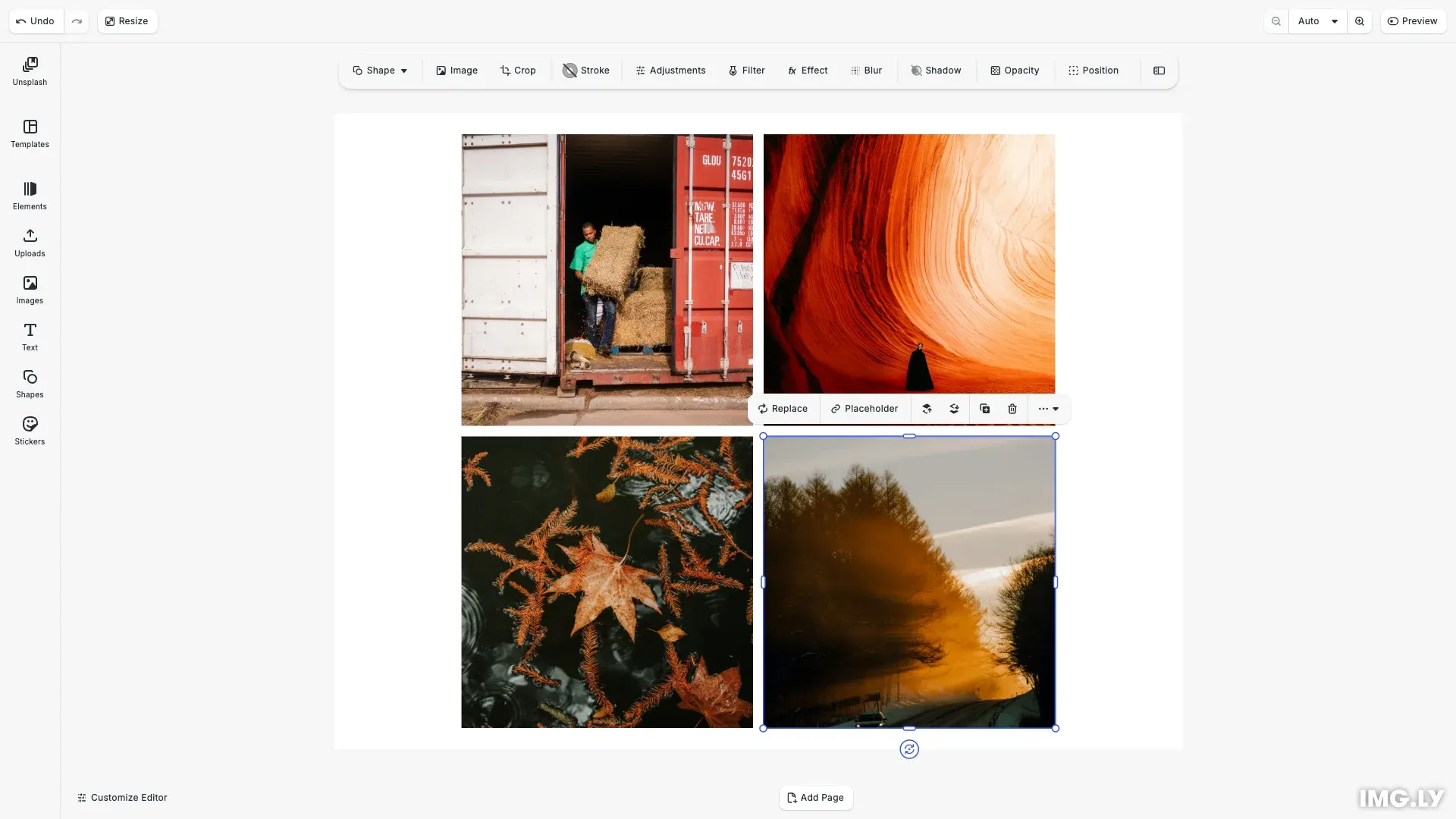
Unsplash provides a vast library of high-quality, royalty-free stock images through their public API. This guide shows you how to integrate Unsplash’s image search and browsing capabilities directly into CE.SDK using custom asset sources.
This guide covers setting up the Unsplash API client, implementing search and discovery features, mapping API responses to CE.SDK’s asset format, handling attribution requirements, and configuring the asset library UI.
Prerequisites#
Before integrating Unsplash, ensure you have:
- An Unsplash API access key from the Unsplash Developer portal
- The
unsplash-jslibrary installed in your project - Familiarity with Unsplash’s API guidelines and rate limits
- A proxy server to handle Unsplash API authentication (recommended for production)
For production use, you’ll need to register your application with Unsplash and implement a proxy server to handle API authentication securely without exposing your access key in the frontend.
Environment Configuration#
Create a .env file (or copy .env.example) in your project root and configure the Unsplash proxy URL:
VITE_UNSPLASH_PROXY_URL=YOUR_PROXY_URL_HEREYou must set up your own proxy server to handle Unsplash API authentication. Use the pattern shown in unsplashProxyFunction.ts.example from the showcases as a reference implementation.
Setting Up the Unsplash API Client#
We initialize the Unsplash API client using the unsplash-js library. Instead of directly passing an access key (which would expose it in the frontend), we use a proxy URL that handles authentication server-side.
// Create Unsplash API client with proxy URL// The proxy securely handles API authentication without exposing keys in the frontendconst unsplashProxyUrl = import.meta.env.VITE_UNSPLASH_PROXY_URL;
if (!unsplashProxyUrl) {  throw new Error(    'VITE_UNSPLASH_PROXY_URL environment variable is required'  );}
const unsplashApi = createApi({  apiUrl: unsplashProxyUrl});
The code reads the proxy URL from the VITE_UNSPLASH_PROXY_URL environment variable. If the environment variable is not set, the initialization will fail with an error. This approach keeps your Unsplash API key secure by handling all authentication on the server side, following Unsplash’s best practices for client-side applications.
Creating the Unsplash Asset Source Definition#
CE.SDK uses asset sources to provide content to the asset library. We create a custom asset source by defining an object that implements the AssetSource interface.
// Define the custom asset source for Unsplashconst customSource: AssetSource = { id: 'unsplash', findAssets: findUnsplashAssets, credits: { name: 'Unsplash', url: 'https://unsplash.com/' }, license: { name: 'Unsplash license (free)', url: 'https://unsplash.com/license' }};The asset source requires:
id: A unique identifier for this source (we use'unsplash')findAssets: A callback function that queries the Unsplash API and returns formatted resultscredits(optional): Attribution for the asset sourcelicense(optional): Licensing information for all assets from this source
We register the source with CE.SDK using engine.asset.addSource(customSource), making it available throughout the application.
Implementing Search and Discovery#
The findAssets callback is the core of our asset source integration. It receives query parameters from CE.SDK and returns formatted asset results.
// Main asset query function for Unsplashconst findUnsplashAssets = async (  queryData: AssetQueryData): Promise<AssetsQueryResult<AssetResult>> => {  // Unsplash page indices are 1-based  const unsplashPage = queryData.page + 1;
  if (queryData.query) {    // Search for images with a query string    const response = await unsplashApi.search.getPhotos({      query: queryData.query,      page: unsplashPage,      perPage: queryData.perPage    });
    if (response.type === 'success') {      const { results, total, total_pages } = response.response;
      return {        assets: await Promise.all(results.map(translateToAssetResult)),        total,        currentPage: queryData.page,        nextPage:          queryData.page + 1 < total_pages ? queryData.page + 1 : undefined      };    } else if (response.type === 'error') {      throw new Error(response.errors.join('. '));    } else {      return Promise.resolve(EMPTY_RESULT);    }  } else {    // List popular images when no query is provided    const response = await (unsplashApi.photos as any).list({      orderBy: 'popular',      page: unsplashPage,      perPage: queryData.perPage    });
    if (response.type === 'success') {      const { results, total } = response.response;      const totalFetched =        queryData.page * queryData.perPage + results.length;      const nextPage =        totalFetched < total ? queryData.page + 1 : undefined;
      return {        assets: await Promise.all(results.map(translateToAssetResult)),        total,        currentPage: queryData.page,        nextPage      };    } else if (response.type === 'error') {      throw new Error(response.errors.join('. '));    } else {      return Promise.resolve(EMPTY_RESULT);    }  }};
The queryData parameter contains:
query: The search string from the asset library search bar (optional)page: The requested page number (0-indexed for CE.SDK, 1-indexed for Unsplash)perPage: Number of assets to return per page
Search with Query#
When users enter a search term, we query Unsplash’s search endpoint with the provided query string.
// Search for images with a query stringconst response = await unsplashApi.search.getPhotos({ query: queryData.query, page: unsplashPage, perPage: queryData.perPage});The search endpoint accepts the query string, page number, and results per page. We convert CE.SDK’s 0-indexed pages to Unsplash’s 1-indexed system.
Translating Search Results#
After receiving the response, we map Unsplash’s data structure to CE.SDK’s expected format.
const { results, total, total_pages } = response.response;
return {  assets: await Promise.all(results.map(translateToAssetResult)),  total,  currentPage: queryData.page,  nextPage:    queryData.page + 1 < total_pages ? queryData.page + 1 : undefined};
We return an object with:
assets: Array of translated asset objectstotal: Total number of matching imagescurrentPage: The requested page numbernextPage: The next page to request, orundefinedif no more pages exist
Popular Images#
When no search query is provided, we display popular images using Unsplash’s list endpoint.
// List popular images when no query is providedconst response = await (unsplashApi.photos as any).list({  orderBy: 'popular',  page: unsplashPage,  perPage: queryData.perPage});
if (response.type === 'success') {  const { results, total } = response.response;  const totalFetched =    queryData.page * queryData.perPage + results.length;  const nextPage =    totalFetched < total ? queryData.page + 1 : undefined;
  return {    assets: await Promise.all(results.map(translateToAssetResult)),    total,    currentPage: queryData.page,    nextPage  };} else if (response.type === 'error') {  throw new Error(response.errors.join('. '));} else {  return Promise.resolve(EMPTY_RESULT);}
The list endpoint returns curated popular images. We calculate pagination manually since the API response structure differs slightly from the search endpoint.
Error Handling#
When the API returns an error, we throw an exception to notify CE.SDK that the query failed.
throw new Error(response.errors.join('. '));For cases where returning an empty result is more appropriate than throwing an error, we return an empty AssetsQueryResult.
return Promise.resolve(EMPTY_RESULT);Translating Unsplash Data to CE.SDK Format#
Each Unsplash photo must be converted to match CE.SDK’s AssetResult interface. This translation ensures CE.SDK can properly display and apply the assets.
// Translate Unsplash image to CE.SDK asset formatasync function translateToAssetResult(image: any): Promise<AssetResult> {  const artistName = image?.user?.name;  const artistUrl = image?.user?.links?.html;  const description =    image.description ?? image.alt_description ?? 'Unsplash Image';
  return {    id: image.id,    locale: 'en',    label: description,    tags: image.tags ? image.tags.map((tag: any) => tag.title) : undefined,
    meta: {      uri: await getUnsplashUrl(image),      thumbUri: image.urls.thumb,      blockType: '//ly.img.ubq/graphic',      fillType: '//ly.img.ubq/fill/image',      shapeType: '//ly.img.ubq/shape/rect',      kind: 'image',      width: image.width,      height: image.height    },
    credits: artistName      ? {          name: artistName,          url: artistUrl        }      : undefined,
    utm: {      source: 'CE.SDK Demo',      medium: 'referral'    }  };}
Asset Identifier#
The id field uniquely identifies each asset within this source.
id: image.id,Locale and Labels#
The locale indicates the language of the asset’s metadata. The label provides a human-readable description displayed in the asset library.
locale: 'en',label: description,Tags#
Tags help users discover assets through search and categorization.
tags: image.tags ? image.tags.map((tag: any) => tag.title) : undefined,Asset Metadata#
The meta object contains technical properties CE.SDK needs to display and apply the asset.
meta: { uri: await getUnsplashUrl(image), thumbUri: image.urls.thumb, blockType: '//ly.img.ubq/graphic', fillType: '//ly.img.ubq/fill/image', shapeType: '//ly.img.ubq/shape/rect', kind: 'image', width: image.width, height: image.height},Key metadata fields include:
Image URI: The downloadable image URL obtained through Unsplash’s download tracking endpoint.
uri: await getUnsplashUrl(image),Thumbnail URI: A smaller preview image for the asset library grid.
thumbUri: image.urls.thumb,Block Type: The design block type to create when applying this asset.
blockType: '//ly.img.ubq/graphic',Specifying //ly.img.ubq/graphic upfront avoids delays from CE.SDK inferring the type.
Fill Type: The fill type to attach to the created block.
fillType: '//ly.img.ubq/fill/image',We use //ly.img.ubq/fill/image to create an image fill.
Shape Type: The shape type for the block’s geometry.
shapeType: '//ly.img.ubq/shape/rect',A rectangular shape (//ly.img.ubq/shape/rect) is standard for images.
Kind: An optional semantic identifier for the block.
kind: 'image',Dimensions: The original width and height of the image.
width: image.width,height: image.heightThese dimensions help CE.SDK maintain proper aspect ratios.
Handling Unsplash Attribution Requirements#
Unsplash’s licensing terms require proper attribution for photographers. We include credits with each asset and source-level attribution.
credits: artistName ? { name: artistName, url: artistUrl } : undefined,The credits object contains the photographer’s name and a link to their Unsplash profile.
UTM Parameters#
Unsplash requires UTM parameters on all links for analytics tracking.
utm: { source: 'CE.SDK Demo', medium: 'referral'}Source Credits and License#
We add source-level credits and license information to the asset source definition.
credits: { name: 'Unsplash', url: 'https://unsplash.com/'},license: { name: 'Unsplash license (free)', url: 'https://unsplash.com/license'}This information appears in CE.SDK’s asset library UI, ensuring proper attribution.
Adding Download Tracking#
Before using an Unsplash image URL, we must call the download tracking endpoint. This requirement supports Unsplash’s analytics and photographer compensation.
The getUnsplashUrl helper function handles tracking:
const getUnsplashUrl = async (unsplashResult: UnsplashPhoto) => {  const trackDownloadResponse = await unsplashApi.photos.trackDownload({    downloadLocation: unsplashResult.links.download_location  });
  if (trackDownloadResponse.type === 'error') {    throw new Error(trackDownloadResponse.errors.join('. '));  }  return trackDownloadResponse.response?.url || unsplashResult.urls.regular;};
This tracking occurs automatically when we translate each asset in the translateToAssetResult function.
Configuring the Asset Library UI#
After registering the Unsplash asset source, we can configure how it appears in CE.SDK’s asset library panel.
Creating a Dedicated Unsplash Dock Entry#
We add Unsplash to the editor’s dock by creating an asset library entry and then adding a dock button component:
cesdk.ui.addAssetLibraryEntry({  id: 'unsplash-entry',  sourceIds: ['unsplash'],  previewLength: 6,  gridColumns: 3,  gridItemHeight: 'square'});
// Add Unsplash to the existing Images asset librarycesdk.ui.updateAssetLibraryEntry('ly.img.image', {  sourceIds: ({ currentIds }) => [...currentIds, 'unsplash']});
// Add Unsplash as the first button in the dock with a separatorcesdk.ui.setComponentOrder({ in: 'ly.img.dock' }, [  {    id: 'ly.img.assetLibrary.dock',    key: 'unsplash',    label: 'Unsplash',    entries: ['unsplash-entry']  },  { id: 'ly.img.separator' },  ...cesdk.ui.getComponentOrder({ in: 'ly.img.dock' })]);
The addAssetLibraryEntry() call registers the Unsplash asset library panel with display settings. The setComponentOrder() call creates an explicit dock button component by prepending a new AssetLibraryDockComponent to the existing dock order.
The dock component structure includes:
id: Fixed identifier for asset library dock buttons ('ly.img.assetLibrary.dock')key: Unique identifier for this specific button ('unsplash')label: Display text for the button label ('Unsplash')entries: Array of asset library entry IDs to display when clicked (['unsplash-entry'])
Additionally, we add Unsplash to the existing Images asset library using updateAssetLibraryEntry(). This provides dual access: users can access Unsplash images both from the dedicated Unsplash panel and from the Images library panel. The functional update pattern ({ currentIds }) => [...currentIds, 'unsplash'] appends Unsplash to the existing sources without replacing them.
The separator component { id: 'ly.img.separator' } adds a visual divider between the Unsplash button and the default dock buttons, improving UI organization and clarity.
Testing the Integration#
To verify the integration works correctly, query the asset source and apply results to the scene:
// Query for assets and display them (only if scene was created successfully)const result = await engine.asset.findAssets(customSource.id, {  page: 0,  perPage: 4});
// Add images from Unsplash to the scene in a grid layoutfor (let i = 0; i < Math.min(result.assets.length, 4); i++) {  const asset = result.assets[i];  const position = layout.getPosition(i);
  const block = await engine.asset.apply(customSource.id, asset);  engine.block.setPositionX(block, position.x);  engine.block.setPositionY(block, position.y);  engine.block.setWidth(block, layout.blockWidth);  engine.block.setHeight(block, layout.blockHeight);}
We query the Unsplash source, retrieve the first four results, and add them to the scene using engine.asset.apply(). Each image is positioned in a grid layout using the calculateGridLayout utility.
Test both search functionality and popular image browsing to ensure all features work as expected.
Troubleshooting#
API Rate Limiting: Unsplash enforces rate limits on API requests. Implement caching and request throttling to stay within limits.
Missing Access Key: If you see authentication errors, verify your access key is correctly configured in the API client initialization.
Attribution Not Displaying: Ensure the credits object is properly populated in the asset translation function and that CE.SDK’s UI is configured to show attribution.
Image Loading Failures: Check that the download tracking endpoint is called before using image URLs, and verify URLs are valid and accessible.
Local Asset Sources#
CE.SDK also supports local asset sources for managing finite asset collections directly in the engine. These sources provide search and pagination without requiring custom query callbacks.
Create a local source using addLocalSource:
// Create a local asset source for custom assetsconst localSourceId = 'background-videos';engine.asset.addLocalSource(localSourceId);Add assets to the local source with addAssetToSource:
// Add a custom video asset to the local sourceengine.asset.addAssetToSource(localSourceId, { id: 'ocean-waves-1', label: { en: 'relaxing ocean waves', es: 'olas del mar relajantes' }, tags: { en: ['ocean', 'waves', 'soothing', 'slow'], es: ['mar', 'olas', 'calmante', 'lento'] }, meta: { uri: 'https://img.ly/static/ubq_video_samples/bbb.mp4', thumbUri: 'https://img.ly/static/ubq_samples/sample_1.jpg', mimeType: 'video/mp4', width: 1920, height: 1080 }} as AssetDefinition);Local sources keep track of added assets and return matching items based on search queries. Assets appear in query results in insertion order.
API Reference#
| Method | Category | Purpose |
|---|---|---|
engine.asset.addSource() |
Asset | Register Unsplash as a custom asset source |
engine.asset.apply() |
Asset | Add Unsplash image to the scene as a design block |
engine.asset.addLocalSource() |
Asset | Create a local asset source managed by the engine |
engine.asset.addAssetToSource() |
Asset | Add an asset definition to a local asset source |
Next Steps#
- Customize Asset Library — Configure asset panels and UI
- Asset Library Basics — Understand asset sources
- Integrate Soundstripe Audio — Add audio assets
- IMG.LY Premium Assets — Access premium stock content
- Import Media Concepts — Learn core import concepts