Integrate Getty Images’ premium stock photography library directly into CE.SDK, allowing users to search and add professionally curated photos to their designs through a secure proxy server.
Getty Images provides premium, professionally curated stock photography through their API. This guide shows you how to integrate Getty Images search and browsing directly into CE.SDK using a secure proxy server. The proxy architecture is required because Getty Images uses both an API key and secret for authentication, which cannot be safely exposed in browser code.
This guide covers setting up a secure proxy server, connecting CE.SDK to Getty Images via the proxy, implementing search functionality, translating API responses to CE.SDK’s asset format, handling Getty Images licensing requirements, and configuring the asset library UI.
Prerequisites#
Before integrating Getty Images, ensure you have:
- Getty Images API credentials (API key and secret) from the Getty Images API Portal
- Understanding of Getty Images API guidelines, rate limits, and licensing
- A secure proxy server to protect API credentials (browser clients cannot directly call Getty API)
- The
gettyimages-apinpm package for the proxy server
The proxy server is essential for Getty Images integration because the Getty Images API requires both an API key and secret for authentication. These credentials must never be exposed in browser code, so we use a secure server-side proxy to handle authentication while the browser communicates with the proxy.
Understanding the Proxy Server Requirement#
Getty Images requires both an API key and secret for authentication, which cannot be safely exposed in browser code. The proxy server securely stores credentials and forwards requests from the browser to Getty Images API.
The architecture follows this pattern:
Browser (CE.SDK) → Your Proxy Server → Getty Images API
The browser sends requests to your proxy server, which authenticates with Getty Images using your credentials and returns the results. This keeps your API credentials secure while allowing the browser to access Getty Images content.
Environment Configuration#
Create a .env file (or copy .env.example) in your project root and configure the Getty Images proxy URL:
VITE_GETTY_IMAGES_PROXY_URL=https://your-proxy-server.com/getty-proxyThe proxy URL is loaded from the environment variable and used to make requests to your secure proxy server, which handles Getty Images API authentication.
Setting Up the Getty Images Proxy Server#
The proxy server handles Getty Images API authentication. It receives requests from CE.SDK and forwards them to Getty Images with authentication headers.
We initialize the Getty Images API client in the proxy server using the gettyimages-api package:
const GettyImagesApi = require('gettyimages-api');
const apiKey = process.env.GETTY_IMAGES_API_KEY;const apiSecret = process.env.GETTY_IMAGES_API_SECRET;const client = new GettyImagesApi({ apiKey, apiSecret });
The proxy should implement endpoints for:
- Search images with query parameters
- Handle pagination (page number and page size)
- Format responses for CE.SDK consumption
Your proxy server should validate incoming requests, forward them to Getty Images with proper authentication, and return results in a format CE.SDK can consume.
Creating the Getty Images Asset Source Definition#
We define a custom asset source for Getty Images using engine.asset.addSource(). The source requires a unique identifier and a findAssets callback that communicates with your proxy server.
// Define the custom asset source for Getty Imagesconst gettyImagesAssetSource: AssetSource = { id: 'gettyImagesImageAssets', findAssets: findGettyAssets, credits: { name: 'Getty Images', url: 'https://www.gettyimages.com/' }, license: { name: 'Getty Images Content License Agreement', url: 'https://www.gettyimages.com/eula' }};The asset source definition includes:
id: A unique identifier for this source ('gettyImagesImageAssets')findAssets: A callback function that queries Getty Images via the proxycredits: Attribution for the asset source (name and URL)license: Licensing information pointing to Getty Images’ EULA
We register the source with engine.asset.addSource(gettyImagesAssetSource) to make it available throughout CE.SDK.
Implementing the findAssets Callback#
The findAssets callback receives queryData with query, page, and perPage parameters. We send these to your proxy server which forwards to Getty Images API.
// Main asset query function for Getty Imagesconst findGettyAssets = async (  queryData: AssetQueryData): Promise<AssetsQueryResult<AssetResult>> => {  // Check if proxy URL is configured  if (!gettyProxyUrl) {    console.error(      'Getty Images proxy URL not configured. Please set VITE_GETTY_IMAGES_PROXY_URL environment variable.'    );    return EMPTY_RESULT;  }
  try {    // Getty Images uses 1-based page numbering    // Convert from CE.SDK's 0-based pagination    const gettyPage = queryData.page + 1;
    // Build query parameters for proxy request    const params = new URLSearchParams({      query: queryData.query || 'technology',      page: gettyPage.toString(),      perPage: queryData.perPage.toString()    });
    // Call the proxy server which handles Getty Images API authentication    // and returns data already formatted for CE.SDK    const response = await fetch(`${gettyProxyUrl}?${params}`);
    if (!response.ok) {      throw new Error(`Getty API error: ${response.statusText}`);    }
    // The proxy already returns data in CE.SDK format    const data = (await response.json()) as AssetsQueryResult<AssetResult>;    return data;  } catch (error) {    console.error('Getty Images API error:', error);    return EMPTY_RESULT;  }};
The callback:
- Converts CE.SDK’s 0-based page numbering to Getty Images’ 1-based system
- Builds query parameters for the proxy request
- Calls the proxy server with the search parameters
- Handles errors gracefully and returns an empty result on failure
- Translates the Getty Images response to CE.SDK’s format
Making Proxy Requests#
We use fetch() to call the proxy endpoint with query parameters. The proxy URL is loaded from the environment variable:
// Build query parameters for proxy requestconst params = new URLSearchParams({  query: queryData.query || 'technology',  page: gettyPage.toString(),  perPage: queryData.perPage.toString()});
// Call the proxy server which handles Getty Images API authentication// and returns data already formatted for CE.SDKconst response = await fetch(`${gettyProxyUrl}?${params}`);
The proxy handles authentication and returns formatted results. We construct the URL with URLSearchParams to properly encode the query string.
Response Handling#
The proxy returns data in a format that we translate to CE.SDK’s AssetsQueryResult:
if (!response.ok) {  throw new Error(`Getty API error: ${response.statusText}`);}
// The proxy already returns data in CE.SDK formatconst data = (await response.json()) as AssetsQueryResult<AssetResult>;return data;
We check the response status and parse the JSON data. If the request fails, we throw an error that will be caught and logged.
Pagination Handling#
Getty Images uses 1-based page numbering. We convert from CE.SDK’s 0-based pagination when calling the API:
// Getty Images uses 1-based page numbering// Convert from CE.SDK's 0-based paginationconst gettyPage = queryData.page + 1;This ensures proper pagination between CE.SDK and Getty Images API.
Proxy Server Implementation#
Your proxy server should implement the search endpoint using the gettyimages-api package. The search implementation uses gettyImagesClient.searchimages():
await gettyImagesClient .searchimages() .withResponseField('summary_set') .withResponseField('display_set') .withPhrase(query) .withPage(page) .withPageSize(pageSize) .execute();The proxy should:
- Configure response fields (
summary_set,display_set) to get the necessary image data - Set search parameters (phrase, page, pageSize)
- Execute the request and handle the response
- Translate the Getty Images response to the format CE.SDK expects
Remember to convert CE.SDK’s 0-based page numbering to Getty Images’ 1-based system in the proxy.
Understanding the Proxy Response Format#
Unlike direct API integrations where you translate responses in the browser, Getty Images integration delegates this translation to the proxy server. The proxy returns data already formatted as CE.SDK’s AssetsQueryResult<AssetResult>, so the browser code simply passes through the response.
This design has several benefits:
- Keeps API credentials (key and secret) secure on the server
- Reduces browser bundle size by avoiding client-side translation logic
- Allows the proxy to handle Getty Images-specific data structures
- Provides a consistent interface regardless of Getty Images API changes
The proxy server should translate Getty Images responses to include these AssetResult properties:
- id: Unique identifier from Getty Images
- locale: Content locale (e.g.,
'en') - label: Image title or description
- meta: Object containing:
- uri: High-resolution image URL
- thumbUri: Thumbnail image URL
- mimeType: Image MIME type (e.g.,
'image/jpeg') - width: Image width in pixels
- height: Image height in pixels
- filename: Original filename
- credits: Artist attribution with name and URL
Handling Getty Images Licensing and Attribution#
Getty Images content is premium and requires proper licensing. We set source-level credits and license on the asset source definition to display Getty Images attribution:
credits: { name: 'Getty Images', url: 'https://www.gettyimages.com/'},license: { name: 'Getty Images Content License Agreement', url: 'https://www.gettyimages.com/eula'}The license URL points to Getty Images’ EULA for user reference.
Important Licensing Notes:
- Getty Images content is not royalty-free
- Usage requires proper licensing agreements
- Attribution requirements depend on license type
- Consult Getty Images licensing terms for your use case
Users must understand that they need proper licensing to use Getty Images content in production. The free trial or demo access may not include commercial usage rights.
Configuring the Asset Library UI#
We configure the asset library UI to display Getty Images alongside other asset sources:
// Configure the asset library UI with a dedicated Getty Images dock entrycesdk.ui.addAssetLibraryEntry({  id: 'getty-images-entry',  sourceIds: ['gettyImagesImageAssets'],  previewLength: 6,  gridColumns: 3,  gridItemHeight: 'square'});
// Add Getty Images to the existing Images asset librarycesdk.ui.updateAssetLibraryEntry('ly.img.image', {  sourceIds: ({ currentIds }) => [...currentIds, 'gettyImagesImageAssets']});
// Add Getty Images as the first button in the dock with a separatorcesdk.ui.setComponentOrder({ in: 'ly.img.dock' }, [  {    id: 'ly.img.assetLibrary.dock',    key: 'getty-images',    label: 'Getty Images',    entries: ['getty-images-entry']  },  { id: 'ly.img.separator' },  ...cesdk.ui.getComponentOrder({ in: 'ly.img.dock' })]);
The UI configuration:
- Creates a dedicated Getty Images dock entry with:
- Unique
idfor the entry sourceIdsarray containing our Getty Images source- Grid layout options (
previewLength,gridColumns,gridItemHeight)
- Unique
- Adds Getty Images to the existing Images panel’s
sourceIdsarray - Positions the Getty Images entry as the first button in the dock with a separator
This makes Getty Images easily accessible to users through a dedicated dock button while also including it in the general Images library.
Testing the Integration#
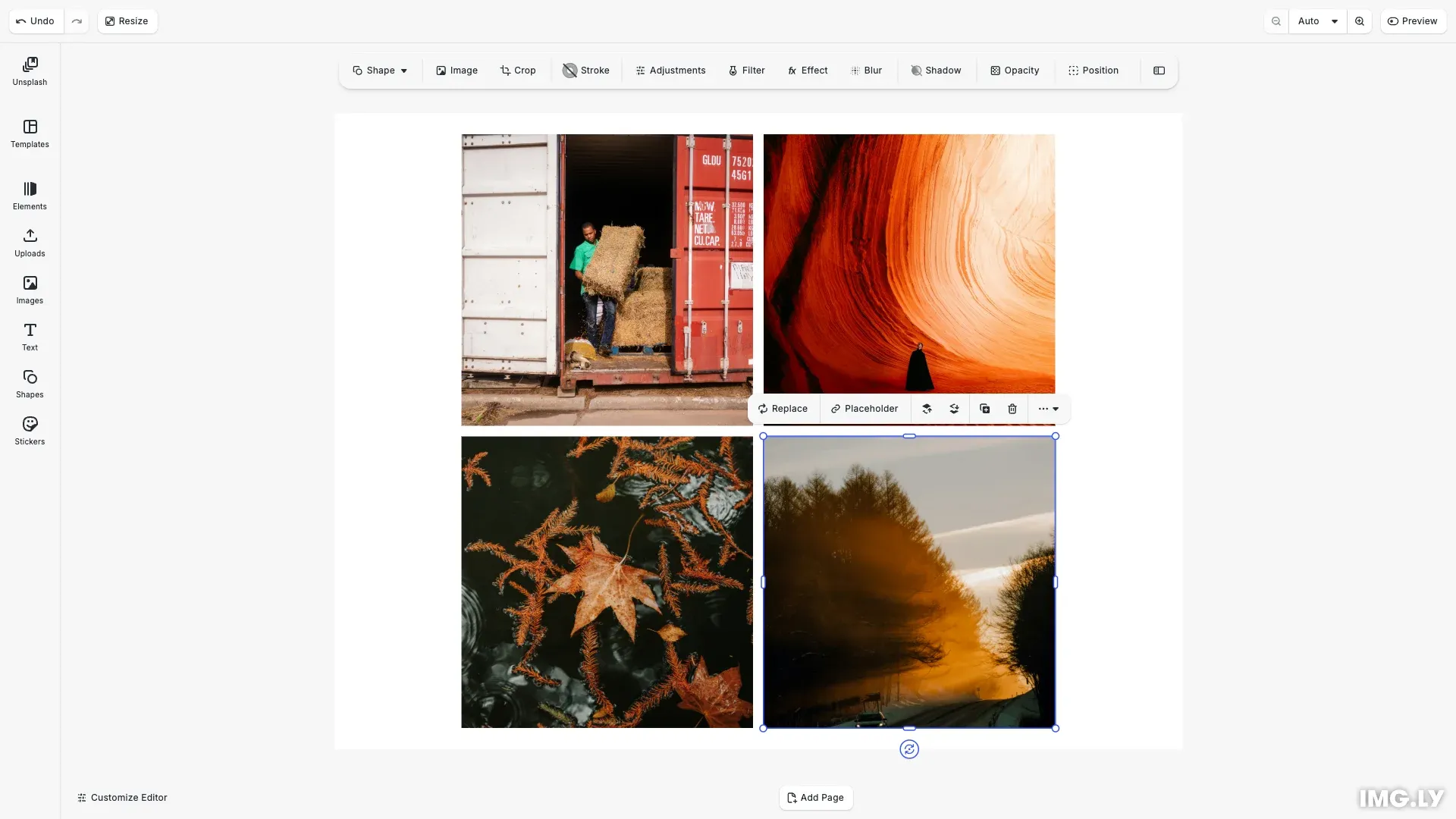
We add Getty Images photos to the scene using engine.asset.apply() to verify the integration works correctly:
// Query for assets and display them in the scene (only if proxy is configured)if (gettyProxyUrl) {  const result = await engine.asset.findAssets(gettyImagesAssetSource.id, {    query: 'business',    page: 0,    perPage: 4  });
  // Add images from Getty Images to the scene in a grid layout  for (let i = 0; i < Math.min(result.assets.length, 4); i++) {    const asset = result.assets[i];    const position = layout.getPosition(i);
    const block = await engine.asset.apply(      gettyImagesAssetSource.id,      asset    );    engine.block.setPositionX(block, position.x);    engine.block.setPositionY(block, position.y);    engine.block.setWidth(block, layout.blockWidth);    engine.block.setHeight(block, layout.blockHeight);  }}
The test:
- Queries Getty Images for business-related photos
- Adds the first 4 results to the scene in a grid layout
- Verifies that the proxy communication, authentication, and asset application work correctly
You can modify the query to test different search terms and verify results.
Troubleshooting#
Common Issues:
- Proxy server authentication errors - Verify API key and secret are correctly configured in your proxy server environment
- CORS errors when calling proxy - Ensure proxy sets proper CORS headers to allow browser requests
- Missing API credentials in browser - Confirm proxy URL is correctly set in
.envfile and loaded viaimport.meta.env.VITE_GETTY_IMAGES_PROXY_URL - API rate limiting - Monitor Getty Images API quotas and implement appropriate caching in the proxy server
- Image loading failures - Verify proxy correctly returns image URLs from Getty Images with proper
display_sizesdata - Pagination issues - Ensure page number conversion between 0-based (CE.SDK) and 1-based (Getty Images) indexing is correct
- Empty results - Check that the proxy server is running and accessible from the browser
API Reference#
| Method | Category | Purpose |
|---|---|---|
engine.asset.addSource() | Asset | Register Getty Images as a custom asset source |
engine.asset.apply() | Asset | Add Getty Images photo to the scene as a design block |
engine.ui.addAssetLibraryEntry() | UI | Configure Getty Images panel in the asset library |
cesdk.ui.setComponentOrder({ in: 'ly.img.dock' }, order) | UI | Position Getty Images entry in the dock |
engine.ui.setReplaceAssetLibraryEntries() | UI | Configure Getty Images for replace image workflows |
engine.ui.updateAssetLibraryEntry() | UI | Add Getty Images to existing asset library entries like Images |
Next Steps#
- Customize Asset Library — Configure asset panels and UI
- Asset Library Basics — Understand asset sources
- Integrate Unsplash Images — Add another stock image source
- Integrate Pexels Images — Free stock photo alternative
- Import Media Concepts — Learn core import concepts